What is Python? (Simple Meaning)
Python is a programming language.
A programming language is a way to talk to a computer and tell it what to do.
Just like:
- We speak English to talk to people
- Computers understand Python to do work
Analogy: Talking to a Helper
Imagine you have a very smart helper
But this helper:
- Does exactly what you say
- Never guesses
- Needs clear instructions
Python is the language you use to give instructions to that helper.
Example:
- “Add these numbers”
- “Save this name”
- “Show this message”
- “Repeat this task 10 times”
Why Python is Easy for Beginners
Python was designed to be simple and readable.
Real-Life Analogy: Plain English Instructions
Compare these two instructions:
❌ Complicated:
Initialize numerical summation operation
✅ Simple:
Add the numbers
Python follows the second style.
That’s why Python looks almost like normal English.
🧱 What Can Python Do? (Applications of Python)
Python is like a multi-tool 🧰
The same tool can be used for many jobs.
1) Python for Daily Tasks (Automation)
example:
You calculate monthly expenses every month.
Python can:
- Add all expenses
- Save them
- Show total automatically
Analogy:
Python is like a calculator that remembers and works for you.
2) Python for Websites
Websites like:
- Login systems
- Forms
- Online tools
Analogy:
Python works like the brain behind a website
Buttons are the body, Python is the brain
3) Python for Data & Numbers
Used in:
- Reports
- Charts
- Analysis
Analogy:
Python is like a smart accountant
It checks numbers, finds patterns, and gives answers.
4) Python for Artificial Intelligence (AI)
Used in:
- Chatbots
- Face recognition
- Voice assistants
Analogy:
Python is like training a child:
- You show examples
- It learns
- Then it makes decisions
5) Python for Games
Used to create:
- Simple games
- Logic games
- Learning games
Analogy:
Python is like writing rules for a game
“If player touches enemy → game over”
How Python Works (Conceptual Flow)
Think like this:
You → Write Python Code
Python → Understands Instructions
Computer → Does the Work
Output → You See Result
Analogy: Restaurant 🍽️
You → Order food
Waiter → Takes order
Kitchen → Cooks
Food → Served to you
Python is the waiter between you and the computer.
VARIABLES & DATA TYPES
— Explained with Real-Life Analogies, Visual Stories, and Simple Logic🧃 1. What is a Variable? (Conceptual)
A variable is simply a container where you store something.
Think of variables as:
- Glass
- Box
- Bag
- Locker
- Shelf
Anything that holds stuff.
Example:
x = 10Meaning:
“Keep the value 10 inside the container x.”
Just like writing a label “x” on a box and putting 10 marbles inside.
🟧 2. Why Do We Need Variables?
Because programs need to remember things.
Example real-life:
When you order pizza online:
- Your name is stored
- Your mobile number is stored
- Your address is stored
- The total price is stored
Computers need variables to remember these details.
🟦 3. How Variables Work in Python (Very Simple Mental Model)
🔥 Think of Python’s memory as a big storeroom.
Inside the storeroom:
- Many shelves
- Each shelf holds one item
- Each shelf has a label
Example:
age = 25Python does:
| Shelf Label | Value Stored |
|---|---|
| age | 25 |
So variable = label on a shelf
Value = item on that shelf
🟩 4. Rules of Variables (Explained with Real-Life Examples)
1️⃣ You cannot use spaces in variable names
Bad:
user name = "Suhasini"Like writing two words on the same label wrongly.
Good:
user_name = "Suhasini"2️⃣ Variable name cannot start with a number
Bad:
1name = "Ravi"You cannot start a label with a number in real life too.
Good:
name1 = "Ravi"3️⃣ Case-sensitive
Name and name are two different labels.
VARIABLES — THE MOST POWERFUL CONCEPT IN PROGRAMMING
Imagine This:
You are in a giant warehouse.
This warehouse is your computer memory (RAM).

Inside the warehouse:
- There are racks
- On each rack, there are shelves
- On each shelf, you can place an item
- Each shelf has a label (name of variable)
Now…
When you write in Python:
x = 10Imagine This:Python is doing this:
- Find an empty shelf in the memory warehouse
- Put the value 10 on that shelf
- Stick a label “x” on that shelf
So now, shelf labeled x contains 10.
This is exactly how variables work.
WHY VARIABLES EXIST — REAL LIFE REASON
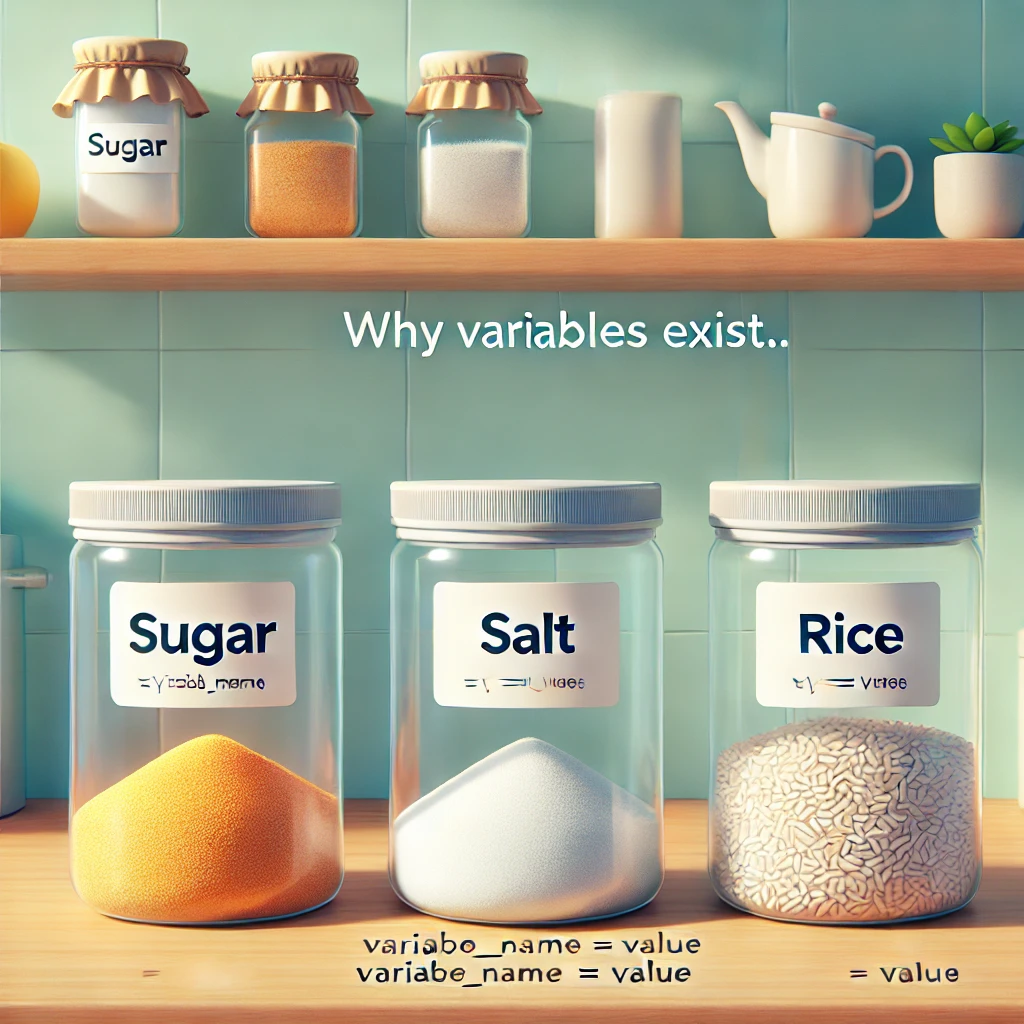
Imagine you’re cooking.
You have:
- A bowl for sugar
- A bowl for salt
- A bowl for rice
You keep ingredients in containers because:
- You want to use them later
- You want to access them by name
- You want to change them when needed
In programming, variables do the same job:
- They store values
- They let you reuse those values anywhere
- They let you update the values anytime
VARIABLE = A NAME given to a VALUE stored in memory
A variable is NOT the value itself.
A variable is only a “name tag” pointing to the value.
Example:
a = 30
b = a
You may think:
“b gets a copy of 30”
But actually, Python does this:
Both a and b point to the same shelf that contains 30.
So it’s like:
- Two labels on the same box
- Two names pointing to the same object
This is why Python is called “object-reference” language.
CHANGING A VARIABLE IS LIKE REFILLING A GLASS
Example:
x = 10
x = 50
What happens?
- First, x pointed to 10
- Then x is re-pointed to 50
- The 10 becomes unused (Python垃圾 collector removes it later)
This is like emptying a glass and refilling it with new juice.
DATA TYPE — WHAT KIND OF THING ARE YOU STORING?
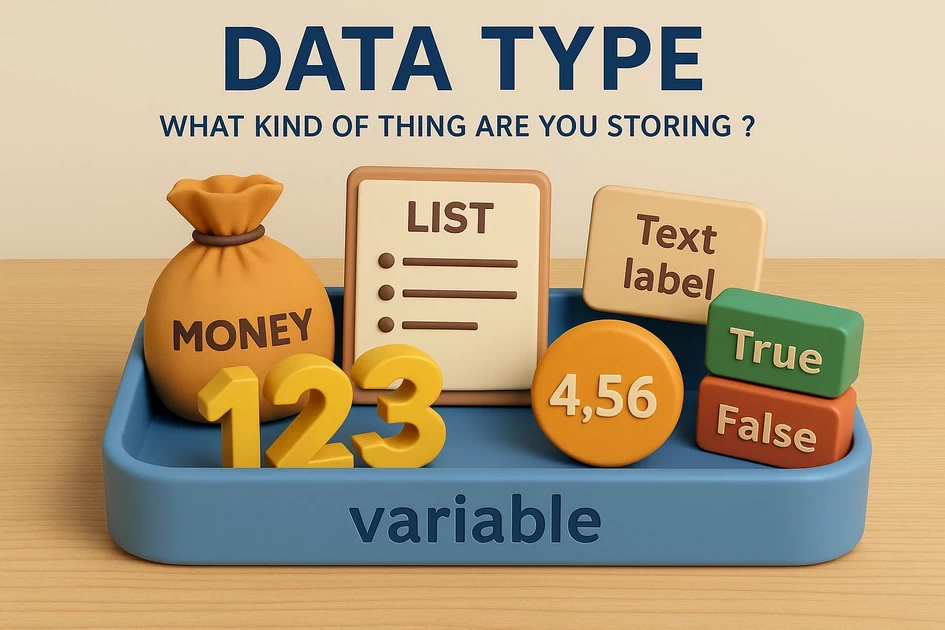
Now imagine different items in real life:
- Numbers
- Money
- Text labels
- Decimals
- Yes/No answers
- Lists of items
The container (variable) remains same.
But the content inside changes depending on data type.
1. INT (Integer)
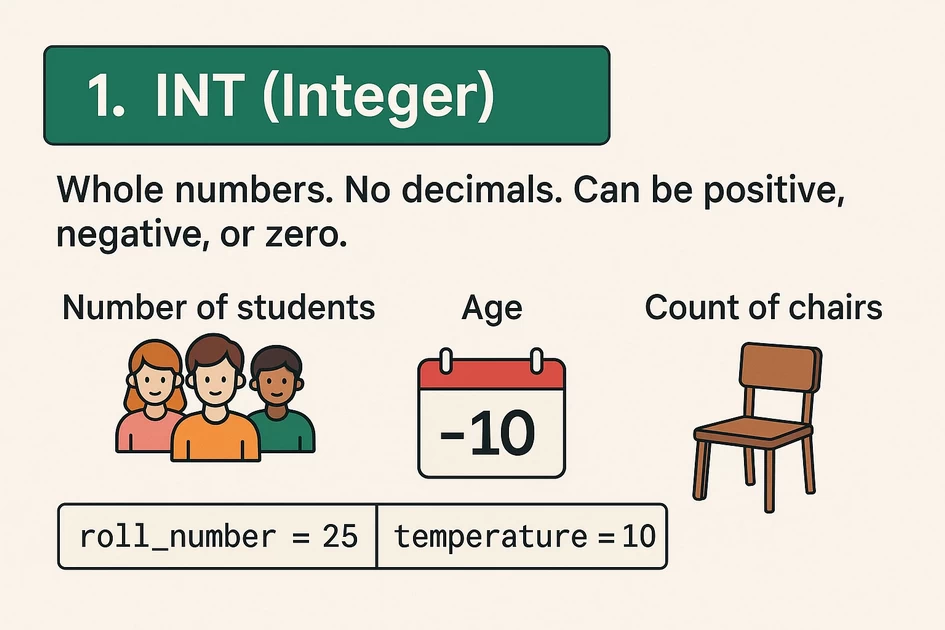
Whole numbers.
No decimals.
Can be positive, negative, or zero.
Real-life example:
- Number of students
- Age
- Count of chairs
Python example:
roll_number = 25
temperature = -10
🟧 2. FLOAT (Decimal numbers)
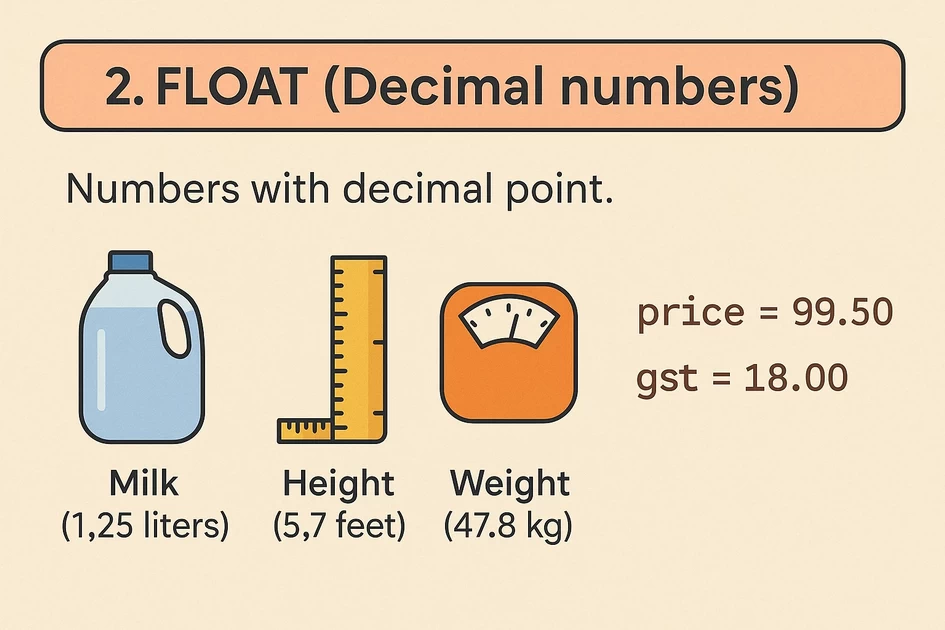
Numbers with decimal point.
Real-life example:
- Milk (1.25 liters)
- Height (5.7 feet)
- Weight (47.8 kg)
Python example:
price = 99.50
gst = 18.00
🟦 3. STRING (str)
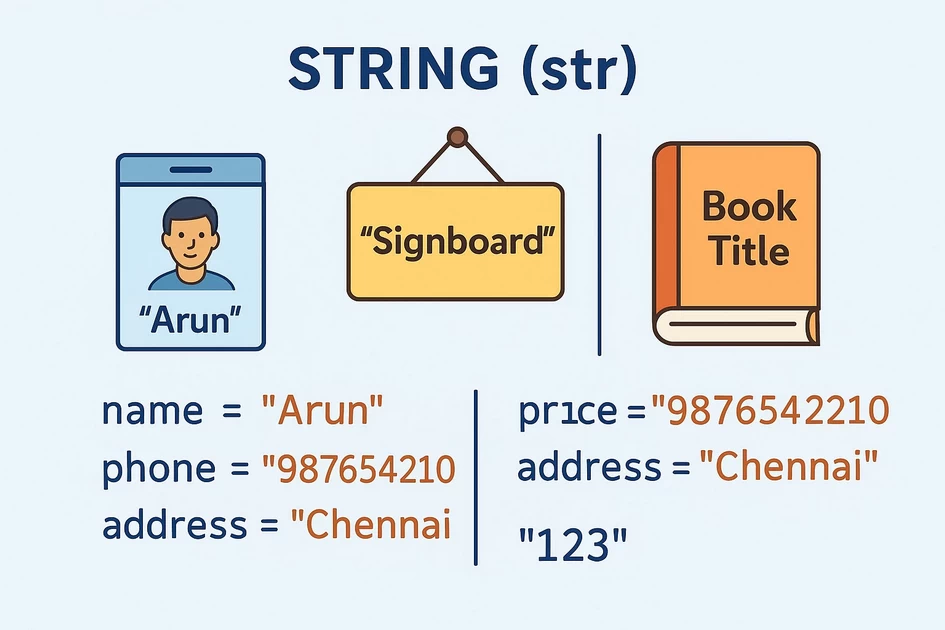
Any text inside quotes " ".
String is basically a tag, a word, a sentence.
Real-life example:
- Name on an ID
- Signboard
- Book title
Python example:
name = "Arun"
phone = "9876543210"
address = "Chennai"
Anything inside quotes becomes text, even numbers:
"123" # This is NOT a number, this is text🟪 4. BOOLEAN (True/False)
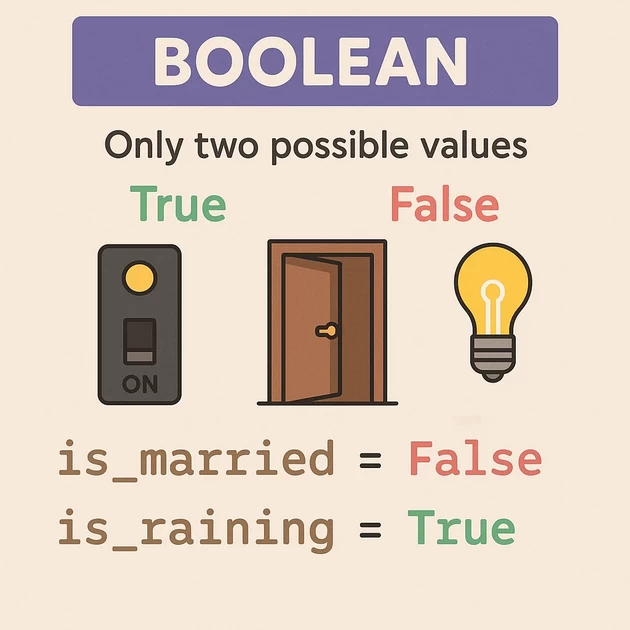
Bool is the simplest:
Only two possible values
- True
- False
Real-life example:
- Switch ON/OFF
- Door open/closed
- Is the light on? Yes/No
Python example:
is_married = False
is_raining = True
🟩 5. LIST (Multiple items in one container)
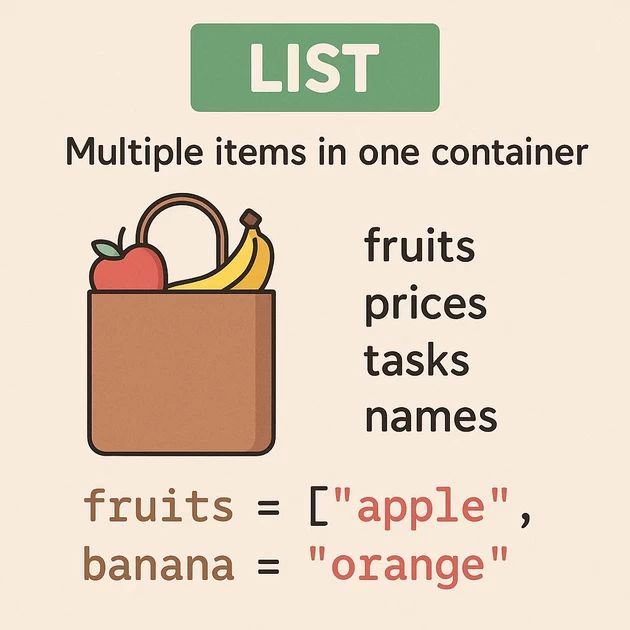
A list is like a shopping bag.
You can put many things:
- fruits
- prices
- tasks
- names
Python:
fruits = ["apple", "banana", "orange"]Lists allow:
- Add items
- Remove items
- Change items
A list is flexible.
🟧 6. TUPLE (Locked bag)
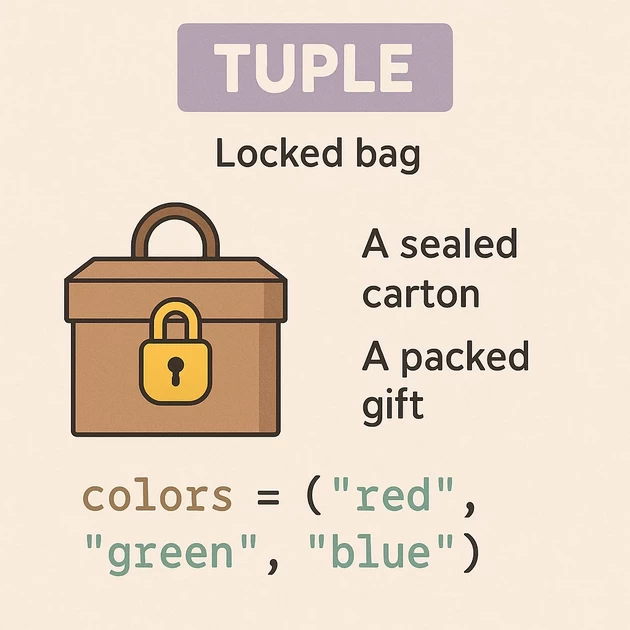
Tuple = list but cannot be changed.
Real-life example:
- A sealed carton
- A packed gift
- A closed envelope
Python:
colors = ("red", "green", "blue")You can read items but cannot modify them.
🟦 7. DICTIONARY (Key → Value pair)
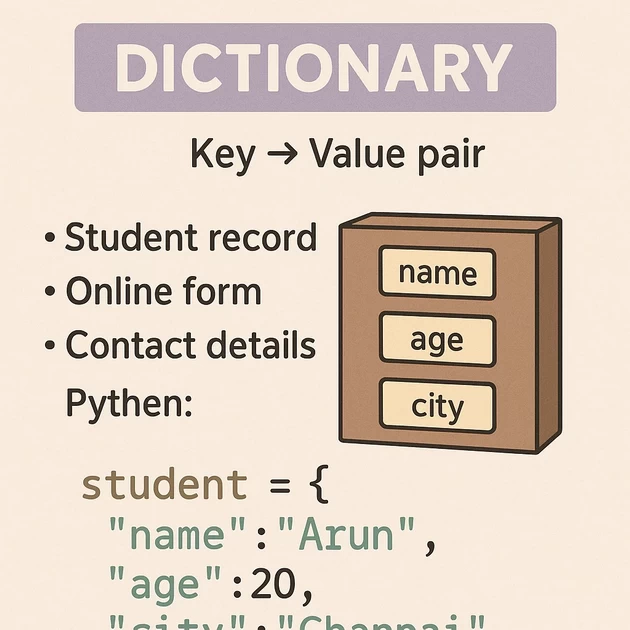
Dictionary = a box with labels for each item.
Real-life:
- Student record
- Online form
- Contact details
Python:
student = {
    "name": "Arun",
    "age": 20,
    "city": "Chennai"
}
You access items using keys (labels).
ADVANCED CONCEPT (Very Important)
Python automatically decides the data type.
In many languages you must write:
int a = 10But in Python:
a = 10Python sees the value 10 and automatically says:
“Okay this is an integer.”
This feature is called Dynamic Typing.
🔄 TYPE CONVERSION (Very Important Understanding)
Sometimes you need to change the type.
Example:
User entered age:
"25" (string)But you need it as a number.
So convert:
age = int("25")Other conversions:
float(10)     # → 10.0
str(50)       # → "50"
bool(0)       # → False
🎁 FULL REAL-LIFE STORY TO UNDERSTAND EVERYTHING
Imagine you run a small shop.
You have:
- Cash box → int
- Digital scale → float
- Customer name book → str
- Shop status board (open/close) → bool
- Fruit basket → list
- Price card → dictionary
Example Python representation:
cash = 1500               # int
weight = 2.5              # float
customer = "Suhasini"     # str
is_open = True            # bool
fruits = ["apple", "mango", "grape"]     # list
price_card = {"apple": 50, "mango": 80}  # dict
All your shop items = data types
The shelves storing them = variables
The whole shop = computer memory
This is Python.
INPUT / OUTPUT OPERATIONS — CONCEPT WITH REAL LIFE ANALOGY
Think of a computer program like a restaurant kitchen.
A kitchen can only work properly if:
- Customers give orders → (Input)
- Kitchen gives food back → (Output)
Exactly same in programming.
🟢 1. INPUT = Information you give TO the computer
Real Life Analogy → Customer giving order to waiter
Imagine you are at a restaurant:
- The waiter asks: “What do you want?”
- You reply: “1 dosa”
This is input.
A kitchen cannot guess your order; it needs your input.
In programming:
name = input("Enter your name: ")This means:
- Program is the waiter.
- It asks the question.
- You type the answer.
- The program takes your answer and stores it in memory.
📌 Input = Data flowing INTO computer.
🔵 2. OUTPUT = Information the computer gives back
Real Life Analogy → Kitchen serving food
After the chef cooks the food:
- The waiter brings the food to you.
This is output.
In programming:
print("Welcome!")This means:
- Program shows something to the user on screen.
- Just like the restaurant giving your food.
📌 Output = Data coming OUT from computer to you.
🟣 3. Full Analogy: Input → Process → Output
Restaurant Flow
- Customer gives order → Input
- Chef cooks the food → Process
- Waiter serves food → Output
Program Flow
- User gives data → Input
- Program calculates/processes → Process
- Program shows result → Output
🍛 Real Life Example: Ordering Biryani
Restaurant Version:
- You say: “1 Chicken Biryani” → Input
- Chef prepares it → Process
- Food served → Output
Program Version:
qty = int(input("Enter biryani quantity: "))
total = qty * 150
print("Your total bill is:", total)- You give quantity → Input
- Program multiplies → Process
- Program shows amount → Output
Imagine you have a robot assistant.
This robot has:
👂 Ear — to listen
🧠 Brain — to process
📦 Memory boxes — to store values
But here’s the twist:
🔸 The robot hears EVERYTHING as text
Even if you type:
5the robot hears:
"5"Just like when someone says “five” instead of handing you the number 5.
So now let’s break it down:
input() → Robot’s Ear
When you write:
input()You are saying:
“Robot, listen. Wait until I type something.”
Whatever you type:
- “26”
- “Chennai”
- “75.50”
The robot hears ALL of them as words (strings).
So input() ALWAYS returns STRING.
Even if you type a number, the robot hears:
"26"  (not 26)
"75"  (not 75)
2️⃣ int() → The Translator
Now imagine you tell the robot:
“This text that you heard… convert it into a whole number.”
That’s exactly what int() does.
Example:
"25" → int("25") → 25This is like telling the robot:
🥴 Robot: “I heard ‘twenty five’… maybe it’s a word?”
🤓 You: “No, convert it into a number!”
🤖 Robot: “Oh! Now I understand. It’s 25.”
So int() is a translator that converts TEXT → NUMBER.
3️⃣ = (Assignment) → Storing in Robot’s Memory Box
Now we do:
a = int(input())This means:
- Robot listens
- Converts what it heard
- Stores the final numeric value in box a
Robot process step-by-step:
👂 Step 1 — input()
Robot hears: "5"
🤓 Step 2 — int()
Robot converts: "5" → 5
📦 Step 3 — =
Robot stores 5 inside box named a
🟪 FULL STORY IN ONE LINE
input() → hears as text
int() → converts that text into a number
= → stores the number in a variable
🧠 Why Input/Output is Important?
Without input:
- A program cannot understand what user wants.
Without output:
- A program cannot show result.
Both are required for communication —
You ↔ Computer
🟡 VERY SIMPLE FORMULA TO REMEMBER
Input = You talk to the computer
Output = Computer talks back to you
OPERATORS — THINK OF A KITCHEN FULL OF TOOLS
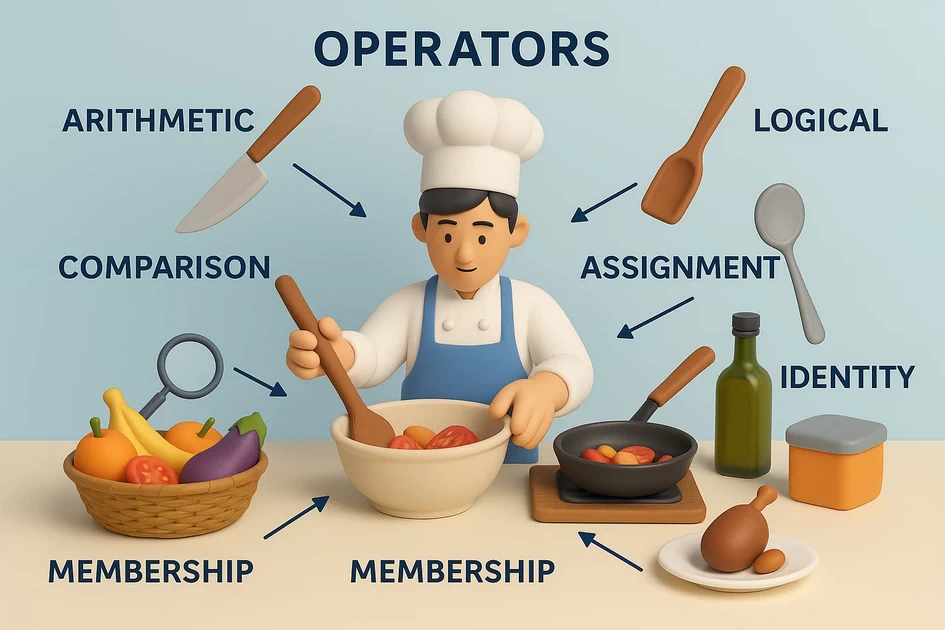
Imagine you are in a kitchen.
You have:
- Knives
- Spoons
- Graters
- Mixers
- Gas stove
- Measuring cups
Each tool performs a specific action on food.
In Python:
Operators are tools that perform actions on data (values or variables).
Just like kitchen tools perform actions on ingredients.
🟩 1. ARITHMETIC OPERATORS → “CUTTING, MIXING, ADDING INGREDIENTS”
Kitchen analogy:
- Knife cuts vegetables
- Spoon mixes sugar
- Measuring cup adds flour
These tools change the ingredients in some way.
Python:
Arithmetic operators modify numbers the same way:
| Operator | Meaning | Kitchen Action |
|---|---|---|
+ | Addition | Add ingredients together |
- | Subtraction | Remove part of an ingredient |
* | Multiplication | Multiply mixture (double quantity) |
/ | Division | Split into equal parts |
// | Floor division | Divide and keep only whole parts |
% | Modulus | Keep remainder (leftover ingredients) |
** | Power | “Growing” ingredient (like yeast rising) |
Example:
a = 10 + 5This is like adding 10 spoons of rice + 5 spoons of rice to make a bigger bowl.
Python arithmetic operators:
+   (addition)
-   (subtraction)
*   (multiplication)
/   (division)
%   (modulus → remainder)
//  (floor division → whole number division)
**  (power → like doubling/tripling)
🍅 Example:
a = 10
b = 3
print(a + b)   # 13
print(a % b)   # 1 (remainder)
Addition Operator — “Two Buckets of Water”
📸 Picture-Style Analogy
   Bucket A: 10L
 + Bucket B:  5L
 -----------------
   Total:    15L
💡 Concept
Addition is like pouring water from two buckets into one container.
🧪 Program
a = 10
b = 5
print(a + b)
🌟 11. Subtraction Operator — “Shopping Budget Balance”
📸 Picture-Style Analogy
  Wallet: ₹1000
  Grocery Spent: ₹350
  --------------------
  Left: ₹650
💡 Concept
Subtraction is like removing expenses from your wallet.
🧪 Program
wallet = 1000
spent = 350
print(wallet - spent)
🌟 12. Multiplication Operator — “Boxes with Eggs”
📸 Picture-Style Analogy
  1 box = 6 eggs
  You buy 4 boxes
6 × 4 = 24 eggs
💡 Concept
Multiplication is like repeated groups.
🧪 Program
eggs_per_box = 6
boxes = 4
print(eggs_per_box * boxes)
🌟 13. Division Operator — “Sharing Sweets Equally”
📸 Picture-Style Analogy
  You have 20 sweets
  5 kids
20 / 5 → 4 each
💡 Concept
Division is like equally sharing items.
🧪 Program
print(20 / 5)
# Addition (+)
a = 10
b = 3
result = a + b
print("Addition:", a, "+", b, "=", result)
# Output: Addition: 10 + 3 = 13

# Subtraction (-)
result = a - b
print("Subtraction:", a, "-", b, "=", result)
# Output: Subtraction: 10 - 3 = 7

# Multiplication (*)
result = a * b
print("Multiplication:", a, "*", b, "=", result)
# Output: Multiplication: 10 * 3 = 30

# Division (/) - always returns float
result = a / b
print("Division:", a, "/", b, "=", result)
# Output: Division: 10 / 3 = 3.3333333333333335

# Floor Division (//) - returns integer (rounds down)
result = a // b
print("Floor Division:", a, "//", b, "=", result)
# Output: Floor Division: 10 // 3 = 3

# Modulus (%) - returns remainder
result = a % b
print("Modulus:", a, "%", b, "=", result)
# Output: Modulus: 10 % 3 = 1

# Exponentiation (**) - power of
result = a ** b
print("Exponentiation:", a, "**", b, "=", result)
# Output: Exponentiation: 10 ** 3 = 1000
🟧 2. COMPARISON OPERATORS → “TASTING & CHECKING INGREDIENTS”
Kitchen analogy:
A chef constantly checks:
- Is the soup salty enough?
- Is the dough soft?
- Is the temperature high?
- Is one bowl bigger than the other?
These checks compare two things.
Python comparison operators:
| Operator | Meaning | Kitchen Action |
|---|---|---|
== | Equal to | Does this taste the same? |
!= | Not equal | Is the taste different? |
> | Greater than | Is this bowl larger? |
< | Smaller | Is this quantity less? |
>= | Greater or equal | Enough salt or more? |
<= | Less or equal | Not more than required? |
Example:
10 > 5Chef checking: “Is bowl A bigger than bowl B?”
Imagine a chef asking:
- “Is this sweeter than that?”
- “Are these two dishes the same?”
- “Is this recipe more spicy?”
Python comparison operators:
==   equal
!=   not equal
>    greater than
<    less than
>=   greater or equal
<=   less or equal
🍋 Example:
age = 18
print(age >= 18)   # True
x = 10
y = 20
z = 10

# Equal to (==)
result = (x == y)
print(x, "==", y, ":", result)
# Output: 10 == 20 : False

result = (x == z)
print(x, "==", z, ":", result)
# Output: 10 == 10 : True

# Not equal to (!=)
result = (x != y)
print(x, "!=", y, ":", result)
# Output: 10 != 20 : True

result = (x != z)
print(x, "!=", z, ":", result)
# Output: 10 != 10 : False

# Greater than (>)
result = (x > y)
print(x, ">", y, ":", result)
# Output: 10 > 20 : False

result = (y > x)
print(y, ">", x, ":", result)
# Output: 20 > 10 : True

# Less than (<)
result = (x < y)
print(x, "<", y, ":", result)
# Output: 10 < 20 : True

# Greater than or equal to (>=)
result = (x >= z)
print(x, ">=", z, ":", result)
# Output: 10 >= 10 : True

result = (y >= x)
print(y, ">=", x, ":", result)
# Output: 20 >= 10 : True

# Less than or equal to (<=)
result = (x <= y)
print(x, "<=", y, ":", result)
# Output: 10 <= 20 : True

result = (y <= x)
print(y, "<=", x, ":", result)
# Output: 20 <= 10 : False
🟥 3. LOGICAL OPERATORS → “KITCHEN DECISION MAKING”
Kitchen analogy:
A chef decides:
- If the dough is soft AND fermented, bake it
- If the milk is fresh OR boiled, use it
- If the pan is NOT hot, don’t pour batter
Python:
| Operator | Meaning | Kitchen Logic Example |
|---|---|---|
and | Both conditions must be true | Dough soft and fermented |
or | At least one condition true | Use milk if fresh or boiled |
not | Reverse condition | Not hot → wait |
Example:
if dough_soft and dough_fermented:
    bake()
Think of chef decisions:
- “IF the vegetable is fresh AND clean → cook it”
- “IF the stove is off OR gas is low → don’t start cooking”
- “NOT spicy → add chili”
Python logical operators:
and
or
not
Example:
is_clean = True
is_fresh = Trueprint(is_clean and is_fresh) # True
Like:
If both good → cook
If one good → maybe
If none → throw away
a = True
b = False
c = True

# AND operator
result = (a and b)
print(a, "and", b, "=", result)
# Output: True and False = False

result = (a and c)
print(a, "and", c, "=", result)
# Output: True and True = True

# OR operator
result = (a or b)
print(a, "or", b, "=", result)
# Output: True or False = True

result = (b or b)
print(b, "or", b, "=", result)
# Output: False or False = False

# NOT operator
result = (not a)
print("not", a, "=", result)
# Output: not True = False

result = (not b)
print("not", b, "=", result)
# Output: not False = True

# Practical example
age = 25
income = 50000
has_license = True

can_rent = (age >= 21) and has_license
print("Can rent car:", can_rent)
# Output: Can rent car: True

qualifies_loan = (age >= 18) or (income >= 30000)
print("Qualifies for loan:", qualifies_loan)
# Output: Qualifies for loan: True
🟪 4. ASSIGNMENT OPERATORS → “REFILLING & UPDATING INGREDIENTS”
Kitchen analogy:
You might:
- Add 1 spoon of sugar to a cup (update)
- Reduce the salt by half
- Double the amount of batter
These actions update an existing quantity.
Python assignment operators:
| Operator | Meaning | Kitchen Action |
|---|---|---|
= | Assign new value | Put ingredient in a new bowl |
+= | Add to existing | Add one more spoon |
-= | Subtract from existing | Remove a spoon |
*= | Multiply | Double the batter |
/= | Divide | Split mixture |
Example:
sugar += 1 # add one spoon
Assignment means storing a value in a variable.
= is the basic one.
Think of:
- Putting rice into a box
- Filling a bottle with milk
- Storing leftover curry in a container
Python also has shortcut assignment operators:
a += 2   # a = a + 2
a -= 5   # a = a - 5
a *= 3   # a = a * 3
a /= 4   # a = a / 4
🍲 Example:
x = 5
x += 3   # now x = 8
# Simple assignment (=)
x = 10
print("x =", x)
# Output: x = 10

# Add and assign (+=)
x = 10
x += 5
print("x += 5:", x)
# Output: x += 5: 15

# Subtract and assign (-=)
x = 10
x -= 3
print("x -= 3:", x)
# Output: x -= 3: 7

# Multiply and assign (*=)
x = 10
x *= 2
print("x *= 2:", x)
# Output: x *= 2: 20

# Divide and assign (/=)
x = 10
x /= 4
print("x /= 4:", x)
# Output: x /= 4: 2.5

# Floor divide and assign (//=)
x = 10
x //= 4
print("x //= 4:", x)
# Output: x //= 4: 2

# Modulus and assign (%=)
x = 10
x %= 3
print("x %= 3:", x)
# Output: x %= 3: 1

# Exponent and assign (**=)
x = 2
x **= 3
print("x **= 3:", x)
# Output: x **= 3: 8

# Multiple assignments
a = b = c = 50
print("a =", a, ", b =", b, ", c =", c)
# Output: a = 50 , b = 50 , c = 50

# Multiple assignment with different values
x, y, z = 10, 20, 30
print("x =", x, ", y =", y, ", z =", z)
# Output: x = 10 , y = 20 , z = 30
🟨 5. MEMBERSHIP OPERATORS → “CHECKING IF AN INGREDIENT IS IN THE KITCHEN”
Kitchen analogy:
Chef asks:
- Is there salt in the cupboard?
- Do we have cinnamon in the spice box?
Python:
| Operator | Meaning | Kitchen Analogy |
|---|---|---|
in | Value exists | Is salt in the kitchen? |
not in | Value missing | Cinnamon not in the spice box? |
Example:
"sugar" in cupboard
- Searching for a spoon in a drawer
- Checking if salt is in the rack
- Looking for tomatoes in the basket
Python:
in
not in
🍉 Example:
fruits = ["apple", "orange", "mango"]
print("apple" in fruits) # True# in operator fruits = ["apple", "banana", "orange", "grape"] print("Fruits list:", fruits) result = "banana" in fruits print("'banana' in fruits:", result) # Output: 'banana' in fruits: True result = "mango" in fruits print("'mango' in fruits:", result) # Output: 'mango' in fruits: False # With strings message = "Hello, World!" result = "World" in message print("'World' in message:", result) # Output: 'World' in message: True result = "Python" in message print("'Python' in message:", result) # Output: 'Python' in message: False # With dictionaries (checks keys) person = {"name": "John", "age": 30, "city": "New York"} result = "name" in person print("'name' in person:", result) # Output: 'name' in person: True result = "John" in person print("'John' in person:", result) # Output: 'John' in person: False # not in operator result = "mango" not in fruits print("'mango' not in fruits:", result) # Output: 'mango' not in fruits: True result = "apple" not in fruits print("'apple' not in fruits:", result) # Output: 'apple' not in fruits: False # With numbers numbers = range(1, 11) result = 5 in numbers print("5 in range(1,11):", result) # Output: 5 in range(1,11): True result = 15 in numbers print("15 in range(1,11):", result) # Output: 15 in range(1,11): False
🟫 6. IDENTITY OPERATORS → “CHECKING IF TWO CONTAINERS ARE THE SAME”
Kitchen analogy:
Two jars may have:
- Same label
- Same ingredient
- But they might be physically different jars
Identity = checking if both labels point to the same exact container.
Python:
| Operator | Meaning | Kitchen Analogy |
|---|---|---|
is | Same container | Same jar of sugar? |
is not | Different containers | Two different jars |
Example:
a is b
Are they the same object (same plate)?
Not just same content.
Python:
is
is not
🥘 Example:
a = [1, 2, 3]
b = a
print(a is b)      # True
Two different bowls with same rice → same content
Same bowl with rice → identity
Putting It All Together (Kitchen Story)
You enter your kitchen:
🧂 Arithmetic:
Mixing ingredients
(+, -, *, /)
🍽 Comparison:
Taste check
(==, >, <)
🧠 Logical:
Decision-making
(and, or, not)
📦 Assignment:
Storing food
(=, +=, etc.)
🔍 Membership:
Checking ingredients
(in, not in)
🍲 Identity:
Checking if two dishes are the same
(is, is not)
All these tools help you prepare the final dish = your program result.
🟦 MASTER SUMMARY
| Operator Type | Kitchen Tool Logic | Programming Action |
|---|---|---|
| Arithmetic | Modify ingredients | Modify numbers |
| Comparison | Taste/Check food | Compare values |
| Logical | Cooking decisions | True/False logic |
| Assignment | Refill/Update quantities | Update variables |
| Membership | Check if ingredient exists | Check in lists |
| Identity | Same jar or different? | Same object or different? |
# is operator
x = [1, 2, 3]
y = [1, 2, 3]
z = x

result = (x is z)
print("x is z:", result)
# Output: x is z: True

result = (x is y)
print("x is y:", result)
# Output: x is y: False

# is not operator
result = (x is not y)
print("x is not y:", result)
# Output: x is not y: True

result = (x is not z)
print("x is not z:", result)
# Output: x is not z: False

# With numbers
a = 100
b = 100
print("a is b with 100:", a is b)
# Output: a is b with 100: True

c = 1000
d = 1000
print("c is d with 1000:", c is d)
# Output: c is d with 1000: False

# With strings
str1 = "hello"
str2 = "hello"
print("str1 is str2:", str1 is str2)
# Output: str1 is str2: True
Type Conversion – Concept with Real-Life Analogy
Type conversion means:
Changing one form of data into another form
Like changing:
- Text → Number
- Number → Text
- Decimal → Whole number
Python uses:
int()→ convert to integerstr()→ convert to stringfloat()→ convert to decimal number
1) String → Integer
number_str = "100"
number_int = int(number_str)print(number_int + 50)
Output:
150Concept:
Initially:
"100"= text
Python cannot calculate with text.
After:
int(number_str)becomes:
100= number
Now calculation works:
100 + 50 = 150
Real-Life Analogy:
Imagine cheque amount written:
“100”
Bank converts written amount into real money value:
₹100
Now transaction can happen.
➡ Text becomes usable number
2) Integer → String
age = 25
age_str = str(age)print(“Age is “ + age_str)
Output:
Age is 25Concept:
25 is number.
Python converts it into text:
"25"
Now it can join with sentence.
Real-Life Analogy:
Number plate:
25
When printed in a certificate:
Age is 25
Number becomes part of text.
➡ Number becomes readable text
3) String → Float
price_str = "99.99"
price_float = float(price_str)print(price_float * 2)
Output:
199.98Concept:
Initially:
"99.99"= text
After:
float(price_str)becomes:
99.99= decimal number
Now math works:
99.99 × 2 = 199.98
Real-Life Analogy:
Price tag says:
“99.99”
Billing machine converts it into amount and calculates total.
➡ Text price becomes actual value
4) Float → Integer
value = 10.75
value_int = int(value)print(value_int)
Output:
10Concept:
Python removes decimal part.
10.75 becomes:
10
It does not round, it simply cuts decimal.
Real-Life Analogy:
Movie ticket:
Show starts in:
10.75 minutes
You count only full minutes:
10 minutes
Decimal part ignored.
➡ Keeps whole number only
Strings in Python – Text Handling (Concept with Real-Life Analogy)
A String means text / characters in Python.
Examples:
"Rajesh""Hello""Python"
Think of string as a word made of letters.
Python treats every letter separately.
1. Creating Strings
# Using single quotes
name = 'John Doe'
print("Single quotes:", name)

# Using double quotes
message = "Hello Python"
print("Double quotes:", message)

# Using triple quotes for multi-line strings
paragraph = """This is a
multi-line string
in Python"""
print("Triple quotes:", paragraph)

# Using triple single quotes
text = '''Also a
multi-line string'''
print("Triple single quotes:", text)

# Empty string
empty = ""
print("Empty string:", empty)

# String from constructor
text = str(123)
print("String from number:", text)
2. String Access and Indexing
text = "Python Programming"

# Positive indexing (starts from 0)
print("Original string:", text)
print("First character:", text[0])
print("Second character:", text[1])
print("Fifth character:", text[4])

# Negative indexing (starts from -1 from end)
print("Last character:", text[-1])
print("Second last character:", text[-2])
print("Third last character:", text[-3])

# String length
length = len(text)
print("Length of string:", length)
print("Last character using len:", text[length - 1])
3. String Slicing
text = "Python Programming"

# Syntax: [start:end:step]
print("Original:", text)

# Basic slicing
print("Index 0 to 6:", text[0:6])     # Python
print("Index 7 to end:", text[7:])     # Programming
print("Beginning to index 6:", text[:6]) # Python
print("Entire string:", text[:])        # Python Programming

# Slicing with negative indices
print("Last 6 characters:", text[-6:])   # mming
print("Remove last 6:", text[:-6])       # Python Progra

# Slicing with step
print("Every 2nd character:", text[::2])   # Pto rgaig
print("Every 3rd character:", text[::3])   # Ph rg
print("Reverse string:", text[::-1])       # gnimmargorP nohtyP

# Multiple slices
word = "Hello World"
print("Original:", word)
print("First 5:", word[:5])      # Hello
print("After 5:", word[6:])      # World
print("Middle 3:", word[4:7])    # o W
4. String Concatenation
# Using + operator
first = "Hello"
second = "World"
result = first + " " + second
print("Concatenation with +:", result)

# Using join() method
words = ["Python", "is", "awesome"]
result = " ".join(words)
print("Join with space:", result)

result = "-".join(words)
print("Join with hyphen:", result)

result = "".join(words)
print("Join without separator:", result)

# Using * operator (repetition)
star = "*"
line = star * 20
print("Repetition:", line)

word = "Ha"
laugh = word * 3
print("Repeated word:", laugh)

# Multiple concatenation
name = "Alice"
age = 25
city = "New York"
info = name + " | " + str(age) + " | " + city
print("Combined info:", info)
String Methods – Case Conversion
text = "   python PROGRAMMING  "

# Case conversion
print("Original:", repr(text))
print("Upper case:", text.upper())
print("Lower case:", text.lower())
print("Title case:", text.title())
print("Capitalize:", text.capitalize())
print("Swap case:", text.swapcase())

# Case checking
word = "Python123"
print("Is upper?", word.isupper())
print("Is lower?", word.islower())
print("Is title?", word.istitle())

# Real example
user_input = "  John Doe  "
cleaned = user_input.strip().title()
print("Cleaned input:", cleaned)
String Methods – Searching
text = "Python is awesome. Python is powerful."

# find() - returns first index, -1 if not found
print("find 'Python':", text.find("Python"))
print("find 'Java':", text.find("Java"))
print("find 'is' at position 10:", text.find("is", 10))

# rfind() - search from right
print("rfind 'Python':", text.rfind("Python"))
print("rfind 'is':", text.rfind("is"))

# index() - like find but raises error if not found
print("index 'Python':", text.index("Python"))

# count() - count occurrences
print("count 'Python':", text.count("Python"))
print("count 'is':", text.count("is"))
print("count 'o':", text.count("o"))

# startswith() and endswith()
print("Starts with 'Python'?", text.startswith("Python"))
print("Ends with 'powerful.'?", text.endswith("powerful."))
print("Starts with 'Java'?", text.startswith("Java"))

# Real example
filename = "document.pdf"
if filename.endswith(".pdf"):
    print("This is a PDF file")
else:
    print("Not a PDF file")
Memory Tip:
+ → Join text* → Repeat textlen() → Count letters[ ] → Pick letter by position
Python String = Word + Position + Counting ✅
String Indexing & Slicing – Concept with Real-Life Analogy
Code:
name = "PYTHON"print(name[0]) # P
print(name[3]) # H
print(name[–1]) # N
print(name[–2]) # O
1) String Indexing
Concept:
Each character has a position (index).
 P   Y   T   H   O   N
 0   1   2   3   4   5
-6 -5 -4 -3 -2 -1- Positive index → left to right
- Negative index → right to left
Examples:
print(name[0])Output → P
print(name[3])Output → H
print(name[-1])Output → N (last character)
print(name[-2])Output → O
Real-Life Analogy (Indexing)
Think of students sitting in a row 👨🎓
Positions:
- First student → 0
- Second → 1
- Last student → -1
Teacher can call:
“Student at position 0” → P
“Last student” → N
➡ Index = Position number
2) String Slicing
Slicing means taking a part of string.
Syntax:
name[start:end]- start → where to begin
- end → where to stop (not included)
Examples:
print(name[0:3])Output:
PYTExplanation:
- Starts at 0 → P
- Stops before 3 → H not included
print(name[2:5])Output:
THOprint(name[:4])Output:
PYTH(start from beginning)
print(name[3:])Output:
HON(go till end)
Real-Life Analogy (Slicing)
Imagine a pizza 🍕
Whole pizza = “PYTHON”
If you take slices:
- First 3 pieces → PYT
- Middle pieces → THO
- Last pieces → HON
You are not taking full pizza, only a portion.
➡ Slicing = Taking part of string
Memory Tip:
Index → Single character
Slice → Multiple characters
0 → Start, -1 → End
Python = Text Cutter ✂️ + Position Finder ✅
Lists in Python – Concept with Real-Life Analogy
A List is used to store multiple values in one variable.
Think of list like a shopping basket 🧺 containing many items.
Creating Lists
Code:
subjects = []fruits = [“Apple”, “Banana”, “Mango”]
numbers = [10, 20, 30, 40, 50]
mixed = [“Rajesh”, 25, True, 99.99]
1) Empty List
subjects = []Concept:
This is an empty list.
No items inside.
Real-Life Analogy:
Like an empty basket 🧺
Nothing placed yet.
Later you can add items.
➡ Empty list = Empty container
2) List with Items
fruits = ["Apple", "Banana", "Mango"]Concept:
List stores many items together.
Python keeps them in order.
Real-Life Analogy:
Fruit basket 🧺
- Apple 🍎
- Banana 🍌
- Mango 🥭
All in one basket.
➡ List = Collection of items
3) Number List
numbers = [10, 20, 30, 40, 50]Concept:
List can store numbers.
Real-Life Analogy:
Marks list 📋
10, 20, 30, 40, 50
Stored together.
4) Mixed List
mixed = ["Rajesh", 25, True, 99.99]Concept:
List can store different data types.
- Text
- Number
- True/False
- Decimal
Real-Life Analogy:
Student record file 📂
Name → Rajesh
Age → 25
Pass → True
Fee → 99.99
All details in one place.
➡ Mixed list = Mixed collection
Accessing List Items (Indexing)
Code:
fruits = ["Apple", "Banana", "Mango", "Orange", "Grapes"]Index positions:
 Apple    Banana    Mango    Orange    Grapes
   0        1         2        3         4
-5 -4 -3 -2 -1
Positive Index
Code:
print(fruits[0])Output:
ApplePython picks first item.
print(fruits[2])Output:
MangoPython picks third item.
Negative Index
Code:
print(fruits[-1])Output:
GrapesLast item.
print(fruits[-3])Output:
MangoCount from right side.
Real-Life Analogy
Imagine students sitting in row 👨🎓👩🎓
Left to right:
1st, 2nd, 3rd…
Or from last:
Last, second last…
Python does same:
- Positive → front side
- Negative → back side
➡ Index = Position number
List Slicing
Slicing means taking part of list.
Code:
print(fruits[1:4])Output:
['Banana', 'Mango', 'Orange']Concept:
Python takes items from index 1 to 3.
(end not included)
Real-Life Analogy
Fruit basket:
🍎 🍌 🥭 🍊 🍇
You pick middle fruits:
🍌 🥭 🍊
Not whole basket.
➡ Slicing = Taking portion of list
Memory Tip:
List = Collection 🧺
Index = Position 🔢
Negative Index = Count from end ⬅
Slicing = Take part ✂️
Python List = Smart Basket 🧺✅
List Methods – Add, Remove, Sort (Concept with Real-Life Analogy)
Think of a list like a class attendance register 📋 or student queue 👨🎓👩🎓
Python lets us:
✅ Add students
✅ Remove students
✅ Arrange names
✅ Count students
Starting List
Code:
students = ["Rajesh", "Priya", "Arun"]List:
['Rajesh', 'Priya', 'Arun']Think of 3 students standing in line.
1) append() – Add at End
Code:
students.append("Deepa")Result:
['Rajesh', 'Priya', 'Arun', 'Deepa']Concept:
Adds new item at the end.
Real-Life Analogy:
New student joins class and stands at last.
Queue:
Rajesh → Priya → Arun → Deepa
➡ append() = Add at end
2) insert() – Add at Specific Position
Code:
students.insert(1, "Kumar")Result:
['Rajesh', 'Kumar', 'Priya', 'Arun', 'Deepa']Concept:
Insert item at chosen place.
Real-Life Analogy:
Teacher asks Kumar to stand in 2nd place.
Queue changes.
➡ insert() = Add in middle
3) remove() – Remove Specific Item
Code:
students.remove("Arun")Concept:
Removes named item.
Real-Life Analogy:
Arun leaves class.
Teacher removes his name from attendance list.
➡ remove() = Delete specific item
4) pop() – Remove Last Item
Code:
last = students.pop()Concept:
Removes last item and stores it.
Real-Life Analogy:
Last student in queue goes home first.
➡ pop() = Remove last item
5) clear() – Remove Everything
Code:
students.clear()Result:
[]Concept:
Empties whole list.
Real-Life Analogy:
School closes for holiday → classroom empty 🏫
➡ clear() = Empty list
6) sort() – Arrange in Order
Code:
numbers = [5, 2, 8, 1, 9]numbers.sort()
Result:
[1, 2, 5, 8, 9]Concept:
Arranges smallest to biggest.
Real-Life Analogy:
Students arranged by height from short to tall.
➡ sort() = Arrange order
7) reverse() – Reverse Order
Code:
numbers.reverse()Result:
[9, 8, 5, 2, 1]Concept:
Turns order backward.
Real-Life Analogy:
Queue turns opposite direction.
➡ reverse() = Backward order
8) len() – Count Items
Code:
print(len(numbers))Concept:
Counts total items.
Real-Life Analogy:
Teacher counts students in class.
➡ len() = Count total
9) count() – Count Specific Item
Code:
print(numbers.count(5))Concept:
Counts how many times item appears.
Real-Life Analogy:
Teacher checks:
How many students scored 5 marks?
➡ count() = Count repeated item
Memory Tip:
append() → Add endinsert() → Add middleremove() → Delete itempop() → Remove lastclear() → Empty allsort() → Arrangereverse() → Reverselen() → Count totalcount() → Count repeated
Python List = Smart Student Register 📋✅
1. ARITHMETIC OPERATORS
🎯 Real-Life Example — “Supermarket Billing System”
🧠 Concept
Arithmetic operators perform mathematical calculations.
Operators used:
+   Addition
-   Subtraction
*   Multiplication
/   Division
%   Remainder
📸 Real-Life Situation
Customer buys:
Rice   → ₹500
Sugar  → ₹200
Oil    → ₹300
Total = ₹1000
Discount = ₹100
Final = ₹900
📸 Picture-Style Flowchart
      +----------------------+
      | Rice = 500           |
      | Sugar = 200          |
      | Oil = 300            |
      +----------+-----------+
                 |
                 v
      +----------------------+
      | Add all prices       |
      | 500+200+300          |
      +----------+-----------+
                 |
                 v
      +----------------------+
      | Total = 1000         |
      +----------+-----------+
                 |
                 v
      +----------------------+
      | Subtract discount    |
      | 1000 - 100           |
      +----------+-----------+
                 |
                 v
      +----------------------+
      | Final Bill = 900     |
      +----------------------+
🧪 Program
rice = 500
sugar = 200
oil = 300
total = rice + sugar + oil
discount = 100
final_bill = total – discount
print(“Total:”, total)
print(“Final Bill:”, final_bill)
🌟 2. COMPARISON OPERATORS
🎯 Real-Life Example — “School Exam Result Analysis”
🧠 Concept
Comparison operators compare values.
>   Greater than
<   Less than
==  Equal
!=  Not equal
>=  Greater or equal
<=  Less or equal
📸 Real-Life Situation
Teacher compares marks:
Rahul = 85
Anu   = 92
Pass mark = 40
📸 Picture-Style Flowchart
      +----------------------+
      | Rahul Marks = 85     |
      | Anu Marks = 92       |
      +----------+-----------+
                 |
                 v
      +----------------------+
      | Is Rahul > Anu ?     |
      +----------+-----------+
                 |
          No     |
                 v
      +----------------------+
      | Is Rahul >= 40 ?     |
      +----------+-----------+
                 |
          Yes    |
                 v
      +----------------------+
      | Rahul Passed         |
      +----------------------+
🧪 Program
rahul = 85
anu = 92print(rahul > anu)
print(rahul < anu)
print(rahul >= 40)
🌟 3. LOGICAL OPERATORS
🎯 Real-Life Example — “College Admission Verification”
🧠 Concept
Logical operators combine conditions.
and
or
not
📸 Real-Life Situation
Admission allowed only if:
✔ Age above 18
✔ Marks above 60
✔ Documents verified
📸 Picture-Style Flowchart
       +----------------------+
       | Age >= 18 ?          |
       +----------+-----------+
                  |
          Yes     |
                  v
       +----------------------+
       | Marks >= 60 ?        |
       +----------+-----------+
                  |
          Yes     |
                  v
       +----------------------+
       | Documents verified?  |
       +----------+-----------+
                  |
          Yes     |
                  v
       +----------------------+
       | Admission Approved   |
       +----------------------+
🧪 Program
age = 19
marks = 75
documents = Trueprint(age >= 18 and marks >= 60 and documents)
🌟 4. ASSIGNMENT OPERATORS
🎯 Real-Life Example — “Bank Account Balance Update”
🧠 Concept
Assignment operators store/update values.
=
+=
-=
*=
📸 Real-Life Situation
Initial Balance = ₹5000Deposit ₹2000
Withdraw ₹1000
📸 Picture-Style Flowchart
      +----------------------+
      | Balance = 5000       |
      +----------+-----------+
                 |
                 v
      +----------------------+
      | Deposit 2000         |
      | balance += 2000      |
      +----------+-----------+
                 |
                 v
      +----------------------+
      | Balance = 7000       |
      +----------+-----------+
                 |
                 v
      +----------------------+
      | Withdraw 1000        |
      | balance -= 1000      |
      +----------+-----------+
                 |
                 v
      +----------------------+
      | Final = 6000         |
      +----------------------+
🧪 Program
balance = 5000balance += 2000
balance -= 1000
print(balance)
🌟 5. MEMBERSHIP OPERATORS
🎯 Real-Life Example — “Cinema Ticket Guest List”
🧠 Concept
Membership operators check existence.
in
not in
📸 Real-Life Situation
Guest list:
Rahul
Anu
Kiran
Security checks:
Is Rahul in guest list?📸 Picture-Style Flowchart
      +----------------------+
      | Guest List           |
      | Rahul                |
      | Anu                  |
      | Kiran                |
      +----------+-----------+
                 |
                 v
      +----------------------+
      | Search Rahul         |
      +----------+-----------+
                 |
         Found   |
                 v
      +----------------------+
      | Entry Allowed        |
      +----------------------+
🧪 Program
guests = ["Rahul", "Anu", "Kiran"]print(“Rahul” in guests)
print(“Ravi” not in guests)
🌟 6. IDENTITY OPERATORS
🎯 Real-Life Example — “Checking Same Locker Key”
🧠 Concept
Identity operators check whether two variables refer to the same object.
is
is not
📸 Real-Life Situation
Two keys may look identical,
but are they for the same locker?
📸 Picture-Style Flowchart
      +----------------------+
      | Key A                |
      +----------+-----------+
                 |
                 v
      +----------------------+
      | Compare with Key B   |
      +----------+-----------+
                 |
                 v
      +----------------------+
      | Same locker key?     |
      +----------+-----------+
                 |
            Yes / No
🧪 Program
a = [1, 2, 3]
b = a
c = [1, 2, 3]print(a is b)
print(a is c)
🌟 BIG MASTER FLOWCHART — ALL OPERATORS TOGETHER
                +----------------------+
                | User Input Data      |
                +----------+-----------+
                           |
                           v
          +--------------------------------+
          | Arithmetic Operators           |
          | Calculate values               |
          +---------------+----------------+
                          |
                          v
          +--------------------------------+
          | Comparison Operators           |
          | Compare results                |
          +---------------+----------------+
                          |
                          v
          +--------------------------------+
          | Logical Operators              |
          | Combine conditions             |
          +---------------+----------------+
                          |
                          v
          +--------------------------------+
          | Assignment Operators           |
          | Store/update values            |
          +---------------+----------------+
                          |
                          v
          +--------------------------------+
          | Membership Operators           |
          | Check existence                |
          +---------------+----------------+
                          |
                          v
          +--------------------------------+
          | Identity Operators             |
          | Check same object or not       |
          +--------------------------------+
CONDITIONALS – THE DECISION MAKER ANALOGY
🚦 WHAT ARE CONDITIONALS?
Concept: Conditionals are like traffic lights or decision points – they help your program choose which path to take based on conditions.
# Simple conditional - checks if someone can vote
age = 18
if age >= 18:
    print("You can vote!")
else:
    print("You cannot vote yet.")
Think of it as: “IF it’s raining, take an umbrella. OTHERWISE, wear sunglasses.”
📊 TYPES OF CONDITIONALS – FLOW CHART
                    ┌─────────────────────────────┐
                    │      CONDITIONAL TYPES       │
                    └─────────────────────────────┘
                                    │
        ┌───────────────────────────┼───────────────────────────┐
        │                           │                           │
        ▼                           ▼                           ▼
┌───────────────┐           ┌───────────────┐           ┌───────────────┐
│  if statement │           │  if-else      │           │  if-elif-else │
│  (One path)   │           │  (Two paths)  │           │ (Many paths)  │
└───────────────┘           └───────────────┘           └───────────────┘
        │                           │                           │
        ▼                           ▼                           ▼
┌───────────────┐           ┌───────────────┐           ┌───────────────┐
│  if True:     │           │  if True:     │           │  if True:     │
│    do this    │           │    do this    │           │    do this    │
│               │           │  else:        │           │  elif True:   │
│               │           │    do that    │           │    do that    │
│               │           │               │           │  else:        │
│               │           │               │           │    do default │
└───────────────┘           └───────────────┘           └───────────────┘
🎯 TYPE 1: IF STATEMENT (One Path)
Concept: “IF this is true, do this. Otherwise, do nothing.”
# Example 1: Simple if
print("=== CHECKING TEMPERATURE ===")
temperature = 30

if temperature > 25:
    print("It's hot outside! ☀️")

print("Program continues...")
Output:
It's hot outside! ☀️
Program continues...
        ┌─────────────────────────────────────────────┐
        │         IF STATEMENT FLOW                    │
        │                                             │
        │   temperature = 30                          │
        │         ↓                                   │
        │   Is temperature > 25?                      │
        │         ↓                                   │
        │      YES → Print "It's hot!"                │
        │         ↓                                   │
        │   Continue with rest of program             │
        │                                             │
        │   If temperature was 20:                    │
        │   Is 20 > 25? NO → Skip print               │
        │         ↓                                   │
        │   Continue directly                         │
        └─────────────────────────────────────────────┘
Example 2: Multiple if statements
print("=== WEATHER CHECK ===")
temperature = 15
is_raining = True

if temperature < 20:
    print("It's chilly outside! 🧥")

if is_raining:
    print("Don't forget your umbrella! ☔")
Output:
It's chilly outside! 🧥
Don't forget your umbrella! ☔
🚦 TYPE 2: IF-ELSE STATEMENT (Two Paths)
Concept: “IF this is true, do this. OTHERWISE, do that.”
# Example 1: Pass/Fail
print("=== EXAM RESULT ===")
score = 75

if score >= 60:
    print("✅ PASS! Congratulations!")
else:
    print("❌ FAIL! Better luck next time.")
Output:
✅ PASS! Congratulations!
        ┌─────────────────────────────────────────────┐
        │         IF-ELSE FLOW CHART                   │
        │                                             │
        │            score = 75                       │
        │                ↓                            │
        │        Is score >= 60?                      │
        │                ↓                            │
        │         ┌──────┴──────┐                     │
        │         │             │                     │
        │        YES            NO                    │
        │         ↓             ↓                     │
        │    Print "PASS"   Print "FAIL"              │
        │         ↓             ↓                     │
        │         └──────┬──────┘                     │
        │                ↓                            │
        │         Continue program                    │
        └─────────────────────────────────────────────┘
Example 2: Even or Odd
print("=== EVEN OR ODD CHECKER ===")
number = 7

if number % 2 == 0:
    print(f"{number} is EVEN")
else:
    print(f"{number} is ODD")
Output:
7 is ODD
Example 3: Discount Eligibility
print("=== DISCOUNT CALCULATOR ===")
purchase_amount = 150

if purchase_amount >= 100:
    discount = purchase_amount * 0.1
    print(f"Congratulations! You get 10% discount: ${discount}")
else:
    print(f"Spend ${100 - purchase_amount} more to get discount!")
Output:
Congratulations! You get 10% discount: $15.0
🌈 TYPE 3: IF-ELIF-ELSE (Multiple Paths)
Concept: “IF this is true, do this. OR IF this other thing is true, do that. OTHERWISE, do default.”
# Example 1: Grade Calculator
print("=== GRADE CALCULATOR ===")
score = 85

if score >= 90:
    grade = "A"
    message = "Excellent! 🎉"
elif score >= 80:
    grade = "B"
    message = "Very Good! 👍"
elif score >= 70:
    grade = "C"
    message = "Good! 😊"
elif score >= 60:
    grade = "D"
    message = "Passed ✅"
else:
    grade = "F"
    message = "Need improvement 📚"

print(f"Score: {score}")
print(f"Grade: {grade}")
print(f"Message: {message}")
Output:
Score: 85
Grade: B
Message: Very Good! 👍
        ┌─────────────────────────────────────────────┐
        │      IF-ELIF-ELSE FLOW CHART                 │
        │                                             │
        │              score = 85                     │
        │                 ↓                           │
        │        Is score >= 90?                      │
        │                 ↓                           │
        │              NO → Check next                │
        │                 ↓                           │
        │        Is score >= 80?                      │
        │                 ↓                           │
        │         YES → Grade = "B"                   │
        │                 ↓                           │
        │         Skip remaining conditions           │
        │                 ↓                           │
        │         Print result                        │
        │                                             │
        │   ⚠️ Order matters! First match wins        │
        └─────────────────────────────────────────────┘
Example 2: Traffic Light
print("=== TRAFFIC LIGHT SIMULATOR ===")
light_color = "yellow"

if light_color == "red":
    print("🛑 STOP! Wait for green.")
elif light_color == "yellow":
    print("⚠️ CAUTION! Slow down and prepare to stop.")
elif light_color == "green":
    print("✅ GO! Proceed safely.")
else:
    print("❓ Invalid light color!")
Output:
⚠️ CAUTION! Slow down and prepare to stop.
Example 3: BMI Calculator
print("=== BMI CALCULATOR ===")
weight = 70  # kg
height = 1.75  # meters

bmi = weight / (height ** 2)
print(f"Your BMI: {bmi:.1f}")

if bmi < 18.5:
    category = "Underweight"
    advice = "Consider gaining weight healthily 🍎"
elif bmi < 25:
    category = "Normal weight"
    advice = "Keep up the good work! 💪"
elif bmi < 30:
    category = "Overweight"
    advice = "Consider a balanced diet 🥗"
else:
    category = "Obese"
    advice = "Consult a doctor for guidance 🏥"

print(f"Category: {category}")
print(f"Advice: {advice}")
🔗 NESTED CONDITIONALS (Condition inside Condition)
Concept: “IF this is true, then check another condition inside.”
# Example: Movie Theater Admission
print("=== MOVIE THEATER ===")
age = 25
is_student = True

if age >= 18:
    print("You are an adult.")

    # Nested condition (inside the adult block)
    if is_student:
        price = 12
        print(f"Student discount! Ticket price: ${price}")
    else:
        price = 15
        print(f"Regular adult ticket: ${price}")
else:
    print("You are a minor.")

    # Nested condition (inside the minor block)
    if age < 12:
        price = 8
        print(f"Child ticket: ${price}")
    else:
        price = 10
        print(f"Teen ticket: ${price}")
Output:
You are an adult.
Student discount! Ticket price: $12
        ┌─────────────────────────────────────────────┐
        │      NESTED CONDITIONALS FLOW                │
        │                                             │
        │              START                          │
        │                ↓                            │
        │        Is age >= 18?                        │
        │                ↓                            │
        │         YES (age=25)                        │
        │                ↓                            │
        │        Is is_student True?                  │
        │                ↓                            │
        │         YES → Student price = $12           │
        │                ↓                            │
        │         Print ticket price                  │
        │                                             │
        │   (Minor section is completely skipped)     │
        └─────────────────────────────────────────────┘
🧪 COMPARISON OPERATORS (The Questions You Can Ask)
| Operator | Meaning | Example | True When |
|---|---|---|---|
== | Equal to | 5 == 5 | Values are same |
!= | Not equal to | 5 != 3 | Values are different |
> | Greater than | 5 > 3 | Left is bigger |
< | Less than | 3 < 5 | Right is bigger |
>= | Greater than or equal | 5 >= 5 | Left is bigger or same |
<= | Less than or equal | 3 <= 5 | Right is bigger or same |
# Examples of each comparison
print("=== COMPARISON EXAMPLES ===")
a = 10
b = 20

print(f"a == b: {a == b}")  # False
print(f"a != b: {a != b}")  # True
print(f"a > b: {a > b}")    # False
print(f"a < b: {a < b}")    # True
print(f"a >= 10: {a >= 10}") # True
print(f"b <= 20: {b <= 20}") # True
🔗 LOGICAL OPERATORS (Combining Conditions)
| Operator | Meaning | Example | True When |
|---|---|---|---|
and | Both conditions | age >= 18 and age <= 65 | BOTH true |
or | At least one condition | day == "Sat" or day == "Sun" | ANY true |
not | Reverse the condition | not is_raining | Condition is false |
# Example 1: AND operator (both must be true)
print("=== AND OPERATOR ===")
age = 25
has_license = True

if age >= 18 and has_license:
    print("✅ You can drive!")
else:
    print("❌ You cannot drive.")
Output:
✅ You can drive!
# Example 2: OR operator (at least one true)
print("=== OR OPERATOR ===")
day = "Saturday"
is_holiday = False

if day == "Saturday" or day == "Sunday" or is_holiday:
    print("🎉 It's time to relax!")
else:
    print("💼 Time to work.")
Output:
🎉 It's time to relax!
# Example 3: NOT operator (reverse)
print("=== NOT OPERATOR ===")
is_raining = False

if not is_raining:
    print("☀️ No rain! Perfect for outdoor activities.")
else:
    print("☔ Better stay inside.")
Output:
☀️ No rain! Perfect for outdoor activities.
🎯 COMPLETE REAL-WORLD EXAMPLES
Example 1: Bank Account System
print("=== BANK ACCOUNT SYSTEM ===")

balance = 1000
withdraw = 500
pin = 1234
entered_pin = 1234

# Check PIN first
if entered_pin == pin:
    print("PIN verified ✅")

    # Check if withdrawal is possible
    if withdraw <= balance:
        if withdraw > 0:
            balance = balance - withdraw
            print(f"Withdrawn: ${withdraw}")
            print(f"Remaining balance: ${balance}")
        else:
            print("Invalid withdrawal amount!")
    else:
        print("Insufficient funds!")
else:
    print("Wrong PIN! Access denied.")
Example 2: Online Shopping Discount
print("=== ONLINE SHOPPING ===")

total_amount = 250
is_member = True
coupon_code = "SAVE20"

# Calculate discount
if total_amount >= 200:
    if is_member:
        discount = total_amount * 0.2  # 20% for members
        print(f"Member discount: 20% → ${discount:.2f}")
    else:
        discount = total_amount * 0.1  # 10% for non-members
        print(f"Regular discount: 10% → ${discount:.2f}")
elif total_amount >= 100:
    discount = total_amount * 0.05  # 5% discount
    print(f"Basic discount: 5% → ${discount:.2f}")
else:
    discount = 0
    print("No discount available")

# Apply coupon if available
if coupon_code == "SAVE20" and total_amount >= 50:
    extra_discount = 20
    print(f"Coupon discount: ${extra_discount}")
    discount = discount + extra_discount

final_amount = total_amount - discount
print(f"Final amount: ${final_amount:.2f}")
Example 3: Leap Year Checker
print("=== LEAP YEAR CHECKER ===")

year = 2024

# Leap year rules:
# 1. Divisible by 4
# 2. But NOT divisible by 100 (unless also divisible by 400)

if (year % 4 == 0 and year % 100 != 0) or (year % 400 == 0):
    print(f"{year} is a LEAP YEAR! 🎉")
    print("February has 29 days.")
else:
    print(f"{year} is NOT a leap year.")
    print("February has 28 days.")
Output:
2024 is a LEAP YEAR! 🎉
February has 29 days.
📝 QUICK REFERENCE – CONDITIONALS
| Type | Syntax | Use Case |
|---|---|---|
| If | if condition: | Single decision |
| If-else | if condition: else: | Two-way decision |
| If-elif-else | if: elif: else: | Multiple choices |
| Nested if | if: if: | Complex logic |
Common Patterns:
# Pattern 1: Simple check
if temperature > 30:
    print("Hot!")

# Pattern 2: Two-way decision
if score >= 60:
    print("Pass")
else:
    print("Fail")

# Pattern 3: Multiple conditions
if score >= 90:
    grade = "A"
elif score >= 80:
    grade = "B"
elif score >= 70:
    grade = "C"
else:
    grade = "F"

# Pattern 4: Combining conditions with AND/OR
if age >= 18 and age <= 65:
    print("Working age")

if day == "Sat" or day == "Sun":
    print("Weekend!")

# Pattern 5: Nested conditions
if age >= 18:
    if has_license:
        print("Can drive")
    else:
        print("Need license")
🎓 KEY TAKEAWAYS
Conditionals = Decision makers that choose program paths 🚦
Use
iffor single condition checksUse
if-elsefor two possible outcomesUse
if-elif-elsefor multiple possibilitiesUse
andwhen ALL conditions must be trueUse
orwhen ANY condition can be trueUse
notto reverse a conditionOrder matters – first true condition executes, rest skipped
Think of conditionals as a GPS: “IF you take the left turn, go that way. ELSE IF you go straight, go this way. ELSE take the right turn.” 🗺️✨
LISTS – THE SHOPPING CART ANALOGY
WHAT IS A LIST?
Concept: A list is like a shopping cart that can hold multiple items in a specific order.
# A simple list - like a shopping cart
fruits = ["apple", "banana", "cherry", "orange"]
📊 FLOW CHART – HOW LISTS WORK
        ┌─────────────────────────────────────┐
        │         CREATING A LIST             │
        │   fruits = ["apple", "banana",      │
        │            "cherry", "orange"]      │
        └─────────────────────────────────────┘
                          │
                          ▼
        ┌─────────────────────────────────────┐
        │      MEMORY REPRESENTATION          │
        │                                      │
        │   ┌──────┬──────┬───────┬────────┐ │
        │   │index0│index1│index2 │ index3 │ │
        │   ├──────┼──────┼───────┼────────┤ │
        │   │apple │banana│cherry │ orange │ │
        │   └──────┴──────┴───────┴────────┘ │
        │                                      │
        │   [0]     [1]     [2]      [3]      │
        └─────────────────────────────────────┘
🔑 KEY CONCEPTS WITH FLOW CHARTS
1. ACCESSING ITEMS – Finding Things in Your Cart
fruits = ["apple", "banana", "cherry", "orange"]
print(fruits[0])  # First item - apple
print(fruits[2])  # Third item - cherry
        ┌────────────────────────────────────────┐
        │   HOW INDEXING WORKS                   │
        │                                         │
        │   List:  ["apple", "banana", "cherry"] │
        │            ↑         ↑         ↑       │
        │            │         │         │       │
        │    Index:  [0]       [1]       [2]     │
        │            │         │         │       │
        │            └─────────┴─────────┘       │
        │                                         │
        │   *** INDEX ALWAYS STARTS AT 0 ***     │
        └────────────────────────────────────────┘
                          │
                          ▼
        ┌────────────────────────────────────────┐
        │   EXAMPLE: fruits[1]                   │
        │                                         │
        │   Step 1: Go to fruits list            │
        │   Step 2: Count from 0: 0-apple,       │
        │            1-banana                    │
        │   Step 3: Return "banana"              │
        └────────────────────────────────────────┘
2. NEGATIVE INDEXING – Counting from the Back
fruits = ["apple", "banana", "cherry", "orange"]
print(fruits[-1])  # Last item - orange
print(fruits[-2])  # Second last - cherry
        ┌────────────────────────────────────────┐
        │      NEGATIVE INDEXING                 │
        │                                         │
        │   List:  ["apple", "banana", "cherry", "orange"] │
        │            ↑         ↑         ↑          ↑      │
        │            │         │         │          │      │
        │    Index:  [-4]     [-3]     [-2]       [-1]    │
        │            │         │         │          │      │
        │            └─────────┴─────────┴──────────┘      │
        │                                         │
        │   [-1] = Always the LAST item           │
        │   [-2] = Second LAST item               │
        └────────────────────────────────────────┘
🛠️ LIST OPERATIONS – STEP BY STEP
3. APPENDING – Adding Items to the End
fruits = ["apple", "banana"]
fruits.append("cherry")
print(fruits)  # ["apple", "banana", "cherry"]
        ┌────────────────────────────────────────┐
        │   STEP 1: START WITH LIST              │
        │                                         │
        │   fruits = ["apple", "banana"]         │
        │            ↑        ↑                  │
        │           [0]      [1]                 │
        └────────────────────────────────────────┘
                          │
                          ▼
        ┌────────────────────────────────────────┐
        │   STEP 2: CALL append("cherry")        │
        │                                         │
        │   "cherry" goes to the END             │
        └────────────────────────────────────────┘
                          │
                          ▼
        ┌────────────────────────────────────────┐
        │   STEP 3: RESULT                       │
        │                                         │
        │   fruits = ["apple", "banana", "cherry"]│
        │            ↑        ↑         ↑        │
        │           [0]      [1]       [2]       │
        └────────────────────────────────────────┘
4. INSERTING – Adding Items at Specific Position
fruits = ["apple", "cherry"]
fruits.insert(1, "banana")  # Insert at position 1
print(fruits)  # ["apple", "banana", "cherry"]
        ┌────────────────────────────────────────┐
        │   STEP 1: ORIGINAL LIST                │
        │                                         │
        │   fruits = ["apple", "cherry"]         │
        │            ↑        ↑                  │
        │           [0]      [1]                 │
        └────────────────────────────────────────┘
                          │
                          ▼
        ┌────────────────────────────────────────┐
        │   STEP 2: INSERT "banana" AT [1]       │
        │                                         │
        │   ["apple", "cherry"]                  │
        │       ↑        ↑                       │
        │       │        └─── OLD [1] moves      │
        │       │             to [2]             │
        │       └─ [0] stays                    │
        │                                         │
        │   "banana" goes into [1]               │
        └────────────────────────────────────────┘
                          │
                          ▼
        ┌────────────────────────────────────────┐
        │   STEP 3: RESULT                       │
        │                                         │
        │   fruits = ["apple", "banana", "cherry"]│
        │            ↑        ↑         ↑        │
        │           [0]      [1]       [2]       │
        └────────────────────────────────────────┘
5. REMOVING ITEMS – Taking Things Out
fruits = ["apple", "banana", "cherry"]
fruits.remove("banana")
print(fruits)  # ["apple", "cherry"]
        ┌────────────────────────────────────────┐
        │   STEP 1: ORIGINAL LIST                │
        │                                         │
        │   ["apple", "banana", "cherry"]        │
        │     [0]       [1]        [2]           │
        └────────────────────────────────────────┘
                          │
                          ▼
        ┌────────────────────────────────────────┐
        │   STEP 2: FIND "banana"                │
        │                                         │
        │   Search from index 0:                 │
        │   [0] "apple" → No                     │
        │   [1] "banana" → FOUND ✓               │
        └────────────────────────────────────────┘
                          │
                          ▼
        ┌────────────────────────────────────────┐
        │   STEP 3: REMOVE AND SHIFT             │
        │                                         │
        │   ["apple", "cherry"]                  │
        │     [0]       [1]                      │
        │                                         │
        │   Items after shift LEFT one position  │
        └────────────────────────────────────────┘
6. POPPING – Remove and Get Last Item
fruits = ["apple", "banana", "cherry"]
last_fruit = fruits.pop()
print(last_fruit)  # "cherry"
print(fruits)      # ["apple", "banana"]
        ┌────────────────────────────────────────┐
        │   STEP 1: ORIGINAL LIST                │
        │                                         │
        │   ["apple", "banana", "cherry"]        │
        │     [0]       [1]        [2]           │
        └────────────────────────────────────────┘
                          │
                          ▼
        ┌────────────────────────────────────────┐
        │   STEP 2: POP() REMOVES LAST           │
        │                                         │
        │   ["apple", "banana", "cherry"]        │
        │     [0]       [1]        [2] ───┐      │
        │                                  │      │
        │                            RETURNS│      │
        │                           "cherry"│      │
        └────────────────────────────────────┼─────┘
                          │                  │
                          ▼                  ▼
        ┌─────────────────────────┐  ┌─────────────┐
        │   STEP 3: RESULT        │  │  RETURNED   │
        │                         │  │   VALUE     │
        │   ["apple", "banana"]   │  │  "cherry"   │
        │     [0]       [1]       │  └─────────────┘
        └─────────────────────────┘
7. LIST SLICING – Taking a Portion
fruits = ["apple", "banana", "cherry", "orange", "mango"]
selected = fruits[1:4]  # From index 1 to 3 (4 not included)
print(selected)  # ["banana", "cherry", "orange"]
        ┌────────────────────────────────────────────────┐
        │         LIST SLICING VISUALIZED                │
        │                                                 │
        │   fruits = ["apple", "banana", "cherry", "orange", "mango"] │
        │             0        1         2         3         4       │
        │             ↑        ↑         ↑         ↑         ↑        │
        │             │        │         │         │         │        │
        │             └────────┼─────────┼─────────┼─────────┘        │
        │                      │         │         │                  │
        │              fruits[1:4]        │         │                  │
        │                      │         │         │                  │
        │                      ▼         ▼         ▼                  │
        │                 ["banana", "cherry", "orange"]              │
        │                                                 │
        │   RULE: [START:END] - START included,         │
        │         END excluded (stops before END)       │
        └─────────────────────────────────────────────────┘
🎯 COMPLETE EXAMPLE WITH FLOW CHART
# SHOPPING CART PROGRAM
cart = []  # Empty cart

print("=== WELCOME TO THE GROCERY STORE ===")

# Add items
cart.append("milk")
cart.append("bread")
cart.append("eggs")

print("Cart after adding:", cart)
# Flow: Empty [] → ["milk"] → ["milk", "bread"] → ["milk", "bread", "eggs"]

# Insert item at position 1
cart.insert(1, "butter")
print("After inserting butter:", cart)
# Flow: ["milk", "bread", "eggs"] → ["milk", "butter", "bread", "eggs"]

# Remove an item
cart.remove("bread")
print("After removing bread:", cart)
# Flow: ["milk", "butter", "bread", "eggs"] → ["milk", "butter", "eggs"]

# Get last item
last_item = cart.pop()
print("Removed last item:", last_item)
print("Final cart:", cart)
# Flow: ["milk", "butter", "eggs"] → ["milk", "butter"] (returns "eggs")
FLOW CHART FOR THE COMPLETE PROGRAM:
                    ┌─────────────────────┐
                    │   START: cart = []  │
                    │   Empty shopping    │
                    │   cart              │
                    └──────────┬──────────┘
                               │
                               ▼
                    ┌─────────────────────┐
                    │   cart.append("milk")│
                    │   Put milk in cart   │
                    └──────────┬──────────┘
                               │
                               ▼
                    ┌─────────────────────┐
                    │  cart.append("bread")│
                    │   Put bread in cart  │
                    └──────────┬──────────┘
                               │
                               ▼
                    ┌─────────────────────┐
                    │   cart.append("eggs")│
                    │   Put eggs in cart   │
                    └──────────┬──────────┘
                               │
                    ┌──────────┴──────────┐
                    │  cart = ["milk",    │
                    │         "bread",    │
                    │         "eggs"]     │
                    └──────────┬──────────┘
                               │
                               ▼
                    ┌─────────────────────┐
                    │ cart.insert(1,      │
                    │       "butter")     │
                    └──────────┬──────────┘
                               │
                    ┌──────────┴──────────┐
                    │  cart = ["milk",    │
                    │         "butter",   │
                    │         "bread",    │
                    │         "eggs"]     │
                    └──────────┬──────────┘
                               │
                               ▼
                    ┌─────────────────────┐
                    │  cart.remove(       │
                    │      "bread")       │
                    └──────────┬──────────┘
                               │
                    ┌──────────┴──────────┐
                    │  cart = ["milk",    │
                    │         "butter",   │
                    │         "eggs"]     │
                    └──────────┬──────────┘
                               │
                               ▼
                    ┌─────────────────────┐
                    │  last_item =        │
                    │     cart.pop()      │
                    └──────────┬──────────┘
                               │
                    ┌──────────┴──────────┐
                    │  cart = ["milk",    │
                    │         "butter"]   │
                    │                     │
                    │  last_item = "eggs" │
                    └─────────────────────┘
📝 QUICK REFERENCE – LIST OPERATIONS
| Operation | Code | What it does | Flow |
|---|---|---|---|
| Create | fruits = [] | Empty basket | [] |
| Add to end | fruits.append("apple") | Put at back | ["apple"] |
| Add at position | fruits.insert(1, "banana") | Insert at spot | ["apple", "banana"] |
| Remove item | fruits.remove("apple") | Take out specific | ["banana"] |
| Remove last | fruits.pop() | Take last item | [] |
| Access by index | fruits[0] | Look at position 0 | Returns "banana" |
| Slice | fruits[1:3] | Take portion | Returns new list |
| Length | len(fruits) | Count items | Returns number |
🎓 KEY TAKEAWAYS
Lists are ordered – Items stay in the order you put them
Indexing starts at 0 – First item is position 0, not 1
Lists are mutable – You can change, add, remove items
Negative indexing –
-1is last item,-2is second lastSlicing creates new lists – Original list stays unchanged
TUPLES – THE SEALED ENVELOPE ANALOGY
📧 WHAT IS A TUPLE?
Concept: A tuple is like a sealed envelope – once you put items inside and seal it, you CANNOT change them!
# A simple tuple - like a sealed envelope
fruits = ("apple", "banana", "cherry", "orange")
Key Difference from Lists:
List = Shopping cart (can add, remove, change items) 🛒
Tuple = Sealed envelope (CANNOT change after creation) ✉️
📊 FLOW CHART – TUPLE VS LIST
        ┌─────────────────────────────────────────────┐
        │            LIST (MUTABLE)                   │
        │                                             │
        │   fruits = ["apple", "banana", "cherry"]   │
        │            ↑        ↑         ↑            │
        │            └────────┴─────────┘            │
        │                                             │
        │   ✅ Can add items: append("orange")       │
        │   ✅ Can remove items: remove("banana")    │
        │   ✅ Can change items: fruits[0] = "mango" │
        └─────────────────────────────────────────────┘

                          VS

        ┌─────────────────────────────────────────────┐
        │           TUPLE (IMMUTABLE)                 │
        │                                             │
        │   fruits = ("apple", "banana", "cherry")   │
        │            ↑        ↑         ↑            │
        │            └────────┴─────────┘            │
        │                                             │
        │   ❌ CANNOT add items                       │
        │   ❌ CANNOT remove items                    │
        │   ❌ CANNOT change items                    │
        │   ✅ Can ONLY READ items                    │
        └─────────────────────────────────────────────┘
🔑 CREATING TUPLES – STEP BY STEP
1. CREATING A TUPLE
# Different ways to create tuples

# Method 1: Using parentheses
colors = ("red", "green", "blue")
print(colors)  # ('red', 'green', 'blue')

# Method 2: Without parentheses (tuple packing)
numbers = 1, 2, 3, 4, 5
print(numbers)  # (1, 2, 3, 4, 5)

# Method 3: Single item tuple (MUST have comma!)
single = ("hello",)  # ✅ Correct - comma makes it tuple
not_tuple = ("hello")  # ❌ This is just a string!

# Method 4: Empty tuple
empty = ()
print(empty)  # ()
        ┌─────────────────────────────────────────────┐
        │     CREATING A SINGLE ITEM TUPLE            │
        │                                             │
        │   ❌ WRONG: single = ("hello")             │
        │            Python thinks: "Just a string!" │
        │                                             │
        │   ✅ CORRECT: single = ("hello",)          │
        │            The COMMA tells Python:         │
        │            "This is a tuple!"              │
        │                                             │
        │   Visual: ("hello",)                       │
        │            ↑     ↑                         │
        │            │     └─ Comma is MUST          │
        │            └─── Item                       │
        └─────────────────────────────────────────────┘
2. ACCESSING TUPLE ITEMS (Same as Lists)
# Accessing items - works exactly like lists!
colors = ("red", "green", "blue", "yellow", "purple")

print(colors[0])    # First item → "red"
print(colors[2])    # Third item → "blue"
print(colors[-1])   # Last item → "purple"
print(colors[-2])   # Second last → "yellow"
        ┌─────────────────────────────────────────────┐
        │         TUPLE INDEXING                      │
        │                                             │
        │   colors = ("red", "green", "blue", "yellow", "purple") │
        │              ↑       ↑        ↑        ↑         ↑      │
        │              │       │        │        │         │      │
        │  Positive:  [0]     [1]      [2]      [3]       [4]    │
        │  Negative:  [-5]    [-4]     [-3]     [-2]      [-1]   │
        │                                             │
        │  *** INDEXING SAME AS LISTS ***             │
        └─────────────────────────────────────────────┘
3. TUPLE SLICING (Same as Lists)
# Slicing tuples - creates NEW tuple
colors = ("red", "green", "blue", "yellow", "purple")

# Get items from index 1 to 3 (3 not included)
slice1 = colors[1:4]
print(slice1)  # ('green', 'blue', 'yellow')

# Get first 3 items
slice2 = colors[:3]
print(slice2)  # ('red', 'green', 'blue')

# Get last 2 items
slice3 = colors[-2:]
print(slice3)  # ('yellow', 'purple')
        ┌─────────────────────────────────────────────┐
        │         TUPLE SLICING                       │
        │                                             │
        │   colors = ("red", "green", "blue", "yellow", "purple") │
        │             0        1        2        3         4      │
        │             ↑                 ↑                         │
        │             │                 │                         │
        │             └──────[1:4]──────┘                         │
        │                   ↓                                     │
        │        colors[1:4] = ("green", "blue", "yellow")       │
        │                                             │
        │  *** Returns a BRAND NEW tuple ***         │
        └─────────────────────────────────────────────┘
🚫 WHAT YOU CANNOT DO WITH TUPLES
4. ATTEMPTING TO MODIFY (WILL CAUSE ERROR!)
fruits = ("apple", "banana", "cherry")

# ❌ CANNOT change items
# fruits[0] = "mango"
# ERROR! TypeError: 'tuple' object does not support item assignment

# ❌ CANNOT add items
# fruits.append("orange")
# ERROR! AttributeError: 'tuple' object has no attribute 'append'

# ❌ CANNOT remove items
# fruits.remove("banana")
# ERROR! AttributeError: 'tuple' object has no attribute 'remove'

# ❌ CANNOT insert items
# fruits.insert(1, "grape")
# ERROR! AttributeError: 'tuple' object has no attribute 'insert'
        ┌─────────────────────────────────────────────┐
        │      WHAT HAPPENS WHEN YOU TRY TO MODIFY    │
        │                                             │
        │   fruits = ("apple", "banana", "cherry")   │
        │                                             │
        │   fruits[0] = "mango"                       │
        │        ↑                                    │
        │        │                                    │
        │   ❌ PYTHON SAYS:                           │
        │   "TypeError: 'tuple' object does not      │
        │    support item assignment"                 │
        │                                             │
        │   *** TUPLES ARE READ-ONLY! ***             │
        └─────────────────────────────────────────────┘
✅ WHAT YOU CAN DO WITH TUPLES
5. TUPLE OPERATIONS (Read-Only)
# ✅ Can find length
fruits = ("apple", "banana", "cherry")
print(len(fruits))  # 3

# ✅ Can check if item exists
print("banana" in fruits)   # True
print("grape" in fruits)    # False

# ✅ Can count occurrences
numbers = (1, 2, 2, 3, 2, 4)
print(numbers.count(2))  # 3 (2 appears 3 times)

# ✅ Can find index of item
print(fruits.index("banana"))  # 1 (position of banana)

# ✅ Can loop through tuple
for fruit in fruits:
    print(fruit)  # Prints: apple, banana, cherry

# ✅ Can concatenate tuples
tuple1 = (1, 2, 3)
tuple2 = (4, 5, 6)
combined = tuple1 + tuple2
print(combined)  # (1, 2, 3, 4, 5, 6)

# ✅ Can multiply tuples
repeated = ("hi",) * 3
print(repeated)  # ('hi', 'hi', 'hi')
🎯 COMPLETE EXAMPLE – STUDENT RECORDS
# 📚 STUDENT RECORD SYSTEM USING TUPLES

# Each student record is a TUPLE (cannot be changed after creation)
student1 = ("John Doe", 20, "Computer Science", 85.5)
student2 = ("Jane Smith", 22, "Mathematics", 92.0)
student3 = ("Bob Johnson", 19, "Physics", 78.5)

print("=== STUDENT RECORDS (READ-ONLY) ===\n")

# Accessing student information
print(f"Student 1: {student1[0]}, Age: {student1[1]}, Major: {student1[2]}, Grade: {student1[3]}")
print(f"Student 2: {student2[0]}, Age: {student2[1]}, Major: {student2[2]}, Grade: {student2[3]}")
print(f"Student 3: {student3[0]}, Age: {student3[1]}, Major: {student3[2]}, Grade: {student3[3]}")

# Find student with highest grade
all_grades = (student1[3], student2[3], student3[3])
highest_grade = max(all_grades)
print(f"\n📊 Highest grade: {highest_grade}")

# Find average grade
average = sum(all_grades) / len(all_grades)
print(f"📈 Average grade: {average:.1f}")

# Try to modify (THIS WILL FAIL - uncomment to see error!)
# student1[3] = 90.0  # ❌ ERROR! Cannot modify tuple
FLOW CHART FOR STUDENT RECORDS:
        ┌─────────────────────────────────────────────┐
        │   STEP 1: CREATE STUDENT TUPLE              │
        │                                             │
        │   student1 = ("John Doe", 20, "CS", 85.5)  │
        │               ↓      ↓     ↓     ↓          │
        │            [0]    [1]   [2]   [3]          │
        │                                             │
        │   *** DATA IS NOW FROZEN/LOCKED ***        │
        └─────────────────────────────────────────────┘
                          │
                          ▼
        ┌─────────────────────────────────────────────┐
        │   STEP 2: CAN READ BUT NOT WRITE            │
        │                                             │
        │   ✅ Can do: print(student1[0]) → "John Doe"│
        │   ✅ Can do: len(student1) → 4              │
        │   ✅ Can do: "CS" in student1 → True        │
        │                                             │
        │   ❌ Cannot do: student1[0] = "Jane"        │
        │   ❌ Cannot do: student1.append("New")      │
        │   ❌ Cannot do: del student1[1]             │
        └─────────────────────────────────────────────┘
🆚 TUPLE VS LIST – COMPARISON FLOW CHART
                    ┌─────────────────────────┐
                    │   NEED TO STORE MULTIPLE │
                    │        ITEMS?            │
                    └───────────┬─────────────┘
                                │
                ┌───────────────┴───────────────┐
                │                               │
                ▼                               ▼
    ┌───────────────────────┐       ┌───────────────────────┐
    │   WILL DATA CHANGE?   │       │   IS DATA FIXED?      │
    │                       │       │                       │
    │   YES → USE LIST      │       │   YES → USE TUPLE     │
    └───────────────────────┘       └───────────────────────┘
                │                               │
                ▼                               ▼
    ┌───────────────────────┐       ┌───────────────────────┐
    │   LIST EXAMPLE:       │       │   TUPLE EXAMPLE:      │
    │                       │       │                       │
    │   cart = []           │       │   days = ("Mon",      │
    │   cart.append("milk") │       │          "Tue", "Wed")│
    │   cart.remove("milk") │       │                       │
    │                       │       │   colors = ("red",    │
    │   scores = [85, 92]   │       │            "green")   │
    │   scores.append(88)   │       │                       │
    └───────────────────────┘       └───────────────────────┘
🌟 WHEN TO USE TUPLES (Real-World Examples)
Example 1: Days of the Week (Never Changes)
days = ("Monday", "Tuesday", "Wednesday", "Thursday", "Friday", "Saturday", "Sunday")
# These will NEVER change - perfect for tuple!
Example 2: RGB Color Values (Fixed Values)
RED = (255, 0, 0)
GREEN = (0, 255, 0)
BLUE = (0, 0, 255)
# Color values are constant - use tuple!
Example 3: GPS Coordinates (Fixed Point)
home_location = (40.7128, -74.0060)  # (latitude, longitude)
# Location coordinates shouldn't change accidentally
Example 4: Database Records (Read-Only Data)
# Employee records from database (shouldn't be modified directly)
employee = ("EMP001", "John Smith", "Sales", 50000)
📝 QUICK REFERENCE – TUPLE OPERATIONS
| Operation | Code | What it does |
|---|---|---|
| Create tuple | t = (1, 2, 3) | Create sealed collection |
| Access item | t[0] | Read first item |
| Negative index | t[-1] | Read last item |
| Slice | t[1:3] | Get portion (new tuple) |
| Length | len(t) | Count items |
| Check exists | x in t | Check if item present |
| Count | t.count(x) | Count occurrences |
| Find index | t.index(x) | Find position of item |
| Loop | for i in t: | Iterate through items |
| Concatenate | t1 + t2 | Join two tuples |
| Multiply | t * 3 | Repeat tuple |
🎓 KEY TAKEAWAYS
Tuples are IMMUTABLE – Cannot change after creation ✉️
Tuples use parentheses
()instead of brackets[]Single item needs comma
("hello",)– very important!Faster than lists – Python optimizes tuples
Use tuples for FIXED data that should never change
Use lists for CHANGING data that needs modifications
DICTIONARIES – THE PHONE BOOK ANALOGY
📖 WHAT IS A DICTIONARY?
Concept: A dictionary is like a phone book – you look up a person’s name (KEY) to find their phone number (VALUE).
# A simple dictionary - like a phone book
phone_book = {
    "Alice": "555-1234",
    "Bob": "555-5678",
    "Charlie": "555-9012"
}
Key Difference from Lists:
List = Shopping cart (items have position numbers: 0,1,2) 🛒
Dictionary = Phone book (items have LABELS/NAMES, not positions) 📖
📊 FLOW CHART – LIST VS DICTIONARY
        ┌─────────────────────────────────────────────┐
        │            LIST (Position Based)            │
        │                                             │
        │   fruits = ["apple", "banana", "cherry"]   │
        │              ↑        ↑         ↑          │
        │              │        │         │          │
        │        Position: 0      1         2        │
        │                                             │
        │   To get "banana": fruits[1]               │
        │   (Need to know the POSITION)              │
        └─────────────────────────────────────────────┘

                          VS

        ┌─────────────────────────────────────────────┐
        │        DICTIONARY (Label/Key Based)         │
        │                                             │
        │   person = {                                │
        │       "name": "Alice",                      │
        │       "age": 25,                            │
        │       "city": "New York"                    │
        │   }                                         │
        │        ↑         ↑                          │
        │        │         │                          │
        │      KEY      VALUE                         │
        │                                             │
        │   To get age: person["age"]                 │
        │   (Use LABEL, not position)                 │
        └─────────────────────────────────────────────┘
🔑 CREATING DICTIONARIES – STEP BY STEP
1. CREATING A DICTIONARY
# Method 1: Using curly braces {}
student = {
    "name": "John Doe",
    "age": 20,
    "major": "Computer Science",
    "gpa": 3.8
}
print(student)

# Method 2: Using dict() constructor
person = dict(name="Alice", age=25, city="Boston")
print(person)  # {'name': 'Alice', 'age': 25, 'city': 'Boston'}

# Method 3: Empty dictionary (to fill later)
empty_dict = {}
print(empty_dict)  # {}

# Method 4: With mixed data types
mixed = {
    "name": "Bob",           # String key → String value
    "age": 30,               # String key → Integer value
    "grades": [85, 92, 78],  # String key → List value
    "is_active": True        # String key → Boolean value
}
        ┌─────────────────────────────────────────────┐
        │     DICTIONARY STRUCTURE                     │
        │                                             │
        │   student = {                               │
        │       "name"   :   "John Doe",              │
        │         ↑              ↑                    │
        │       KEY            VALUE                  │
        │                                             │
        │       "age"     :   20,                     │
        │         ↑              ↑                    │
        │       KEY            VALUE                  │
        │                                             │
        │       "major"   :   "CS",                   │
        │       "gpa"     :   3.8                     │
        │   }                                         │
        │                                             │
        │   *** KEYS are unique (no duplicates) ***   │
        │   *** VALUES can be ANY data type ***       │
        └─────────────────────────────────────────────┘
2. ACCESSING VALUES – Looking Up Information
# Creating a dictionary
student = {
    "name": "John Doe",
    "age": 20,
    "major": "Computer Science",
    "gpa": 3.8
}

# Access using key (like looking up in phone book)
print(student["name"])   # "John Doe"
print(student["age"])    # 20
print(student["major"])  # "Computer Science"

# Using get() method (safer - won't crash if key missing)
print(student.get("gpa"))        # 3.8
print(student.get("phone"))      # None (doesn't exist, no error!)
print(student.get("phone", "N/A"))  # "N/A" (custom default)
        ┌─────────────────────────────────────────────┐
        │     HOW DICTIONARY LOOKUP WORKS              │
        │                                             │
        │   student["name"]                           │
        │        ↑                                    │
        │        │                                    │
        │   STEP 1: Look for key "name"              │
        │   STEP 2: Find it in dictionary            │
        │   STEP 3: Return the VALUE "John Doe"      │
        │                                             │
        │   student = {                               │
        │       "name"  →  "John Doe"  ✓ FOUND!      │
        │       "age"   →  20                        │
        │       "major" →  "CS"                      │
        │   }                                         │
        └─────────────────────────────────────────────┘
3. ADDING & UPDATING VALUES
# Start with empty dictionary
person = {}
print(person)  # {}

# ADD new key-value pairs
person["name"] = "Alice"
person["age"] = 25
person["city"] = "New York"
print(person)  # {'name': 'Alice', 'age': 25, 'city': 'New York'}

# UPDATE existing values
person["age"] = 26  # Age changed from 25 to 26
person["city"] = "Los Angeles"  # City changed
print(person)  # {'name': 'Alice', 'age': 26, 'city': 'Los Angeles'}

# ADD another new key
person["job"] = "Engineer"
print(person)  # {'name': 'Alice', 'age': 26, 'city': 'Los Angeles', 'job': 'Engineer'}
        ┌─────────────────────────────────────────────┐
        │     ADDING & UPDATING FLOW                   │
        │                                             │
        │   START: person = {} (Empty)                │
        │                    │                        │
        │                    ▼                        │
        │   person["name"] = "Alice"                  │
        │   {"name": "Alice"}  ← ADDED (new key)      │
        │                    │                        │
        │                    ▼                        │
        │   person["age"] = 25                        │
        │   {"name": "Alice", "age": 25} ← ADDED      │
        │                    │                        │
        │                    ▼                        │
        │   person["age"] = 26                        │
        │   {"name": "Alice", "age": 26} ← UPDATED    │
        │                    │                        │
        │                    ▼                        │
        │   person["city"] = "NY"                     │
        │   {"name": "Alice", "age": 26, "city": "NY"}│
        └─────────────────────────────────────────────┘
4. REMOVING ITEMS
student = {
    "name": "John",
    "age": 20,
    "major": "CS",
    "gpa": 3.8,
    "year": "Sophomore"
}

# Method 1: pop() - removes and returns value
removed_major = student.pop("major")
print(removed_major)  # "CS"
print(student)  # {'name': 'John', 'age': 20, 'gpa': 3.8, 'year': 'Sophomore'}

# Method 2: del keyword - just removes
del student["year"]
print(student)  # {'name': 'John', 'age': 20, 'gpa': 3.8}

# Method 3: popitem() - removes last item (returns key-value pair)
last_item = student.popitem()
print(last_item)  # ('gpa', 3.8)
print(student)  # {'name': 'John', 'age': 20}

# Method 4: clear() - removes everything
student.clear()
print(student)  # {}
        ┌─────────────────────────────────────────────┐
        │     REMOVING ITEMS FLOW                      │
        │                                             │
        │   START: {"name": "John", "age": 20,        │
        │           "major": "CS", "gpa": 3.8}        │
        │                    │                        │
        │                    ▼                        │
        │   student.pop("major")                      │
        │   {"name": "John", "age": 20, "gpa": 3.8}  │
        │   Returns: "CS"                             │
        │                    │                        │
        │                    ▼                        │
        │   del student["gpa"]                        │
        │   {"name": "John", "age": 20}              │
        │                    │                        │
        │                    ▼                        │
        │   student.popitem()                         │
        │   {"name": "John"}  Returns: ("age", 20)   │
        │                    │                        │
        │                    ▼                        │
        │   student.clear()                           │
        │   {} (Empty dictionary)                     │
        └─────────────────────────────────────────────┘
🔄 LOOPING THROUGH DICTIONARIES
5. DIFFERENT WAYS TO ITERATE
student = {
    "name": "Alice",
    "age": 25,
    "city": "Boston",
    "job": "Teacher"
}

# Method 1: Loop through KEYS only
print("=== KEYS ONLY ===")
for key in student:
    print(key)  # name, age, city, job

# Method 2: Loop through VALUES only
print("\n=== VALUES ONLY ===")
for value in student.values():
    print(value)  # Alice, 25, Boston, Teacher

# Method 3: Loop through KEY-VALUE pairs
print("\n=== KEY & VALUE ===")
for key, value in student.items():
    print(f"{key}: {value}")

# Method 4: Check if key exists
print("\n=== CHECKING KEYS ===")
if "name" in student:
    print("Name exists!")
if "phone" not in student:
    print("Phone number not found")
        ┌─────────────────────────────────────────────┐
        │     LOOPING THROUGH DICTIONARY               │
        │                                             │
        │   student = {                               │
        │       "name": "Alice",                      │
        │       "age": 25,                            │
        │       "city": "Boston"                      │
        │   }                                         │
        │                                             │
        │   for key in student:                       │
        │       print(key)                            │
        │                                             │
        │   Iteration 1: key = "name" → prints "name" │
        │   Iteration 2: key = "age"  → prints "age"  │
        │   Iteration 3: key = "city" → prints "city" │
        │                                             │
        │   for key, value in student.items():        │
        │       print(key, value)                     │
        │                                             │
        │   Iteration 1: ("name", "Alice")            │
        │   Iteration 2: ("age", 25)                  │
        │   Iteration 3: ("city", "Boston")           │
        └─────────────────────────────────────────────┘
KEY TAKEAWAYS
Dictionaries use KEYS (labels) not positions like lists 📖
Keys must be UNIQUE – no duplicates allowed
Keys are usually strings but can be numbers or tuples
Values can be ANYTHING – strings, numbers, lists, even other dictionaries!
Dictionaries are MUTABLE – you can add, change, remove items
Dictionaries are FAST for looking up by key
Use
get()method to avoid errors when key doesn’t exist
FOR LOOP – THE REPETITIVE ROBOT ANALOGY
🤖 WHAT IS A FOR LOOP?
Concept: A for loop is like a factory machine that repeats the same action a specific number of times, or goes through each item in a collection.
# Simple for loop - repeats 5 times
for i in range(5):
    print("Hello!")
Think of it as: A robot that says “Hello!” 5 times, then stops.
📊 FLOW CHART – HOW FOR LOOP WORKS
        ┌─────────────────────────────────────────────┐
        │         FOR LOOP EXECUTION FLOW              │
        │                                             │
        │   for i in range(5):                        │
        │       print("Hello")                        │
        │                                             │
        │   ┌─────────────────────────────────────┐   │
        │   │  START: i = 0                       │   │
        │   │         ↓                           │   │
        │   │  Is i < 5? YES → print "Hello"      │   │
        │   │         ↓                           │   │
        │   │  i = 1                              │   │
        │   │         ↓                           │   │
        │   │  Is i < 5? YES → print "Hello"      │   │
        │   │         ↓                           │   │
        │   │  i = 2                              │   │
        │   │         ↓                           │   │
        │   │  Is i < 5? YES → print "Hello"      │   │
        │   │         ↓                           │   │
        │   │  i = 3                              │   │
        │   │         ↓                           │   │
        │   │  Is i < 5? YES → print "Hello"      │   │
        │   │         ↓                           │   │
        │   │  i = 4                              │   │
        │   │         ↓                           │   │
        │   │  Is i < 5? YES → print "Hello"      │   │
        │   │         ↓                           │   │
        │   │  i = 5                              │   │
        │   │         ↓                           │   │
        │   │  Is i < 5? NO → EXIT LOOP           │   │
        │   └─────────────────────────────────────┘   │
        └─────────────────────────────────────────────┘
🎯 TYPE 1: RANGE() – REPEATING A SPECIFIC NUMBER OF TIMES
Example 1.1: Single parameter range(stop)
# range(5) means: 0, 1, 2, 3, 4
print("=== COUNTING 0 TO 4 ===")
for i in range(5):
    print(f"Count: {i}")
Output:
Count: 0
Count: 1
Count: 2
Count: 3
Count: 4
        ┌─────────────────────────────────────────────┐
        │     range(5) MEANS: 0, 1, 2, 3, 4           │
        │                                             │
        │   START at 0, STOP before 5                 │
        │   Increases by 1 each time                  │
        │                                             │
        │   Visual: [0] → [1] → [2] → [3] → [4] → STOP│
        └─────────────────────────────────────────────┘
Example 1.2: Two parameters range(start, stop)
# range(2, 7) means: 2, 3, 4, 5, 6
print("=== COUNTING 2 TO 6 ===")
for i in range(2, 7):
    print(f"Number: {i}")
Output:
Number: 2
Number: 3
Number: 4
Number: 5
Number: 6
        ┌─────────────────────────────────────────────┐
        │   range(2, 7) MEANS: 2, 3, 4, 5, 6          │
        │                                             │
        │   START at 2, STOP before 7                 │
        │   Increases by 1 each time                  │
        │                                             │
        │   Visual: [2] → [3] → [4] → [5] → [6] → STOP│
        └─────────────────────────────────────────────┘
Example 1.3: Three parameters range(start, stop, step)
# range(1, 10, 2) means: 1, 3, 5, 7, 9
print("=== ODD NUMBERS 1 TO 9 ===")
for i in range(1, 10, 2):
    print(f"Odd: {i}")
Output:
Odd: 1
Odd: 3
Odd: 5
Odd: 7
Odd: 9
        ┌─────────────────────────────────────────────┐
        │  range(1, 10, 2) MEANS: 1, 3, 5, 7, 9       │
        │                                             │
        │   START at 1, STOP before 10                │
        │   Increases by 2 each time (step)           │
        │                                             │
        │   Visual: [1] → [3] → [5] → [7] → [9] → STOP│
        └─────────────────────────────────────────────┘
Example 1.4: Counting backwards (negative step)
# range(5, 0, -1) means: 5, 4, 3, 2, 1
print("=== COUNTDOWN ===")
for i in range(5, 0, -1):
    print(f"T-minus: {i}")
print("Blast off! 🚀")
Output:
T-minus: 5
T-minus: 4
T-minus: 3
T-minus: 2
T-minus: 1
Blast off! 🚀
        ┌─────────────────────────────────────────────┐
        │  range(5, 0, -1) MEANS: 5, 4, 3, 2, 1       │
        │                                             │
        │   START at 5, STOP before 0                 │
        │   Decreases by 1 each time (negative step)  │
        │                                             │
        │   Visual: [5] → [4] → [3] → [2] → [1] → STOP│
        └─────────────────────────────────────────────┘
📋 TYPE 2: LOOPING THROUGH LISTS
Example 2.1: Basic list iteration
# Loop through each item in a list
fruits = ["apple", "banana", "cherry", "orange"]

print("=== MY FRUITS ===")
for fruit in fruits:
    print(f"I like {fruit}")
Output:
I like apple
I like banana
I like cherry
I like orange
        ┌─────────────────────────────────────────────┐
        │     LOOPING THROUGH A LIST                   │
        │                                             │
        │   fruits = ["apple", "banana", "cherry"]    │
        │                                             │
        │   for fruit in fruits:                      │
        │       print(fruit)                          │
        │                                             │
        │   Iteration 1: fruit = "apple"  → print    │
        │   Iteration 2: fruit = "banana" → print    │
        │   Iteration 3: fruit = "cherry" → print    │
        │   Iteration 4: End of list → STOP          │
        └─────────────────────────────────────────────┘
Example 2.2: Using index to access list items
# Loop using index position
fruits = ["apple", "banana", "cherry"]

print("=== WITH INDEX POSITIONS ===")
for i in range(len(fruits)):
    print(f"Position {i}: {fruits[i]}")
Output:
Position 0: apple
Position 1: banana
Position 2: cherry
        ┌─────────────────────────────────────────────┐
        │     LOOPING WITH INDEX                       │
        │                                             │
        │   len(fruits) = 3                           │
        │   range(3) = 0, 1, 2                        │
        │                                             │
        │   i = 0 → fruits[0] = "apple"              │
        │   i = 1 → fruits[1] = "banana"             │
        │   i = 2 → fruits[2] = "cherry"             │
        └─────────────────────────────────────────────┘
📚 TYPE 3: LOOPING THROUGH STRINGS
Example 3.1: Each character in a string
# Loop through each character in a string
word = "PYTHON"

print("=== LETTERS IN PYTHON ===")
for letter in word:
    print(f"Letter: {letter}")
Output:
Letter: P
Letter: Y
Letter: T
Letter: H
Letter: O
Letter: N
        ┌─────────────────────────────────────────────┐
        │     LOOPING THROUGH A STRING                 │
        │                                             │
        │   word = "PYTHON"                           │
        │                                             │
        │   for letter in word:                       │
        │       print(letter)                         │
        │                                             │
        │   String acts like a list of characters!    │
        │                                             │
        │   'P' → 'Y' → 'T' → 'H' → 'O' → 'N' → STOP  │
        └─────────────────────────────────────────────┘
📖 TYPE 4: LOOPING THROUGH DICTIONARIES
Example 4.1: Looping through keys
student = {
    "name": "John",
    "age": 20,
    "major": "CS"
}

print("=== STUDENT KEYS ===")
for key in student:
    print(f"Key: {key}")
Output:
Key: name
Key: age
Key: major
Example 4.2: Looping through key-value pairs
student = {
    "name": "John",
    "age": 20,
    "major": "CS"
}

print("=== STUDENT DETAILS ===")
for key, value in student.items():
    print(f"{key}: {value}")
Output:
name: John
age: 20
major: CS
        ┌─────────────────────────────────────────────┐
        │     LOOPING THROUGH DICTIONARY               │
        │                                             │
        │   student = {"name": "John", "age": 20}     │
        │                                             │
        │   for key, value in student.items():        │
        │       print(key, value)                     │
        │                                             │
        │   Iteration 1: key="name", value="John"    │
        │   Iteration 2: key="age", value=20         │
        └─────────────────────────────────────────────┘
🎯 PRACTICAL EXAMPLES – STEP BY STEP
Example 5: Multiplication Table
# Generate multiplication table for 5
number = 5

print(f"=== MULTIPLICATION TABLE FOR {number} ===")
for i in range(1, 11):
    result = number * i
    print(f"{number} × {i} = {result}")
Output:
5 × 1 = 5
5 × 2 = 10
5 × 3 = 15
5 × 4 = 20
5 × 5 = 25
5 × 6 = 30
5 × 7 = 35
5 × 8 = 40
5 × 9 = 45
5 × 10 = 50
        ┌─────────────────────────────────────────────┐
        │     MULTIPLICATION TABLE FLOW                │
        │                                             │
        │   START: i = 1                              │
        │         ↓                                   │
        │   5 × 1 = 5 → print                         │
        │         ↓                                   │
        │   i = 2                                     │
        │         ↓                                   │
        │   5 × 2 = 10 → print                        │
        │         ↓                                   │
        │   ... continues...                          │
        │         ↓                                   │
        │   i = 10                                    │
        │         ↓                                   │
        │   5 × 10 = 50 → print                       │
        │         ↓                                   │
        │   i = 11 → STOP (i > 10)                    │
        └─────────────────────────────────────────────┘
Example 6: Sum of Numbers
# Calculate sum of first 10 numbers
total = 0

print("=== CALCULATING SUM ===")
for i in range(1, 11):
    total = total + i
    print(f"Added {i}, total is now: {total}")

print(f"\nFinal sum: {total}")
Output:
Added 1, total is now: 1
Added 2, total is now: 3
Added 3, total is now: 6
Added 4, total is now: 10
Added 5, total is now: 15
Added 6, total is now: 21
Added 7, total is now: 28
Added 8, total is now: 36
Added 9, total is now: 45
Added 10, total is now: 55

Final sum: 55
        ┌─────────────────────────────────────────────┐
        │     SUM CALCULATION FLOW                     │
        │                                             │
        │   START: total = 0                          │
        │                                             │
        │   i = 1 → total = 0 + 1 = 1                │
        │   i = 2 → total = 1 + 2 = 3                │
        │   i = 3 → total = 3 + 3 = 6                │
        │   i = 4 → total = 6 + 4 = 10               │
        │   i = 5 → total = 10 + 5 = 15              │
        │   i = 6 → total = 15 + 6 = 21              │
        │   i = 7 → total = 21 + 7 = 28              │
        │   i = 8 → total = 28 + 8 = 36              │
        │   i = 9 → total = 36 + 9 = 45              │
        │   i = 10 → total = 45 + 10 = 55            │
        │                                             │
        │   FINAL: total = 55                         │
        └─────────────────────────────────────────────┘
Example 7: Finding Even Numbers
# Find all even numbers between 1 and 20
print("=== EVEN NUMBERS 1 TO 20 ===")
for i in range(1, 21):
    if i % 2 == 0:  # Check if divisible by 2
        print(f"{i} is even")
Output:
2 is even
4 is even
6 is even
8 is even
10 is even
12 is even
14 is even
16 is even
18 is even
20 is even
Example 8: Nested Loops (Loop inside loop)
# Create a pattern using nested loops
print("=== PATTERN GENERATOR ===")
for i in range(1, 6):
    for j in range(1, i + 1):
        print("*", end=" ")
    print()  # New line after each row
Output:
*
* *
* * *
* * * *
* * * * *
        ┌─────────────────────────────────────────────┐
        │     NESTED LOOP FLOW                         │
        │                                             │
        │   i = 1 → j = 1 → print * → new line       │
        │   i = 2 → j = 1,2 → * * → new line         │
        │   i = 3 → j = 1,2,3 → * * * → new line     │
        │   i = 4 → j = 1,2,3,4 → * * * * → new line │
        │   i = 5 → j = 1,2,3,4,5 → * * * * *        │
        │                                             │
        │   Outer loop controls ROWS                  │
        │   Inner loop controls COLUMNS               │
        └─────────────────────────────────────────────┘
Example 9: Shopping Cart Total
# Calculate total price of items in cart
cart = [
    {"item": "Laptop", "price": 999.99},
    {"item": "Mouse", "price": 19.99},
    {"item": "Keyboard", "price": 49.99},
    {"item": "Monitor", "price": 299.99}
]

total = 0

print("=== SHOPPING CART ===")
for product in cart:
    print(f"{product['item']}: ${product['price']}")
    total = total + product['price']

print(f"\nTotal: ${total:.2f}")
Output:
Laptop: $999.99
Mouse: $19.99
Keyboard: $49.99
Monitor: $299.99

Total: $1369.96
Example 10: Break and Continue Statements
# BREAK - exit loop early
print("=== BREAK EXAMPLE (Stop at 3) ===")
for i in range(1, 6):
    if i == 3:
        print("Found 3! Stopping loop!")
        break
    print(f"Number: {i}")

# CONTINUE - skip current iteration
print("\n=== CONTINUE EXAMPLE (Skip 3) ===")
for i in range(1, 6):
    if i == 3:
        print("Skipping 3!")
        continue
    print(f"Number: {i}")
Output:
=== BREAK EXAMPLE (Stop at 3) ===
Number: 1
Number: 2
Found 3! Stopping loop!

=== CONTINUE EXAMPLE (Skip 3) ===
Number: 1
Number: 2
Skipping 3!
Number: 4
Number: 5
        ┌─────────────────────────────────────────────┐
        │     BREAK VS CONTINUE FLOW                   │
        │                                             │
        │   BREAK:                                    │
        │   [1] → [2] → [3] → STOP! (Exit loop)      │
        │                                             │
        │   CONTINUE:                                 │
        │   [1] → [2] → [3] (SKIP) → [4] → [5]       │
        │                     ↑                       │
        │                     │                       │
        │              Skip printing,                 │
        │              continue to next               │
        └─────────────────────────────────────────────┘
📝 QUICK REFERENCE – FOR LOOP SYNTAX
| Type | Syntax | Description |
|---|---|---|
| Range (stop) | for i in range(5): | 0, 1, 2, 3, 4 |
| Range (start, stop) | for i in range(2, 7): | 2, 3, 4, 5, 6 |
| Range (start, stop, step) | for i in range(1, 10, 2): | 1, 3, 5, 7, 9 |
| Range backwards | for i in range(5, 0, -1): | 5, 4, 3, 2, 1 |
| Through list | for item in my_list: | Each item in list |
| Through string | for char in my_string: | Each character |
| Through dict keys | for key in my_dict: | Each key |
| Through dict items | for k, v in my_dict.items(): | Key-value pairs |
🎓 KEY TAKEAWAYS
For loop = Automatic repetition machine 🤖
range() creates number sequences for counting
Can loop through ANY collection (list, string, dict, tuple)
Nested loops = loop inside loop for grids/patterns
break = emergency exit from loop
continue = skip current round, go to next
WHILE LOOP – THE GATEKEEPER ANALOGY
🚪 WHAT IS A WHILE LOOP?
Concept: A while loop is like a gatekeeper who keeps doing a task WHILE a condition is true. Once the condition becomes false, the gatekeeper stops.
# Simple while loop - continues while count is less than 5
count = 1
while count <= 5:
    print(f"Count is: {count}")
    count = count + 1
Think of it as: “While there are still people in line, serve the next person”
📊 FOR LOOP VS WHILE LOOP – THE BIG DIFFERENCE
        ┌─────────────────────────────────────────────┐
        │         FOR LOOP (Known repetitions)        │
        │                                             │
        │   for i in range(5):                        │
        │       print("Hello")                        │
        │                                             │
        │   ✓ Use when you KNOW how many times        │
        │   ✓ Use with collections (lists, strings)   │
        │   ✓ Automatic counter                       │
        └─────────────────────────────────────────────┘

                          VS

        ┌─────────────────────────────────────────────┐
        │        WHILE LOOP (Unknown repetitions)     │
        │                                             │
        │   count = 0                                 │
        │   while count < 5:                          │
        │       print("Hello")                        │
        │       count = count + 1                     │
        │                                             │
        │   ✓ Use when you DON'T know how many times  │
        │   ✓ Use until a CONDITION changes           │
        │   ✓ Manual counter needed                   │
        └─────────────────────────────────────────────┘
🎯 WHILE LOOP STRUCTURE – STEP BY STEP
The Three Essential Parts:
# 1. INITIALIZATION (Setup)
count = 1

# 2. CONDITION (Check this before each repetition)
while count <= 5:
    # 3. BODY (Action to repeat)
    print(f"Count: {count}")

    # 4. UPDATE (Change something to eventually stop)
    count = count + 1
        ┌─────────────────────────────────────────────┐
        │         WHILE LOOP FLOW CHART                │
        │                                             │
        │   ┌─────────────────────────────┐           │
        │   │  START: Initialize count = 1 │           │
        │   └──────────────┬──────────────┘           │
        │                  │                          │
        │                  ▼                          │
        │   ┌─────────────────────────────┐           │
        │   │  CONDITION: count <= 5?     │◄──┐       │
        │   └──────────────┬──────────────┘   │       │
        │                  │                  │       │
        │         ┌────────┴────────┐        │       │
        │         │ YES             │ NO     │       │
        │         ▼                 ▼        │       │
        │   ┌──────────┐      ┌──────────┐   │       │
        │   │Execute   │      │  EXIT    │   │       │
        │   │  Body    │      │  LOOP    │   │       │
        │   └─────┬────┘      └──────────┘   │       │
        │         │                          │       │
        │         ▼                          │       │
        │   ┌─────────────────────────────┐   │       │
        │   │  UPDATE: count = count + 1  │   │       │
        │   └──────────────┬──────────────┘   │       │
        │                  │                  │       │
        │                  └──────────────────┘       │
        │               (Go back to condition)        │
        └─────────────────────────────────────────────┘
📝 BASIC WHILE LOOP EXAMPLES
Example 1: Counting from 1 to 5
# Simple counter
print("=== COUNTING 1 TO 5 ===")
count = 1
while count <= 5:
    print(f"Number: {count}")
    count = count + 1
print("Loop finished!")
Output:
Number: 1
Number: 2
Number: 3
Number: 4
Number: 5
Loop finished!
Step-by-step execution:
Step 1: count = 1 → Is 1 <= 5? YES → print "1" → count becomes 2
Step 2: count = 2 → Is 2 <= 5? YES → print "2" → count becomes 3
Step 3: count = 3 → Is 3 <= 5? YES → print "3" → count becomes 4
Step 4: count = 4 → Is 4 <= 5? YES → print "4" → count becomes 5
Step 5: count = 5 → Is 5 <= 5? YES → print "5" → count becomes 6
Step 6: count = 6 → Is 6 <= 5? NO → EXIT LOOP
Example 2: Counting Down
# Countdown timer
print("=== COUNTDOWN TIMER ===")
timer = 5
while timer > 0:
    print(f"T-minus: {timer}")
    timer = timer - 1
print("🚀 BLAST OFF!")
Output:
T-minus: 5 T-minus: 4 T-minus: 3 T-minus: 2 T-minus: 1 🚀 BLAST OFF!
┌─────────────────────────────────────────────┐
│ COUNTDOWN FLOW │
│ │
│ timer = 5 │
│ ↓ │
│ Is 5 > 0? YES → print 5 → timer = 4 │
│ ↓ │
│ Is 4 > 0? YES → print 4 → timer = 3 │
│ ↓ │
│ Is 3 > 0? YES → print 3 → timer = 2 │
│ ↓ │
│ Is 2 > 0? YES → print 2 → timer = 1 │
│ ↓ │
│ Is 1 > 0? YES → print 1 → timer = 0 │
│ ↓ │
│ Is 0 > 0? NO → EXIT → "BLAST OFF!" │
└─────────────────────────────────────────────┘🎮 REAL-WORLD WHILE LOOP EXAMPLES
Example 3: Number Guessing Game
# Guess the secret number print("=== GUESSING GAME ===") print("I'm thinking of a number between 1 and 10") secret_number = 7 guess = 0 while guess != secret_number: guess = int(input("Enter your guess: ")) if guess < secret_number: print("Too low! Try again.") elif guess > secret_number: print("Too high! Try again.") else: print("🎉 CORRECT! You got it!")
Output:
Enter your guess: 3 Too low! Try again. Enter your guess: 9 Too high! Try again. Enter your guess: 7 🎉 CORRECT! You got it!
┌─────────────────────────────────────────────┐
│ GUESSING GAME FLOW │
│ │
│ START: guess = 0, secret = 7 │
│ ↓ │
│ Is 0 != 7? YES → Ask for guess │
│ ↓ │
│ User guesses: 3 → Too low │
│ ↓ │
│ Is 3 != 7? YES → Ask again │
│ ↓ │
│ User guesses: 9 → Too high │
│ ↓ │
│ Is 9 != 7? YES → Ask again │
│ ↓ │
│ User guesses: 7 → CORRECT! │
│ ↓ │
│ Is 7 != 7? NO → EXIT LOOP │
└─────────────────────────────────────────────┘Example 4: Password Checker
# Password system with limited attempts print("=== PASSWORD PROTECTED ===") correct_password = "python123" attempts = 3 while attempts > 0: password = input("Enter password: ") if password == correct_password: print("✅ Access granted! Welcome!") break # Exit loop on success else: attempts = attempts - 1 print(f"❌ Wrong password! {attempts} attempts remaining.") if attempts == 0: print("🔒 Access denied! Too many failed attempts.")
Output (if wrong):
Enter password: hello ❌ Wrong password! 2 attempts remaining. Enter password: world ❌ Wrong password! 1 attempts remaining. Enter password: test ❌ Wrong password! 0 attempts remaining. 🔒 Access denied! Too many failed attempts.
Output (if correct):
Enter password: python123 ✅ Access granted! Welcome!
Example 5: Sum of Numbers Until Zero
# Keep adding numbers until user enters 0 print("=== ADD NUMBERS (Enter 0 to stop) ===") total = 0 number = 1 # Start with non-zero while number != 0: number = int(input("Enter a number (0 to stop): ")) total = total + number print(f"Running total: {total}") print(f"\nFinal total: {total}")
Output:
Enter a number (0 to stop): 10 Running total: 10 Enter a number (0 to stop): 20 Running total: 30 Enter a number (0 to stop): 5 Running total: 35 Enter a number (0 to stop): 0 Running total: 35 Final total: 35
Example 6: ATM Withdrawal Simulation
# ATM machine - withdraw while balance > 0 print("=== ATM MACHINE ===") balance = 500 print(f"Your balance: ${balance}") while balance > 0: withdraw = int(input("Amount to withdraw (0 to exit): $")) if withdraw == 0: print("Thank you for banking with us!") break elif withdraw > balance: print(f"Insufficient funds! Balance: ${balance}") else: balance = balance - withdraw print(f"Withdrawn: ${withdraw}") print(f"Remaining balance: ${balance}") if balance == 0: print("Your account is empty!")
⚠️ INFINITE LOOP – THE DANGER ZONE
What happens if you forget the update?
# ❌ INFINITE LOOP (Never stops!) count = 1 while count <= 5: print("Hello") # MISSING: count = count + 1 # This will run FOREVER!
┌─────────────────────────────────────────────┐
│ INFINITE LOOP DANGER │
│ │
│ count = 1 │
│ ↓ │
│ Is 1 <= 5? YES → print "Hello" │
│ ↓ │
│ count still = 1 (no update!) │
│ ↓ │
│ Is 1 <= 5? YES → print "Hello" │
│ ↓ │
│ ... FOREVER... │
│ │
│ 🚨 PROGRAM NEVER STOPS! 🚨 │
│ (Press Ctrl+C to stop) │
└─────────────────────────────────────────────┘✅ Fix: Always update your condition variable!
# ✅ CORRECT - Has update count = 1 while count <= 5: print("Hello") count = count + 1 # ← IMPORTANT!
🆚 FOR LOOP VS WHILE LOOP – WHEN TO USE WHICH
Use FOR LOOP when:
# You know exactly how many times to loop for i in range(10): print(i) # Looping through a collection fruits = ["apple", "banana", "cherry"] for fruit in fruits: print(fruit)
Use WHILE LOOP when:
# You don't know how many times (user input dependent) password = "" while password != "secret": password = input("Enter password: ") # Waiting for a condition to change health = 100 while health > 0: health = health - damage # Infinite loop with break condition (game loop) running = True while running: command = input("> ") if command == "quit": running = False
🎯 PRACTICAL EXAMPLES – COMPARISON
Same task: Print 1 to 5
Using FOR LOOP:
print("=== FOR LOOP ===") for i in range(1, 6): print(i)
Using WHILE LOOP:
print("=== WHILE LOOP ===") i = 1 while i <= 5: print(i) i = i + 1
Both output:
1 2 3 4 5
Real-world scenarios:
# SCENARIO 1: Processing a list (USE FOR) students = ["Alice", "Bob", "Charlie"] for student in students: print(f"Hello, {student}") # SCENARIO 2: Until user says stop (USE WHILE) response = "yes" while response == "yes": print("Doing something...") response = input("Continue? (yes/no): ") # SCENARIO 3: Known number of repetitions (USE FOR) for i in range(100): print(f"Processing item {i}") # SCENARIO 4: Game loop (USE WHILE) game_running = True while game_running: # Process game logic if player_health <= 0: game_running = False
📝 QUICK REFERENCE – WHILE LOOP
| Component | Syntax | Purpose |
|---|---|---|
| Initialization | count = 0 | Set starting value |
| Condition | while count < 5: | Check before each loop |
| Body | print(count) | Action to repeat |
| Update | count = count + 1 | Change condition variable |
🎓 KEY TAKEAWAYS
While loop = Repeats UNTIL condition becomes false 🚪
Must have THREE parts: initialization, condition, update
For loop = when you KNOW how many times 📊
While loop = when you DON’T KNOW how many times 🎲
ALWAYS update the condition variable (or get infinite loop!)
Use
breakto exit early when neededUse
continueto skip current iteration
