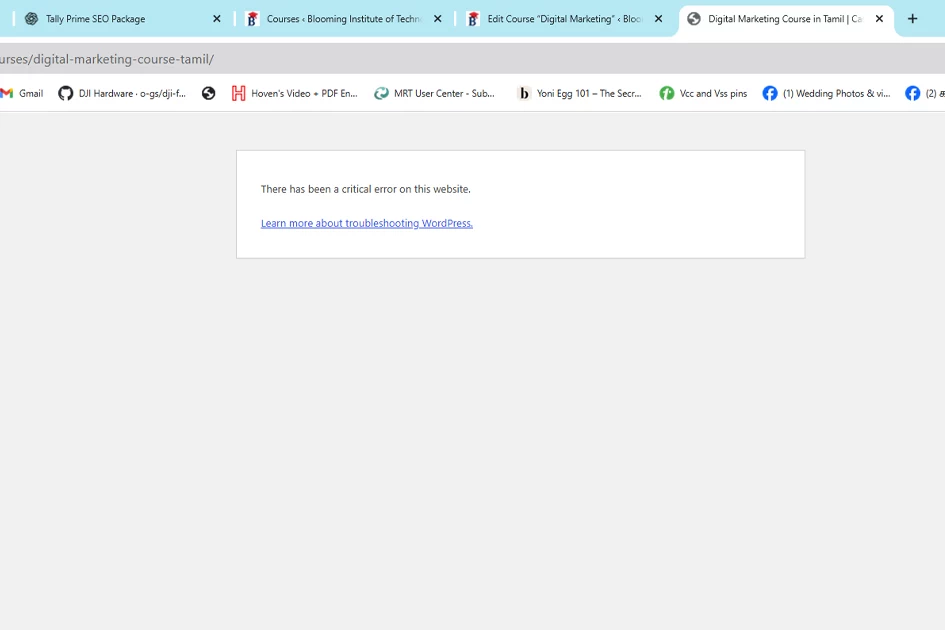
Encountering a “There has been a critical error on this website” message on the frontend alongside an “Error 500: Preview couldn’t be loaded” in Elementor can completely halt your workflow. This issue frequently occurs on custom post types—such as LearnPress courses or WooCommerce products—when the stored SEO schema metadata becomes corrupted.
In this guide, we will cover why this happens and provide a step-by-step walkthrough to resolve it directly in phpMyAdmin without losing any user, order, or student data.
What Causes This Fatal PHP Error?
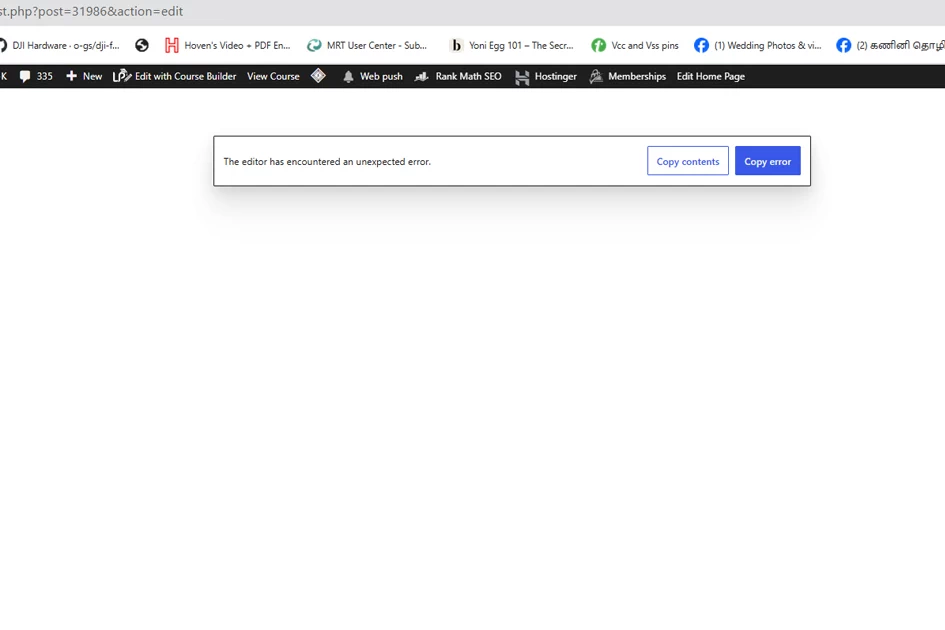
When a page loads, plugins like Rank Math read the structured data stored in your site’s database (wp_postmeta). If a specific record contains broken array syntax or corrupted JSON string data, PHP triggers a fatal type error: Click here to watch Video
Fatal error: Uncaught TypeError: Cannot access offset of type string on string in .../seo-by-rank-math/includes/modules/schema/class-frontend.php
This PHP fatal error immediately crashes:
-
The Live Frontend Page: Displays “There has been a critical error on this website.”
-
The Gutenberg Block Editor: Displays “The editor has encountered an unexpected error.”
-
Elementor Page Builder: Fails to render AJAX preview and returns an HTTP 500 Server Error.
Why You Should NOT Delete or Recreate the Post
If this happens on an active sales page, product, or LMS course, do not delete the post or recreate a new one.
For LMS platforms like LearnPress or WooCommerce, key user records—such as student enrollments, course progress, purchase history, and generated certificates—are tied directly to the specific Post ID in the database. Deleting the post breaks all associated user records.
Instead, cleaning the corrupted metadata rows for that specific Post ID in wp_postmeta restores the post while keeping all user data 100% intact.
Step-by-Step Fix: Removing Corrupted Schema via phpMyAdmin
Step 1: Identify Your Post ID
Find the Post ID of the broken page by inspecting its editing URL in your WordPress dashboard: [https://yourwebsite.com/wp-admin/post.php?post=31986&action=edit](https://yourwebsite.com/wp-admin/post.php?post=31986&action=edit)
(In this example, the Post ID is 31986).
Step 2: Access phpMyAdmin in Your Hosting Control Panel
-
Log into your hosting account (e.g., Hostinger, SiteGround, cPanel).
-
Navigate to Databases > phpMyAdmin and select your website’s database.
Step 3: Run the SQL Query to Isolate Corrupted Rows
-
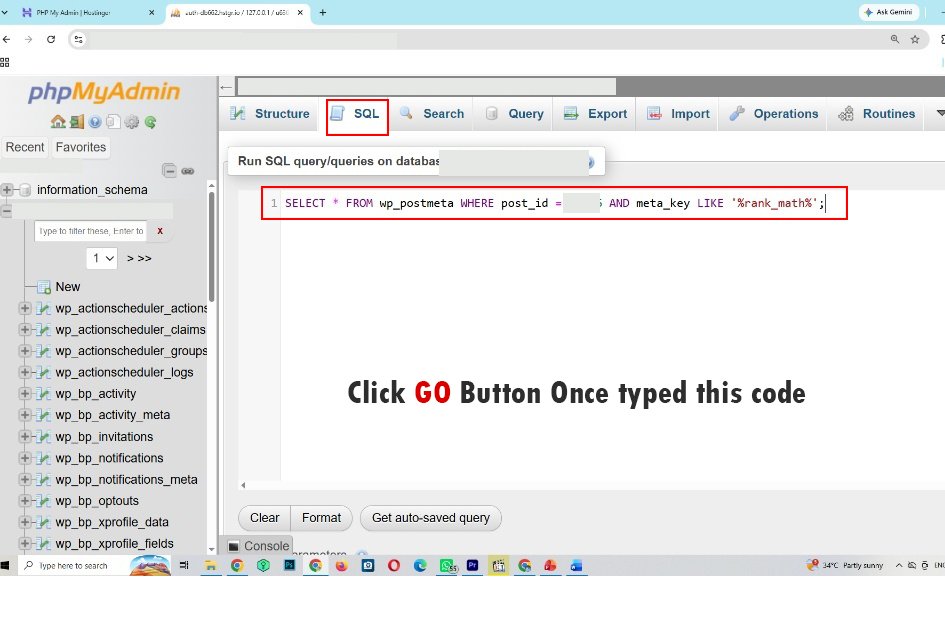
Click on the SQL tab at the top of phpMyAdmin.
-
Enter the following query (replace
31986with your actual Post ID, and adjustwp_if your database uses a custom prefix):
SELECT * FROM wp_postmeta WHERE post_id = 31986 AND meta_key LIKE '%rank_math%';
-
Click Go at the bottom right.
Step 4: Delete the Corrupted Schema Metadata Rows
Once the query results load:
-
Locate the specific rows causing the schema execution failure (e.g.,
rank_math_schema_Courseorrank_math_shortcode_schema_...). -
Select Check all at the bottom of the table to select all Rank Math rows generated for this single Post ID.
-
Under “With selected:”, click Delete (the red trash icon) and confirm by clicking Yes.
Note: Because your SQL query was strictly filtered to
WHERE post_id = 31986, deleting these rows will only clear the cached Rank Math meta for this specific page. It will not affect any other posts or pages on your site.
Step 5: Clear Cache and Test the Page
-
Return to your WordPress dashboard and click Purge All Cache on your caching plugin (e.g., LiteSpeed Cache).
-
Reload the page on the frontend in an incognito window.
-
Open the Gutenberg editor and Elementor builder to verify that the 500 error is gone.
When you re-save the page, Rank Math will automatically generate fresh, uncorrupted schema metadata.
Will deleting rows from wp_postmeta delete my page content?
No. Page content is stored in the wp_posts table. The wp_postmeta table only stores auxiliary settings like SEO titles, schema, and plugin configurations.
Why did Rank Math schema corrupt in the first place?
Schema corruption usually happens when a page save operation is interrupted mid-execution, when special characters are improperly escaped in custom fields, or when conflicting third-party shortcodes break array serialization.
How can I prevent this error in the future?
Ensure your server's PHP memory limit is set to at least 256M or 512M in wp-config.php, and keep both WordPress core and all active plugins updated to their latest versions.