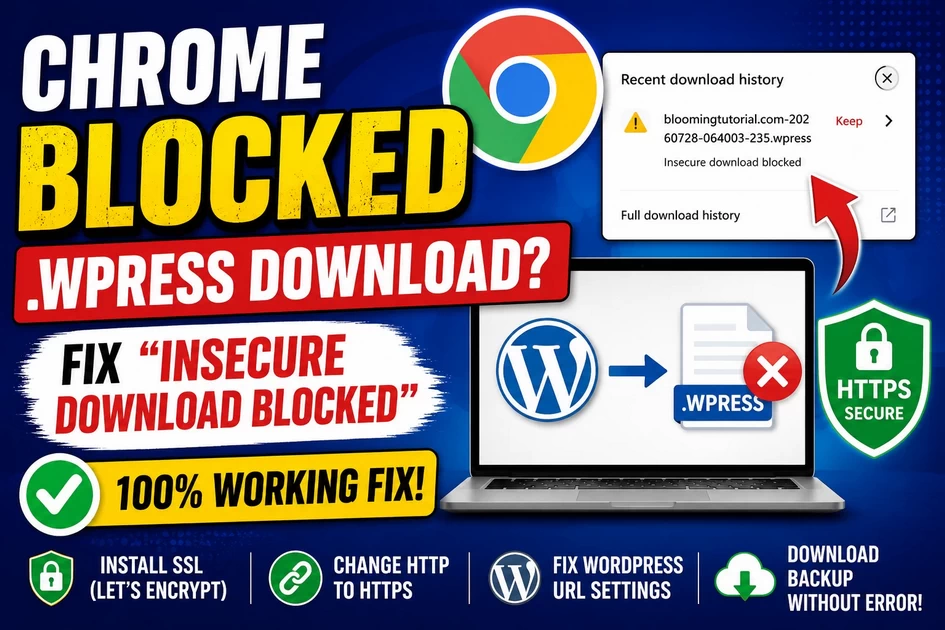
Chrome Blocks All-in-One WP Migration Backup Download? Fix “Insecure Download Blocked” (100% Working)
Chrome Blocks All-in-One WP Migration Backup Download? Here’s the Fix! Have you ever tried downloading your All-in-One WP Migration (.wpress)...
-
by
-
Jul 29, 2026
Chrome Blocks All-in-One WP Migration Backup Download? Here’s the Fix!
Have you ever tried downloading your All-in-One WP Migration (.wpress) backup file and seen this message?
Insecure download blocked
Don’t worry. This is a common problem, and it usually has nothing to do with the backup plugin itself.
In this guide, I’ll show you exactly why it happens and how to fix it in just a few minutes.
📹 Watch the complete video tutorial below before following the steps.
What Is the “Insecure Download Blocked” Error?
Google Chrome protects users from downloading files from websites that are not fully secure.
If your WordPress admin is running on HTTP instead of HTTPS, Chrome assumes the download may not be safe and blocks it.
This often happens when downloading:
- All-in-One WP Migration backups
- ZIP files
- Database backups
- Plugin packages
- Theme files
Why Does This Happen?
There are several possible reasons.
- Your website uses HTTP instead of HTTPS
If your browser shows “Not Secure”, your website is using HTTP.
Example:
❌
http://yourdomain.com
Correct:
✅
https://yourdomain.com
- WordPress URL Still Uses HTTP
Even if SSL is installed, WordPress may still use HTTP internally.
Go to:
Dashboard → Settings → General
If you see:
WordPress Address
http://yourdomain.com
Site Address
http://yourdomain.com
Change both to:
https://yourdomain.com
Then click Save Changes.
- SSL Certificate Is Installed but Not Configured
Many website owners install Let’s Encrypt SSL but forget to configure WordPress.
Always test:
https://yourdomain.com
If your website opens with a padlock 🔒, SSL is working.
How to Fix the Problem
Step 1: Install SSL Certificate
Install a free Let’s Encrypt SSL Certificate from your hosting control panel.
Wait until it becomes active.
Step 2: Verify HTTPS
Open:
https://yourdomain.com
If the website loads correctly, continue to the next step.
Step 3: Change WordPress URLs
Open
Dashboard → Settings → General
Change:
WordPress Address
https://yourdomain.com
Site Address
https://yourdomain.com
Save the changes.
Step 4: Force HTTPS
Open your .htaccess file and add:
RewriteEngine On
RewriteCond %{HTTPS} !=on
RewriteRule ^ https://%{HTTP_HOST}%{REQUEST_URI} [L,R=301]
This automatically redirects every visitor to HTTPS.
Step 5: Clear Browser Cache
Sometimes Chrome remembers the old HTTP version.
Clear:
- Browser Cache
- Cookies (optional)
Then open your website again.
Step 6: Download the Backup Again
Go to:
All-in-One WP Migration → Export
Create the backup again.
This time Chrome should allow the download.
How to Check If WordPress Uses HTTPS
Open:
Settings → General
You should see:
WordPress Address
https://yourdomain.com
Site Address
https://yourdomain.com
If either one shows HTTP, change it immediately.
Common Mistakes
❌ Installing SSL but not changing WordPress URLs.
❌ Forgetting to redirect HTTP to HTTPS.
❌ Keeping old cached files.
❌ Downloading backups from an insecure admin URL.
Why does Chrome block my .wpress backup?
Because Chrome detected that the download started from an insecure (HTTP) page.
Is the backup file corrupted?
No.
The backup file is usually fine.
Chrome is only protecting you from downloading files over an insecure connection.
Do I need to reinstall WordPress?
No.
Simply configure HTTPS correctly.
-
AboutBIT

You May Also Like
Sign up to receive our latest updates
[mc4wp_form id=3101]
Get in touch
Address
152A, Annavalaivu, Thuvakudimalai, Tiruchirappalli, Tamil Nadu – 620 022
Landmark : Near Post Office
Landmark : Near Post Office
bloomingtutorial@gmail.com
