My Biggest Google Ad Manager Mistake (And How It Can Save You Hours)
If you’re reading this article, you might be making the same mistake I made.
I spent several hours trying to understand Google Ad Manager. I watched videos, read documentation, created Orders, Line Items, and Creatives, and even wondered why Google kept asking me to upload banner images.
I kept asking myself:
“I’m only using Google AdSense. Why is Google asking me to upload images?”
That question led me down a confusing path.
Only after experimenting with my own website did I finally understand how Google Ad Manager actually works.
If I had known this earlier, I could have saved an entire day of frustration.
This article explains everything in simple English.
Why Google Ad Manager Is So Confusing
When you first open Google Ad Manager, you see many menus:
- Inventory
- Ad Units
- Orders
- Line Items
- Creatives
- Placements
- Delivery
As a beginner, you naturally assume that every menu is required.
That is exactly what I thought.
So I started creating everything.
After creating a Line Item, Google asked me to upload a Creative.
That made me even more confused.
I wasn’t trying to display my own banner.
I simply wanted Google AdSense to show ads on my blog.
The Question That Changed Everything
I finally asked myself:
Who is supposed to provide the advertisement?
There are only two possible answers.
Option 1: You provide the advertisement.
Example:
A local computer shop wants to advertise on your website.
They give you a banner.
You upload it.
Google displays it.
Option 2: Google provides the advertisement.
This is exactly what Google AdSense does.
Google finds advertisers.
Google chooses the highest-paying advertisement.
Google displays it automatically.
You don’t upload anything.
That is the biggest difference.
The Simple Billboard Example
Imagine a large billboard beside a highway.
The metal frame is permanent.
Different posters are placed inside it.
In Google Ad Manager:
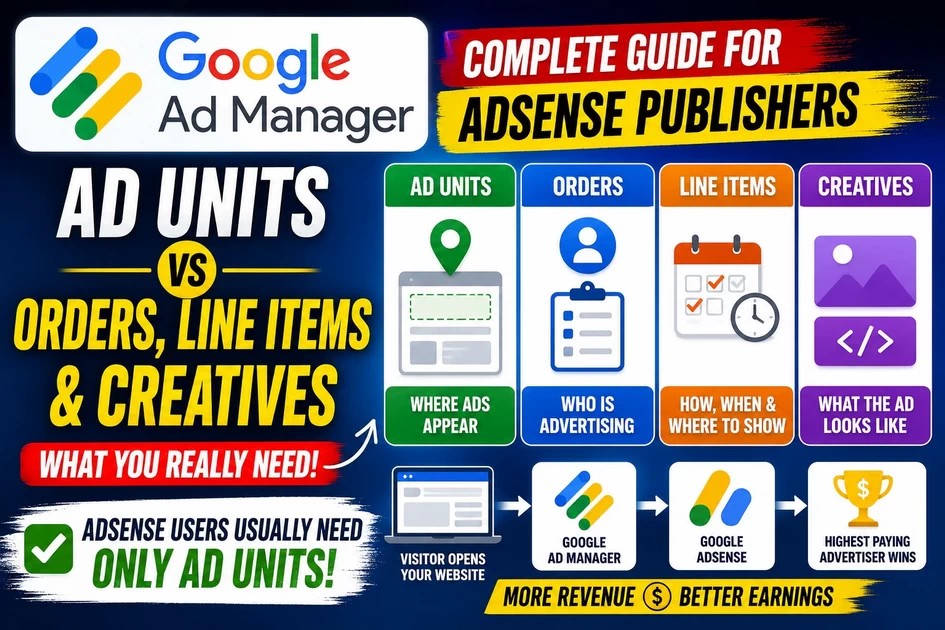
Ad Unit = Billboard Frame
Creative = Advertisement Poster
Line Item = Rental Agreement
Order = Customer Record
If nobody rents your billboard, Google AdSense automatically fills it with advertisements.
Understanding Every Component
Ad Unit
An Ad Unit is simply a location where advertisements can appear.
Examples:
- Top Banner
- Sidebar
- Inside Article
- Footer
- Between Paragraphs
Think of it as an empty picture frame.
Nothing appears until an advertisement fills it.
Order
An Order represents a customer.
Example:
ABC Computer Store wants to advertise.
Create one Order.
Order Name:
ABC Computer StoreThe Order stores information about that advertiser.
Line Item
A Line Item tells Google:
- Which advertisement should appear
- When it should appear
- How many impressions
- Priority
- Start date
- End date
Without a Line Item, Google doesn’t know how to deliver your direct campaign.
Creative
A Creative is the actual advertisement.
It can be:
- PNG
- JPG
- HTML5
- Third-party tag
- Video
Without a Creative, your direct advertiser has nothing to display.
Why Google Asked Me to Upload an Image
Because I accidentally created a direct advertising campaign.
Google assumed:
“This publisher wants to display their own banner.”
So it requested:
- Banner Image
- HTML Creative
- Third-party Creative
But I wasn’t running direct advertisements.
I only wanted AdSense.
That was my mistake.
The Difference Between Direct Advertising and Google AdSense
Many beginners think Google Ad Manager and Google AdSense work the same way. In reality, they serve different purposes.
Direct Advertising
With direct advertising, you are responsible for managing the advertiser. You decide:
- Which advertiser appears
- When the ad starts
- When the campaign ends
- Number of impressions
- Banner creative
Example:
A local computer training center pays you ₹5,000 to display their banner for 30 days.
You must create:
- Order
- Line Item
- Creative
- Assign it to an Ad Unit
Google AdSense
Google AdSense works differently.
Instead of finding advertisers yourself, Google automatically finds advertisers and displays the highest-paying eligible advertisement in your Ad Unit.
You don’t need to:
- Upload banners
- Create Orders
- Create Line Items
- Manage campaigns
Google does everything automatically.
When Should You Use Ad Units Only?
If your goal is only to earn money through Google AdSense, your setup is much simpler.
Use only:
✅ Ad Unit
✅ Google Publisher Tag (GPT)
✅ AdSense Backfill
This setup is ideal for:
- Personal blogs
- News websites
- Tutorial websites
- Educational websites
- Small business blogs
When Do You Need Orders, Line Items, and Creatives?
One of the biggest misconceptions about Google Ad Manager is that every publisher must create Orders, Line Items, and Creatives before ads can appear on their website. This isn’t true.
These features are designed for direct advertising campaigns, where you control which advertisement is displayed.
If you’re only using Google AdSense, you can usually skip them. However, there are several situations where creating Orders, Line Items, and Creatives is the correct approach.
1. When a Local Business Wants to Advertise on Your Website
Suppose a local computer repair shop contacts you and wants to display its banner on your website for one month.
Instead of relying on Google AdSense, the business pays you directly.
For example:
- Advertiser: ABC Computer Service
- Campaign Duration: 30 Days
- Payment: ₹5,000
In this case, you should create:
- ✅ Order – to store the advertiser’s details
- ✅ Line Item – to define the campaign schedule, impressions, and targeting
- ✅ Creative – to upload the advertiser’s banner or HTML ad
- ✅ Assign the Creative to an Ad Unit
Google Ad Manager will then display that specific advertisement according to your campaign settings.
2. When You Want to Promote Your Own Business
Google Ad Manager is also useful for promoting your own products or services.
For example, if you own Blooming Institute of Technology, you may want to advertise:
- Tally Prime Course
- Digital Marketing Course
- Data Recovery Course
- Python Programming Course
Instead of showing an AdSense ad in certain locations, you can display your own promotional banner.
To do this, create:
- ✅ Order
- ✅ Line Item
- ✅ Creative
This allows your advertisements to appear exactly where you want them.
3. When Running Seasonal Promotions
Many businesses run special promotions during festivals or important events.
Examples include:
- New Year Offers
- Independence Day Sale
- Diwali Discounts
- Christmas Promotion
- Back-to-School Campaigns
These campaigns have a fixed start and end date.
Using an Order, Line Item, and Creative allows Google Ad Manager to automatically start and stop the campaign without manual intervention.
4. When You Need Full Control Over Advertisements
Google AdSense automatically decides:
- Which advertiser appears
- Which ad format is shown
- How long the ad is displayed
Sometimes you may want complete control instead.
For example, you may want to:
- Show only one advertiser
- Display an ad only on specific pages
- Target visitors from a particular country
- Schedule ads for certain dates
- Limit the number of impressions
These controls are managed through Line Items.
5. When Managing Sponsored Campaigns
If a company sponsors your blog, event, or website, you will usually create a direct campaign.
Example:
A software company sponsors your website for two months and requests that its banner appear only in articles related to technology.
In this case, use:
- Order
- Line Item
- Creative
to deliver the sponsored advertisement exactly as agreed.
6. When Working with Multiple Advertisers
As your website grows, you may have several advertisers running campaigns at the same time.
For example:
| Advertiser | Campaign |
|---|---|
| Computer Store | Homepage Banner |
| Laptop Service Center | Sidebar Ad |
| Training Institute | Inside Blog Posts |
| Mobile Shop | Footer Banner |
Google Ad Manager helps organize these advertisers by creating a separate Order and one or more Line Items for each campaign.
This keeps campaigns organized and easy to manage.
The Moment Everything Became Clear
I finally understood something very important.
Google Ad Manager has two completely different jobs.
Job 1
Manage advertisements that you sell directly.
Example:
A local coaching center pays you ₹5,000 for one month.
You create:
- Order
- Line Item
- Creative
Everything is manual.
Job 2
Manage advertisement spaces and allow AdSense to fill them automatically.
Example:
Nobody has purchased advertising.
Google AdSense finds advertisers.
Google displays advertisements automatically.
No manual banners.
No image uploads.
When You Need Each Feature
| Scenario | Ad Unit | Order | Line Item | Creative |
|---|---|---|---|---|
| Google AdSense only | ✅ | ❌ | ❌ | ❌ |
| Local business advertisement | ✅ | ✅ | ✅ | ✅ |
| Promote your own course | ✅ | ✅ | ✅ | ✅ |
| Sponsored campaign | ✅ | ✅ | ✅ | ✅ |
| Affiliate banner | ✅ | Usually | Usually | Usually |
The Correct Setup for AdSense Publishers
If your goal is simply to earn money through Google AdSense, your setup is surprisingly simple.
Step 1
Create an Ad Unit.
Example:
Blog_Inside_Postor
Responsive_ArticleStep 2
Enable
Maximize revenue of unsold inventory with AdSense
This allows Google Ad Manager to request ads from your linked AdSense account whenever no direct campaign is available.
Step 3
Copy the Google Publisher Tag (GPT).
Step 4
Paste the GPT code into your WordPress website using a plugin such as Ad Inserter or your theme’s ad placement feature.
Step 5
Publish your article.
You’re done.
No Orders.
No Line Items.
No Creatives.
How Google Ad Manager and AdSense Work Together
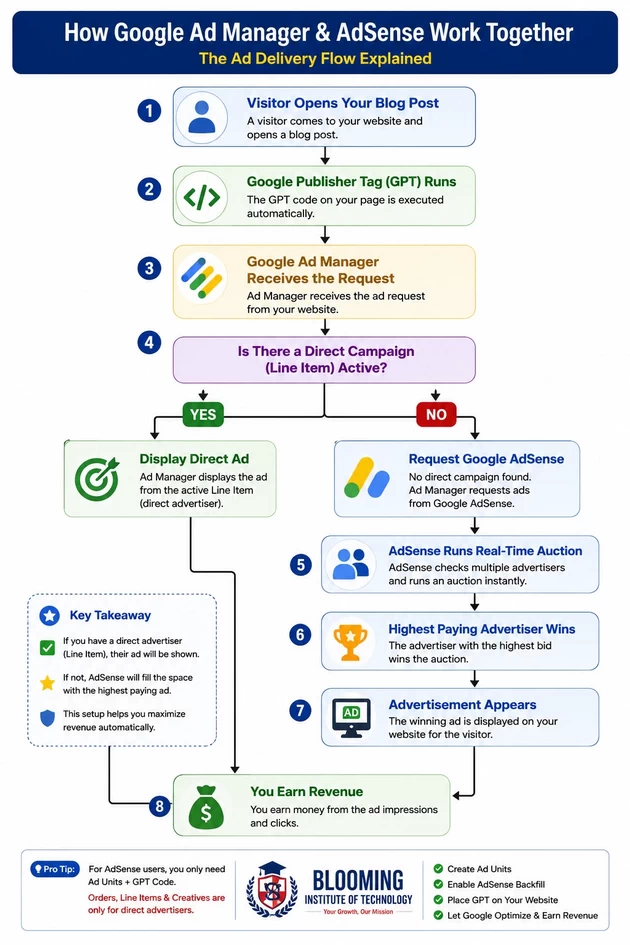
This is where you should insert the infographic you created.
Then explain the workflow in steps:
- Visitor opens a blog post.
- Google Publisher Tag (GPT) loads.
- Google Ad Manager receives the request.
- Ad Manager checks for a direct campaign.
- If one exists, it displays the direct ad.
- Otherwise, it requests eligible ads from Google AdSense.
- AdSense runs a real-time auction.
- The highest-paying eligible ad is displayed.
- You earn revenue from impressions or clicks.
What Actually Happens When Someone Visits Your Website?
Imagine a visitor opens your blog.
The process looks like this:
Everything happens automatically in milliseconds.
My Biggest Lesson
I believed every Google Ad Manager menu had to be configured.
That wasn’t true.
Those menus exist because Google Ad Manager is designed for large publishers who sell advertising directly.
If you’re just starting with AdSense, you can ignore most of them.
Once I realized this, my setup became much simpler and much easier to maintain.
Common Beginner Mistakes
Creating unnecessary Orders
You don’t need Orders if you don’t have direct advertisers.
Creating unnecessary Line Items
These are only required for campaigns you manage yourself.
Uploading blank banner images
This can result in empty ad spaces and lost revenue.
Thinking every menu is required
Google Ad Manager is built for publishers of all sizes. Many features are optional depending on your monetization strategy.
Benefits of Using Only Ad Units for AdSense
Using only Ad Units offers several advantages for publishers who rely on Google AdSense.
Easy Setup
No need to create multiple campaigns or upload creatives.
Less Maintenance
Google automatically fills eligible ad spaces without manual intervention.
Better Revenue Optimization
AdSense selects the highest-paying eligible advertiser through real-time auctions.
Faster Website Management
You only manage ad placements instead of individual campaigns.
Beginner-Friendly
Perfect for new publishers who are learning Google Ad Manager.
Real-Life Examples
Example 1: Using Only Google AdSense
Suppose you own a technology blog with 100 articles.
You create one responsive Ad Unit called Blog_Responsive.
You place the GPT code inside every article.
Whenever a visitor opens your website:
- GPT requests an ad
- Google Ad Manager checks for direct campaigns
- None are available
- AdSense serves the highest-paying eligible ad
You earn revenue automatically.
Example 2: Selling Ads to a Local Business
A local laptop repair shop wants to advertise for one month.
You receive ₹8,000.
Now you create:
- Order
- Line Item
- Creative
- Assign the Creative to your Ad Unit
Google will display that business’s banner according to your campaign settings.
Example 3: Promoting Your Own Courses
Imagine you own Blooming Institute of Technology and want to promote your Tally Prime Course.
Instead of paying another advertising platform, you can use Google Ad Manager to display your own banner across your website.
Create:
- Order
- Line Item
- Creative
- Assign it to your existing Ad Unit
Visitors will see your promotional banner instead of an external advertisement wherever your campaign is
Final Thoughts
When I first started using Google Ad Manager, I thought I had to configure every feature before I could show ads on my website. That led me to create unnecessary Orders, Line Items, and Creatives—and I spent hours trying to understand why Google wanted banner images.
The key lesson is simple:
- If you’re using only Google AdSense, create Ad Units and place the GPT code on your website.
- If you’re selling ads directly or promoting your own banners, then create Orders, Line Items, and Creatives.
Understanding this distinction made my Google Ad Manager setup much simpler and saved me a lot of time. I hope it saves you time too.


1 Comment
Tally prime python