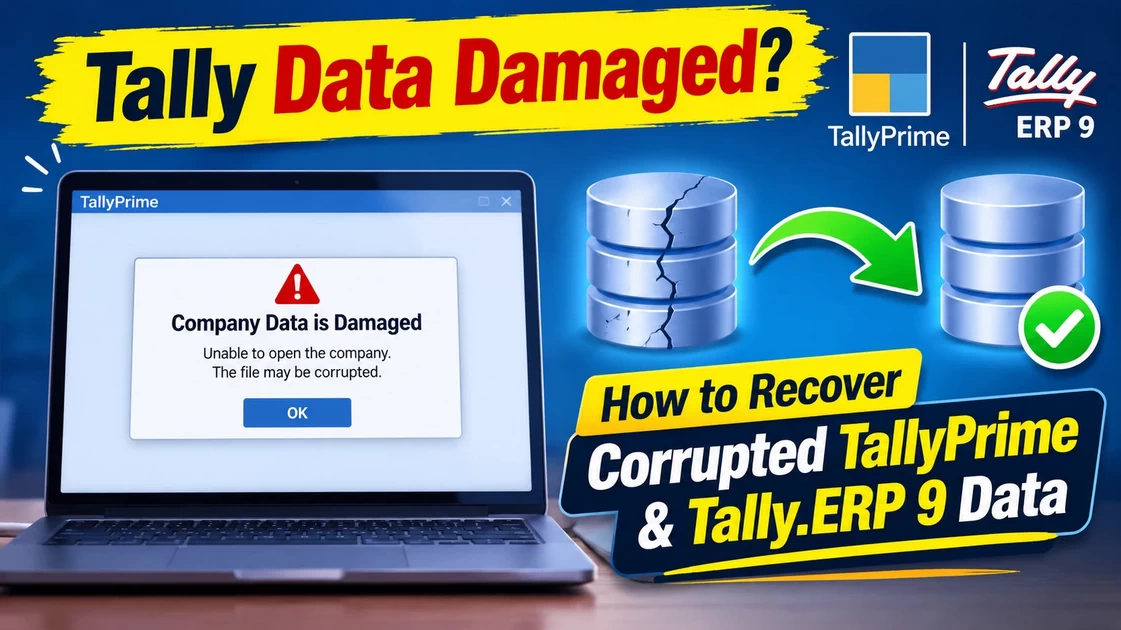
Tally Data Damaged? How to Recover Corrupted TallyPrime & Tally.ERP 9 Data
You open Tally to finish your work, click on your company, and boom—a scary error pops up. Or worse, your company name is completely missing from the list! Your entire business history feels locked away.
When this happens, most people panic and start clicking “Repair” or copy-pasting folders randomly. Stop. Doing this can wipe out your data forever. At Blooming Institute of Technology, we see these errors all the time. Whether you use older Tally.ERP 9 or the latest TallyPrime, you can recover your data if you understand exactly what went wrong and follow a safe, step-by-step plan.
The Secret Inside Tally’s Files: Why Data Corrupts
To fix Tally, you need to understand how it writes data to your hard drive. Inside your Tally data folder (like folder 10000), there are specific files like Company.900 (which holds your company details) and TransMgr.tsf (which holds your transactions).
Every file has a Database Header at the very beginning. Think of the header like an index page of a book that tells the computer exactly how many pages are inside.
[ DATABASE HEADER ] --> Says: "This file is exactly 2 MB"
       |
       | (Sudden Power Cut / Network Drop)
       v
[ ACTUAL DATA SMASH ] -> Only 1.2 MB of data actually saved!
The 2 MB Mismatch Error: > Imagine you are saving a large ledger entry and sudden power goes out, or your network cable flickers. Tally’s database header says the file is of a certain size, say, 2 MB, but the actual data is shorter because the save process was cut off. This size mismatch completely breaks the company file, and Tally stops opening it.
⚠️ The Non-Negotiable Safety Step (Do This First!)
Before running any repair tool inside Tally, you must create a safety net. If Tally’s built-in repair process fails halfway through, it will treat broken lines as “bad data” and permanently delete them.
-
Close Tally completely.
-
Open your computer’s File Explorer and go to your Tally data path (e.g.,
C:TallyPrimeData). -
Find your 5-digit company folder (e.g.,
10000). -
Right-click, copy it, and paste it onto an external USB pen drive or your Desktop. Rename it to
10000_Safe_Backup.
Now, if anything goes wrong during repair, you haven’t lost a single byte of your original files.
The Chronological Recovery Guide
Always start with Method 1. If you are using an older version, move to Method 2. If the file is severely broken, use Method 3.
Method 1: Using the Built-in Repair in TallyPrime
If you are using TallyPrime, the software has an automated system tool to rebuild file indexes.
1.Launch TallyPrime in Safe Mode:Open without loading company.
Double-click your TallyPrime icon. If it tries to load the broken company automatically, press Esc to stay on the “Select Company” screen.
2.Open the Troubleshooting Menu:Navigate to internal tools.
Press F1 (Help) on your keyboard, scroll down to Troubleshooting, and select Repair.
3.Run the Repair Command:Select and execute.
Choose your broken company from the list. If the name is blank, look for its 5-digit folder number. Press R to start the repair. Tally will try to realign the file headers and actual data size.
Method 2: The “Rewrite” Trick for Tally.ERP 9
If you are running the older Tally.ERP 9 version, the standard menu won’t show a repair option. You have to trigger a hidden, aggressive feature called “Rewrite”.
1.Press the Secret Shortcut Keys:Trigger the secret menu.
On the Company Info screen where you select your company, hold down Ctrl + Alt + R on your keyboard.
2.Choose Your Company:Select the damaged folder.
The word “Rewrite” will now flash on your screen. Select your corrupted company folder and press Enter.
3.Accept the Rewrite Prompt:Confirm and rebuild.
Tally will ask “Rewrite? Yes or No”. Click Yes. This forces the software to read every transaction from scratch and write a fresh database header file.
Method 3: Deep Technical Recovery (Hex-Level Editing)
What if Tally says “File Damaged” or “Memory Access Violation” and both methods fail? This means the structural binary code of your .900 or .tsf files is completely mangled.
At Blooming Institute of Technology, we handle this using professional data engineering tools. We open the damaged .900 and .tsf files in hex editors to manually reconstruct broken file headers.
By looking directly at the binary code, our technical team matches the true size of your data bytes back to the header file declaration line by line. This structural stitching extracts your clean master ledgers and voucher histories even when Tally’s automated menus refuse to open the file.
3 Simple Rules to Prevent Data Corruption
-
Use a Dedicated UPS: A 1-second electricity flicker while saving a voucher is the number one cause of file size mismatches. Never run your Tally server PC without battery backup.
-
Quit Tally Properly: Never turn off your computer or laptop power button directly while Tally is open. Always press Esc > Quit? > Yes so Tally can safely close its backend file handles.
-
Keep Data Sizes Light: If your company file grows larger than 500 MB, it becomes highly vulnerable to network drops. Use the Split Company Data feature at the end of every financial year to keep your system performing fast and safe.
What causes the “Memory Access Violation” error in TallyPrime?
This error typically triggers when Tally tries to load a specific voucher or ledger page whose internal binary records or pointer references are corrupted. It happens most frequently due to network drops in a multi-user environment or sudden system restarts while that specific voucher was saving.
What causes the “Memory Access Violation” error in TallyPrime?
This error typically triggers when Tally tries to load a specific voucher or ledger page whose internal binary records or pointer references are corrupted. It happens most frequently due to network drops in a multi-user environment or sudden system restarts while that specific voucher was saving.
What causes the “Memory Access Violation” error in TallyPrime?
This error typically triggers when Tally tries to load a specific voucher or ledger page whose internal binary records or pointer references are corrupted. It happens most frequently due to network drops in a multi-user environment or sudden system restarts while that specific voucher was saving.
You May Also Like
-
Aug 17, 2026
When starting a new business with a Bank Overdraft (OD) facility—such as a ₹15 Crore OD limit from HDFC Bank—many...

-
May 27, 2026
WHY GOVERNMENT CREATED RCM?” Why did the Government create Reverse Charge Mechanism (RCM)? Forward Charge Mechanism (FCM)The Regular Way Imagine...

-
Sep 25, 2025
GST Old vs New Rate Finder Merged Dataset Search products, enter taxable value and compare old vs new GST amounts....
Sign up to receive our latest updates
[mc4wp_form id=3101]
Get in touch
Address
152A, Annavalaivu, Thuvakudimalai, Tiruchirappalli, Tamil Nadu – 620 022
Landmark : Near Post Office
Landmark : Near Post Office
bloomingtutorial@gmail.com
