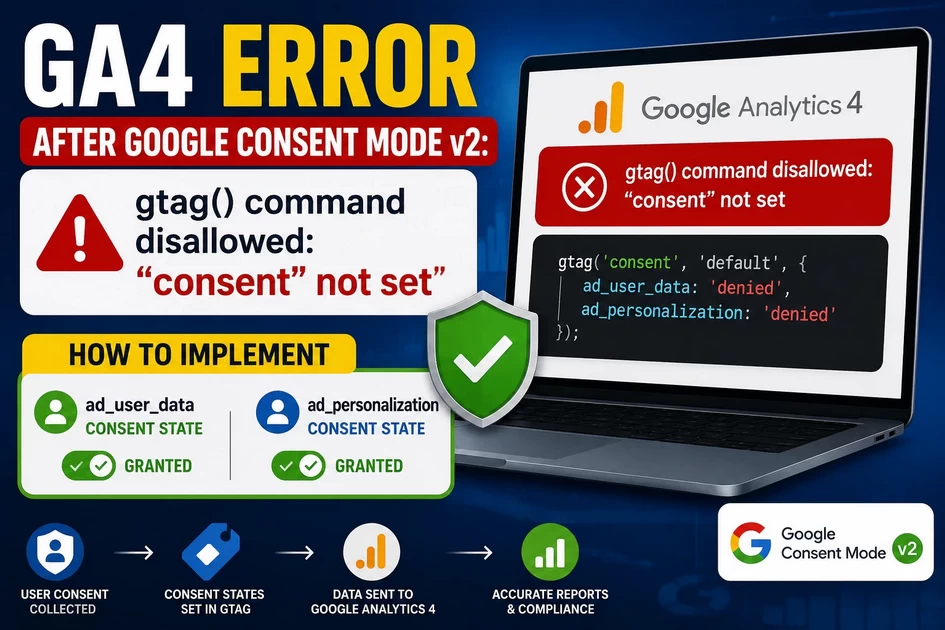
GA4 error after Google Consent Mode v2: ‘gtag() command disallowed: “consent” not set’. How to implement ‘ad_user_data’ and ‘ad_personalization’ consent states?
Why Does This Error Happen? The gtag() command disallowed: "consent" not set error occurs because Google Analytics 4 (GA4) libraries...
-
by
-
Jun 12, 2026
Why Does This Error Happen?
The gtag() command disallowed: "consent" not set error occurs because Google Analytics 4 (GA4) libraries are firing and attempting to track visitor behavior before your global configuration script has defined what data it is legally allowed to capture. Under Google Consent Mode v2, Google strictly enforces privacy-first compliance signaling. If a tracking tag attempts to transmit data before a baseline safety signal is explicitly declared, the framework abruptly drops the payload.
The Restaurant Waitlist Analogy
Think of Consent Mode v2 like a busy, heavily regulated seafood restaurant.
The GA4 Tracking Tag is a busy server rushing to the kitchen.
The Consent States (
ad_user_dataandad_personalization) are mandatory allergy safety checklists for the table.
If the server runs to the kitchen and shouts an order (“Track a Pageview!”) before filling out the mandatory allergy form, the head chef immediately yells, “Command disallowed! Allergy status not set!” and throws the order ticket into the trash. Setting the default consent state at the absolute top of your website’s code ensures the kitchen has a safety form on file before any servers try to place orders.
Chronological Troubleshooting & Execution Procedure
Step 1: Verify the Execution Order (Read the State)
Before changing code, open your website in Google Chrome, press F12 to access Developer Tools, and select the Console tab. Type the following command to check how your browser is compiling tracking data:
JavaScript
console.table(window.dataLayer);
What to look for: Inspect the array output. The consent event must appear at index 0 or 1. If you see js (library initialization) or config commands appearing before the consent default command, your scripts are executing out of order, which triggers the error.
Step 2: Inject the Default Consent Rules (Execute the Fix)
Paste the initialization script directly into your website’s HTML template inside the <head> tag. It must sit strictly above your Google Tag Manager or GA4 script container.
HTML
<head>
  <!-- 1. Establish Consent Mode v2 Defaults First -->
  <script>
    window.dataLayer = window.dataLayer || [];
    function gtag(){dataLayer.push(arguments);}
    gtag('consent', 'default', {
      'ad_storage': 'denied',
      'analytics_storage': 'denied',
      'ad_user_data': 'denied',
      'ad_personalization': 'denied',
      'wait_for_update': 500
    });
  </script>

  <!-- 2. Load Google Tag Manager / GA4 Scripts Second -->
  <!-- (Your GTM container script code goes here) -->
</head>
Step 3: Wire Up Your Banner Update Event (Verify Resolution)
When a visitor clicks “Accept” on your cookie banner, your Consent Management Platform (CMP) must instantly push an update command to unlock tracking. Tie this function to your banner’s confirmation action:
JavaScript
function triggerConsentUpdateOnUserApproval() {
  gtag('consent', 'update', {
    'ad_storage': 'granted',
    'analytics_storage': 'granted',
    'ad_user_data': 'granted',
    'ad_personalization': 'granted'
  });
}
Note: To verify this live, clear your site cookies, refresh the page, open GTM Preview Mode, and confirm that the Consent tab changes from “Denied” to “Granted” upon interacting with your banner.
Summary Action Checklist
| Execution Phase | Target Metric / Artifact | Core Technical Purpose |
| Phase 1: Code Sequencing | Inline Script in <head> | Registers default privacy states prior to third-party network downloads. |
| Phase 2: Framework Buffering | wait_for_update: 500 | Prevents race conditions by pausing tag firing until your cookie banner mounts. |
| Phase 3: Payload Alignment | ad_user_data & ad_personalization | Feeds the explicit privacy signals required by Google’s advertising networks. |
| Phase 4: Runtime Validation | Browser dataLayer Object | Confirms the exact chronological order of execution satisfies the GA4 compiler. |
The Final Step-by-Step Replacement Code To show Concent at first index 0 or 1
To avoid making mistakes with multiple overlapping script tags, delete everything currently inside that Snippet / Code box in image_ef5dfc.jpg and replace it entirely with this combined, perfectly ordered script block:
HTML
<!-- Google tag (gtag.js) with Integrated Consent Mode v2 -->
<script async src="https://www.googletagmanager.com/gtag/js?id=AW-414212290"></script>
<script>
  // 1. Initialize the data pipeline
  window.dataLayer = window.dataLayer || [];
  function gtag(){dataLayer.push(arguments);}

  // 2. IMMEDIATELY enforce privacy defaults (INDEX 0)
  gtag('consent', 'default', {
    'ad_storage': 'denied',
    'analytics_storage': 'denied',
    'ad_user_data': 'denied',
    'ad_personalization': 'denied',
    'wait_for_update': 500
  });

  // 3. Fire conversion tracking loops safely afterward
  gtag('js', new Date());
  gtag('config', 'AW-414212290');
</script>
Verification Protocol
Click the blue Update or Save button at the bottom of your HFCM interface screen.
Clear your website’s caching rules (click LiteSpeed Cache on your left WordPress menu and select Purge All).
Open your Incognito browser window, clear cookies, refresh the page, and test using your console check:
JavaScriptconsole.table(window.dataLayer);
-
AboutBIT

You May Also Like
Sign up to receive our latest updates
[mc4wp_form id=3101]
Get in touch
Address
152A, Annavalaivu, Thuvakudimalai, Tiruchirappalli, Tamil Nadu – 620 022
Landmark : Near Post Office
Landmark : Near Post Office
bloomingtutorial@gmail.com
