
Never See “Storage Full” Again: 3 Pro Ways to Unlock Infinite Mobile Storage

Smartphones fill up fast with photos, videos, apps, and files. You don’t need a new phone to get more space. Here are three easy ways to free up or add storage.


In 2026, our smartphones are more capable than ever, but higher-resolution photos and heavier apps mean that the dreaded “Storage Full” notification is still a common headache. While you can’t physically solder new memory chips onto your phone, there are several effective ways to expand your capacity.

Here are the best ways to upgrade your smartphone storage, ranging from physical hardware to virtual solutions.

1. The Direct Hardware Upgrades

If your phone still has the hardware to support it, physical expansion remains the most cost-effective “one-and-done” purchase.

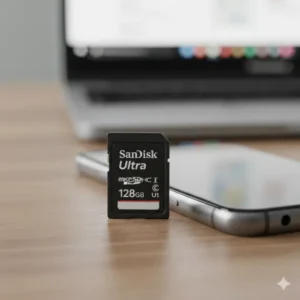
  • MicroSD Cards (The Traditional Way): Still standard on budget and mid-range Android devices. For 2026 performance, look for cards labeled A2 (optimized for apps) or V30/V60 (essential for 4K/8K video recording).
  • Hybrid SIM Adapters: For dual-SIM phones that force you to choose between a second SIM or an SD card, a Hybrid SIM Extension is a paper-thin ribbon cable that lets you plug in both simultaneously. It usually requires a case to hide the external slot, but it effectively “unlocks” hidden storage.
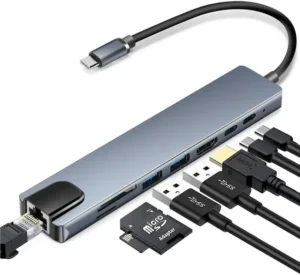
  • USB-C Docking & Hubs (the ‘workstation’  Extension)

If you treat your phone like a computer (common with Samsung DeX or iPhone 15/16 Pro users), you can use a USB-C hub.

* The Setup: Plug a hub into your phone’s port. You can then plug in multiple USB thumb drives, SD cards, and even full-sized desktop Hard Drives

* Limitations: This isn’t very “mobile,” but it’s the fastest way to move hundreds of gigabytes of data if you are a mobile video editor.


2. Cloud Storage

Cloud storage is the most seamless because it integrates directly into your phone’s operating system. Instead of keeping every file on your device, you keep them on a secure server and access them as needed

  • How it works: Instead of keeping every 20MB photo on your device, your phone keeps a tiny, low-res thumbnail. The original high-res file is moved to the cloud (Google One, iCloud+, or Proton Drive).
  • The Benefit: It feels like your phone has infinite space. You can scroll through your entire life’s history of photos, and the phone only “downloads” the full file when you tap on it.

Best for: The casual user who takes a lot of photos but doesn’t want to carry extra hardware.

The “Infinite” Virtual Drives

  • Public Cloud (Google One, iCloud+): These services use Storage Offloading. Your phone keeps a low-resolution “proxy” of your photo locally, while the massive original stays in the cloud. When you tap to view it, the phone downloads the full version instantly.
  • Encrypted Private Clouds (pCloud, Proton Drive): For those who want the convenience of the cloud without big-tech data mining. These offer “Lifetime” plans that act as a one-time upgrade cost rather than a monthly fee.

.

Service

Best For

Free Tier

Google One

Android users & Google Photos

15 GB

iCloud+

iPhone users (seamless integration)

5 GB

Microsoft OneDrive

Windows users & Office 365

5 GB

pCloud / IDrive

Security & “Lifetime” payment plans

10 GB+

☁️ Cloud Storage Services — Market Share (%)

Google Drive
~ 1,800–2,000M users 42%
Microsoft One Drive
~ 400–550M Users 31%
Apple iCloud
~ 700–850M 15%
Dropbox
6%

Pro Tip:

Most cloud apps have an “Optimize Storage” setting. This keeps small, low-res versions of photos on your phone for quick viewing while storing the massive 4K originals in the cloud.


3. The Physical Upgrade


1. Wireless Portable HDDs (The “Pocket Server”)

These are battery-powered drives that create their own Wi-Fi hotspot. You can keep one in your backpack, and your phone can stream 4K movies or back up files wirelessly without needing an internet connection—perfect for travelers.

  • How it works: You turn the drive on in your bag. Your phone connects to the drive’s Wi-Fi signal.
  • Best Use Case: Long flights or road trips where you want to stream 4K movies or offload photos without using mobile data or needing a physical cable.
  • Capacity: Usually ranges from 1TB to 4TB.


2. NAS – Network Attached Storage (The “Home Cloud”)

A NAS is a private server that lives in your home. it is basically a box containing one or more hard drives that stays plugged into your home router. It is the gold standard for storage because you own the hardware, but you can access it from anywhere in the world.

Using apps like Synology Photos or Nextcloud, your phone can automatically “dump” photos and videos to your home hard drives the moment you hit Wi-Fi. It gives you the convenience of iCloud but with 10TB+ of space that you own.

  • Personal Privacy: Unlike Google or Apple, you own the physical disks. There are no monthly fees after the initial purchase.
  • Functionality: Using apps like Synology Photos or Nextcloud, your phone will automatically back up your photos to your NAS as soon as you walk into your house and hit the Wi-Fi.
  • Hybrid Power: You can even run your own “Netflix” (using Plex) or your own “Spotify” (using Audio Station) directly from the NAS to your phone.


Comparison Table: Which Extension Suits You?

Feature

Public Cloud

Wireless HDD

NAS (Home Cloud)

Setup Ease

Extremely Easy

Medium

Complex

Monthly Cost

Yes (Subscription)

No

No

Internet Required

Yes

No (Local Wi-Fi)

Yes (for remote access)

Reliability

High (Managed by Pros)

Medium (Battery/Hardware)

High (Redundant Disks)

Privacy

Low (Third-party access)

High (Local only)

Highest (You own it)

Pro Tip: The “3-2-1” Rule

If you are extending your storage because you have precious memories, always follow the 3-2-1 rule:

No matter how you upgrade, never trust a single device. Keep 3 copies of your data, on 2 different types of media (e.g., your Phone and a NAS), with 1 copy in a different physical location (e.g., the Cloud).


Bonus Tip: Software-Based “Upgrades”

Sometimes, “upgrading” is just about reclaiming what you already have. Modern OS features can act as a virtual storage boost:

  • App Archiving: On Android and iOS, you can “offload” or “archive” apps you rarely use. The system deletes the app but keeps your data, so if you redownload it, you pick up right where you left off.
  • Cache Cleaning: Apps like TikTok, Instagram, and Spotify hoard “cache” files that can reach several gigabytes. Clearing these in settings is a quick way to “gain” storage for free.
  • WhatsApp Media Management: Messaging apps are often the biggest storage hogs. Use the built-in “Manage Storage” tool in WhatsApp to find and delete large forwarded videos.

Frequently Asked Questions

Do I have to buy a new phone when I run out of space?

No. You can make room or add storage in several ways without buying a new phone.

Using cloud storage is the simplest. It stores your photos and files online and helps free up space on your phone.

It means your phone keeps smaller versions of photos on the device and saves the full-size versions online. You only download the full version when you want to view it.

Yes, cloud services are generally safe. Some services also offer extra privacy if you want better protection for your files.

It’s a small hard drive that creates its own Wi-Fi. Your phone connects to it so you can save or watch files without internet or cables.

It removes the app from your phone but keeps your data, so you can reinstall it later without losing anything.

Keeping your files on home storage (NAS) is the most private because you control everything yourself.

I’m a tech enthusiast who enjoys exploring new technologies, cloud platforms, and digital tools, and staying updated with the latest trends in the tech world.
steave
Designer
I enjoy keeping up with the latest in technology, from cloud storage to new software trends, and understanding how they shape the digital future.
das
Designer
Tech enthusiast with a curiosity for modern digital solutions, always exploring new platforms and innovations in the tech space..

lio
Designer
A passionate tech enthusiast with a strong interest in cloud services, emerging technologies, and how digital tools improve everyday life.
John Doe
Designer

  • by
    naveen raj
  • January 30, 2026

Leave A Reply

Your email address will not be published. Required fields are marked *

You May Also Like

Here is a complete, technician-level troubleshooting guide for ASUS H310M-E motherboard restarting while working (random restart, no blue screen). ✅...
How to Read RAW Dump From Chip-Off Extraction (Full Step-by-Step Guide) How to Read RAW Dump From Chip-Off Extraction 📌...
Chip-Off vs ISP vs JTAG: Which Method Recovers More Data? Chip-Off vs ISP vs JTAG: Which Method Recovers More Data?...
Chip-Off Data Recovery Explained: Full Step-by-Step Technical Guide CHIP-OFF DATA RECOVERY EXPLAINED: FULL STEP-BY-STEP TECHNICAL GUIDE 📌 Table of Contents...