Many people want to know how to connect Instagram to Facebook Page without password, but they don’t know how to do it. Sometimes, Instagram asks for a password or shows a loading problem when you try to connect.
If you forgot your Instagram password but can still log in through Facebook, don’t worry! In this guide, you will learn step-by-step how to disconnect Instagram from one Page and connect it to another Page easily.
Why You Need to Reconnect Instagram
You may have made your Instagram account using Facebook. Later, you might want to connect the same Instagram to a different Facebook Page — for example, moving from Tally Prime Training to Blooming Tutorial.
But when you try, Instagram may ask for your old password. If you don’t know it, the connection will fail.
This article will show you how to do it without password using Meta’s official settings.
What Is Meta Accounts Center?
Meta Accounts Center is the place where Instagram and Facebook connect.
When you link your Instagram and Facebook, it usually connects through your personal Facebook account (for example, Suvi Suha). That’s normal — it means your Facebook account manages your Page.
Through this connection, you can share posts, reels, and ads on both platforms.
Step 1: Check Your Current Connection
Before you connect Instagram to Facebook Page without password, check how your accounts are linked.
Open Instagram app
Tap your Profile → Menu (☰) → Settings and privacy
Tap Accounts Center
You will see both your Instagram account and your Facebook account
If you see your personal Facebook name instead of your Page name, that’s okay. It means you are the admin of that Page.
Step 2: Disconnect Instagram From Old Facebook Page
You must remove the link from your old Page before connecting it to a new one.
📱 On Facebook App:
Open Facebook app → your Page (Tally Prime Training)
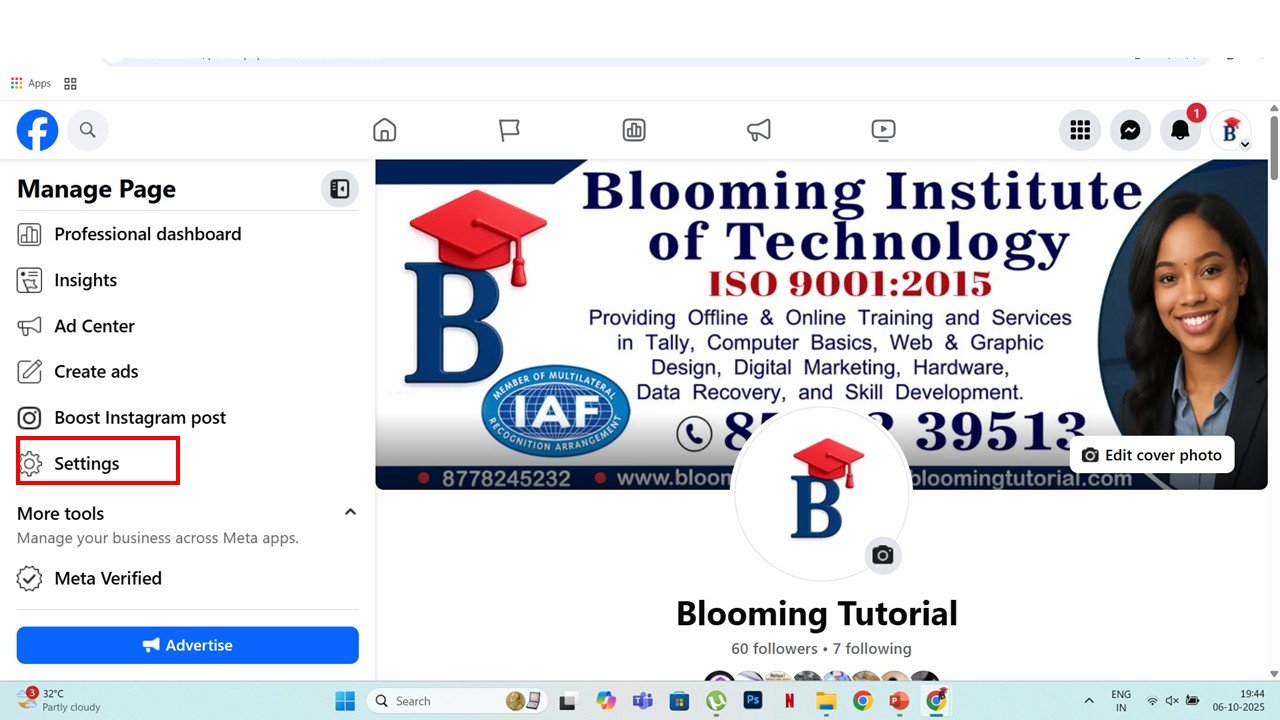
Tap Settings → Linked Accounts → Instagram
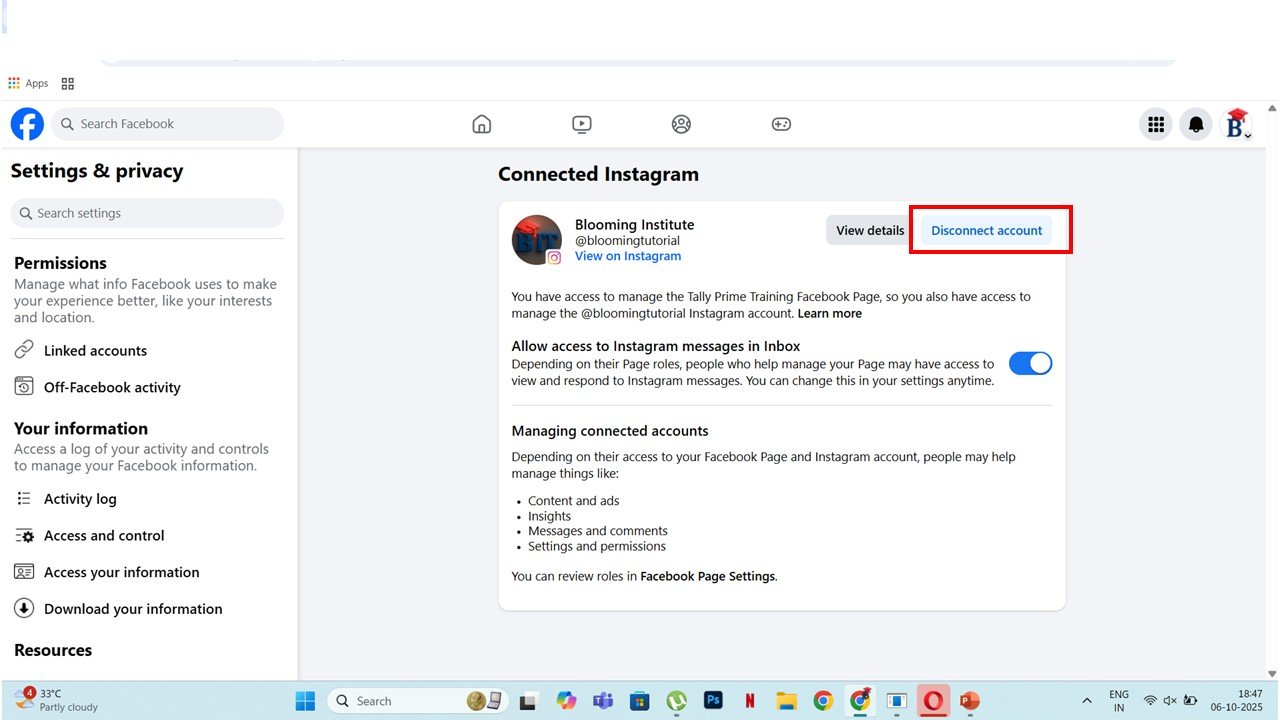
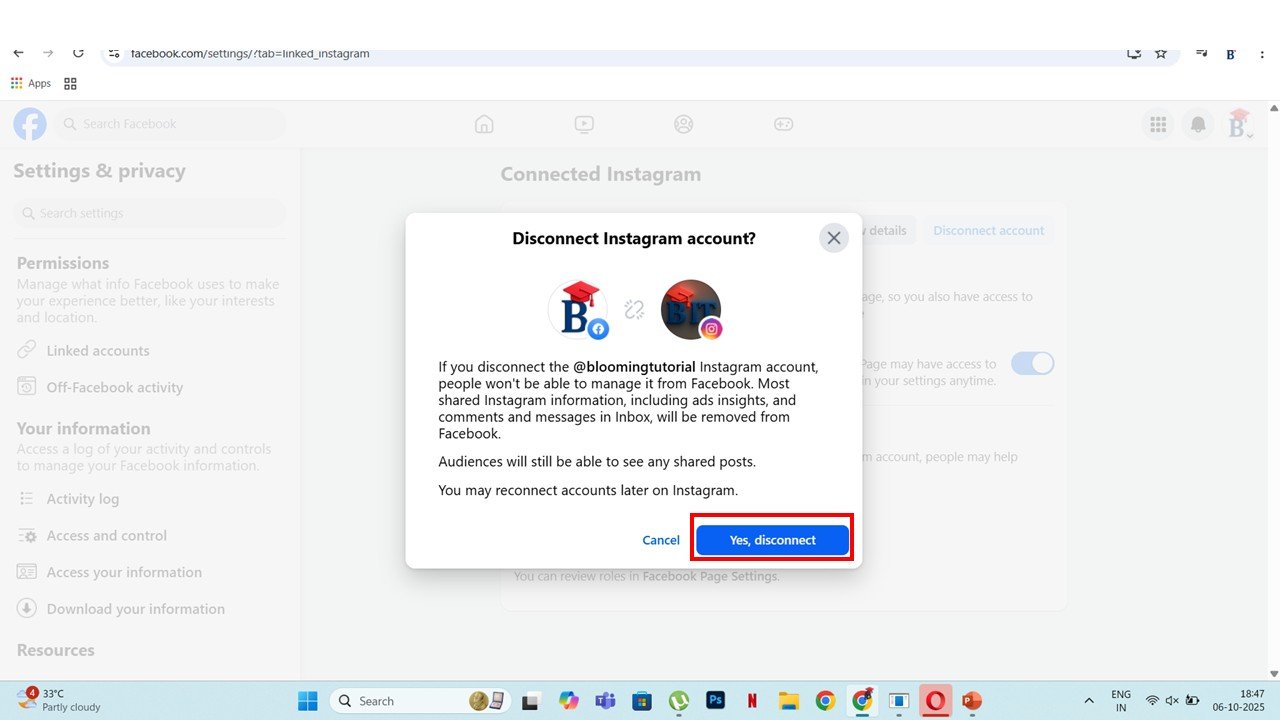
Tap Disconnect Account → Confirm
💻 On Computer:
Go to facebook.com
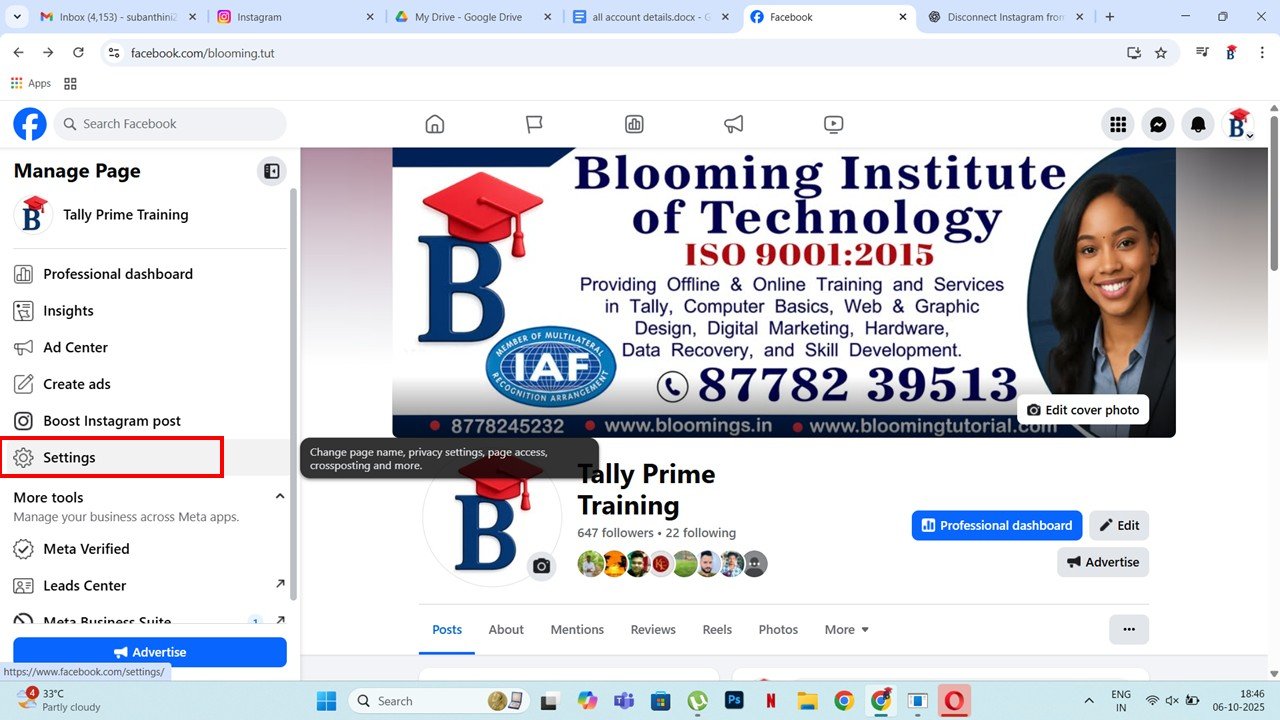
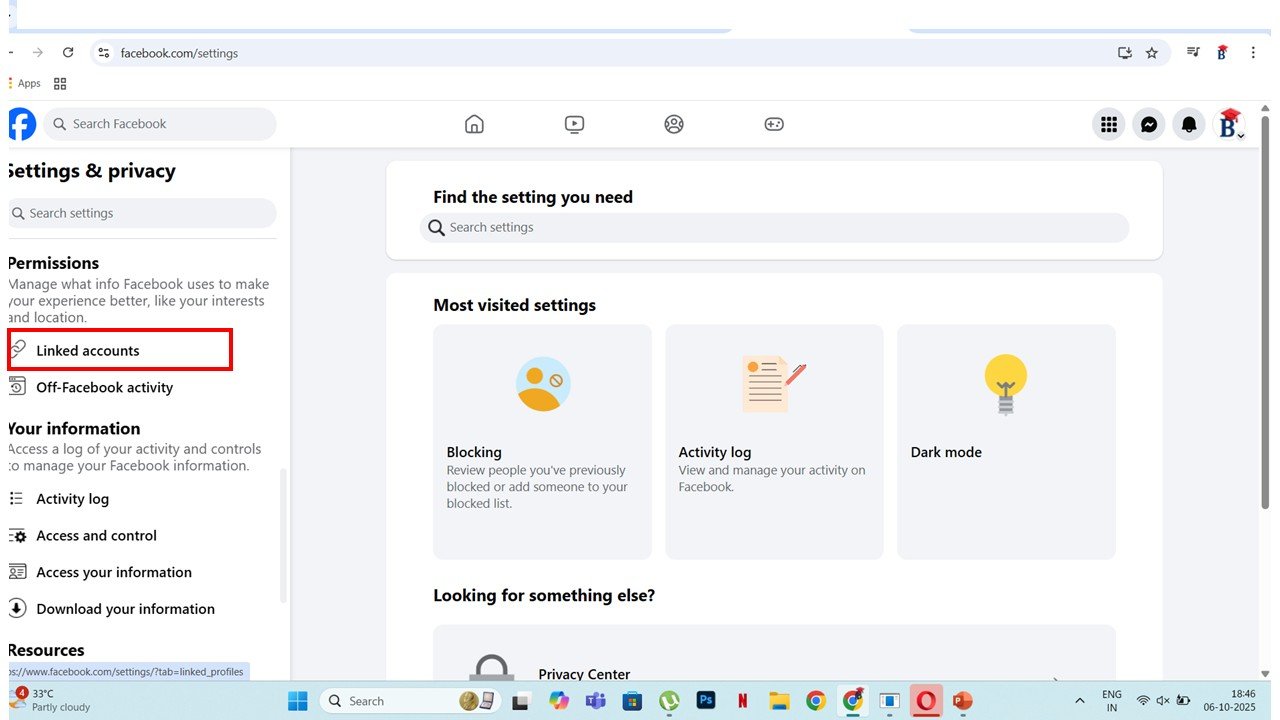
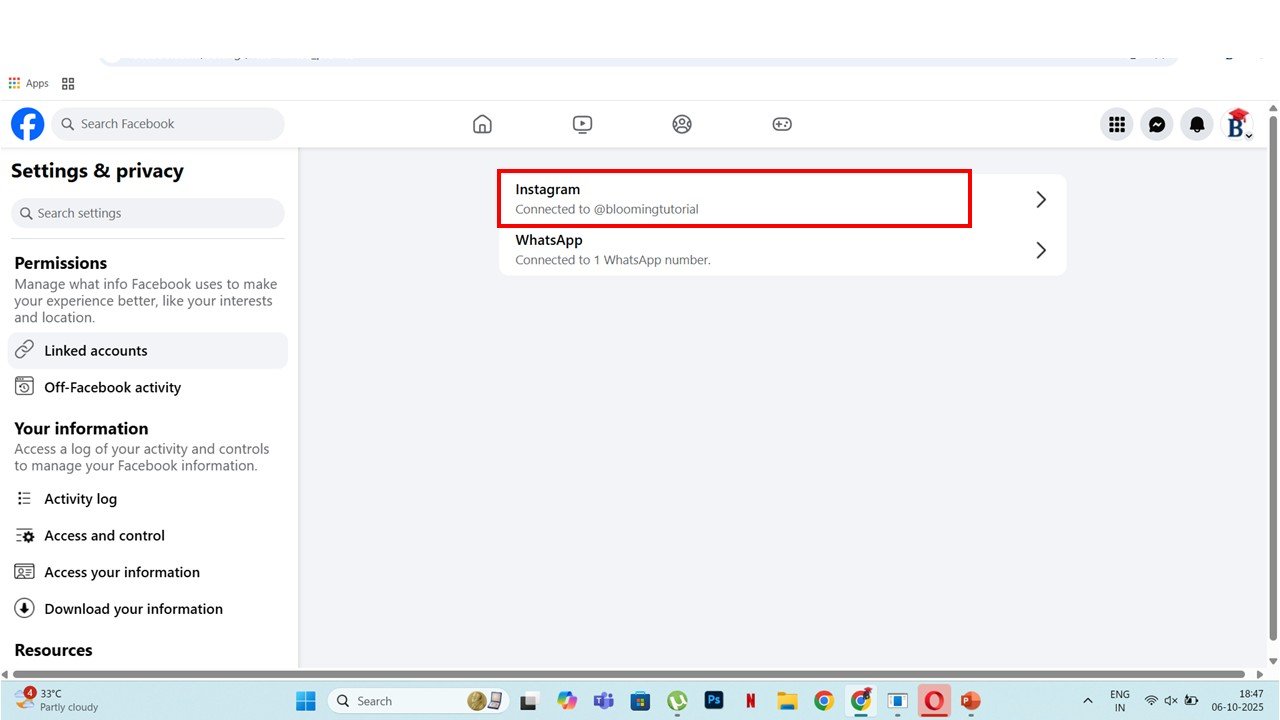
Open your Page → Settings → Linked Accounts → Instagram
Click Disconnect
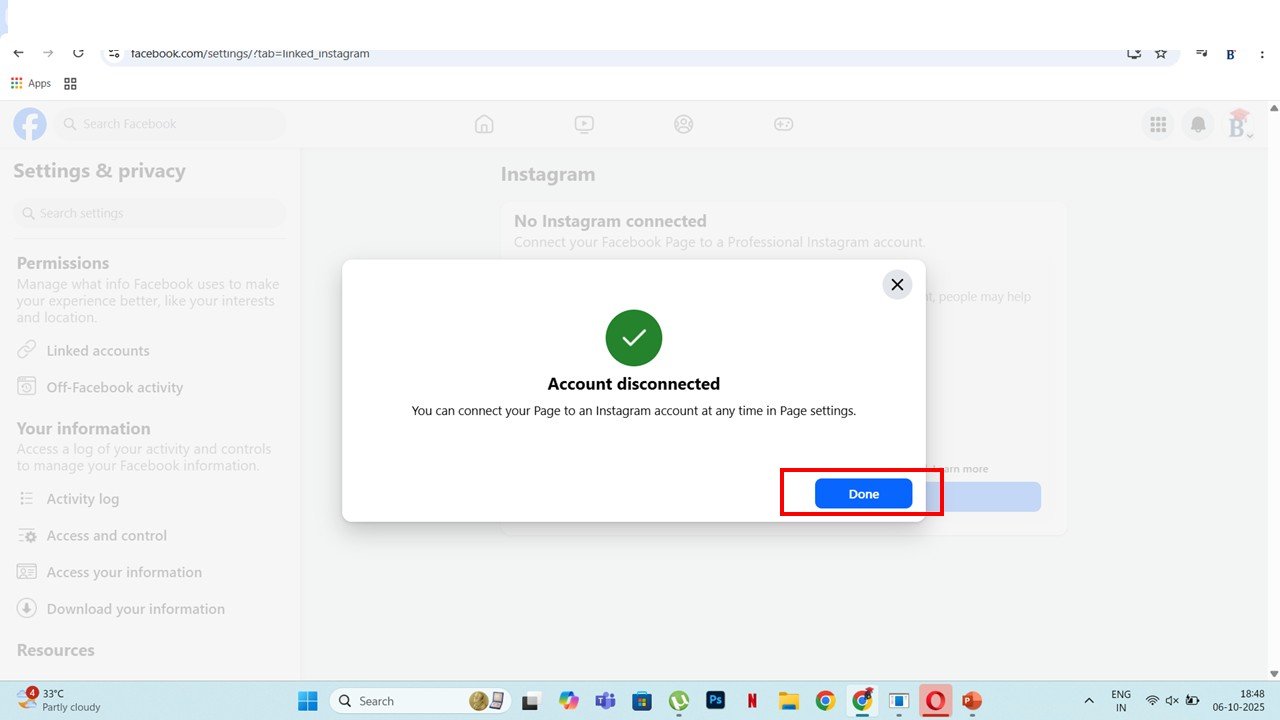
Your Instagram is now free from the old Page. You won’t lose any followers or posts.
Step 3: Reset Instagram Password (Optional)
If you forgot your Instagram password, it’s good to reset it once. It helps Meta verify your account easily.
✅ Option 1: Reset Using Facebook
Log out of Instagram
Tap Forgot password?
Choose Log in with Facebook
You will either log in directly or get a reset option
Set a new password
✅ Option 2: Reset Using Email or Phone
Tap Forgot password? on Instagram login screen
Enter your username
Choose your email or phone to get a reset link
Click the link and change your password
Now your account is ready to connect.
Step 4: How to Connect Instagram to Facebook Page Without Password
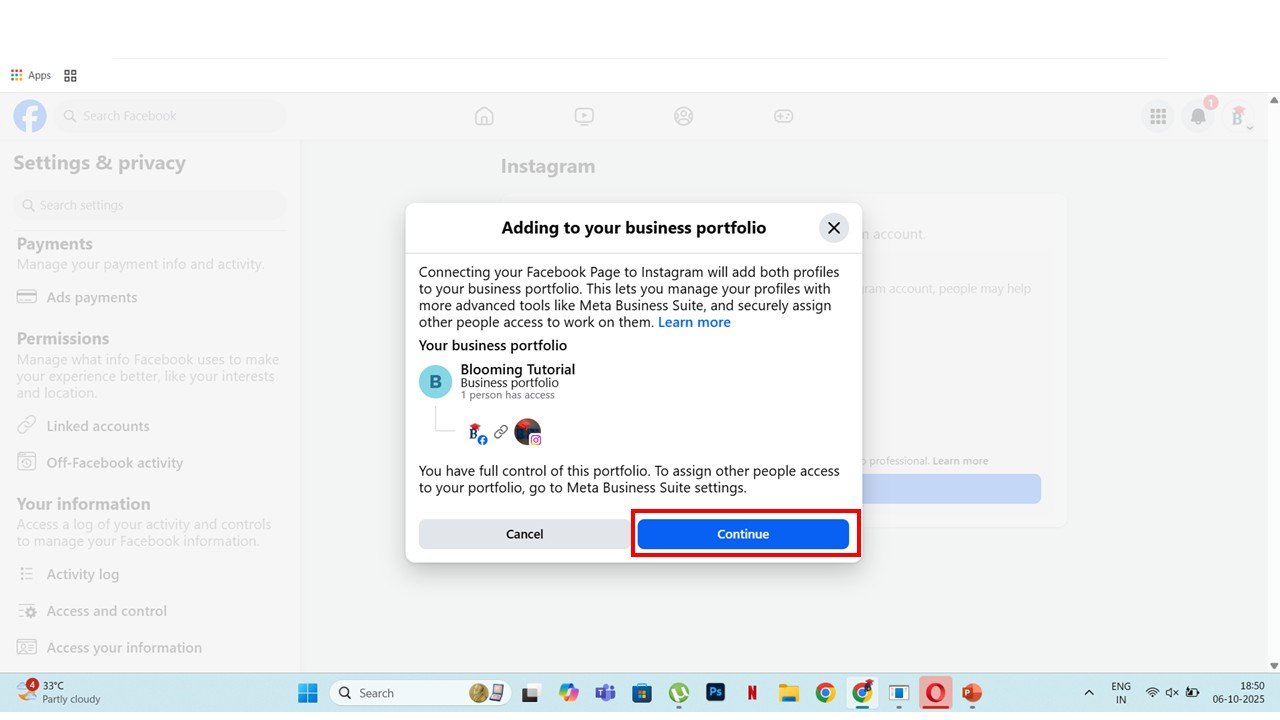
Now you can connect your Instagram to your new Page, like Blooming Tutorial.
📱 Using Facebook App:
Open Facebook app → Menu → Pages → Blooming Tutorial
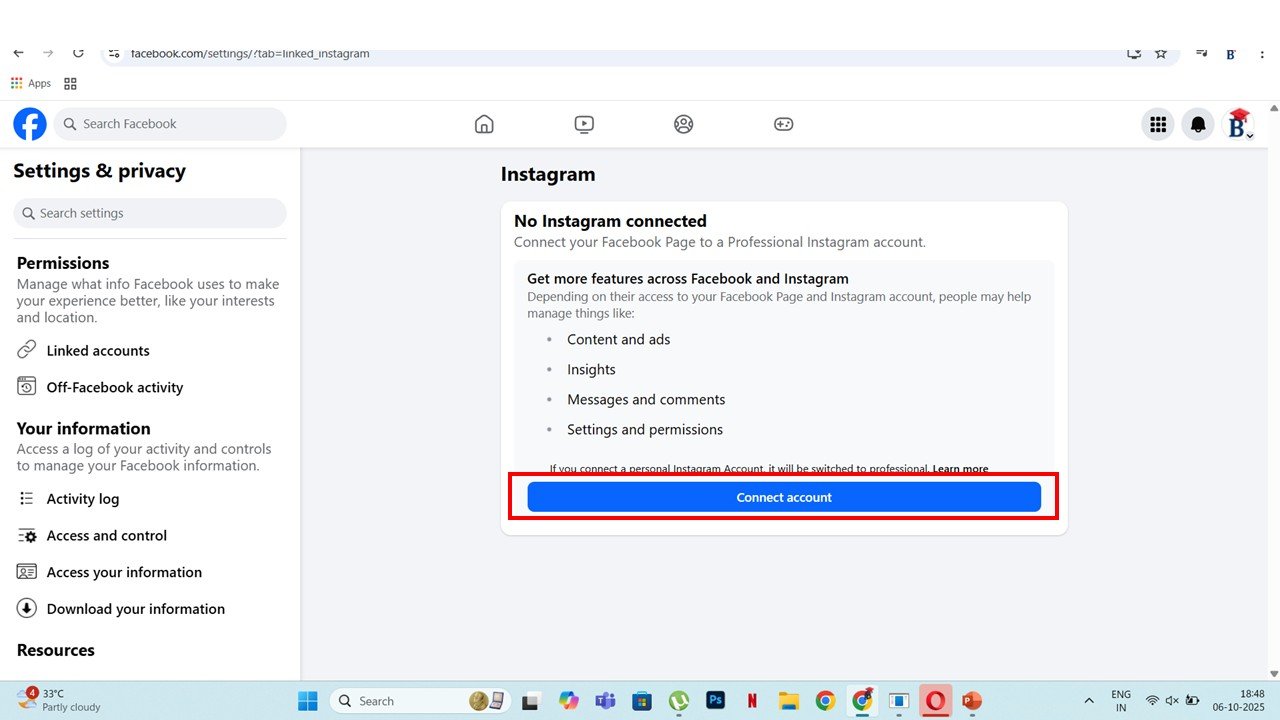
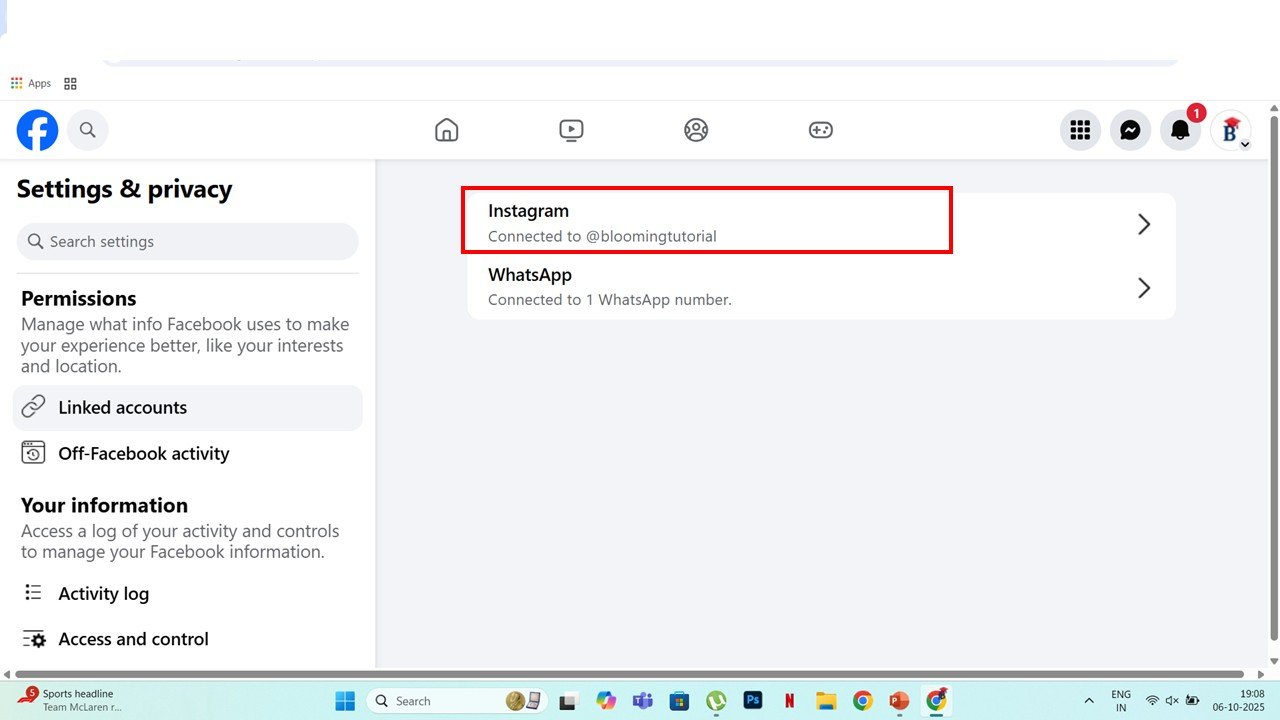
Tap Settings → Linked Accounts → Instagram
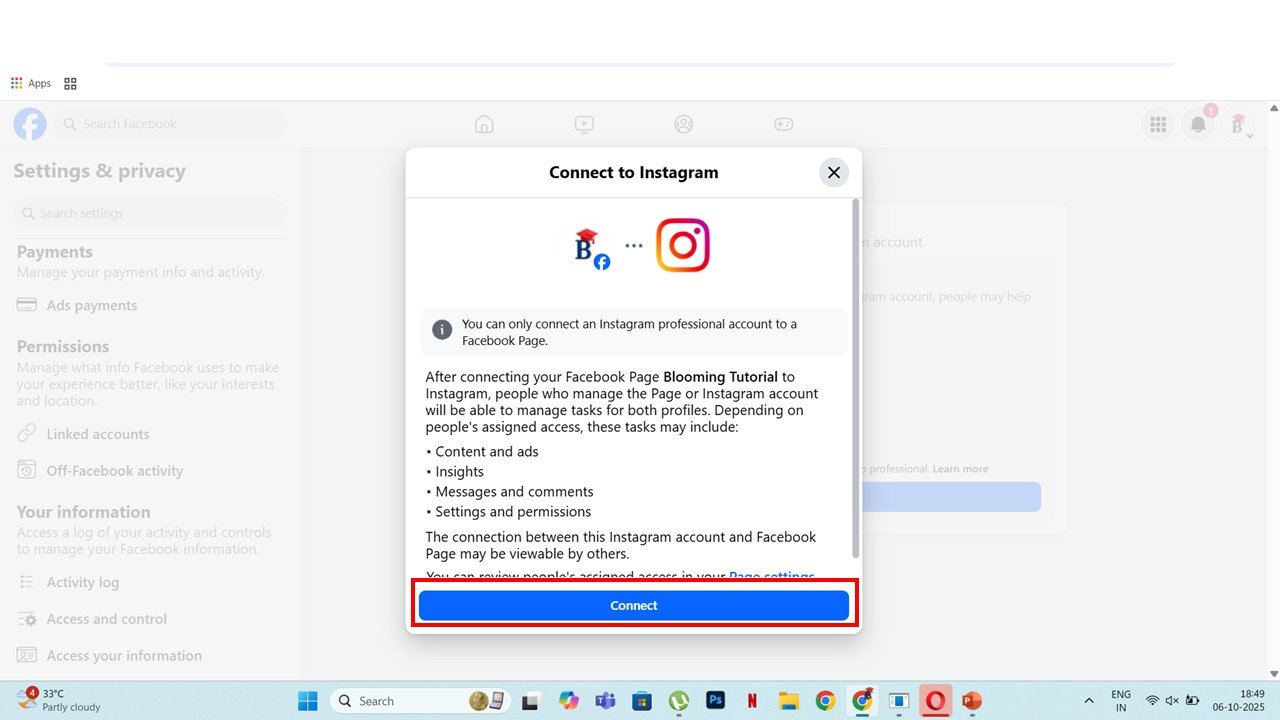
Choose Connect Account
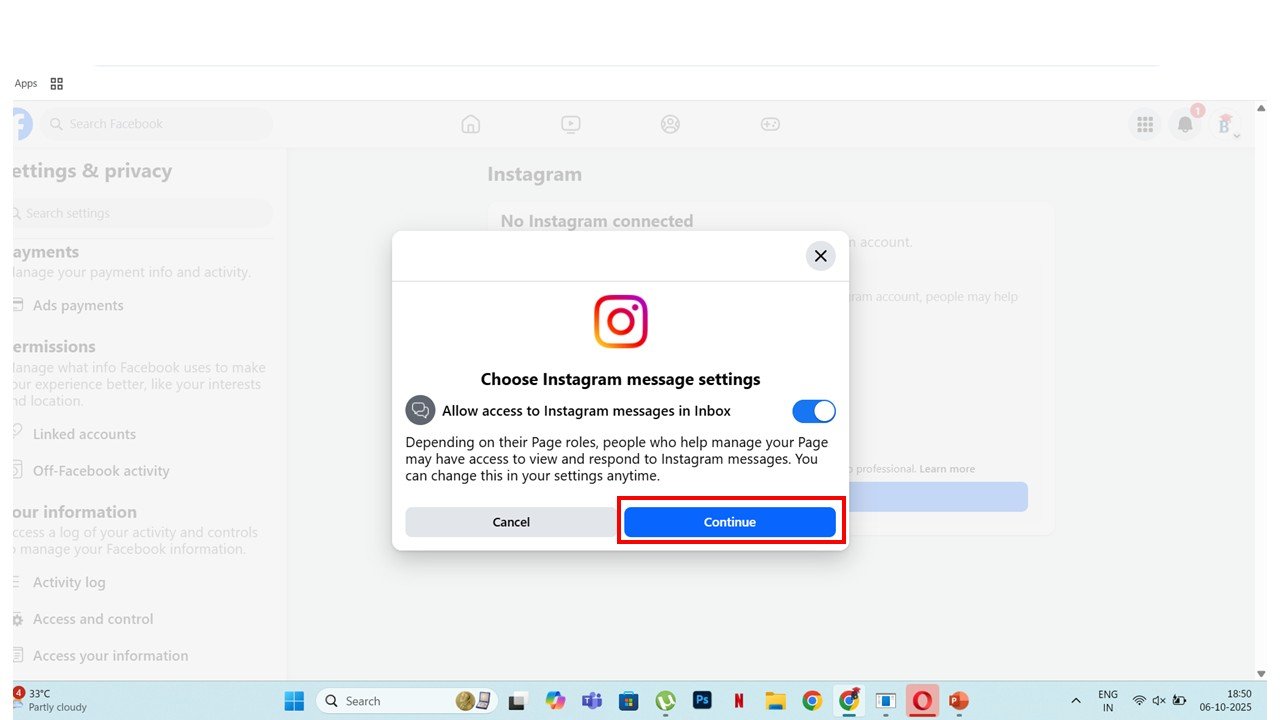
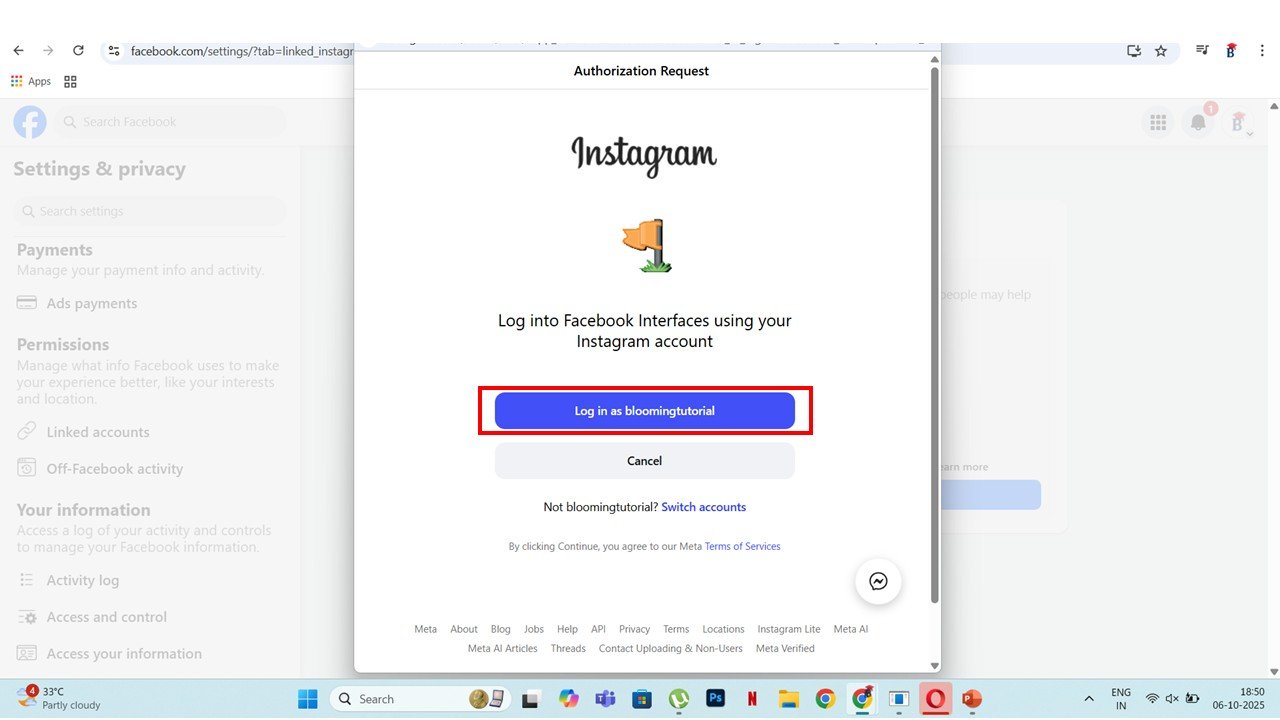
You can log in with Facebook or enter your Instagram username and password
Tap Allow access / Confirm
✅ Done! You have now connected Instagram to Facebook Page without password using your Facebook login.
Step 5: Fix Loading Problem in Verification Code
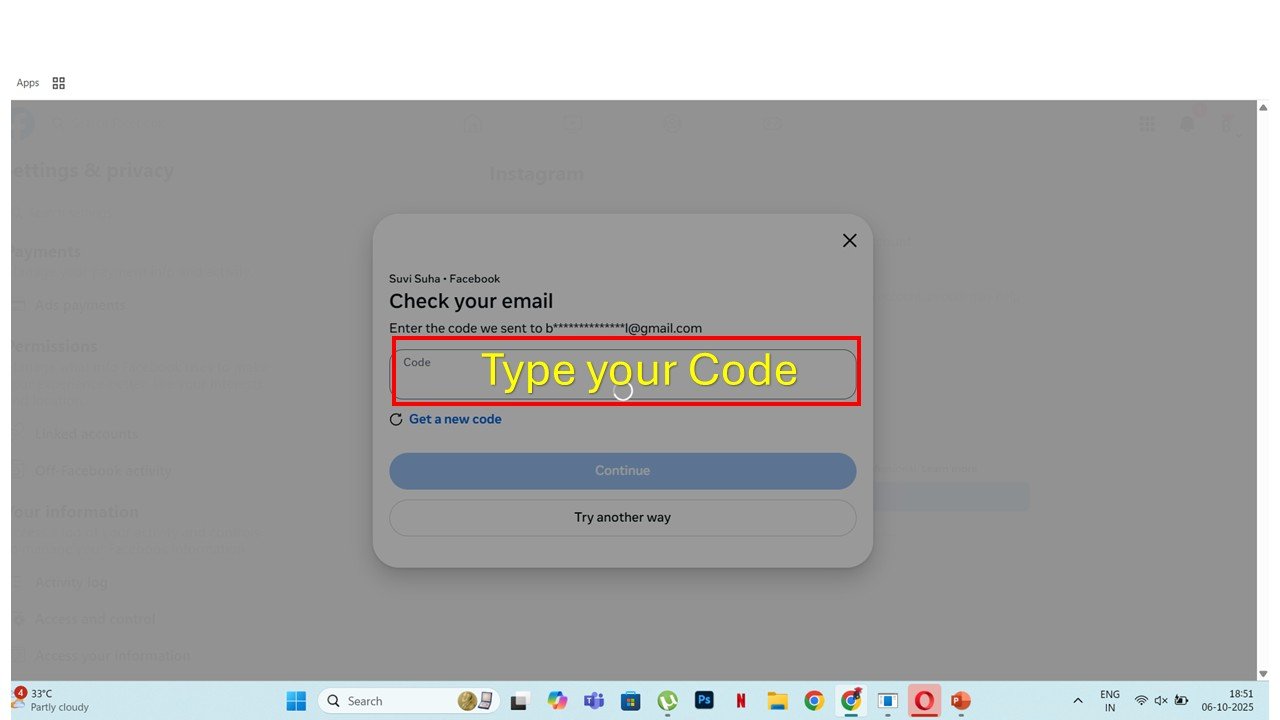
Sometimes Instagram sends a verification code to your email, but the screen keeps loading. Don’t worry — it’s a common issue.
Here are simple ways to fix it:
🧹 Method 1: Close Apps and Reopen
Close Instagram and Facebook apps completely
Open Facebook → your new Page → Settings → Linked Accounts → Instagram