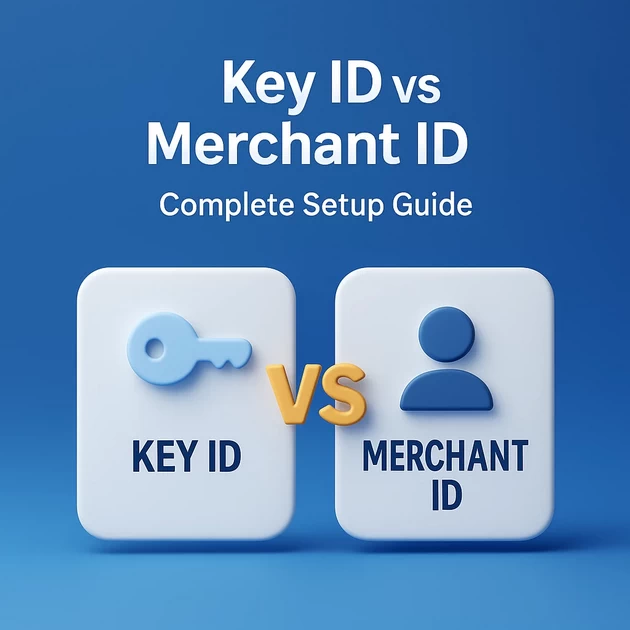
Razorpay Key ID vs Merchant ID – Complete Setup Guide?
-
September 15, 2025
-
by
Are you confused about Razorpay Key ID vs Merchant ID? You are not alone. Many beginners face the same doubt when they first start using Razorpay for payments.
In this blog, we will explain Razorpay Key ID vs Merchant ID – Complete Setup Guide in very simple English. Even if you are not fluent in English, you will understand this step by step.
We will see what Razorpay Key ID vs Merchant ID means, how they are different, and how both are used in Razorpay setup.
What is Razorpay Key ID vs Merchant ID?
The Razorpay Key ID vs Merchant ID confusion comes because both terms sound similar. But in reality, they are used for different purposes.
The Key ID (also called API Key ID) is like a username for your website to connect with Razorpay.
Format:
rzp_live_xxxxxxxxx(for live mode) orrzp_test_xxxxxxxxx(for test mode).You use this Key ID inside your website or plugin.
It always works together with a Key Secret.
👉 Think of it like an ATM card number. It identifies your account but does not work alone. You also need the PIN (in Razorpay’s case, the Key Secret).
What is Razorpay Key Secret?
When you generate API keys in the Razorpay Dashboard, you get:
Key ID
Key Secret
The Key Secret is shown only once. You must save it safely.
👉 The Key Secret is like your ATM PIN. It must be kept private. Never share it publicly. Understanding Razorpay Key ID vs Merchant ID will also help you remember that the Key Secret always pairs with the Key ID, not the Merchant ID.
What is Razorpay Merchant ID?
The Merchant ID (MID) is your business ID in Razorpay.
Format: something like
ABCD1234567890.It is linked to your Razorpay account and is used for settlements and support.
You can find it in Dashboard → My Account → Profile.
👉 Think of Merchant ID as your business registration number in Razorpay. Many beginners mix up Razorpay Key ID vs Merchant ID here, but they are very different.
Razorpay Key ID vs Merchant ID – The Difference
Now let us clear the confusion between Razorpay Key ID vs Merchant ID.
Key ID (API Key ID): Used for integration. It connects your website or app with Razorpay for payments.
Key Secret: Works with Key ID for authentication.
Merchant ID: Identifies your Razorpay business account. Not used in normal website integration.
So, when you set up payments, you usually need Key ID + Key Secret, not Merchant ID. This is the most important point of Razorpay Key ID vs Merchant ID – Complete Setup Guide.
Where to Find Razorpay Key ID vs Merchant ID?
Steps for Key ID and Key Secret
Login to Razorpay Dashboard.
Switch to Live Mode (for real payments).
Go to Account & Settings → API Keys.
Generate keys.
Copy Key ID and Key Secret (Secret shown only once).
Steps for Merchant ID
Login to Razorpay Dashboard.
Go to Account & Settings → Profile.
You will see your Merchant ID (MID) there.
👉 This is why people confuse Razorpay Key ID vs Merchant ID. Both appear in different dashboard areas, but they serve different purposes.
How to Regenerate Razorpay API Key (Get New Secret)
Important to understand first
Key ID (API Key ID) → always visible in the dashboard
Key Secret → shown only once when the key is generated
If you missed it ❌ you cannot view it again
The only option is to regenerate a new key
Login to Razorpay Dashboard
Switch to LIVE mode (top right)
Go to Account & Settings
Click API Keys
Click Regenerate Key
Razorpay will show:
New Key ID
New Key Secret (copy & save immediately)
⚠️ Save the Key Secret safely (password manager / secure note)
⚠️ Very Important (Don’t Miss This)
After regeneration, OLD keys will STOP working
You must update the new Key ID & Key Secret in:
bloomingtutorial.com
bloomings.in
Any plugin / app / server using Razorpay
If you don’t update → payments will fail.
✅ Safe Practice (Recommended)
Store Key Secret in:
Password manager
Secure document
Environment variables (for developers)
Never paste Key Secret in frontend code or public files
Why “Immediately change API” is the RIGHT choice
You forgot the Razorpay Key Secret
You need the new Key Secret now
You are ready to update the keys on your websites
In this case:
✅ Immediately change API
Old keys stop working right now
New Key ID + Key Secret become active instantly
You can copy the secret and update your sites immediately
This is exactly what you need.
⏳ Why NOT “After 24 hours”
❌ After 24 hours is used only when:
You suspect a security breach
You want time to update many systems slowly
You are running high-traffic live payments and need a buffer
If you choose this:
Old keys stay active for 24 hours
New key activates later
You may get confused and delay setup
Not recommended for your case.
What to do STEP-BY-STEP (Safe Method)
Choose Immediately change API
Copy Key ID and Key Secret (save safely)
Update keys in: for Example
firstwebsite.com
secondwebsite.in
Any Razorpay plugin / code
Do a test payment (small amount)
Confirm payment success
🧠 Simple Rule to Remember
🔑 Forgot Key Secret = Immediately change API
How to Check Live Mode in Razorpay (Step-by-Step)
🔹 Step 1: Login
Go to 👉 https://dashboard.razorpay.com
Login to your Razorpay account.
🔹 Step 2: Look at the Top-Right Corner
On the top-right side of the dashboard, you will see a mode switch:
Test Mode
Live Mode
👉 If Live Mode is highlighted / selected, you are in LIVE MODE ✅
👉 If Test Mode is highlighted, you are in TEST MODE ❌
🔹 Step 3: Visual Hint (Very Important)
Test Mode → Usually shows “TEST” label or orange/grey theme
Live Mode → No “TEST” label, normal dashboard view
Double-Check Using API Keys (Best Method)
Go to Account & Settings → API Keys
Check the Key ID format:
| Key ID starts with | Mode |
|---|---|
rzp_test_ | Test Mode |
rzp_live_ | Live Mode |
👉 If you see rzp_live_XXXX, you are in LIVE MODE ✅
⚠️ Important Reminder
Never use Test keys in Live Mode
Never use Live keys while testing
🧠 Simple Memory Trick
LIVE payments =
rzp_live_
TEST payments =rzp_test_
How to Check Razorpay LIVE MODE in WordPress
🔹 Step 1: Login to WordPress Admin
Go tohttps://yourwebsite.com/wp-admin
Login with admin username & password.
🔹 Step 2: Open Razorpay Settings (Plugin)
Depending on your setup, follow one of these:
▶ If you are using WooCommerce
Go to WooCommerce → Settings
Click Payments
Select Razorpay
Click Manage
▶ If you are using Razorpay Plugin (Direct)
Go to Settings → Razorpay
(or Plugins → Razorpay → Settings)
🔹 Step 3: Check Mode (Most Important)
Inside Razorpay settings, look for:
Test Mode checkbox / toggle
Or Live / Test mode option
✅ You are in LIVE MODE if:
❌ Test Mode is OFF
OR Live Mode is ON
🔹 Step 4: Check API Key Format (Final Confirmation)
Look at the Key ID field in WordPress:
| Key ID starts with | Meaning |
|---|---|
rzp_live_ | ✅ LIVE MODE |
rzp_test_ | ❌ TEST MODE |
👉 If you see rzp_live_XXXX, your WordPress site is in LIVE MODE.
🔹 Step 5: Save & Test (Important)
Click Save Changes
Open your website
Try a small real payment (₹1 / ₹10)
Check Razorpay Dashboard → Payments
If payment appears under Live Mode, setup is correct ✅
⚠️ Common Mistakes to Avoid
❌ Live mode ON but test keys used
❌ Test mode OFF but old keys not updated
❌ Regenerated keys but not pasted in WordPress
🧠 Easy Memory Trick
WordPress shows rzp_live_ → REAL MONEY
WordPress shows rzp_test_ → PRACTICE ONLY
How to paste the Razorpay Secret Key in WordPress.
METHOD 1: WooCommerce + Razorpay Plugin (Most Common)
BEFORE YOU START (Important)
You must already have:
Key ID →
rzp_live_XXXXKey Secret → long random text
You must be logged in as WordPress Admin
Step 1: Login to WordPress
Go tohttps://yourwebsite.com/wp-admin
Step 2: Open Razorpay Settings
Go to WooCommerce
Click Settings
Click Payments
Find Razorpay
Click Manage
Step 3: Paste Keys (THIS IS WHERE)
You will see fields like:
Key ID
Key Secret
Test Mode (checkbox)
👉 Paste like this:
Key ID → paste your
rzp_live_XXXXKey Secret → paste your secret key (carefully)
⚠️ Make sure:
No extra space at start or end
Copy–paste exactly
Step 4: Disable Test Mode
❌ Uncheck Enable Test Mode
(Because you are using LIVE keys)
Step 5: Save
Click Save Changes
✅ Done
METHOD 2: Razorpay Plugin (Without WooCommerce)
Step 1
Go to Settings → Razorpay
(or Plugins → Razorpay → Settings)
Step 2
Paste:
Key ID
Key Secret
Step 3
Turn Test Mode OFF
Step 4
Click Save
🔹 METHOD 3: Custom Code (Advanced – Optional)
If your developer added Razorpay manually:
$keyId = "rzp_live_XXXX";

$keySecret = "your_secret_here";
⚠️ Never put secret key in frontend JavaScript.
COMMON MISTAKES (Avoid These)
❌ Pasting test secret with live key
❌ Extra spaces while pasting
❌ Forgetting to click Save
❌ Regenerating keys but not updating WordPress
EASY MEMORY LINE
Key ID = Username
Key Secret = Password
Paste both → Save → Test
How to Use Razorpay Key ID vs Merchant ID in Website Setup?
If you are using WordPress / WooCommerce:
Go to Razorpay plugin settings.
Paste Key ID and Key Secret.
Save and test.
If you are using custom code:
Use Key ID and Secret in your API calls.
Always verify payment signatures on the server.
👉 Remember: Merchant ID is not required in normal website plugins. This is a classic case of Razorpay Key ID vs Merchant ID misunderstanding.
Extra Tip: Test Mode vs Live Mode
Test Mode: Use for checking payments. Transactions are not real.
Live Mode: Use for actual payments. Transactions are real.
You will get different Key IDs for Test and Live. Do not mix them. If you are testing, keep in mind the Razorpay Key ID vs Merchant ID difference still applies.
Why This Confusion Happens?
Many people see both “Merchant ID” and “Key ID” in their dashboard. The words look similar, but they are not the same.
Merchant ID = your Razorpay account ID.
Key ID = your Razorpay integration key.
Just remember this simple Razorpay Key ID vs Merchant ID difference, and you will never be confused again.
Simple Analogy for Razorpay Key ID vs Merchant ID
Merchant ID = Shop license number
Key ID + Key Secret = Shop door key + lock
One shows who you are (license).
The other lets you open the shop and do business (key + lock).
This analogy helps you quickly understand Razorpay Key ID vs Merchant ID in daily life terms.
Conclusion
We hope this blog cleared your confusion on Razorpay Key ID vs Merchant ID – Complete Setup Guide.
Always remember:
Use Key ID + Secret for integration.
Merchant ID is for account identity.
Keep your Key Secret safe.
Test first, then go live.
With this simple guide, you now know the real difference in Razorpay Key ID vs Merchant ID.
FAQ Section
What is Razorpay Key ID?
Razorpay Key ID is the unique API Key ID used to connect your website or app with Razorpay.
What is Razorpay Merchant ID?
Merchant ID is your business identification number in Razorpay. It is used for settlements and account verification, not for integration.
Is Key ID the same as API Key ID?
Yes. Razorpay Key ID and API Key ID mean the same thing.
Can I use the same Key ID on multiple websites?
Yes. If all websites belong to the same business, you can use the same API Key ID and Secret, but you must add each website in Razorpay Dashboard.
Where can I find my Razorpay Key ID and Key Secret?
You can find them in Dashboard → Account & Settings → API Keys. Key Secret is shown only once at the time of generation.
Where can I find my Razorpay Merchant ID?
You can find your Merchant ID in Dashboard → My Account → Profile.
Can I regenerate my Razorpay Key ID and Key Secret?
Yes. If you missed saving the Key Secret, you can regenerate new keys from Dashboard → Account & Settings → API Keys. The old keys will stop working, so update your website with the new ones.
Can I use one Razorpay account for multiple websites?
Yes. You can use the same API Key ID and Secret across multiple websites if they belong to the same business entity. But you must add and verify each website in Razorpay Dashboard under Business Website Details.
Do you w
-
byBIT
-
September 15, 2025
You May Also Like
-
Nov 28, 2025
Introduction — Why A/B Testing Is the Secret Formula Behind Every Successful Business Every top digital company uses A/B Testing...
-
Nov 28, 2025
Introduction — Why 404 Pages Matter More Than Website Owners Realize The 404 page error is one of the most...

-
Oct 6, 2025
Many people want to know how to connect Instagram to Facebook Page without password, but they don’t know how to...

-
Sep 29, 2025
How to Add AdSense Inside Posts (Elementor) ✅ Option 1: Manually Insert Ads Copy your AdSense ad unit code (e.g.,...
Sign up to receive our latest updates
[mc4wp_form id=3101]
Get in touch
Address
152A, Annavalaivu, Thuvakudimalai, Tiruchirappalli, Tamil Nadu – 620 022
Landmark : Near Post Office
Landmark : Near Post Office
bloomingtutorial@gmail.com
