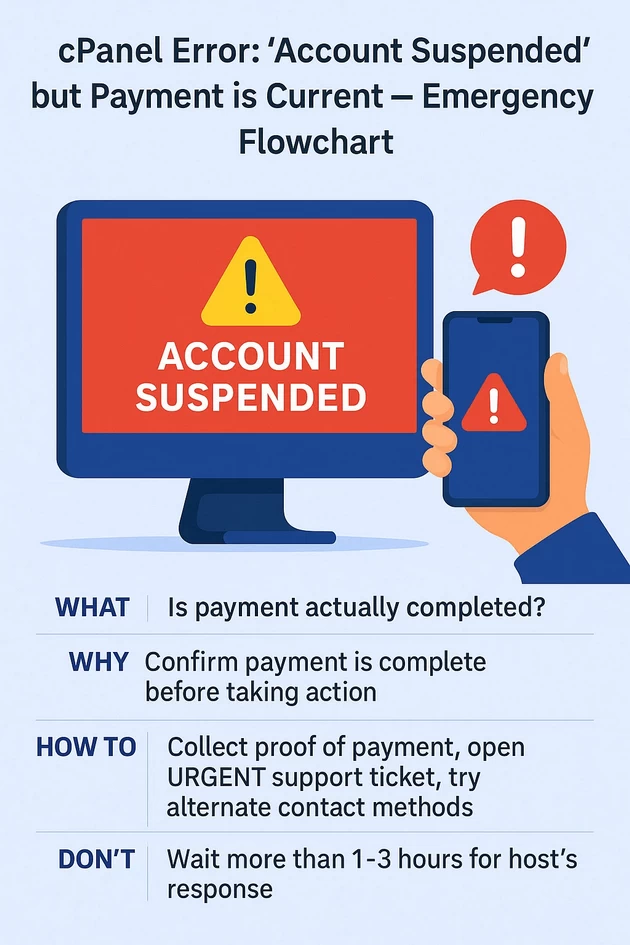
How to Recover from cPanel “Account Suspended” When Your Payment Is Current
Short summary (one line) If your cPanel account is suspended despite having paid, don’t panic — this guide walks you...
-
by
-
Dec 12, 2025
Short summary (one line)
If your cPanel account is suspended despite having paid, don’t panic — this guide walks you through immediate checks, proof-of-payment escalation, safe emergency recovery options, and what not to do.
<pre>
                   ┌────────────────────────────────┐
                   │   cPanel shows "Account        │
                   │     Suspended" error           │
                   └───────────────┬────────────────┘
                                   │
                                   ▼
                 ┌──────────────────────────────────┐
                 │ Is payment actually completed?    │
                 │ (Check invoice status + receipt)  │
                 └───────────────┬───────────────────┘
                                 │YES
                                 │
                                 ▼
             ┌───────────────────────────────────────────┐
             │ Collect proof of payment:                  │
             │ - Invoice #                                │
             │ - Transaction ID                           │
             │ - Screenshot of payment receipt            │
             └───────────────┬────────────────────────────┘
                             │
                             ▼
        ┌────────────────────────────────────────────────────────┐
        │Open URGENT support ticket with payment proof           │
        │ “Account suspended despite payment — please unsuspend” │
        └───────────┬────────────────────────────────────────────┘
                    │
                    ▼
     ┌───────────────────────────────────────────────────────┐
     │Try alternate contact methods                           │
     │ - Phone support                                        │
     │ - Live chat                                            │
     │ - Social media escalation (@host + ticket ID)          │
     └────────────┬───────────────────────────────────────────┘
                  │
                  ▼
     ┌────────────────────────────────────────────────────────┐
     │Did the host respond within 1–3 hours?                  │
     └────────────┬───────────────────────────────────────────┘
                  │YES                                        │NO
                  │                                           │
                  ▼                                           ▼
┌────────────────────────────────┐            ┌────────────────────────────────────────┐
│Account unsuspended —           │            │ Host not responding                     │
│verify service is restored      │            │ Proceed with emergency recovery         │
└────────────────────────────────┘            └───────────────┬────────────────────────┘
                                                              │
                                                              ▼
                                            ┌────────────────────────────────────────────┐
                                            │ Do you have off-site backups?              │
                                            └───────────────┬────────────────────────────┘
                                                            │YES
                                                            │
                                                            ▼
                                      ┌────────────────────────────────────────────────────┐
                                      │Deploy backup to a temporary host (AWS, DO, etc.)  │
                                      │Point DNS A-record to new server                    │
                                      └───────────────────┬────────────────────────────────┘
                                                          │
                                                          ▼
                                ┌─────────────────────────────────────────────────────────────────────┐
                                │Site is live temporarily while waiting for original host to respond │
                                └─────────────────────────────────────────────────────────────────────┘

                                           NO (no backups available)
                                                            │
                                                            ▼
                         ┌────────────────────────────────────────────────────────────────────────────┐
                         │Recover cached content from:                                                 │
                         │ - Wayback Machine                                                           │
                         │ - Google Cache                                                              │
                         │ - Local files / older backup copies                                         │
                         └────────────────────────┬────────────────────────────────────────────────────┘
                                                  │
                                                  ▼
                     ┌──────────────────────────────────────────────────────────────┐
                     │Create temporary “Maintenance / We Will Be Back Soon” page    │
                     │on a new host, update DNS so visitors see updated message     │
                     └──────────────────────────────────────────────────────────────┘


</pre>
First things to know — common reasons this happens (why)
- Payment-processing delay or mismatch (payment not linked to invoice, bank holds, currency conversion or reconciliation delay).
- Payment credited to wrong account (invoice number mismatch, different account email).
- Automated fraud or abuse detection (suspension for malware, excessive resources, malware cleanup required).
- Manual suspension for ToS violation (copyright DMCA, spam, malware).
- Account compromised or suspicious activity → host suspends for safety.
- Billing system bug or human error at the provider.
- Expired domain / DNS / registrar issue that caused automated suspension.
- Outstanding fees, taxes or chargeback flag even if recent payment looks OK.
Understanding which of these applies determines the right recovery path.
Immediate non-technical checks (do this first — 10 minutes)
- Check your email (and spam/junk) from your hosting provider — suspension emails usually include reason and ticket link.
- Log into your hosting/billing portal (not cPanel). Check invoices, payments, and payment status. Note invoice numbers, payment ID, date/time, and transaction ID.
- Open a support ticket and attach payment proof (screenshot of bank transfer, PayPal receipt, transaction ID, invoice number).
- Call the provider (phone numbers are often faster than tickets). Use any emergency phone numbers shown on the host’s website or WHOIS contact.
- Try a different contact route — live chat, Twitter, Facebook, LinkedIn, or public status page. Public channels often accelerate responses.
- Document everything — save receipts, screenshots, ticket IDs, chat transcripts and timestamps.
Step-by-step emergency access & recovery plan (ordered)
A — Prepare proof and escalate (first 30–60 minutes)
- Collect payment proof:
- Bank transfer screenshot with transaction ID, date/time, amount.
- PayPal / credit card transaction ID / email confirmation.
- Screenshot of successful payment page from host or payment gateway.
- Open/Update support ticket and attach proof:
- Paste invoice number and transaction ID.
- Mark ticket “URGENT — account suspended despite payment”.
- Use subject:
URGENT: Account suspended despite payment — Invoice #XXXX - TXN ID: YYYY
- Call the host’s phone support and reference the ticket. Ask for immediate reactive unsuspension while they verify the payment.
- If chat exists, open chat and paste same info. Ask for escalation to billing manager or operations.
Use the escalation message template below (copy & paste).
Escalation template (billing)
Subject: URGENT: Account suspended despite payment — Invoice #<INVOICE_NUMBER> — TXN <TRANSACTION_ID>

Hello [Hosting Company Support / Name],

My account (username: <USER>, domain: <example.com>) was suspended on <DATE> with the message “Account suspended”. I have already paid invoice #<INVOICE_NUMBER> on <DATE> via <PAYMENT_METHOD>. Transaction ID: <TRANSACTION_ID>. I’ve attached proof of payment.

Please reinstate the account immediately or provide the suspension reason and an SLA time for restoration. This is causing business downtime.

Ticket opened: [paste current ticket link or ID]. Please escalate this to Billing Ops / Supervisor.

Regards,
<Name, Email, Phone>
B — Verify billing status and reconcile (10–30 minutes)
- Check billing portal for invoice state: Paid, Pending, Processing, or Failed.
- If the gateway shows “processing” or “pending”, ask support to confirm reconciliation. Payment may take hours to post.
- If the payment is marked paid in payment processor but not credited, ask the provider to manually reconcile using TXN ID.
C — If the host is non-responsive: accelerate (1–3 hours)
- Use social escalation: post a polite message tagging their Twitter/LinkedIn support account with ticket ID and ask for urgent help (companies respond quickly to public posts).
- Call payment provider / bank: request transaction trace or proof of settlement — banks can produce SWIFT/MT103 or payment receipts proving funds left; share with host.
- Open disputes carefully: If the host ignores you for many hours and downtime is causing business loss, contacting your card issuer or PayPal for a chargeback is possible, but it may suspend any hope of fast restoration (hosts can refuse service on chargeback). Use this as last resort.
- Consider temporary failover: if you have a recent backup, you can provision a temporary instance at another host and restore to serve the site while you resolve billing.
D — Emergency content recovery without host cooperation (if host refuses access)
Warning: only proceed with legitimate ownership and lawful actions.
- Check off-site backups
- If you have scheduled off-site backups (Dropbox, Google Drive, S3, third-party backup plugin), restore to alternate host.
- Download public assets
- Use Wayback Machine / archive.org to fetch cached pages and assets for emergency display.
- Create temporary site on another host
- Provision a cheap droplet or shared hosting plan and restore backup or a simplified “maintenance” page with contact info.
- DNS considerations
- If DNS is controlled by domain registrar or external DNS provider, you can point the A record to the temporary server to bring the site back up quickly. Avoid changing nameservers if registrar is with the same host — do that only if you own the domain and want to move away.
E — If suspension reason is malware/abuse
- Host often suspends due to malware. Ask for the specific infected file(s) and logs.
- If host provides file list, run local malware scan or use Sucuri, Maldet, or ClamAV to clean.
- After cleaning, request re-scan and re-enable. Keep audit logs proving you cleaned the site.
- If you cannot clean, hire a trusted malware removal service.
F — If host suspended for ToS or DMCA
- Request specific complaint / takedown notice. Hosts must usually provide the complainant and content.
- If DMCA, respond per the host’s procedure (counter-notice only if valid). Consider legal counsel for disputes.
G — If host claims unpaid third-party charges or tax hold
- Ask for detailed invoice and proof; settle or produce documentation if incorrect.
Technical commands & checks you can run (if you still have control or SSH/FTP access)
Only applicable if you can still connect; suspended accounts often block SSH/FTP.
- Check HTTP status and suspension page:
curl -I https://example.com
# or fetch full page
curl -v https://example.com
- List files via SSH (if available):
ssh user@host
ls -la ~/public_html
- Test DNS resolution:
dig +short example.com
What not to do (critical)
- Do NOT attempt to bypass the suspension by exploiting vulnerabilities or hacking — illegal and will get you blacklisted.
- Do NOT initiate a chargeback without first documenting and attempting escalation — chargebacks can make providers permanently refuse service.
- Do NOT publicly accuse the host of fraud without evidence — remain factual and provide proof.
- Do NOT share payment sensitive data (full card numbers) in public or insecure tickets. Share transaction IDs only.
- Do NOT delete domain registration or DNS settings unless you are sure — that can make recovery harder.
Prevention checklist (do this after recovery)
- Enable auto-pay and confirm billing email is correct.
- Maintain off-site backups (at least daily) to a separate provider (S3, Google Drive, Dropbox).
- Keep alternate host account for failover (cheap standby plan).
- Keep payment receipts and bank statements for 12 months.
- Use monitoring (uptime monitor, statuspage) to alert you instantly.
- Add multiple contact channels in hosting account: phone, alternate email.
- Enable two-factor auth on hosting panels and billing account.
- Schedule quarterly audit of billing and domain expiry dates.
Short printable emergency checklist (copy/paste)
- Locate invoice & transaction ID.
- Attach payment proof; open/upgrade support ticket.
- Call phone support & post on social channels with ticket ID.
- Ask host to manually reconcile (provide TXN ID/MT103).
- If no response in 4–6 hours, provision temporary host & restore backup.
- Document everything and consider legal or payment provider escalation.
Templates you can copy/paste
Billing ticket update (attach receipt)
Hello Support,

Account: <username> / <domain>
Invoice: #<INVOICE>
Paid: <DATE> via <PAYMENT_METHOD>
Transaction ID: <TXN_ID>

Payment was successfully processed; please manually reconcile and restore my account immediately. This site is business-critical. I have attached the payment receipt and a screenshot of the payment confirmation.

Please escalate to Billing Ops and confirm estimated time to restore.

Thank you,
<Name, Phone>
Public social escalation (Twitter example)
@HostingCompany Support — URGENT: Account suspended (ticket #XXXX) despite payment on <date>. Transaction ID <TXN_ID>. Please assist or escalate to billing manager. This is causing business downtime. #help
Formal legal notice (if needed later)
If host remains unresponsive after all reasonable attempts, send a polite, formal notice via email/registered post describing facts, damages, and a request to restore service within X hours, while reserving legal remedies. Consider consulting a lawyer before sending.
When to involve payments provider / bank / legal counsel
- If you have proof of payment and the host refuses restoration or does not respond after repeated escalation, consider contacting your bank or payment provider to produce a settlement proof (SWIFT/MT103) and to advise on dispute options.
- Legal counsel is the next step for persistent refusal causing major financial loss — they can send a formal demand letter or advise on jurisdictional steps.
Final notes & recommended immediate actions (top-priority)
- Do not rely solely on ticket — call & post publicly with ticket ID.
- Provide transaction ID / proof immediately — this fixes most payment reconciliation suspensions.
- If host is non-responsive for more than 6–12 hours and downtime matters, restore from backup on alternate host and update DNS (if you control domain).
- After restoration, document every interaction and open a formal complaint with the host if they caused avoidable downtime.
-
AboutBIT

You May Also Like
Sign up to receive our latest updates
Get in touch
Address
152A, Annavalaivu, Thuvakudimalai, Tiruchirappalli, Tamil Nadu – 620 022
Landmark : Near Post Office
Landmark : Near Post Office
bloomingtutorial@gmail.com
