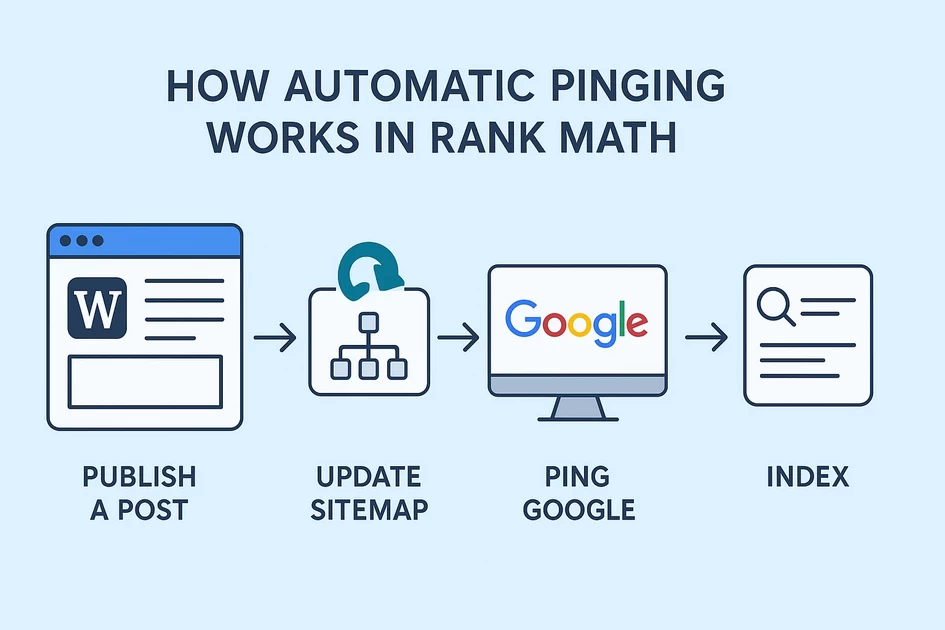
How Automatic Pinging Works in Rank Math (WordPress)
When you publish a new post in WordPress, automatic pinging in Rank Math ensures your website instantly notifies Google and...
-
by
-
Oct 27, 2025
When you publish a new post in WordPress, automatic pinging in Rank Math ensures your website instantly notifies Google and other search engines about the update. This feature helps your content get indexed faster — without you having to manually submit every new URL.
Rank Math automatically updates your sitemap and sends signals to Google, so your fresh content appears in search results quickly. In this guide, you’ll learn how automatic pinging in Rank Math works, how to configure it properly, and how to boost indexing speed using the Instant Indexing plugin.
What Is Automatic Pinging in Rank Math?
Automatic pinging in Rank Math is the process where your WordPress site notifies Google (and other search engines) about new or updated content automatically.
When you publish or update a post:
Rank Math updates your sitemap instantly.
WordPress sends a ping notification to Google.
Google re-crawls your sitemap and indexes your new post.
This process eliminates the need to go to Google Search Console every time you create or modify content.
Why Automatic Pinging Is Important for SEO
Automatic pinging in Rank Math helps search engines stay updated with your content changes. Here’s why it’s important:
Faster Indexing: Your new posts appear in search results quickly.
Improved SEO Efficiency: You save time from manual “Request Indexing.”
Better Crawl Frequency: Google regularly revisits your sitemap.
Higher Ranking Potential: Fresh content signals active website maintenance.
Step-by-Step Setup (Do’s)
🟢 Step 1: Check Sitemap Settings in Rank Math
Go to your WordPress Dashboard → Rank Math → Sitemap Settings.
Ensure the option “Include Posts” is turned ON.
This guarantees all your blog posts appear in the sitemap.
Open your sitemap in a browser to confirm it loads correctly.
👉 Example:
https://yourdomain.com/sitemap_index.xmlhttps://yourdomain.com/post-sitemap.xml
If it loads successfully without errors, your sitemap is working perfectly.
🟢 Step 2: Submit Sitemap to Google Search Console
Visit Google Search Console.
Select your verified property (domain).
In the left panel → Indexing → Sitemaps.
Add the following path:
sitemap_index.xml
Click Submit.
✅ You only need to do this once. Google will automatically detect future updates whenever Rank Math refreshes your sitemap.
🟢 Step 3: Add Google Ping for Faster Notification
WordPress can directly notify Google each time a post is published or updated.
Steps:
Go to Settings → Writing in your WordPress dashboard.
Scroll down to Update Services.
Paste this URL:
http://www.google.com/ping?sitemap=https://yourdomain.com/sitemap_index.xml
(Replace
yourdomain.comwith your real website domain.)Click Save Changes.
Now, your site will automatically ping Google whenever new content goes live — ensuring faster crawling.
🟢 Step 4: (Optional) Enable Instant Indexing Plugin by Rank Math
For even faster indexing (sometimes within hours), use the Instant Indexing for Google by Rank Math plugin.
How to Set Up:
Install and activate the plugin:
Go to Plugins → Add New → Search “Instant Indexing for Google by Rank Math.”
Once activated, go to Rank Math → Instant Indexing.
Generate a Google API Key through Google Cloud Console.
(The plugin gives clear step-by-step instructions.)Add your API key in the plugin settings.
Under “Submit Posts” and “Pages”, tick both checkboxes.
Now Rank Math will automatically send new or updated URLs directly to Google’s Indexing API — speeding up the process significantly.
⚡ This method is best for blogs, news, and websites that frequently update their content.
📋 Quick Checklist Summary
🟢 Step 1: Check Sitemap Settings in Rank Math
Go to your WordPress Dashboard → Rank Math → Sitemap Settings.
Ensure the option “Include Posts” is turned ON.
This guarantees all your blog posts appear in the sitemap.
Open your sitemap in a browser to confirm it loads correctly.
👉 Example:
https://yourdomain.com/sitemap_index.xmlhttps://yourdomain.com/post-sitemap.xml
If it loads successfully without errors, your sitemap is working perfectly.
🟢 Step 2: Submit Sitemap to Google Search Console
Visit Google Search Console.
Select your verified property (domain).
In the left panel → Indexing → Sitemaps.
Add the following path:
sitemap_index.xmlClick Submit.
✅ You only need to do this once. Google will automatically detect future updates whenever Rank Math refreshes your sitemap.
🟢 Step 3: Add Google Ping for Faster Notification
WordPress can directly notify Google each time a post is published or updated.
Steps:
Go to Settings → Writing in your WordPress dashboard.
Scroll down to Update Services.
Paste this URL:
http://www.google.com/ping?sitemap=https://yourdomain.com/sitemap_index.xml(Replace
yourdomain.comwith your real website domain.)Click Save Changes.
Now, your site will automatically ping Google whenever new content goes live — ensuring faster crawling.
🟢 Step 4: (Optional) Enable Instant Indexing Plugin by Rank Math
For even faster indexing (sometimes within hours), use the Instant Indexing for Google by Rank Math plugin.
How to Set Up:
Install and activate the plugin:
Go to Plugins → Add New → Search “Instant Indexing for Google by Rank Math.”
Once activated, go to Rank Math → Instant Indexing.
Generate a Google API Key through Google Cloud Console.
(The plugin gives clear step-by-step instructions.)Add your API key in the plugin settings.
Under “Submit Posts” and “Pages”, tick both checkboxes.
Now Rank Math will automatically send new or updated URLs directly to Google’s Indexing API — speeding up the process significantly.
⚡ This method is best for blogs, news, and websites that frequently update their content.
❌ What NOT to Do with Automatic Pinging in Rank Math
While pinging helps SEO, overdoing it can cause problems. Follow these guidelines:
❌ Don’t Ping Too Often Manually:
Avoid using third-party ping tools every time you edit a post. WordPress handles this automatically.❌ Don’t Use Multiple SEO Plugins:
Use only Rank Math for sitemap generation. Using Yoast or All-in-One SEO simultaneously may cause conflicts.❌ Don’t Block Search Engines:
Check your site settings:
Settings → Reading → “Discourage search engines from indexing this site” → Make sure it’s unchecked.❌ Don’t Expect Instant Indexing:
Even with pings and Instant Indexing enabled, Google may take a few hours to days depending on your site’s authority and crawl budget.
Quick Checklist Summary
| Task | Where to Do It | Status |
|---|---|---|
| Enable Sitemap in Rank Math | Rank Math → Sitemap Settings | ✅ |
| Submit Sitemap in Search Console | Google Search Console | ✅ |
| Add Google Ping | Settings → Writing → Update Services | ✅ |
| Use Instant Indexing Plugin | Rank Math → Instant Indexing | ⚡ Optional |
| Keep “Discourage Search Engines” unchecked | Settings → Reading | ✅ |
| Avoid Duplicate SEO Plugins | Plugin List | ✅ |
Pro Tips to Enhance Indexing Speed
Use Fast Hosting — slow servers delay crawling.
Publish High-Quality Original Content — Google rewards uniqueness.
Build Internal Links between related posts to improve discoverability.
Share your article on social media to attract organic visits quickly.
Keep your robots.txt file crawl-friendly (avoid blocking “/wp-content/”).
Conclusion
Automatic pinging in Rank Math is one of the simplest yet most powerful ways to keep Google updated about your content. By ensuring your sitemap is active, your ping settings are correct, and optional instant indexing is enabled, your WordPress site will enjoy faster indexing and improved SEO visibility.
Whether you’re a beginner blogger or an advanced digital marketer, mastering this feature helps your site grow organically and stay one step ahead in Google rankings.
-
AboutBIT

You May Also Like
Sign up to receive our latest updates
Get in touch
Address
152A, Annavalaivu, Thuvakudimalai, Tiruchirappalli, Tamil Nadu – 620 022
Landmark : Near Post Office
Landmark : Near Post Office
bloomingtutorial@gmail.com
