Module 2: SEO Foundation – How Search Engines Really Work
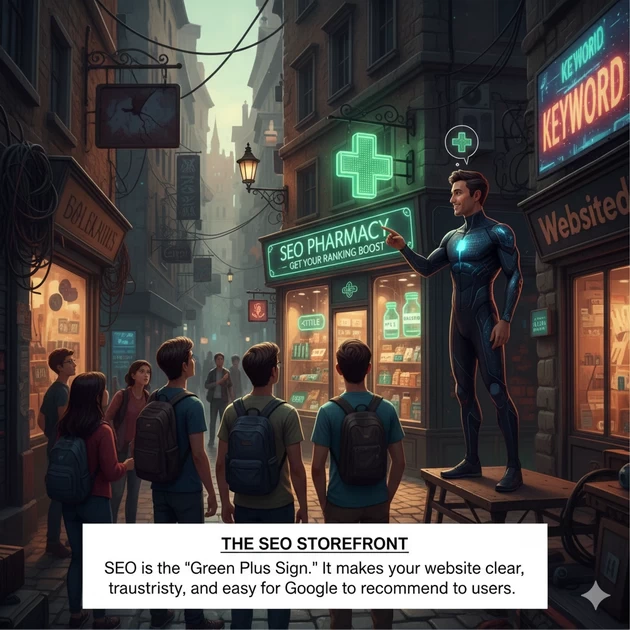
1. What is SEO? (The Storefront )
Simple Explanation: SEO is not about “tricking” Google. It is about making your website’s “storefront” so clear that when Google (the guide) brings a tourist (the user) to your street, he points at your door first.
-
- “If you are looking for a Pharmacy, and one shop has no sign, but the other has a big green plus sign and a clean window, which one do you enter?”
-
- The Truth: SEO is just adding that “Green Plus Sign” so Google knows exactly what you sell.
2. Browser vs. Search Engine (🎭 The “Internet Theatre”: Who does what?)
a.The Browser = The “Magic Glasses” 👓

What it is: Chrome, Safari, Opera, Microsoft Edge or Firefox.
The Analogy: The Browser is like a pair of Glasses.
-
- The glasses don’t create the world; they just help you see it.
-
- If you take off your glasses, the world (the internet) is still there, but you can’t see it.
-
- Grounding Fact: The Browser’s only job is to take the ugly code (View Source) and turn it into a beautiful picture for your eyes. It doesn’t decide what is “good” or “bad”; it just displays what it’s told.
b. Google = The “Librarian” 👩💼
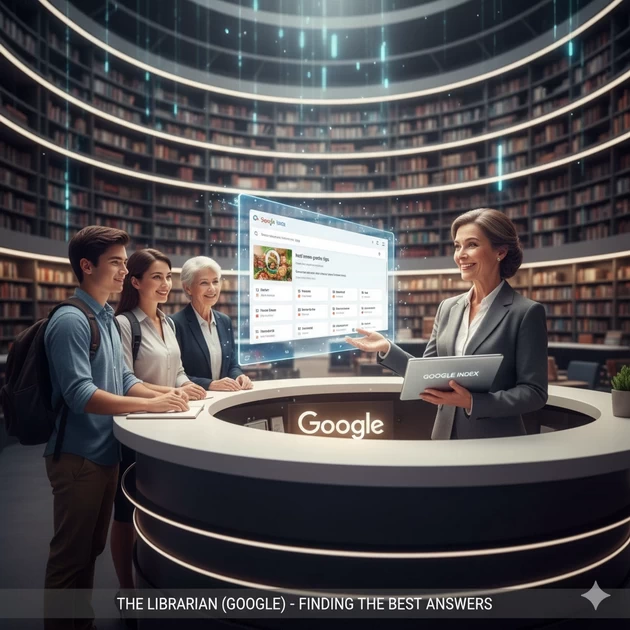
What it is: The Search Engine.
The Analogy: Google is the Head Librarian of the world’s biggest library.
-
- When you (the user) walk into the library and ask a question, the Librarian doesn’t run to the shelves herself.
-
- She looks at her Index (her big database) and says, “Based on my records, these 10 books have the best answers for you.”
-
- Grounding Fact: Google’s goal is to keep you happy so you keep coming back to her library.
c. Googlebot = The “Assistant” (The Shelf Organizer) 🤖

What it is: The Crawler / The Software.
The Analogy: Googlebot is the Librarian’s Assistant.
-
- While the Librarian is talking to users, the Assistant is busy 24/7 crawling through the back stacks.
-
- The Assistant picks up every new book (website), reads the title (
<h1>), looks at the chapters (<h2>), and arranges them on the shelf so the Librarian can find them later.
- The Assistant picks up every new book (website), reads the title (
-
- Grounding Fact: If the Assistant (Googlebot) finds a book with no title or missing pages, he throws it in the “junk pile” in the basement. It never even reaches the Librarian’s desk.
The Grounding Method (The “Outline” Test)
This side-by-side comparison. This is how the “Blind Reader” (Googlebot) organizes information to understand it.
| Tag | What it represents | Example (Topic: Healthy Food) |
<h1> |
The Big Topic | Everything about Healthy Eating |
<h2> |
Sub-Topic 1 | Benefits of Fruits |
<h3> |
Detail of Sub-Topic 1 | Why Vitamin C is good |
<h3> |
Detail of Sub-Topic 1 | Best fruits for energy |
<h2> |
Sub-Topic 2 | Benefits of Vegetables |
<h3> |
Detail of Sub-Topic 2 | Leafy greens vs Root veggies |
The “Broken Outline” Fix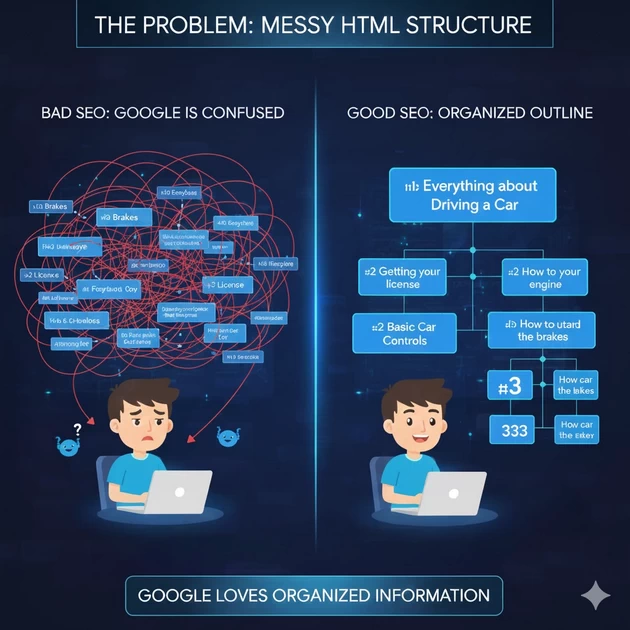
Goal: Fix the website structure so the “Blind Librarian” (Googlebot) can understand the topic.
❌ THE PROBLEM (Messy Structure)
Imagine a student wrote a blog post about “Learning to Drive.” Below is how they labeled their headings. It is a mess! Google is confused.
-
<h3>How to use the brakes
-
<h1>Everything about Driving a Car
-
<h2>Getting your license
-
<h3>How to start the engine
-
<h2>Basic Car Controls
-
<h1>Why driving is fun
🧠 Real Truth: Why does Google care?
Explain to your students:
“Google is lazy.” If Google sees a giant wall of text with no <h2> or <h3>, it has to read every single word to understand the page. That takes too much “computer power” (money).
If you use <h2> and <h3>, Google only reads the headings and says, “Aha! This section is about Vitamin C. I will show this to the user who searched for Vitamin C.”
📊 Summary Table for Students
| Character | Real Name | Job Description |
| The Glasses | Browser | Just for Display. Shows you the code in a pretty way. |
| The Librarian | The Judge. Decides which website is the most trustworthy. | |
| The Assistant | Googlebot | The Worker. Reads the “View Source” and organizes the shelves. |
3. How Googlebot Reads (The “X-Ray” Rule)
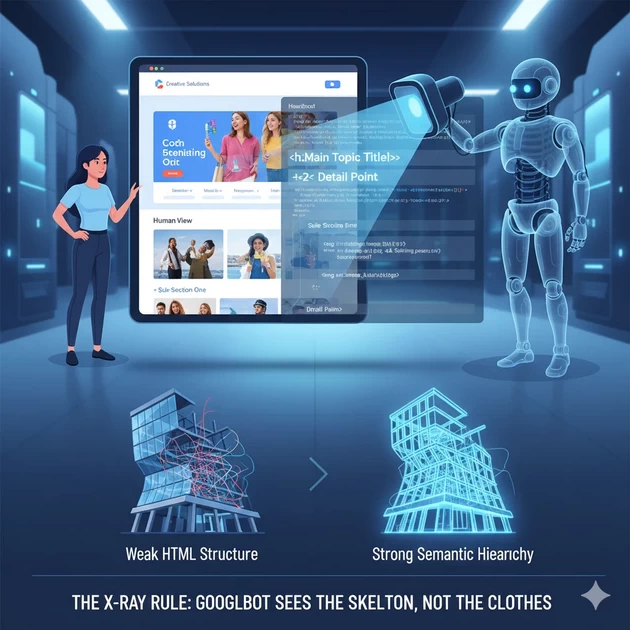
Simple Explanation: Googlebot is like an X-ray machine. When you look at a person, you see their clothes and hair. When an X-ray looks at a person, it only sees the skeleton.
-
- Fact: Google ignores your “clothes” (colors, fonts, pretty images). It only looks at your “skeleton” (the HTML code).
-
- Example: If a building has a beautiful glass front but the skeleton is weak, the building will fall. If a website is beautiful but the code (headings) is messy, Google “trips” and leaves.
Step 1: The “Human View”
-
- Open a beautiful website (e.g., bloomings.in or a famous blog).
-
- Point out the pretty colors, the sliding images, and the fancy fonts.
-
- Say to students: “This is the ‘Skin’ of the website. Humans love this.”
Step 2: The “Google View” (View Source)
-
- Right-click on the page and select “View Page Source” (or press
Ctrl + U).
- Right-click on the page and select “View Page Source” (or press
-
- Say to students: “Now, look at this. This is what Googlebot sees. Does it look pretty? No. It looks like a wall of text and code.”
-
- Press
Ctrl + Fand search for<h1.
- Press
-
- Point it out: “See? Google is looking for these tags. It is scanning the ‘Skeleton’ while we are looking at the ‘Skin’.”
4. How Google Picks a Winner ,Ranking Secrets (The “Best Answer” Rule)
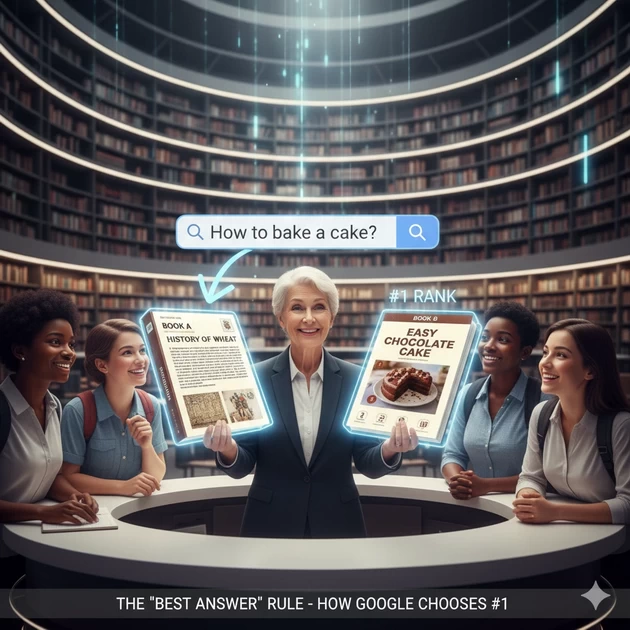
Simple Explanation: Google is like a Librarian who wants to be famous for being the most helpful. If you ask the Librarian: “How do I bake a cake?” * Book A: Has 500 pages of history about wheat.
-
- Book B: Has a 1-page, clear, step-by-step recipe with pictures.
The Librarian will always give you Book B. SEO is making your website “Book B.”
📖 The Comparison: Why Book B Wins
| Feature | Book A (Bad SEO) | Book B (Good SEO) |
| Topic | 500 pages of “History of Wheat” | 1-page “Easy Chocolate Cake” |
| User Search | “How to bake a cake” | “How to bake a cake” |
| Structure | Huge walls of text, no headings. | Clear Steps (1, 2, 3) using <h2>. |
| Experience | Reader gets bored and leaves. | Reader bakes a cake successfully. |
| Result | Rank: Page 50 | Rank: #1 |
5. Why SEO takes time? The E-E-A-T Secret(The “Expertise and Trust” Rule)
Simple Explanation: Why can’t you rank in 1 day? Because Google doesn’t know you yet.
-
- Real-Life Example: If a stranger walks up to you today and says, “Give me $1000, I will doubt it,” you say NO. You don’t trust them.
-
- But if your best friend of 10 years says the same thing, you might say YES.
-
- Fact: Google needs to see you “behaving well” for months before it trusts you enough to put you on Page 1. Time = Trust.
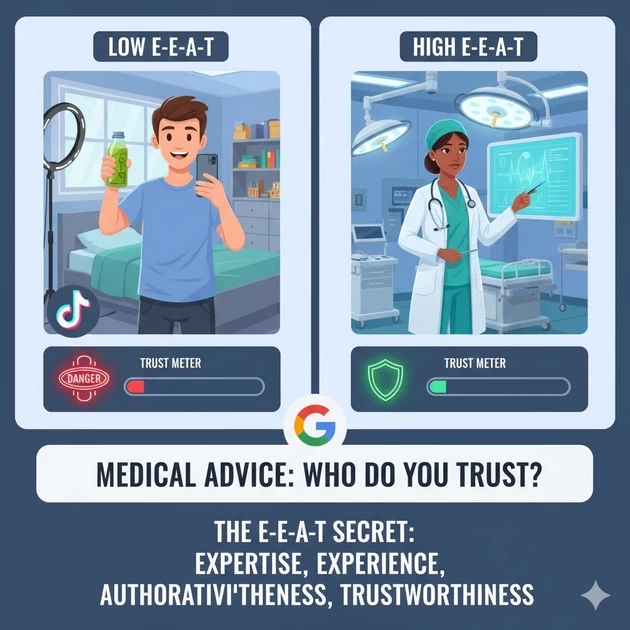
Real-Life Example: If you have a heart problem, do you want advice from:
A random guy on TikTok? (Low E-E-A-T)
A random person with a ring light and a camera says, “Drink this juice to fix your heart!” * The Reality: They have no degree, no hospital experience, and no medical license. If a user follows this advice, they could die.
-
- Google’s Action: Google (The Librarian) sees this and says, “This is dangerous. I will never put this on Page 1.”
A heart surgeon with 20 years of experience? (High E-E-A-T)
A surgeon with 20 years of experience writes an article on a hospital website.
-
- The Reality: They have a Degree (Expertise), they have performed Surgeries (Experience), other doctors Link to them (Authoritativeness), and their website is Secure (Trust).
-
- Google’s Action: Google sees the “Doctor” labels and the official links and says, “This is safe. I will show this to everyone.”
6. Types of SEO (The “House”)
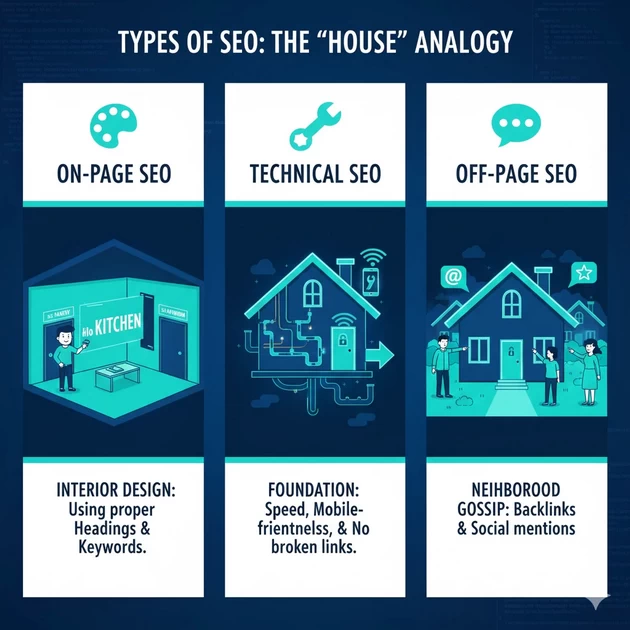
Concept: Breaking down On-Page, Technical, and Off-Page.
| SEO Type | The House Analogy | What it means |
| On-Page | Interior Design: Painting walls, labeling rooms (Kitchen/Bath). | Using proper Headings and Keywords. |
| Technical | Foundation: Plumbing, electricity, and the front door lock. | Speed, Mobile-friendliness, and No broken links. |
| Off-Page | Neighborhood Gossip: What the neighbors say about your house. | Backlinks and Social mentions. |
7) Human First, Google Second (The “Golden Rule”)
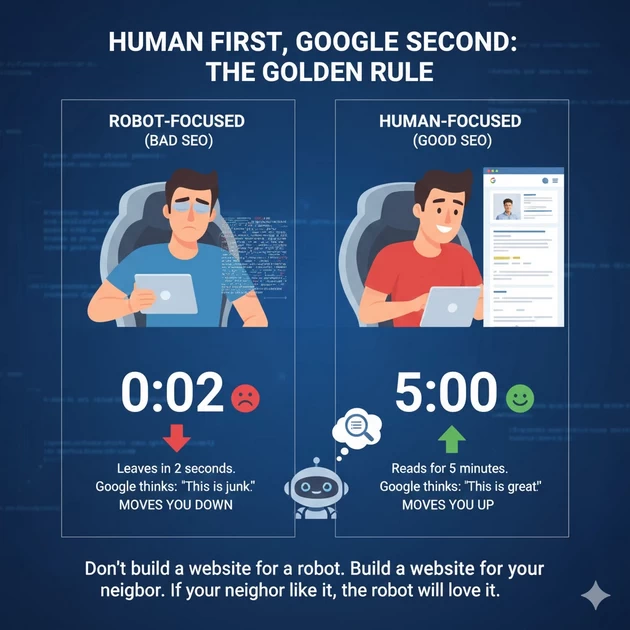
Simple Explanation: Stop trying to “impress” the computer.
-
- The Logic: Google tracks how long a human stays on your page.
-
- If a human reads your page for 5 minutes, Google thinks: “Wow, this must be great!” and moves you up.
-
- If a human leaves in 2 seconds, Google thinks: “This is junk,” and moves you down.
“Don’t build a website for a robot. Build a website for your neighbor. If your neighbor likes it, the robot will love it.”
KEYWORDS, SEARCH INTENT & INFORMATION GAIN
1️⃣ WHAT ARE KEYWORDS? (FOUNDATION CONCEPT)
Keywords are the words or phrases people type into Google when they have a problem, question, or need.
But in reality:
Keywords are clues to human intent, not just words.
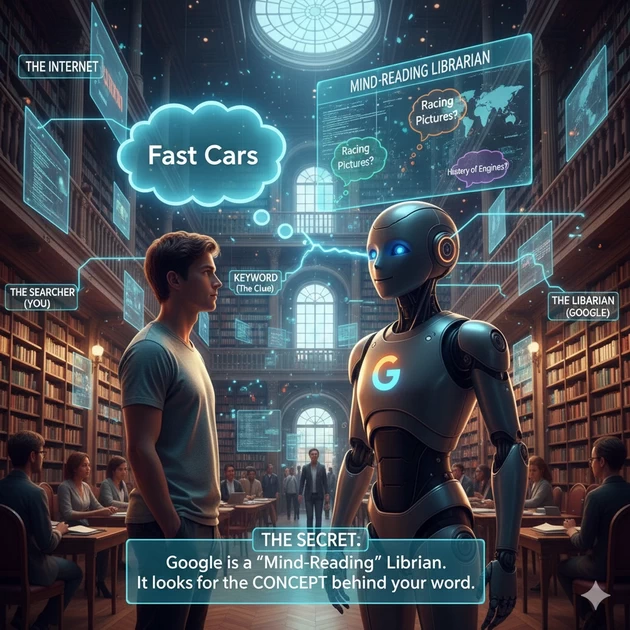
Real‑Life Analogy: The “Library Whisperer”
Imagine the Internet is a huge library.
👤 Searcher (User): Walks in and says, “I want something about fast cars.”
🗝️ Keyword: “Fast cars” – this is only a clue, not the full meaning.
📚 Librarian (Google): Tries to understand what the person really wants.
Google may ask (internally):
Do they want to buy a car?
Do they want pictures?
Do they want history or technical details?
📌 Teaching Truth: Earlier Google matched exact words. Today Google tries to understand the meaning behind the words.
2️⃣ SEARCH INTENT – THE REAL HEART OF KEYWORDS
Same keyword, different intent = different Google results
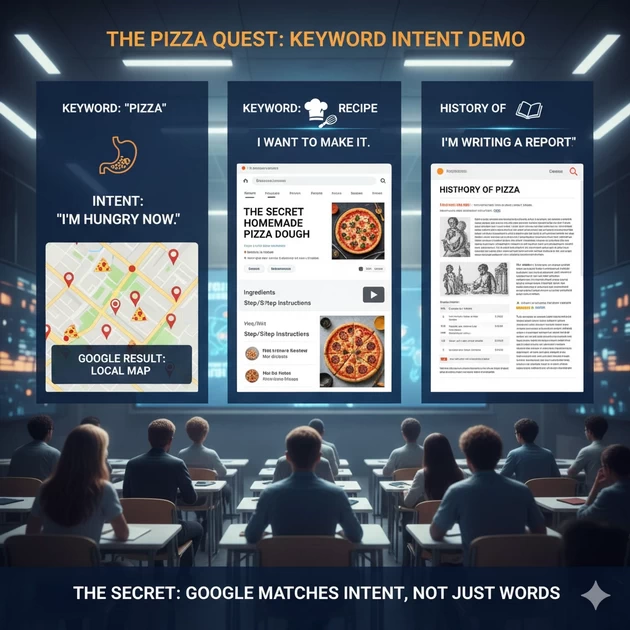
🍕 Live Demo Analogy: “The Pizza Test”
this live 👇
Keyword Typed What the Person Really Wants What Google Shows Pizza I am hungry now Nearby pizza shops (Maps) Pizza recipe I want to cook Blogs, videos, step‑by‑step pages History of pizza I am studying Wikipedia, articles 📌 Lesson: SEO is not about matching keywords. SEO is about matching content type + intent.
3️⃣ THE “GROUNDING METHOD” (CONTENT STRUCTURE)
🏬 Real‑Life Analogy: Department Store
Imagine your website is a big department store:
Level HTML Tag Store Meaning Example Main Board H1 Store name How to Drive a Manual Car Aisle H2 Section Basic Foot Pedals Shelf H3 Specific item Finding the Clutch Bite Point 📌 Why Google Likes This:
Clear topic
Clear subtopics
No guessing for Googlebot
4️⃣ KEYWORD STUFFING VS CLARITY (DO & DON’T)
❌ Keyword Stuffing (DON’T)
Repeating the same word again and again.
🧠 Analogy: A person repeating their own name in every sentence – annoying and unnatural.
✅ What Google Actually Likes
Clear explanation
Logical flow
Helpful details
Google rewards clarity, not repetition.
5️⃣ INFORMATION GAIN (THE REAL SEO DIFFERENCE)
💡 Simple Explanation
If 10 websites say the same thing, Google has no reason to rank all of them.
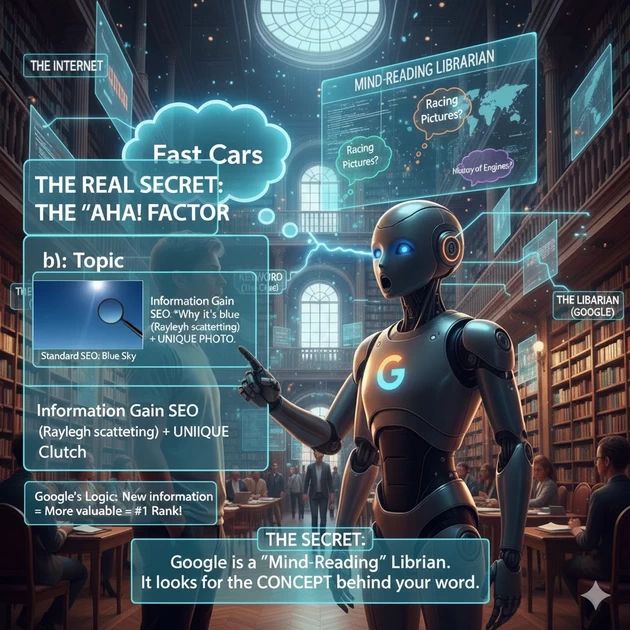
But if your page adds something new, Google notices.
🌈 Real‑Life Example
❌ Common answer: “The sky is blue.”
✅ Information gain: “The sky looks blue because of Rayleigh scattering of sunlight.”
📌 Result: Your page gives an ‘Aha!’ moment → Higher value → Better chance to rank.
6️⃣ WHY SMALL BLOGS BEAT BIG WEBSITES
The Real Reason (No Myths)
Big sites often:
Repeat safe, generic content
Avoid deep explanations
Small sites can:
Add missing details
Share real experience
Explain clearly
📌 Google rewards usefulness, not brand size.
7️⃣ KEYWORD FINDING (GOOGLE‑SAFE OVERVIEW)
Trusted Sources
1️⃣ Google Keyword Planner
-
Shows what people actually search
-
Best for planning topics
2️⃣ Google Search Console
-
Shows keywords already bringing impressions
-
High impressions + low clicks = improvement opportunity
3️⃣ People Also Ask / Questions
-
Shows real human curiosity
-
Great for H2 & H3 sections
Summary: How to Rank #1 (Step-by-Step)
Step What to do Simple English Meaning Step 1 Keyword Find the specific “Cry for help.” Step 2 Intent Understand why they are crying (Do they want to buy? Or just learn?). Step 3 E-E-A-T Prove you are a real person who has actually done the work. Step 4 Info Gain Add one “Secret Tip” or “Extra Detail” that the big sites forgot.
The On-Page SEO Reality Check: What Actually Works Today 2026
🏪 The Big Picture:
Your website = Your store
Google = The city’s official tour guide
Visitors = Customers walking through town
Google’s job: Take people who are hungry (searching) to the best restaurant (your site) that matches what they want
🚶 Step 1: TITLE TAG = Your Store’s Outdoor Sign

Grounding Method:
Google is walking down Main Street with a tourist. They see:
-
Store #1: “Restaurant” (Too vague)
-
Store #2: “Food Place” (Still confusing)
-
Your Store: “Italian Pizza: Wood-Fired & Family Recipe Since 1990” (Perfect!)
What happens: Google stops at YOUR sign because it’s specific, clear, and tells a story.
Information Gain Fact:
If every pizza place says “Pizza Restaurant,” but yours says “Gluten-Free Pizza + Vegan Cheese Options” – you’re the ONLY one serving that hungry gluten-free tourist. That’s your information gain.
Simple English:
-
Bad sign: “We sell food”
-
Good sign: “Grandma’s Pizza: Best Pepperoni in Town”
-
Best sign: “Grandma’s Pizza: Authentic Family Recipe + Delivery Until 2 AM”
Your job: Be so specific that the RIGHT customer knows immediately, “YES, this is exactly what I want!”
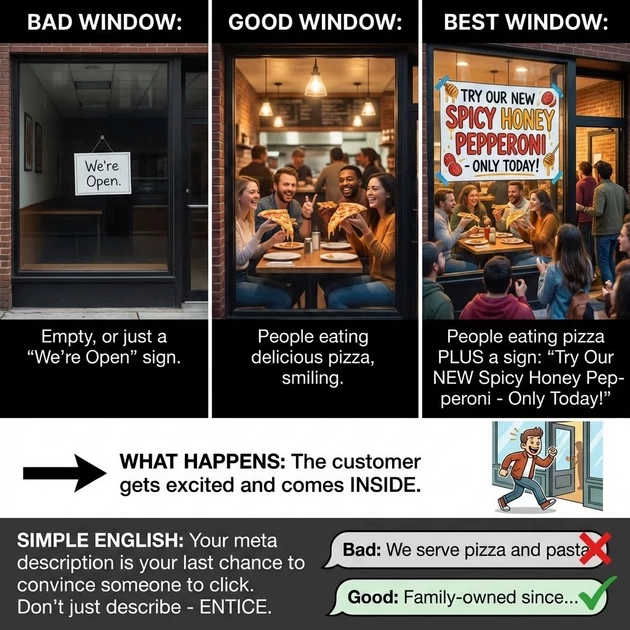
🪟 Step 2: META DESCRIPTION = Your Window Display
Grounding Method:
Customer looks at your sign (title), then looks through your window. They see:
-
Bad window: Empty, or just a “We’re Open” sign
-
Good window: People eating delicious pizza, smiling
-
Best window: People eating pizza PLUS a sign: “Try Our NEW Spicy Honey Pepperoni – Only Today!”
What happens: The customer gets excited and comes INSIDE.
Information Gain Fact:
If 10 pizza places have “We make pizza” in their windows, but yours says “Free Garlic Knots with Every Large Pizza This Week” – you just gave people a reason to choose YOU.
Simple English:
Your meta description is your last chance to convince someone to click. Don’t just describe – ENTICE.
Bad: "We serve pizza and pasta."
Good: "Family-owned since 1990. Try our famous wood-fired pizza with homemade sauce. Free delivery on orders over $25."
🚪 Step 3: H1 TAG = The Welcome Sign Inside
Grounding Method:
Customer walks in. They look up. They should see:
-
Bad: Nothing, or “Welcome” (What kind of store is this?)
-
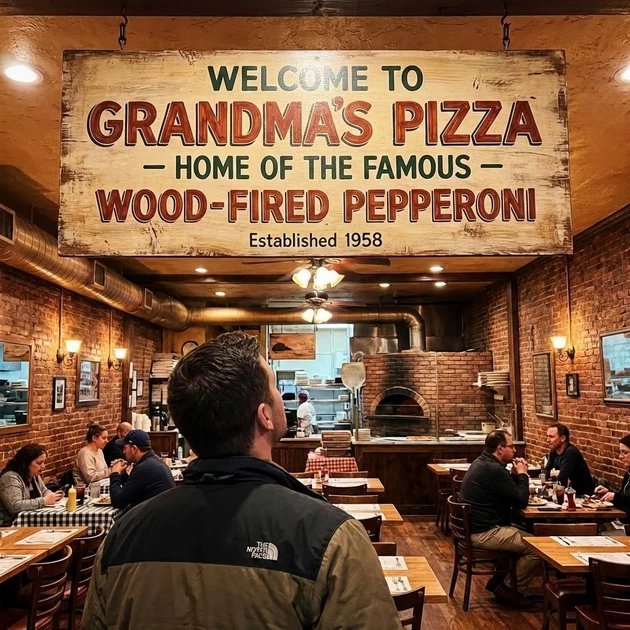
Good: “Welcome to Grandma’s Pizza”
-
Best: “Welcome to Grandma’s Pizza – Home of the Famous Wood-Fired Pepperoni”
What happens: Customer feels confident they’re in the right place.
Information Gain Fact:
If your outside sign (title) says “Pizza Place” but your inside sign (H1) says “Sushi Bar,” the customer gets confused and leaves immediately. This is a bounce. Google notices this and thinks: “This store is confusing people.”
Simple English:
Your H1 should match your title, but be MORE welcoming.
-
Title: “Gluten-Free Pizza Delivery in NYC”
-
H1: “Welcome to NYC’s Best Gluten-Free Pizza – Delivered Hot to Your Door”
🛒 Step 4: H2 & H3 TAGS = Aisle Signs in Your Store

Grounding Method:
Your store has sections. Good signs help people find what they need:
Bad Store Layout:
Section 1: "Stuff"
Section 2: "Things"
Section 3: "More Stuff"
Good Store Layout:
SECTION: PIZZA (H2)
  • Cheese Pizzas (H3)
  • Pepperoni Pizzas (H3)
  • Veggie Pizzas (H3)
SECTION: PASTA (H2)
  • Spaghetti (H3)
  • Lasagna (H3)
SECTION: DESSERTS (H2)
  • Tiramisu (H3)
  • Cannoli (H3)
What happens: Customer can find exactly what they want without asking for help.
Information Gain Fact:
If every pizza place has sections for “Cheese” and “Pepperoni,” but you add a section called “Gluten-Free Crust Options” or “Pizza by the Slice After 10 PM” – you’re providing information others don’t have.
Simple English:
Your headers should answer questions before people ask them.
Instead of:
Our Products
Our Services
About Us
Try:
Why Our Pizza Crust Is Different (Secret Family Recipe)
3 Topping Combinations You Haven't Tried
How We Deliver Pizza Hotter Than Anyone Else
👁️ Step 5: ALT TEXT = Describing Photos to a Blind Customer
Grounding Method:
A blind customer comes in. You describe everything:
-
Bad description: “Here’s a picture.”
-
Good description: “This photo shows our chef pulling a fresh pepperoni pizza out of the wood-fired oven. The cheese is bubbling and golden brown.”
What happens: The blind customer can “see” your store through your words.
Information Gain Fact:
Google is legally blind when it comes to images. It only knows what you tell it. If you have a photo of your special dessert pizza but name it IMG_4587.jpg with no description, Google has NO IDEA you even sell dessert pizza.
Simple English:
Describe your images like you’re talking to someone on the phone.
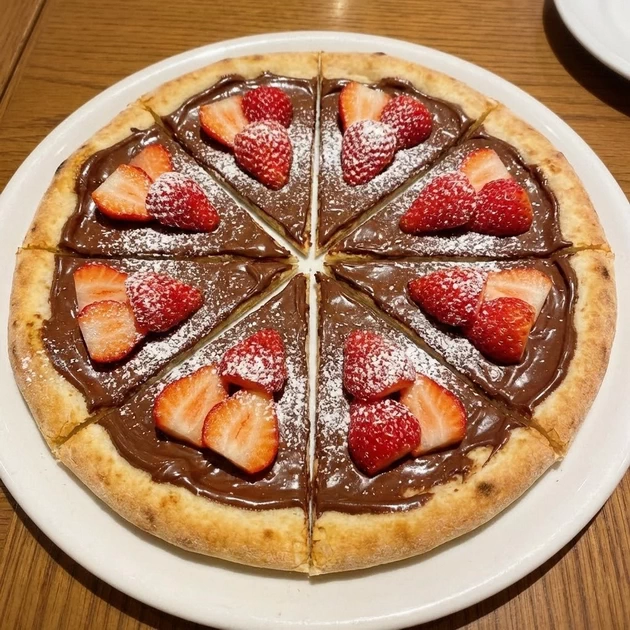
Image file: dessert-pizza-chocolate-strawberry.jpg
Alt text: "Chocolate and strawberry dessert pizza with powdered sugar, sliced into 8 pieces"
Now Google knows: This page has dessert pizza! Chocolate! Strawberries!
🚪 Step 6: INTERNAL LINKS = Doorways to Other Rooms
Grounding Method:
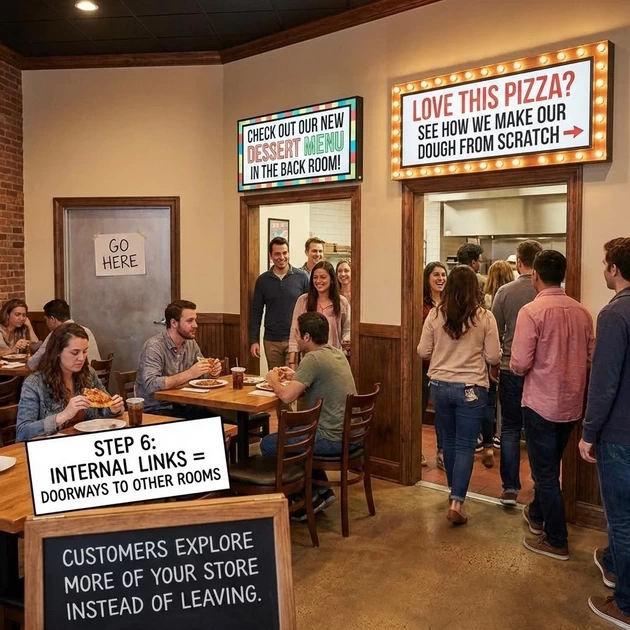
At the back of your pizza section, there’s a doorway with a sign:
-
Bad sign: “Go here” (Go where?)
-
Good sign: “Check out our NEW dessert menu in the back room!”
-
Best sign: “Love this pizza? See how we make our dough from scratch →”
What happens: Customers explore more of your store instead of leaving.
Information Gain Fact:
If someone buys a pizza and you say “Want some garlic bread with that?” 30% will say yes. If you DON’T ask, 0% will buy garlic bread. Internal links ARE asking that question.
Simple English:
Don’t just say “click here.” Say WHERE they’re going and WHY.
Bad: "For more info, click here."
Good: "Read our guide to choosing the perfect wine for your pizza."
Better: "Pair this pepperoni pizza with a bold red wine - see our wine pairing guide."
🎯 THE SIMPLE CHECKLIST:
When You Write Any Page:
-
OUTSIDE SIGN (Title): Would someone know EXACTLY what’s inside?
-
WINDOW DISPLAY (Meta): Would this make someone curious enough to come in?
-
WELCOME SIGN (H1): Does it match the outside sign but feel warmer?
-
AISLE SIGNS (H2/H3): Can someone find what they need just by reading these?
-
BLIND CUSTOMER HELP (Alt Text): Could someone picture the image from my description alone?
-
DOORWAYS (Internal Links): Am I guiding people to other useful rooms in my store?
The Golden Rule:
Be the store where:
-
People know exactly what you sell from the street
-
The window makes them hungry to come in
-
Inside, everything is organized and easy to find
-
Staff (your content) is helpful and knowledgeable
-
You naturally suggest other things they might like
That’s not just good store management. That’s good SEO.
IPTC Metadata – Image Passport (2026 Practical Guide)
1️⃣ What is IPTC? (Foundation)
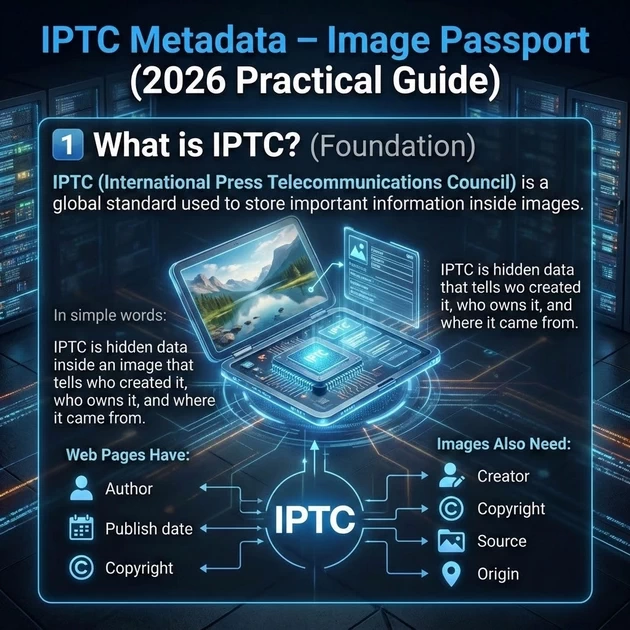
IPTC (International Press Telecommunications Council) is a global standard used to store important information inside images.
In simple words:
IPTC is hidden data inside an image that tells who created it, who owns it, and where it came from.
Just like web pages have:
-
Author
-
Publish date
-
Copyright
Images also need:
-
Creator
-
Copyright
-
Source
-
Origin
That information is stored using IPTC metadata.
🧠 Real-Life Analogy
-
Image → Person
-
IPTC Metadata → Passport
-
Digital Source Type → Nationality stamp
A person without a passport may exist,
but cannot get full trust.
Same with images.
2️⃣ Why IPTC Matters in 2026
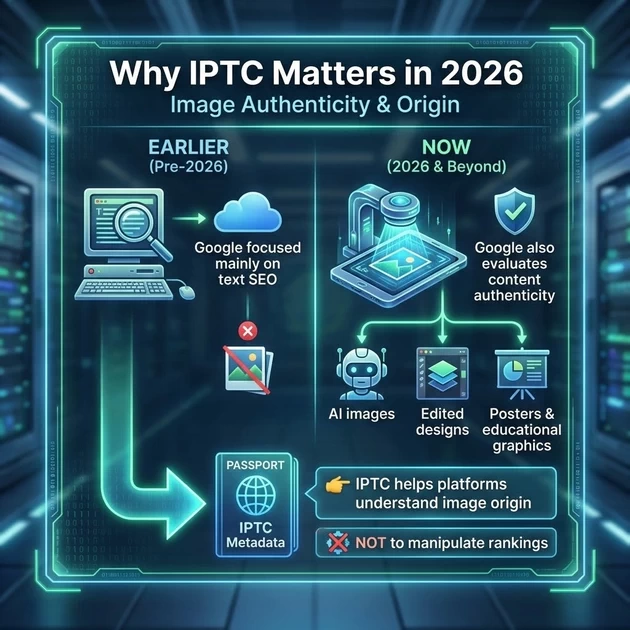
Earlier:
-
Google focused mainly on text SEO
Now:
-
Google also evaluates content authenticity
-
Especially for:
-
AI images
-
Edited designs
-
Posters & educational graphics
-
👉 IPTC helps platforms understand image origin,
❌ NOT to manipulate rankings.
3️⃣ Benefits of IPTC
✅ What IPTC REALLY helps with
-
Builds content trust
-
Shows image ownership
-
Protects against future AI disclosure rules
-
Adds professionalism to education websites
❌ What IPTC does NOT do
-
❌ No direct ranking boost
-
❌ No traffic guarantee
-
❌ No replacement for SEO
4️⃣ Where IPTC Fits in Digital Marketing
Correct placement in
Page SEO → Content Trust & Media Optimization
It is NOT part of:
-
Keyword research
-
Backlinks
-
Technical SEO
5️⃣ Tools Overview (Clear Difference)
| Tool | Purpose |
|---|---|
| Adobe Creative Cloud | Install & manage apps |
| Photoshop | Edit images |
| Adobe Bridge | ✅ BEST for IPTC metadata |
🧠 One-line clarity:
“Creative Cloud installs apps. Bridge adds image passports. Photoshop edits images.”
6️⃣ METHOD 1 (RECOMMENDED)
Add IPTC Using Adobe Bridge (Easy & Safe)
🔹 What you need
Adobe Bridge
Original image file (JPG / PNG / WEBP)
🪜 Step-by-Step (DO EXACTLY THIS)
✅ Step 1: Open Adobe Bridge
Browse to the folder where your article images are stored
✅ Step 2: Select ONE image
Single click on the image
✅ Step 3: Open Metadata Panel
Right side → Metadata
(If not visible: Window → Metadata)
✅ Step 4: Fill IPTC Extension (Origin Passport)
📍 Location:
Choose correctly:
| Image Type | Select This |
|---|---|
| Camera / Mobile photo | Original digital capture of a real life scene |
| Poster / Banner / Design | Created by software |
| AI-generated image | Created by software (with disclosure) |
⚠️ Never lie here.
✅ Step 5: Fill IPTC Core (Trust Fields)
📍 Location:
Fill only these ESSENTIAL fields:
-
Creator → Blooming Institute of Technology
-
Copyright Notice → © 2026 Blooming Institute of Technology
-
Credit Line → bloomings.in
🧠 Memory trick:
“Name, Copyright, Credit → IPTC Core”
✅ Step 6: Save Automatically
Adobe Bridge auto-saves metadata
(No Save button needed)
✅ Step 7: Upload Image to Website
Upload the same image to bloomings.in
Use it in your article
✅ Step 8: VERIFY (Mandatory)
-
Open https://exif.tools
-
Upload image
-
Confirm:
✔️ Passport added successfully
7️⃣ METHOD 2 (ADVANCED) – ExifTool (Optional)
Only for technical users.
For AI image:
Simplified ExifTool Workflow: Same-Folder Method for Accurate IPTC/XMP Editing (Student-Friendly Approach)
🛠️ Step 1: Move the File
-
Go to your ExifTool folder:
C:\Users\Acer\Pictures\exiftool-13.45_64\exiftool-13.45_64\. -
Copy the file you renamed to
exiftool.exe. -
Go to your image folder:
C:\Users\Acer\Pictures\Images from Website. -
Paste the
exiftool.exefile right next to your.webpimages.
🛠️ Step 2: Open CMD in that Folder
-
While inside the
Images from Websitefolder, click the Address Bar at the top. -
Type
cmdand press Enter. -
Information Gain: Because the tool and the images are now in the same “room,” you no longer need to type long file paths.
🛠️ Step 3: Run the Simplified Command
Now you can type this very short command:
exiftool -XMP-iptcExt:DigitalSourceType="http://cv.iptc.org/newscodes/digitalsourcetype/trainedAlgorithmicMedia" "broken outlines.webp"
📊 Why this is better for your Students (Teacher’s Logic)
| Method | Command Length | Risk of Error |
| Old (Different Folders) | Very Long (Needs “Quotes”) | High (Students might mistype the path) |
| New (Same Folder) | Short & Clean | Low (Focuses only on the SEO stamp) |
🧠 The “Toolbox” Analogy
Tell your students:
“Imagine your images are pieces of wood and ExifTool is your hammer. Before, the hammer was in the garage (another folder). Now, we put the hammer right on the workbench next to the wood. It makes the work faster and prevents us from getting lost in the house.”
1. What Rank Math Is & How It Really Works
Fact (Grounding Method):
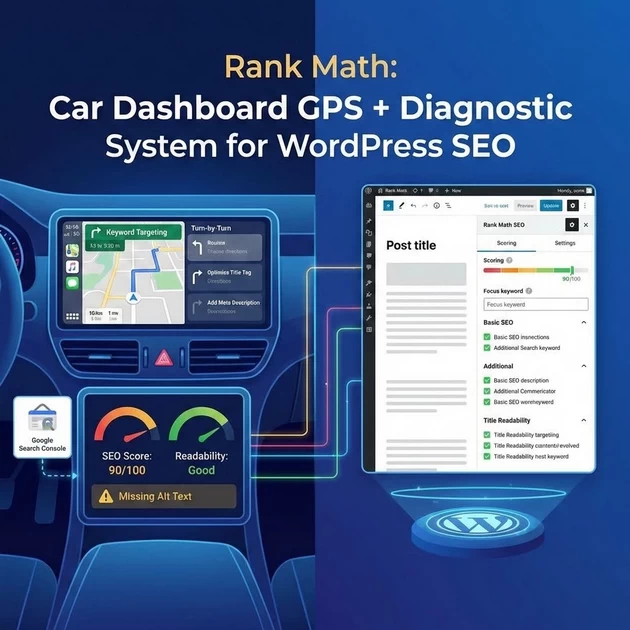
Rank Math is a WordPress SEO plugin that optimizes on-page elements (titles, meta descriptions, schema, etc.) based on SEO best practices and real-time content analysis.
Conceptual Explanation:
It works like a car’s dashboard GPS + diagnostic system — you get directions (keyword targeting), diagnostics (SEO score), and alerts (readability, missing elements).
Information Gain:
-
It connects to Google Search Console for actual performance data.
-
Uses a “scoring” system to guide optimizations, not as a direct ranking factor.
2. Why & What We Use It For
Fact:
-
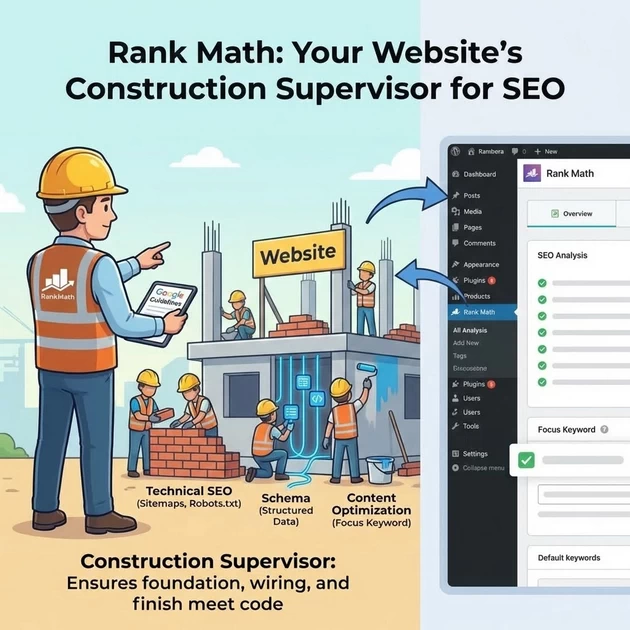
Automates technical SEO (sitemaps, robots.txt, meta tags).
-
Adds structured data (schema) to help search engines understand content.
-
Optimizes content for target keywords and related keywords (via “Focus Keyword” and “Additional Keywords”).
Real-Life Analogy:
Think of it like hiring a construction supervisor for your website. They ensure the foundation (technical SEO), wiring (schema), and finish (content) meet code (Google’s guidelines).
3. How Long Before Benefits Appear
Fact (Grounding Method):
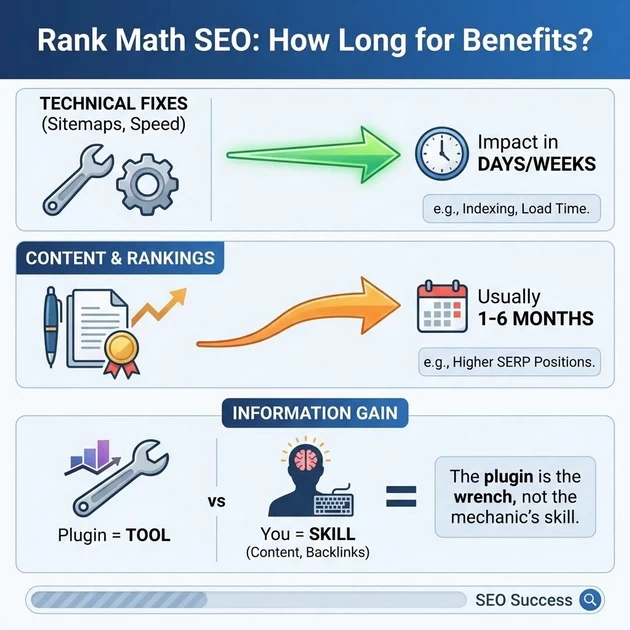
SEO benefits are not instant. After proper optimization:
-
Technical fixes (like sitemaps, speed) → can show impact in days/weeks.
-
Content/ranking improvements → usually 1–6 months, depending on competition.
Information Gain:
Rank Math provides tools, but you must create quality content and earn backlinks. The plugin is the wrench, not the mechanic’s skill.
4. Secrets / What Really Should Do vs. Don’t
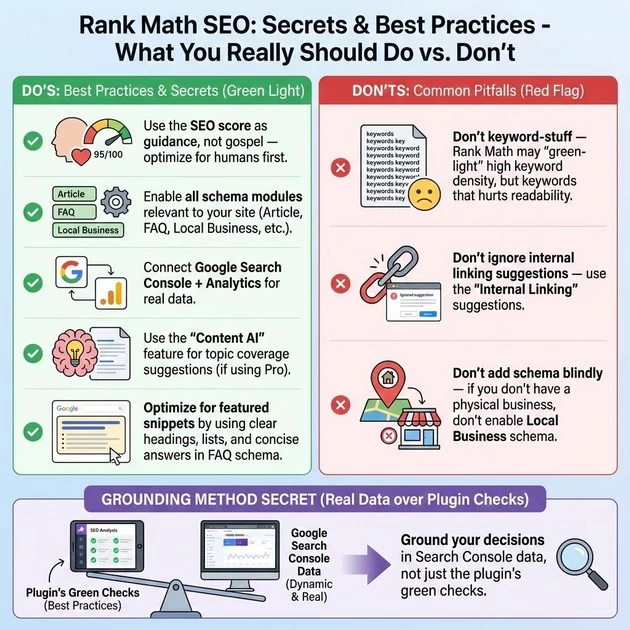
Do’s:
-
Use the SEO score as guidance, not gospel — optimize for humans first.
-
Enable all schema modules relevant to your site (Article, FAQ, Local Business, etc.).
-
Connect Google Search Console + Analytics for real data.
-
Use the “Content AI” feature for topic coverage suggestions (if using Pro).
-
Optimize for featured snippets by using clear headings, lists, and concise answers in FAQ schema.
Don’ts:
-
Don’t keyword-stuff — Rank Math may “green-light” high keyword density, but that hurts readability.
-
Don’t ignore internal linking suggestions — use the “Internal Linking” suggestions.
-
Don’t add schema blindly — if you don’t have a physical business, don’t enable Local Business schema.
Grounding Method Secret:
Rank Math’s “SEO Analysis” is based on known best practices, but Google’s algorithm is dynamic. Ground your decisions in Search Console data, not just the plugin’s green checks.
5. Schema & Snippet (FAQ) Setup – Step by Step
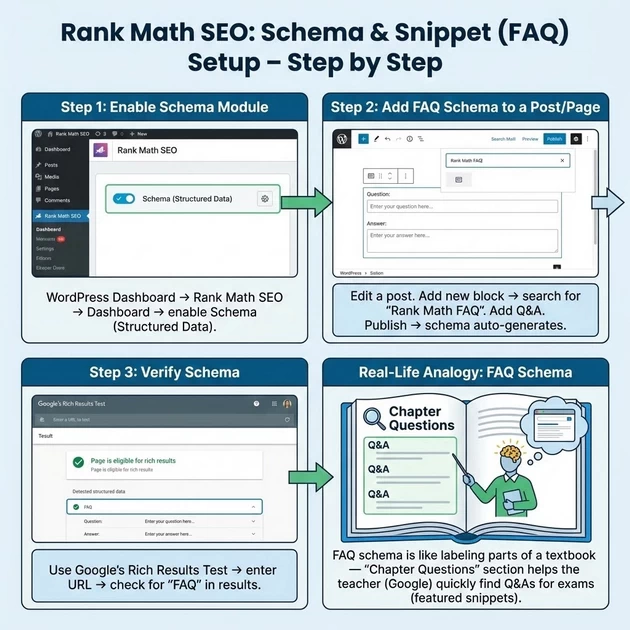
Step 1: Enable Schema Module
-
In WordPress Dashboard → Rank Math SEO → Dashboard → enable Schema (Structured Data).
Step 2: Add FAQ Schema to a Post/Page
-
Edit a post.
-
In the editor, add a new block → search for “Rank Math FAQ” block.
-
Add your question and answer in the block.
-
Publish the post → schema auto-generates.
Step 3: Verify Schema
-
Use Google’s Rich Results Test → enter your page URL → check for “FAQ” in results.
Real-Life Analogy:
FAQ schema is like labeling parts of a textbook — “Chapter Questions” section helps the teacher (Google) quickly find Q&As for exams (featured snippets).
WHAT is Schema Markup?
Simple Definition:
Schema = A universal language that tells search engines what your content MEANS.
Real-Life Analogy:
-
Without Schema: A box with “Pizza” written on it
-
With Schema: A box labeled “Pizza: Italian, Vegetarian, 12-inch, 30 mins cooking time, contains cheese, tomatoes, basil”
Technical Definition:
Structured data code (JSON-LD) that adds context to your HTML content.
WHY Use Schema? (The BIG Why)
Primary Goal: Help Google Understand Your Content
Without Schema:
Google sees: "Preheat oven to 200°C"
Google thinks: "Maybe cooking instructions?"
With Schema:
Google sees: <HowTo> → "Step 1: Preheat oven to 200°C"
Google knows: "This is STEP 1 of cooking instructions"
BENEFITS of Using Schema
Benefit 1: Rich Results (Visual Advantage)
Normal Search Result:
Pizza Recipe
https://example.com/pizza
Learn how to make pizza at home...
With Schema (Rich Result):
⭐⭐⭐⭐⭐ Pizza Recipe (4.9/5)
⌚ 30 mins prep | 🔥 400 calories
📋 Ingredients: Flour, yeast, cheese...
👤 By: Chef Maria | 📅 Updated: Today
Benefit 2: Higher Click-Through Rate (CTR)
-
Normal result: 2-5% CTR
-
Rich result: 8-15% CTR (2-3x higher)
Benefit 3: Voice Search & AI Readiness
-
Alexa/Google Home uses schema to answer questions
-
AI like ChatGPT reads schema for better answers
Benefit 4: Competitive Edge
Only 35% of websites use schema correctly → You’re ahead of 65%
WHAT HAPPENS if You DON’T Use Schema
Scenario: Two Pizza Recipe Sites
Site A (No Schema):
-
Shows as plain blue link
-
CTR: 3%
-
Position: #5
-
No special features
Site B (With Schema):
-
Shows with stars, cooking time, calories
-
CTR: 12%
-
Position: #3 (same content, better presentation)
-
Appears in “Featured Snippets”
Result after 6 months:
-
Site B gets 4x more traffic
-
Site B earns 3x more ad revenue
-
Site B becomes “authority” in Google’s eyes
HOW TO USE Schema in Rank Math
Three SIMPLE Methods:
Method 1: Automatic (Easiest)
-
Write normal content
-
Rank Math auto-detects type
-
Example: Blog post → Auto Article schema
Method 2: Select from List
-
Edit post → Rank Math → Schema tab
-
Choose: Article, FAQ, HowTo, Recipe, etc.
-
Fill basic info
Method 3: Blocks (Best for Content)
-
In editor → Add block
-
Search: “Rank Math FAQ” or “Rank Math HowTo”
-
Fill questions/steps
SPECIFIC SCHEMA TYPES & CONTENT
1. ARTICLE SCHEMA (Automatic but Needs Verification)
What to Check/Add:
TITLE: "The Complete Guide to Digital Marketing: Strategies & Tips for Success"
DESCRIPTION: "Master digital marketing with actionable SEO, content, and social media strategies. Learn how search engines work and build your online presence."
IMAGE: [SET FEATURED IMAGE - REQUIRED]
• Image should be 1200x630px minimum
• Alt text: "Digital Marketing Strategy Guide"
DATE PUBLISHED: 2025-12-26 (Auto-filled)
AUTHOR: [Your name/Institute name]
CATEGORIES/TAGS: Digital Marketing, SEO, Content Strategy, Social Media Marketing
Action in Rank Math:
-
Edit post → Ensure Featured Image is set
-
Rank Math automatically adds Article schema
-
Verify: Rich Results Test → Should show “Article” ✅
2. FAQ SCHEMA (Best Fit for Your Content)
Create These Q&As Using Rank Math FAQ Block:
Question 1: What is the main difference between a browser and a search engine?
Answer: A browser (like Chrome or Firefox) is the "Magic Glasses" - it simply displays websites in a readable format. A search engine (like Google) is the "Librarian" - it actively finds, organizes, and ranks the best information from the entire web to answer your specific question.
Question 2: Why does SEO take so long to show results?
Answer: SEO builds trust, similar to how you trust a long-time friend over a stranger. Google needs time (usually 3-6 months) to observe your website consistently providing valuable, expert content (E-E-A-T: Expertise, Experience, Authoritativeness, Trustworthiness) before ranking you highly.
Question 3: What are the 3 main types of SEO and which is most important?
Answer: The 3 types are: 1) On-Page SEO (Interior Design - content & keywords), 2) Technical SEO (Foundation - speed & structure), and 3) Off-Page SEO (Neighborhood Gossip - backlinks & reputation). Technical SEO is the most critical foundation - if your website is slow or broken, great content won't matter.
Question 4: How does Googlebot actually ‘read’ a website?
Answer: Googlebot reads like an X-ray machine. It ignores pretty designs (colors, fonts) and only sees the HTML skeleton - specifically your headings (<h1>, <h2>, <h3>). This is why proper heading structure is crucial for SEO success.
How to Implement:
-
In post editor → Add FAQ by Rank Math block
-
Add above 4 questions (minimum 2, ideal 3-5)
-
Answers should be 2-3 sentences each
-
Place at end of article or within relevant sections
3. HOW-TO SCHEMA (Must be Specific Process)
📝 WHAT TO TYPE IN EACH FIELD
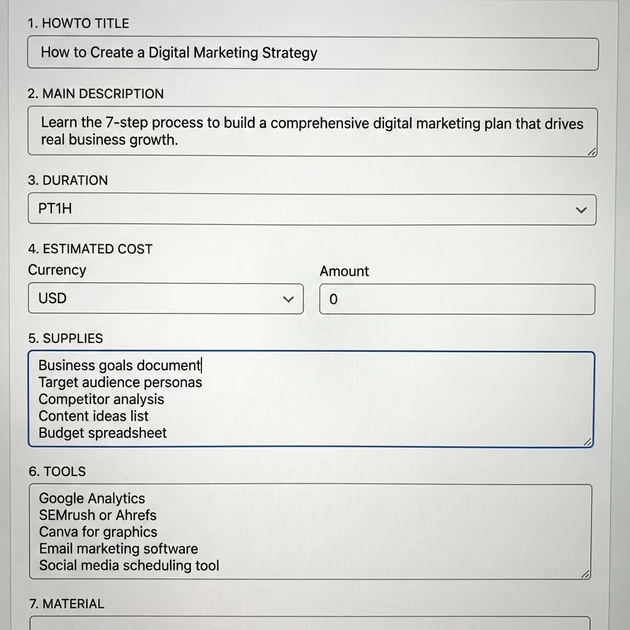
Based on your screenshot, here’s exactly what to enter for each field:
1. HOWTO TITLE (Most Important)
What to type: The name of your tutorial
Example: "How to Create a Digital Marketing Strategy"
Character limit: 60 characters max
Why: This becomes the title in Google's rich results
2. MAIN DESCRIPTION
What to type: 1-2 sentence overview of what they'll learn
Example: "Learn the 7-step process to build a comprehensive digital marketing plan that drives real business growth."
3. DURATION (Click the dropdown ▾)
Format: ISO 8601 Time Format
Examples:
• PT30M = 30 minutes
• PT1H = 1 hour
• PT1H30M = 1 hour 30 minutes
• PT4H = 4 hours
4. ESTIMATED COST (Optional)
What to type: If relevant, estimate cost
Example:
Currency: USD
Amount: 0 (for free strategy)
Or: 500 (if recommending paid tools)
5. SUPPLIES
What to type: List of things needed (like ingredients)
Example (for digital marketing):
• Business goals document
• Target audience personas
• Competitor analysis
• Content ideas list
• Budget spreadsheet
Format: One item per line
6. TOOLS
What to type: Software/tools needed
Example:
• Google Analytics
• SEMrush or Ahrefs
• Canva for graphics
• Email marketing software
• Social media scheduling tool
7. MATERIAL (Rarely Used)
Usually leave blank unless physical materials needed
Example (for physical tutorial):
• Wood, paint, glue
For digital marketing: Typically empty
🛠️ ADDING STEPS (The Most Important Part)
Click “Add New Step” → You’ll get this template:
For Each Step, Fill:
STEP TITLE: What this step is about
Example: "Step 1: Define Your Business Goals"

STEP DESCRIPTION: How to do it
Example: "Start by writing down 3-5 specific, measurable goals. For example: 'Increase website traffic by 30% in 6 months' or 'Generate 50 new leads per month.'"

STEP IMAGE (Optional but Recommended):
• Click "Add Image" → Select from Media Library
• Use relevant screenshot or illustration
Example Steps for Digital Marketing Article:
Step 1: Define Your Goals
Title: “Step 1: Set Clear Marketing Objectives”
Description: “Write down 3-5 specific, measurable goals like ‘Increase website traffic by 40%’ or ‘Generate 100 new email subscribers monthly.'”
Image: [Screenshot of goal-setting template]
Step 2: Research Your Audience
Title: “Step 2: Identify Your Target Customer”
Description: “Create buyer personas. Ask: What are their demographics? What problems do they have? Where do they spend time online?”
Image: [Example of a buyer persona template]
Step 3: Choose Your Channels
Title: “Step 3: Select Marketing Platforms”
Description: “Based on your audience, choose 2-3 primary channels: Instagram for B2C, LinkedIn for B2B, SEO for long-term growth, etc.”
Image: [Chart comparing social media platforms]
OFFICIAL SCHEMA LINKS (AUTHORITY SOURCES)
1️⃣ Google: What Is Structured Data (Schema)?
👉 https://developers.google.com/search/docs/appearance/structured-data/intro-structured-data
Why show this:
-
Directly from Google
-
Confirms: Schema helps Google understand content meaning
-
Explains JSON-LD clearly
💬 Tell students:
“This is Google explaining schema in their own words — no SEO guru opinion.”
2️⃣ Google Rich Results Gallery (Live Examples)
MOST powerful visual demo
👉 https://developers.google.com/search/docs/appearance/structured-data/search-gallery
Why show this:
-
Shows real rich results (FAQ, HowTo, Recipe, Article, Review, etc.)
-
Students SEE the difference between:
-
Normal result ❌
-
Enhanced result ✅
-
💬 Teaching line:
“Schema doesn’t rank you — it changes how you LOOK on Google.”
3️⃣ Google: HowTo Schema Documentation
For your Pizza / Tutorial example
👉 https://developers.google.com/search/docs/appearance/structured-data/how-to
Why show this:
-
Confirms required fields (steps, images, time, tools)
-
Explains what Google expects, not what plugins claim
💬 Teaching line:
“If your steps aren’t clear here, Google won’t trust your HowTo.”
4️⃣ Google: FAQ Schema Documentation
Critical for DOs & DON’Ts
👉 https://developers.google.com/search/docs/appearance/structured-data/faqpage
Why show this:
-
Explains visible content rule
-
Shows why spammy FAQs stop working
💬 Teaching line:
“FAQ schema died for spammers — not for real educators.”
5️⃣ Google: Article Schema Documentation
For blog & content creators
👉 https://developers.google.com/search/docs/appearance/structured-data/article
Why show this:
-
Confirms need for:
-
Featured image
-
Author
-
Date published
-
-
Supports E-E-A-T signals
6️⃣ Google Rich Results Test (LIVE DEMO TOOL)
You MUST open this
👉 https://search.google.com/test/rich-results
Use this to show:
-
✅ Schema detected
-
❌ Errors & warnings
-
Difference between “valid” and “eligible”
💬 Teaching line:
“If Google’s own tool doesn’t trust your schema, rankings don’t matter.”
🧠 OPTIONAL (Advanced / Authority Signal)
Schema.org (The Universal Language)
Explain simply:
“Google, Bing, Yandex all speak this same dictionary.”
⚠️ Tell students:
-
Do NOT copy raw schema from here
-
Use it to understand meaning, not paste code blindly
7️⃣ Rank Math Official Schema Guide
Plugin-specific (practical demo)
👉 https://rankmath.com/kb/schema-markup/
Why show this:
-
Explains Auto / Manual / Block schema
-
Matches exactly what you teach in Rank Math UI
CONTENT RULES for Schema
DOs:
✅ Match content: Schema must reflect actual page content
✅ Complete answers: FAQ answers should be 2-3 sentences
✅ Original content: Don’t copy from other sites
✅ Relevant images: Each step/image should match
✅ Regular updates: Update schema when content changes
DON’Ts:
❌ Don’t spam: One schema type per logical content
❌ Don’t mislead: Don’t claim “5-star recipe” if no reviews
❌ Don’t hide: Schema content must be visible to users
❌ Don’t duplicate: Same schema on multiple pages
📥 How to Import JSON Schema Code into Rank Math
Step 1: Prepare Your Codes
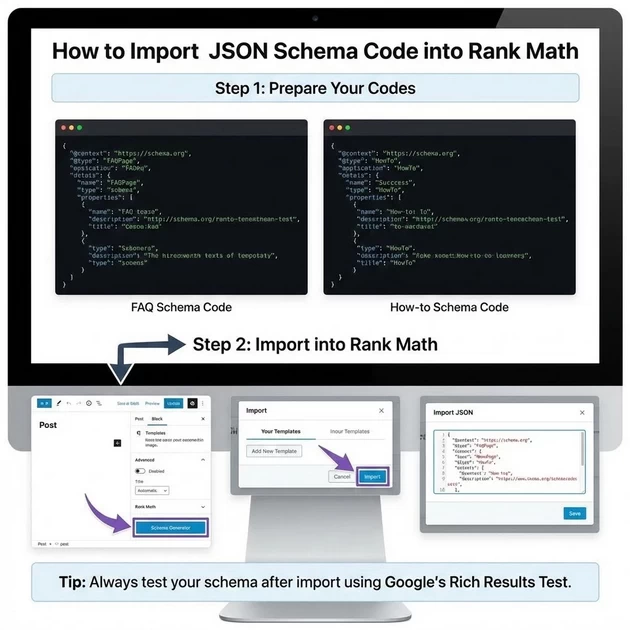
First, have both schema codes ready. Here’s the exact JSON for your article:
FAQ Schema Code:
{
  "@context": "https://schema.org",
  "@type": "FAQPage",
  "mainEntity": [
    {
      "@type": "Question",
      "name": "How do search engines really work?",
      "acceptedAnswer": {
        "@type": "Answer",
        "text": "Search engines work like librarians with assistants. Google is the librarian who judges content, while Googlebot is the assistant that crawls and indexes websites. They work together to find the most relevant results for user queries."
      }
    },
    {
      "@type": "Question",
      "name": "What's the difference between browser and search engine?",
      "acceptedAnswer": {
        "@type": "Answer",
        "text": "A browser (like Chrome) is like glasses that display websites, while a search engine (like Google) is like a librarian that finds information. The browser shows you content, but the search engine helps you discover it."
      }
    },
    {
      "@type": "Question",
      "name": "How should I structure HTML headings for SEO?",
      "acceptedAnswer": {
        "@type": "Answer",
        "text": "Use a clear hierarchy: H1 for main topic (like a store name), H2 for major sections (like aisles), and H3 for specific points (like shelves). Avoid skipping heading levels and maintain logical flow for Googlebot to understand."
      }
    }
  ]
}
How-to Schema Code:
{
  "@context": "https://schema.org",
  "@type": "HowTo",
  "name": "How to Do SEO: A Complete Beginner's Guide",
  "description": "Step-by-step process to improve your website's search engine ranking through proper structure, keywords, and content optimization.",
  "step": [
    {
      "@type": "HowToStep",
      "name": "Understand Search Engine Basics",
      "text": "Learn how Googlebot crawls websites and how Google acts as a librarian judging content quality."
    },
    {
      "@type": "HowToStep",
      "name": "Research Keywords & Intent",
      "text": "Identify what your audience searches for and understand their true intent using the 'Pizza Test' method."
    },
    {
      "@type": "HowToStep",
      "name": "Structure Content Properly",
      "text": "Use HTML headings (H1, H2, H3) in logical hierarchy like a department store layout for clear organization."
    },
    {
      "@type": "HowToStep",
      "name": "Build E-E-A-T & Add Value",
      "text": "Establish Expertise, Experience, Authoritativeness, and Trustworthiness while providing unique information gain."
    }
  ]
}
Step 2: Import into Rank Math
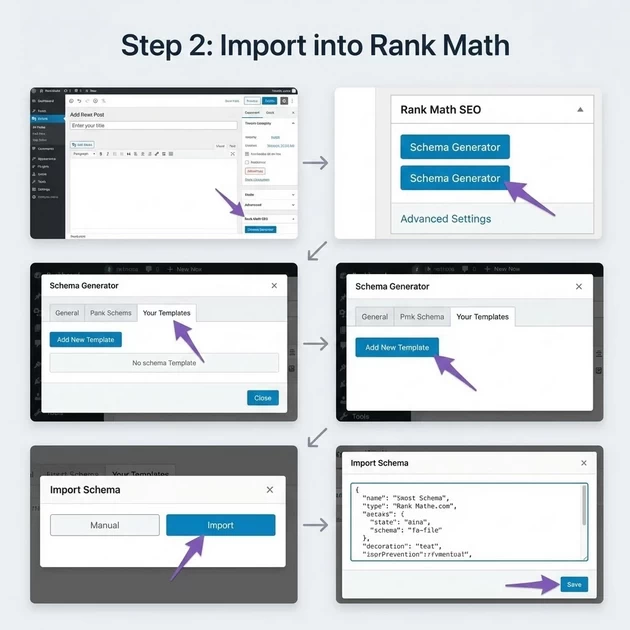
-
Go to your article editor in WordPress
-
Scroll down to Rank Math meta box
-
Click “Schema Generator” (visible in your screenshot)
-
Click “Your Templates” tab
-
Click “Add New Template”
-
Select “Manual” or “Import” option
-
Paste the JSON code for either FAQ or How-to
-
Click “Save” and it will be added to your page
🏛️ 1. SEO Analyzer: The “Body Check-up”
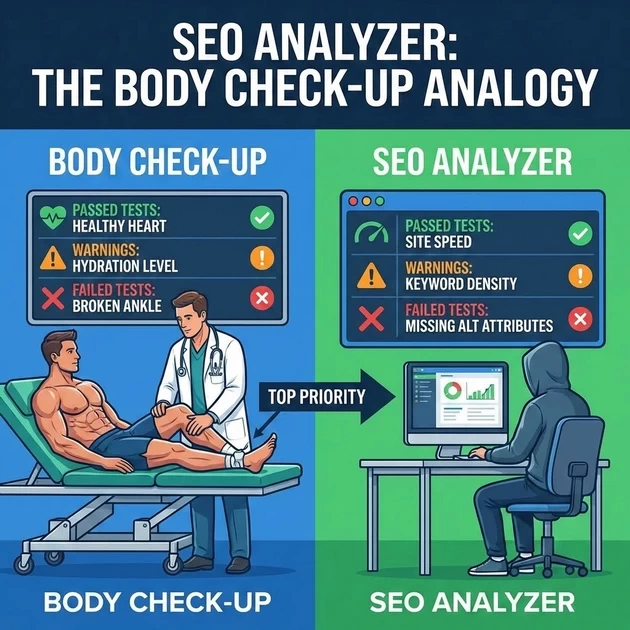
The Grounding Analogy: Imagine you are a professional athlete. Before a big race, you go to a sports doctor for a Full Body Check-up.
-
Passed Tests: These are the parts of your body that are strong (e.g., your heart is healthy).
-
Warnings: These are minor issues that might slow you down (e.g., you need to drink more water).
-
Failed Tests: These are “Injuries” that stop you from racing (e.g., a broken ankle).
The Fact: Rank Math’s SEO Analyzer scans your entire site for technical health.
-
How to Resolve: Students must treat “Failed Tests” as top priorities. For example, if it fails on “Missing Image Alt Attributes,” the fix is to go back and label images.
1. The General Settings: The “ID Card” System
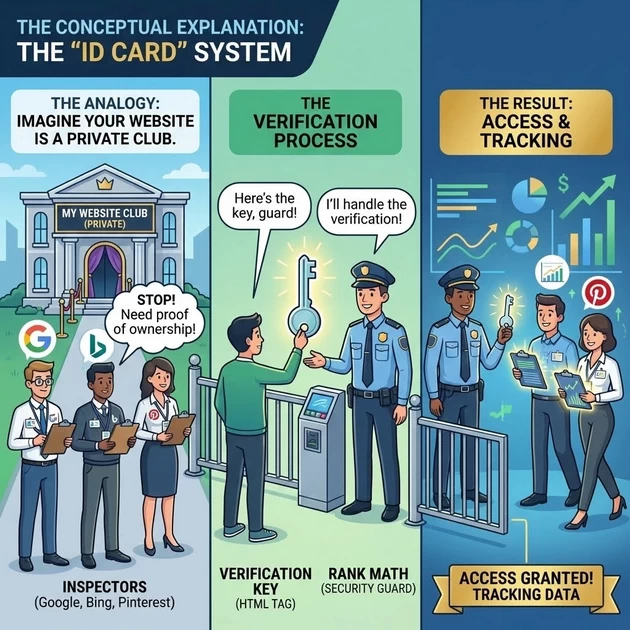
The Analogy: Imagine your website is a Private Club. Google, Bing, and Pinterest are Inspectors who want to come inside to see if your club is safe and popular.
-
However, they won’t just walk in. They ask for a “Verification Key” (the HTML Tag) to prove that YOU are the real owner.
-
Rank Math is the “Security Guard” at the door. You give the Guard the Key, and he shows it to the Inspectors so they can start tracking your data.
🛠️ 2. Step-by-Step: Connecting the Tools
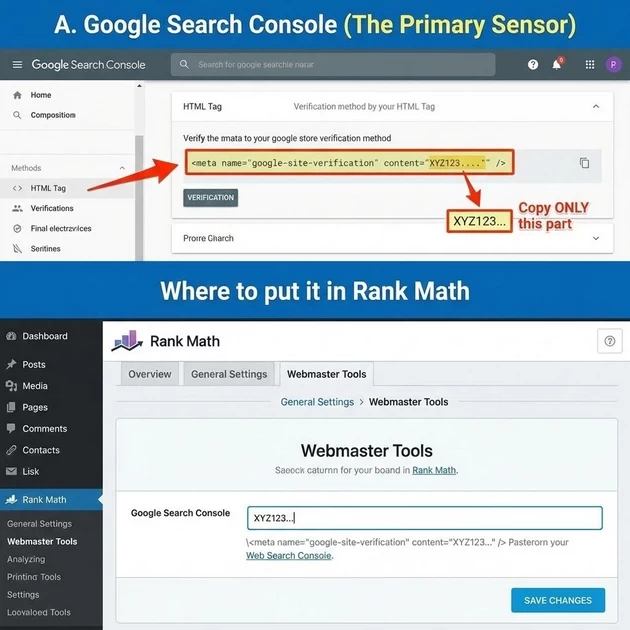
A. Google Search Console (The Primary Sensor)
Where to get the link/code:
-
Go to the Google Search Console website and log in with your Gmail.
-
Add your “Property” (URL).
-
Choose “HTML Tag” as the verification method.
-
The Link: Google will give you a code that looks like this:
<meta name="google-site-verification" content="XYZ123..." />. -
Copy ONLY the code inside the quotes after
content=.
Where to put it in Rank Math:
-
Go to WordPress Dashboard > Rank Math > General Settings > Webmaster Tools.
-
Paste that code into the Google Search Console box.
B. Bing Webmaster Tools (The AI Search Gateway)
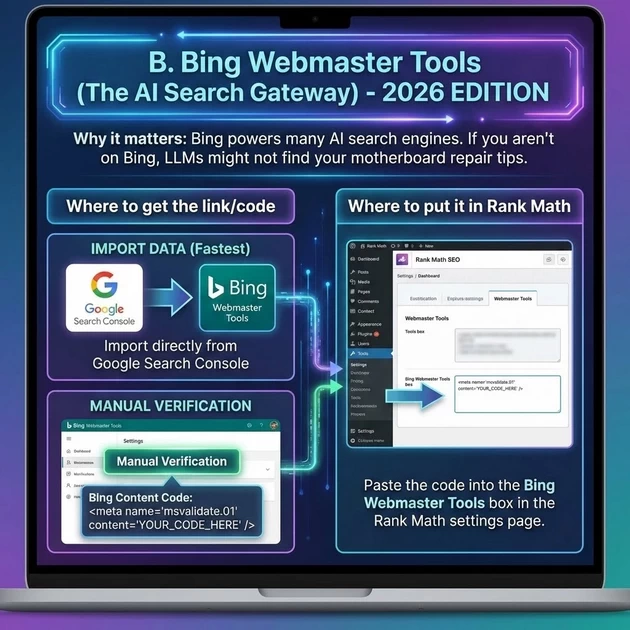
Why it matters: In 2026, Bing powers many AI search engines. If you aren’t on Bing, LLMs might not find your motherboard repair tips.
Where to get the link/code:
-
Go to Bing Webmaster Tools.
-
You can actually “Import” your data directly from Google Search Console (this is the fastest way).
-
If you do it manually, look for “Manual Verification” to get the Bing Content Code.
Where to put it in Rank Math:
-
Paste the code into the Bing Webmaster Tools box in the same Rank Math settings page.
C. Pinterest Verification (The Visual Traffic Hook)
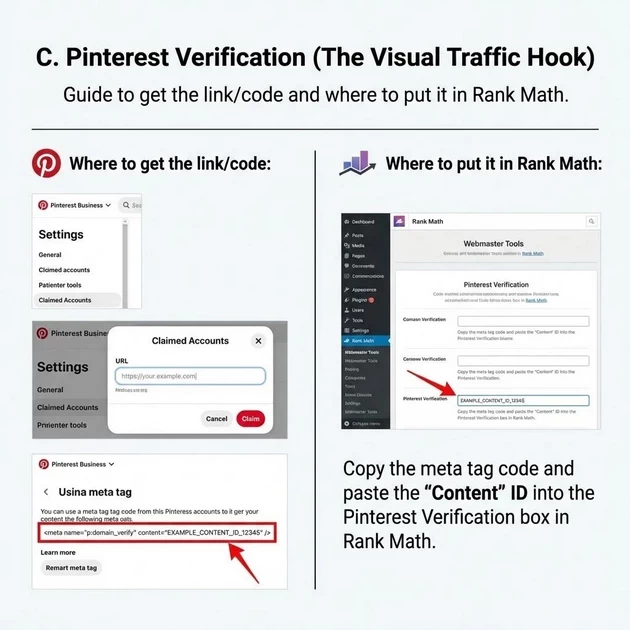
Where to get the link/code:
-
Log into your Pinterest Business account.
-
Go to Settings > Claimed Accounts.
-
Enter your website URL and click “Claim.”
-
Select “Add HTML Tag.”
Where to put it in Rank Math:
-
Copy the meta tag code and paste the “Content” ID into the Pinterest Verification box in Rank Math.
🧪 3. How to Resolve & Verify
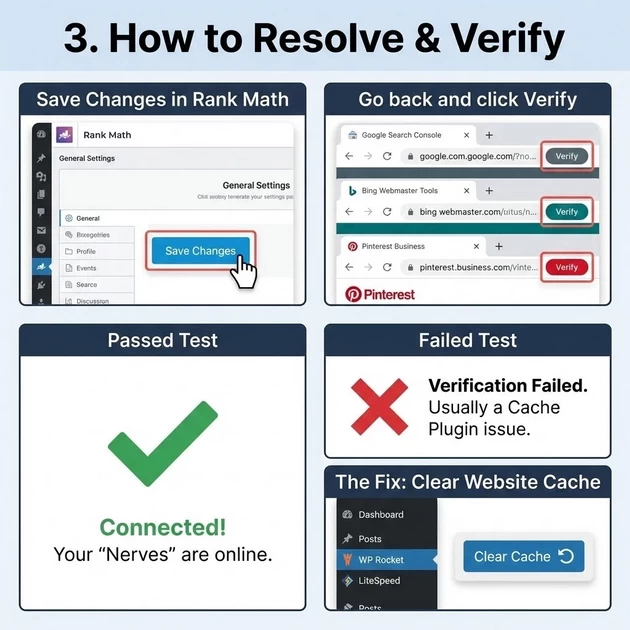
Once you have pasted all the codes into Rank Math:
-
Save Changes in Rank Math.
-
Go back to the Google/Bing/Pinterest tabs and click the “Verify” button.
-
Passed Test: If you see a green checkmark, your “Nerves” are connected.
-
Failed Test: If it fails, it is usually because of a Cache Plugin.
-
The Fix: Clear your website cache (WP Rocket, LiteSpeed, etc.) and try verifying again.
-
🗺️ 3. Sitemaps: The “Tourist Map”
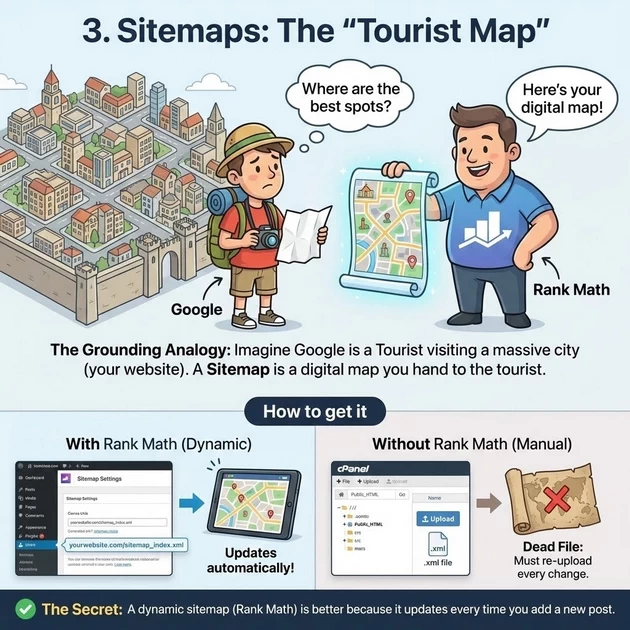
The Grounding Analogy: Imagine Google is a Tourist visiting a massive city (your website) for the first time. If there are no signs, the tourist gets lost and misses the best spots. A Sitemap is a digital map you hand to the tourist at the gate.
How to get it:
-
With Rank Math: It’s automatic. Go to
Sitemap Settings. Rank Math creates a dynamic link (usuallyyourwebsite.com/sitemap_index.xml). -
Without Rank Math: You can use a generic plugin or even a “Sitemap Generator” website where you download a
.xmlfile and upload it to your “Public_HTML” folder via CPanel. -
The Secret: A dynamic sitemap (Rank Math) is better because it updates every time you add a new post. A manual file is “dead”—you have to re-upload it every time you change something.
📮 4. Submitting to Google Search Console
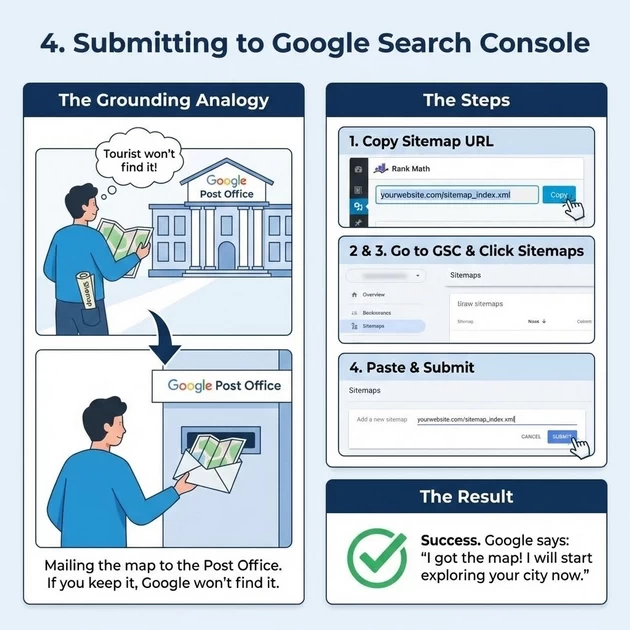
The Grounding Analogy: Creating the map (Sitemap) is Step 1. Step 2 is Mailing it to the Post Office. If you have a map but keep it in your pocket, the tourist (Google) still won’t find it.
The Steps:
-
Copy your sitemap URL from Rank Math (e.g.,
sitemap_index.xml). -
Go to Google Search Console.
-
Click Sitemaps in the left sidebar.
-
Paste the URL and click Submit.
-
The Result: You will see a “Success” message. This is Google saying, “I got the map! I will start exploring your city now.”
📊 Which Method Works Best?
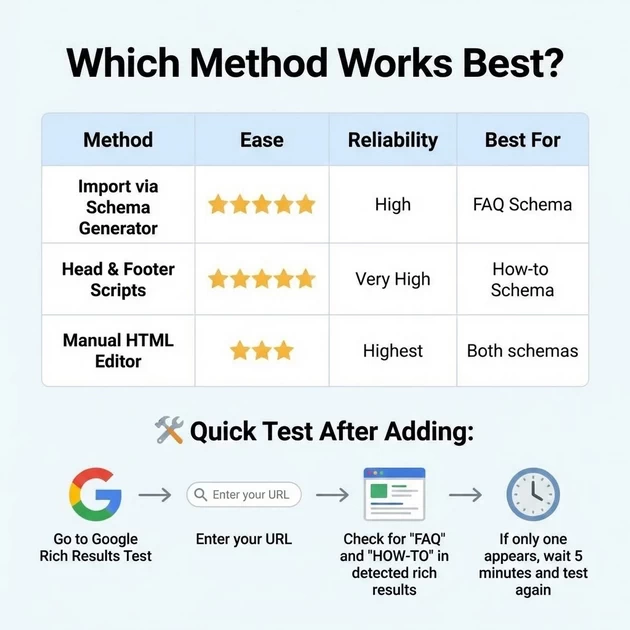
| Method | Ease | Reliability | Best For |
|---|---|---|---|
| Import via Schema Generator | ⭐⭐⭐⭐⭐ | High | FAQ Schema |
| Head & Footer Scripts | ⭐⭐⭐⭐ | Very High | How-to Schema |
| Manual HTML Editor | ⭐⭐⭐ | Highest | Both schemas |
🔧 Quick Test After Adding:
-
Go to Google Rich Results Test
-
Enter your URL
-
Check for “FAQ” and “HOW-TO” in detected rich results
-
If only one appears, wait 5 minutes and test again
6. GEO & AEO Connected to Rank Math
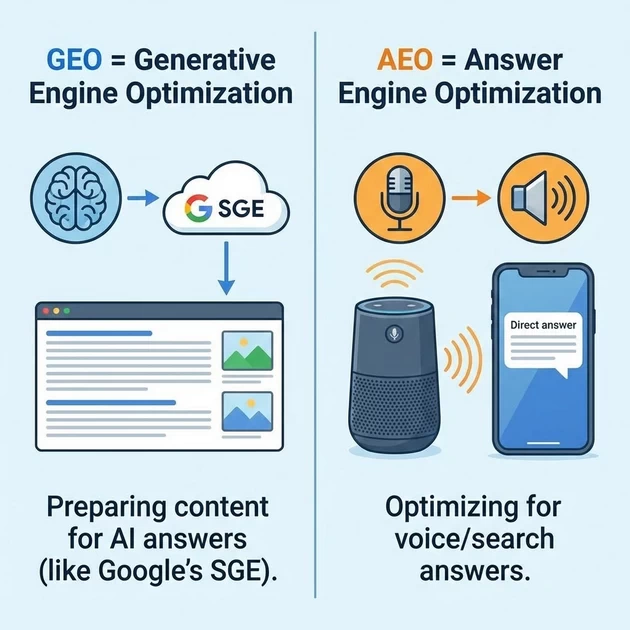
GEO = Generative Engine Optimization — preparing content for AI answers (like Google’s SGE).
AEO = Answer Engine Optimization — optimizing for voice/search answers.
Fact:
Rank Math’s Content AI (Pro feature) suggests related entities/questions to cover — this helps with AEO/GEO because you’re covering full topic depth.
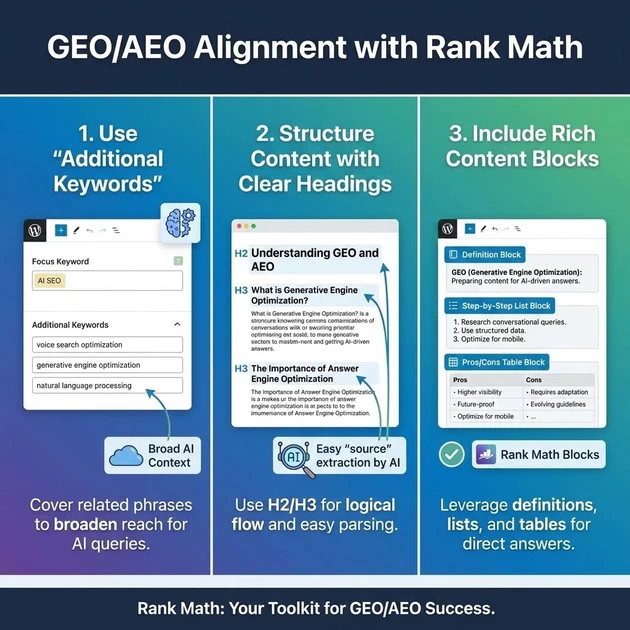
How to align with GEO/AEO in Rank Math:
-
Use “Additional Keywords” to cover related phrases.
-
Structure content with clear headings (H2, H3) for easy “source” extraction by AI.
-
Include definitions, step-by-step lists, pros/cons tables — Rank Math’s blocks help here.
Is there an option to bring content on GEO (Generative Engine Output)?
Yes — by using schema markup (especially FAQ, How-to, Article), you increase chances of your content being used in generative AI answers because structured data helps AI understand and extract information.
Secret Grounding Method for GEO:
Monitor Search Console “Discover” and “Performance” reports — see which content gets high impressions/clicks. Those are topics Google’s AI might already favor. Double down with comprehensive updates using Rank Math’s content suggestions.
7. Final Teaching Points
-
Rank Math is a tool, not a magic wand — it guides, but you must create high-quality, human-first content.
-
Schema is your friend for rich snippets — use it where relevant.
-
GEO/AEO readiness = cover topic fully, use structure, mark up with schema.
-
Ground your SEO decisions in real data (Search Console) + user intent.
Complete Google Search Console Masterclass
1.1 What is Google Search Console (GSC)?
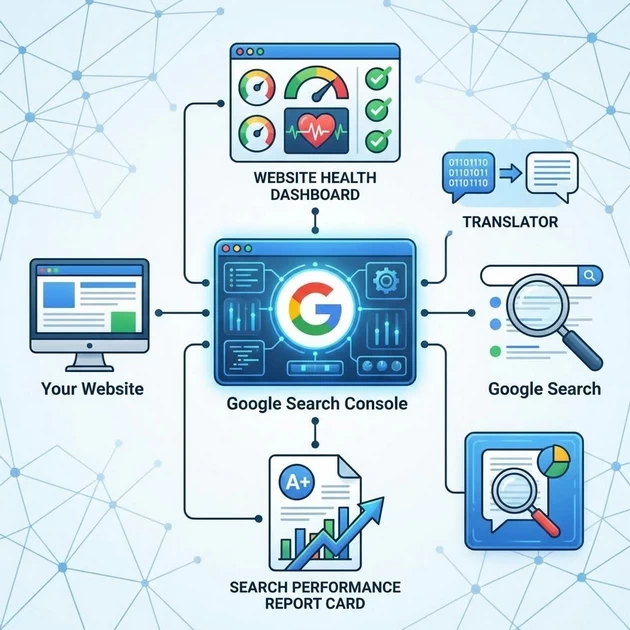
Definition: GSC is Google’s free diagnostic and reporting tool that acts as a direct communication channel between your website and Google Search. Think of it as:
-
Your website’s health dashboard in Google’s ecosystem
-
A translator that helps Google understand your site
-
A report card showing how your site performs in search
The Grounding Analogy:
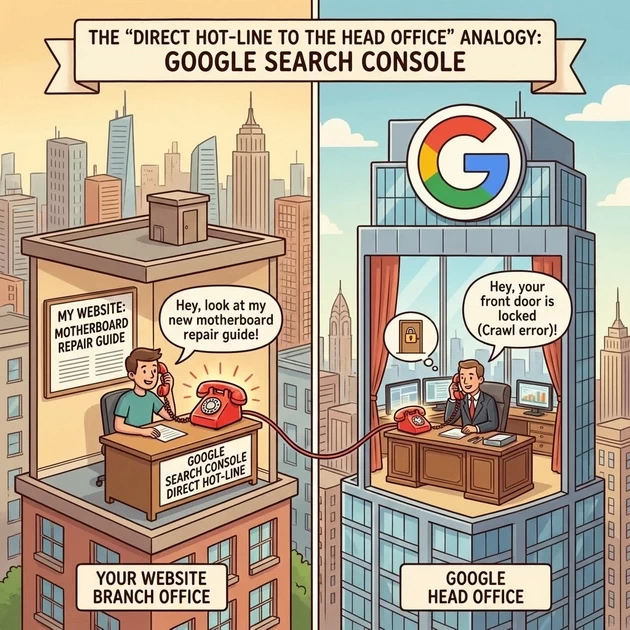
The “Direct Hot-Line to the Head Office” “Students, imagine your website is a Branch Office in a massive city. Google is the Head Office. Usually, you just wait for them to notice you. But Search Console is a direct phone line sitting on your desk. You can pick it up and tell the Head Office, ‘Hey, look at my new motherboard repair guide!’ and they can tell you, ‘Hey, your front door is locked (Crawl error)!'”
Why We Use GSC & Benefits
Five Core Reasons:
-
Visibility into Google’s Perspective
-
See your site exactly as Google sees it
-
Understand what gets indexed and what doesn’t
-
-
Performance Monitoring
-
Track clicks, impressions, CTR, and average position
-
Identify winning pages and underperforming content
-
-
Technical Health Diagnostics
-
Get alerts for security issues, manual actions, or technical errors
-
Monitor crawl budget and server errors
-
-
Direct Communication with Google
-
Submit new content for crawling
-
Report issues and request reconsideration
-
-
User Experience Insights
-
Mobile usability reports
-
Core Web Vitals (page experience metrics)
-
How Long Does It Take?
Timeline Expectations:
-
Verification: Immediate to 24 hours
-
Initial Data: 1-3 days for first data to appear
-
Meaningful Data: 2-4 weeks for reliable trend analysis
-
Indexing Requests: Few hours to 7 days
-
Issue Resolution: Depends on problem (24 hours to several weeks)
Important Note: GSC shows data from the past 16 months – perfect for year-over-year analysis.
GSC, GEO, and AEO: The “AI Bridge”
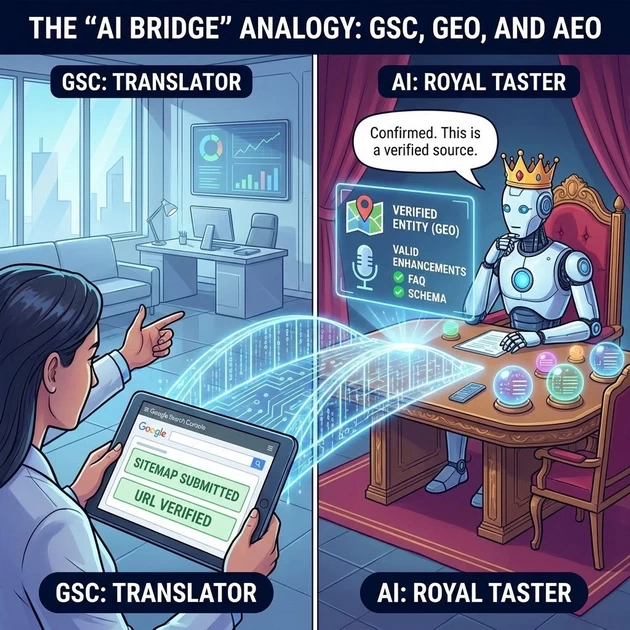
The Grounding Analogy: The “Translator for the Royal Taster” “In 2026, we don’t just want to rank; we want to be the answer in a Chatbot (GEO/AEO). GSC is the Proof of Truth. When you submit your Sitemap or URL to GSC, you are giving the AI models a ‘Verified Source.’ If an AI is unsure of a fact, it looks at GSC-verified sites to confirm the data.”
-
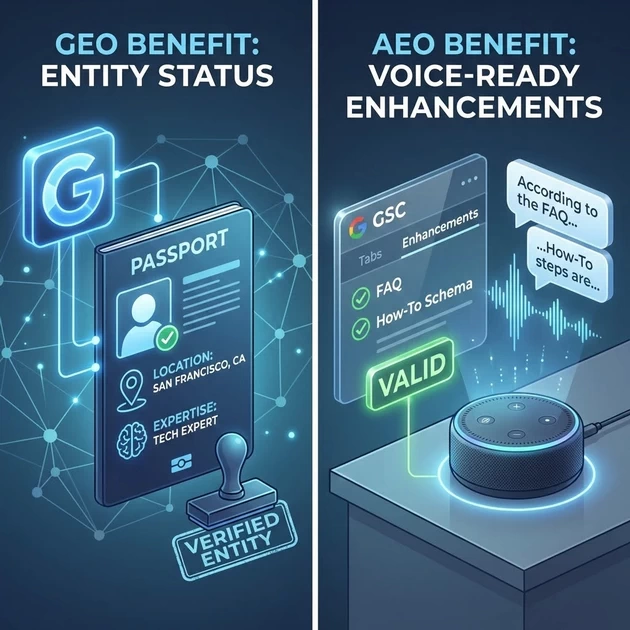
GEO Benefit: GSC proves your “Entity” status. It confirms your location and your expertise.
-
AEO Benefit: The “Enhancements” tab in GSC tells you if your FAQ and How-To Schema are valid. If they are green in GSC, they are eligible to be spoken out loud by Voice Assistants (AEO).
Step-by-Step: Adding solaitime.com to GSC
Step 1: Create the Property
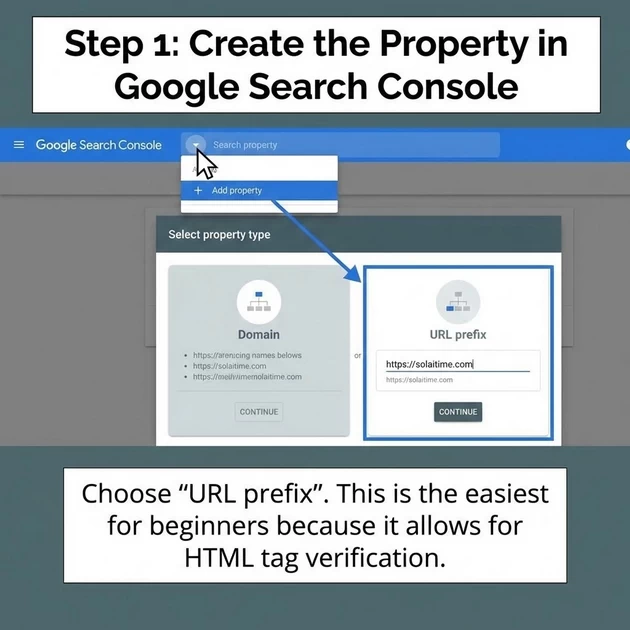
-
Go to Google Search Console.
-
Click the Property Dropdown (top left) -> Add Property.
-
Choose “URL Prefix” (e.g.,
https://solaitime.com). This is the easiest for beginners because it allows for HTML tag verification.
Step 2: The “Verification Key”
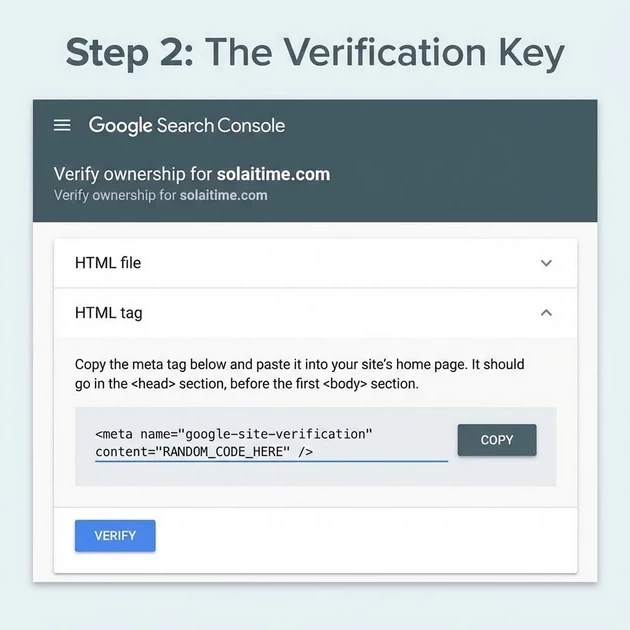
-
Google will offer several methods. Choose “HTML Tag.”
-
Copy the code that looks like this:
<meta name="google-site-verification" content="RANDOM_CODE_HERE" />.
Step 3: Where to Paste the Code (The Plugins)
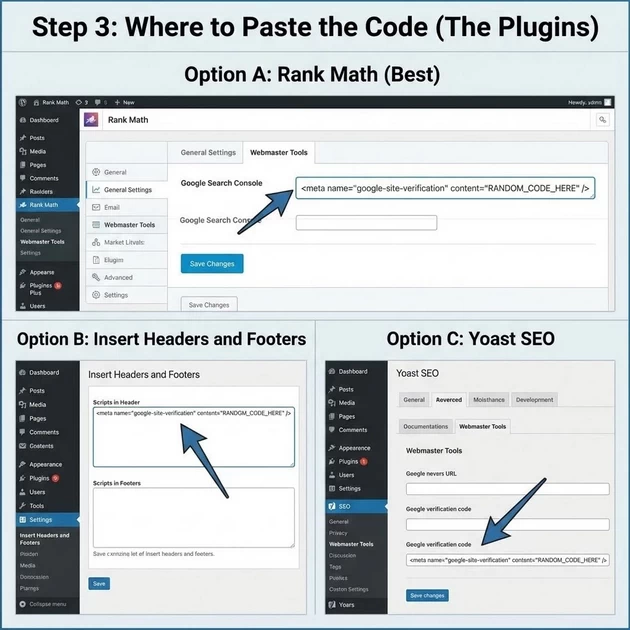
You have three professional options to teach your students:
-
Option A (Rank Math – Best): Go to Rank Math > General Settings > Webmaster Tools. Paste the code into the Google Search Console box.
-
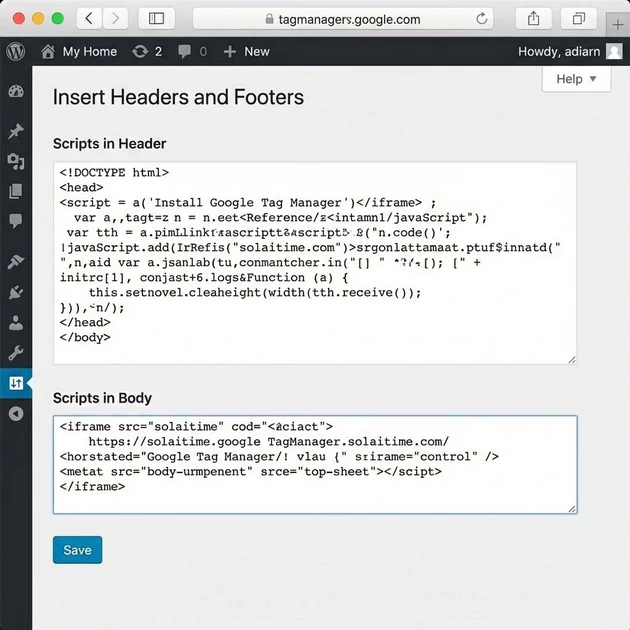
Option B (Insert Headers and Footers): A simple plugin where you paste the code into the “Scripts in Header” section.
-
Option C (Manual – For Developers): Go to Appearance > Theme File Editor > header.php and paste it before the
</head>tag. (Warning: Remind students that this is dangerous if they delete a bracket!)
Step 4: Click “Verify”
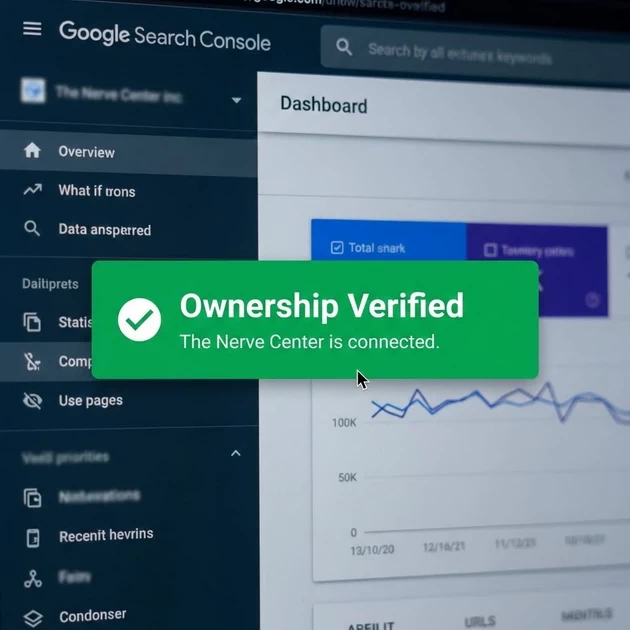
Go back to GSC and click Verify. Once you see the “Ownership Verified” green box, the “Nerve Center” is connected.
Google Analytics (GA4): The “Security Camera”
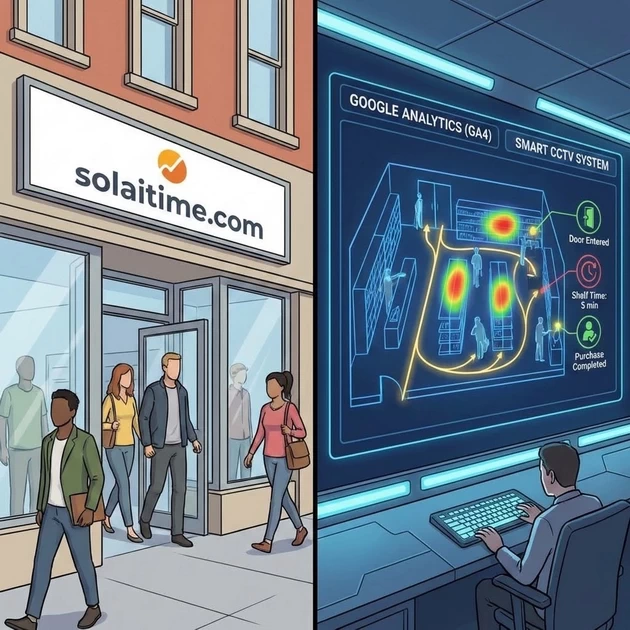
The Grounding Analogy: The “Smart CCTV System” “Imagine you own a physical store (solaitime.com). You can see people walking in, but you don’t know where they came from or what they looked at before leaving. Google Analytics is like a high-tech CCTV system. It tells you which door they entered through, which shelf they looked at for 5 minutes, and if they actually bought something or just walked out.”
The Facts:
-
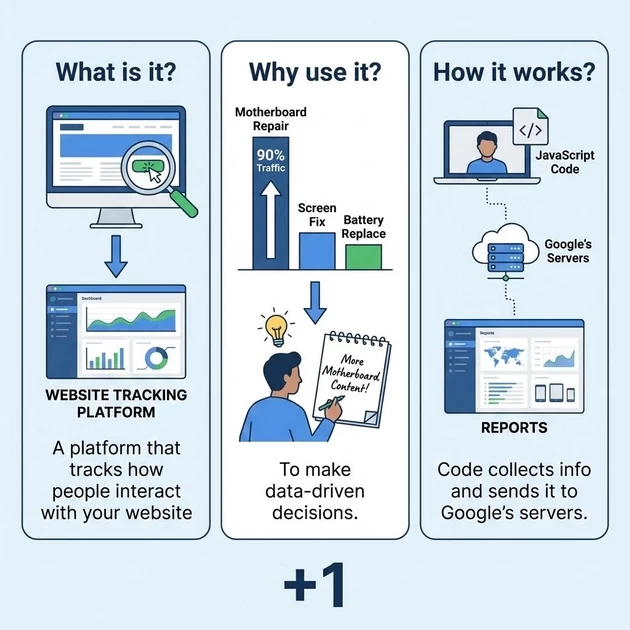
What is it? A platform that tracks how people interact with your website.
-
Why use it? To make data-driven decisions. If you see that your “Motherboard Repair” page gets 90% of your traffic, you know to write more about motherboards!
How it works: A small piece of JavaScript code runs every time a user visits. It collects info like their device, location, and the pages they visit, then sends it to Google’s servers to create reports.
2. Google Tag Manager (GTM): The “Toolbox”
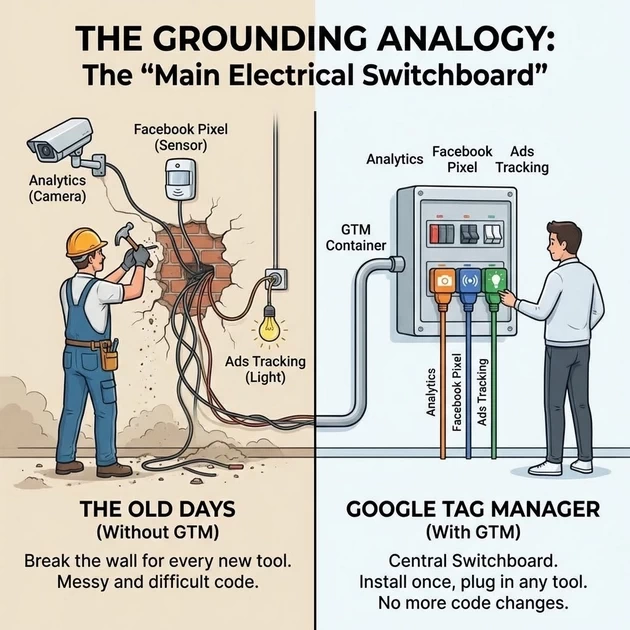
The Grounding Analogy: The “Main Electrical Switchboard” “In the old days, if you wanted to add a camera (Analytics), a sensor (Facebook Pixel), or a light (Ads Tracking), you had to hire a plumber to break the wall every time. Google Tag Manager is like a Central Switchboard. You install it once, and then you can plug in any tool you want without ever touching the website’s ‘walls’ (code) again.”
The Facts:
-
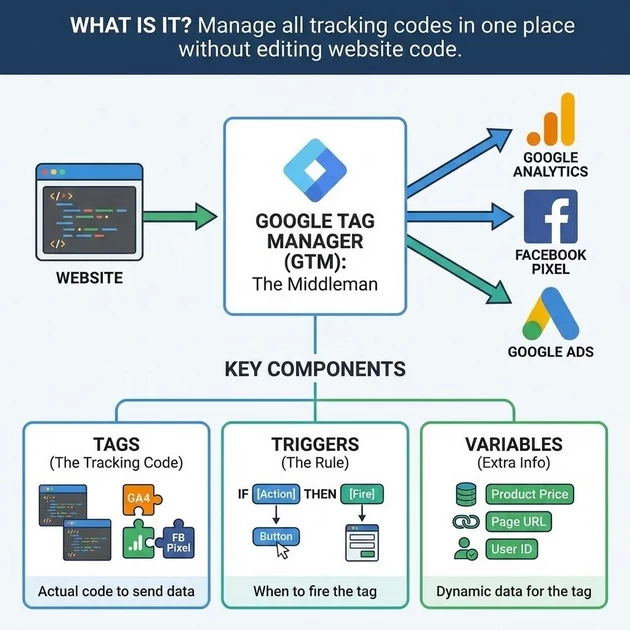
What is it? A “middleman” tool that lets you manage all your tracking codes (tags) in one place without editing your website’s code manually.
Components:
-
Tags: The actual tracking code (e.g., Google Analytics).
-
Triggers: The “Rule” (e.g., “Fire this tag only when someone clicks ‘Contact Us'”).
-
Variables: Extra info needed (e.g., the price of a product).
-
3. Connecting with GEO & AEO: The “AI Training Data”
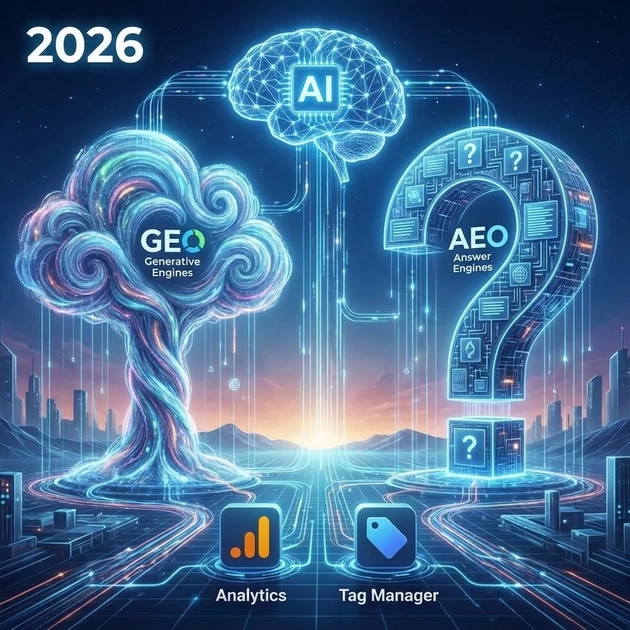
“In 2026, we optimize for Generative Engines (GEO) and Answer Engines (AEO). Analytics and Tag Manager are how we prove to AI that our content is popular and helpful.”
-
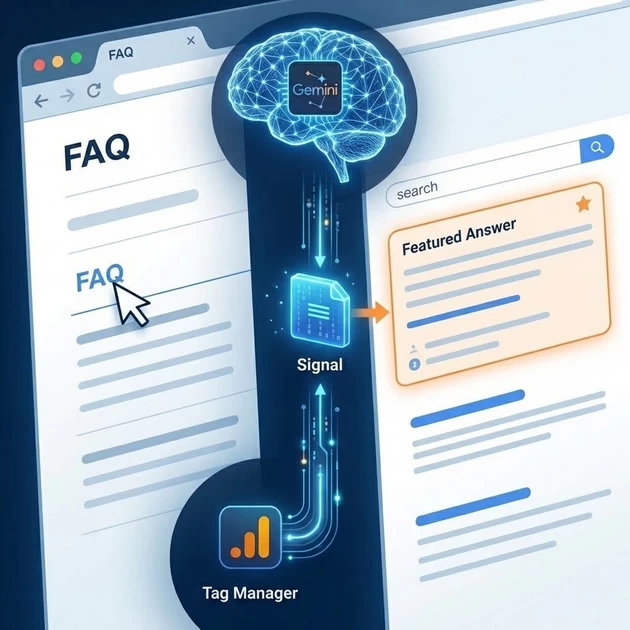
AEO Benefit: Tag Manager allows us to track FAQ clicks or video views. If users are engaging with your FAQs, AI engines like Gemini see that “Signal” and are more likely to use your site as the Featured Answer.
-
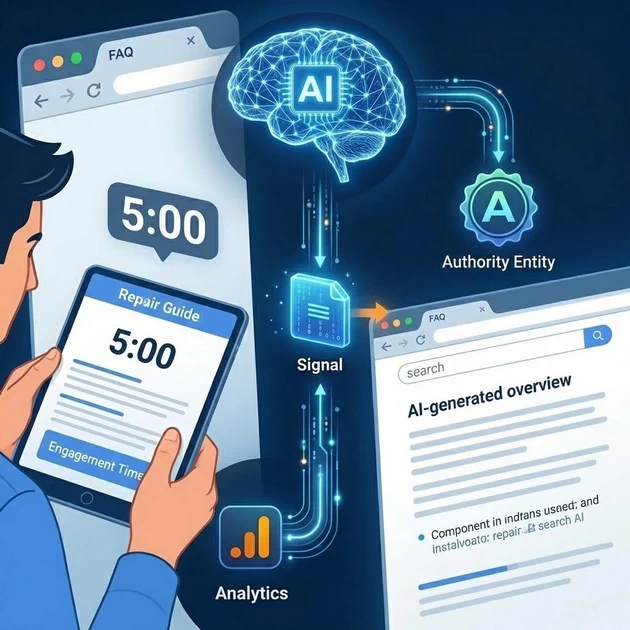
GEO Benefit: Analytics shows “Engagement Time.” If people spend 5 minutes reading your repair guide, AI models recognize your site as an Authority Entity, which helps you get cited in AI-generated overviews.
Step-by-Step: Setup for solaitime.com
Step 1: Create Google Analytics 4 (GA4)
-
Go to analytics.google.com and click Start Measuring.
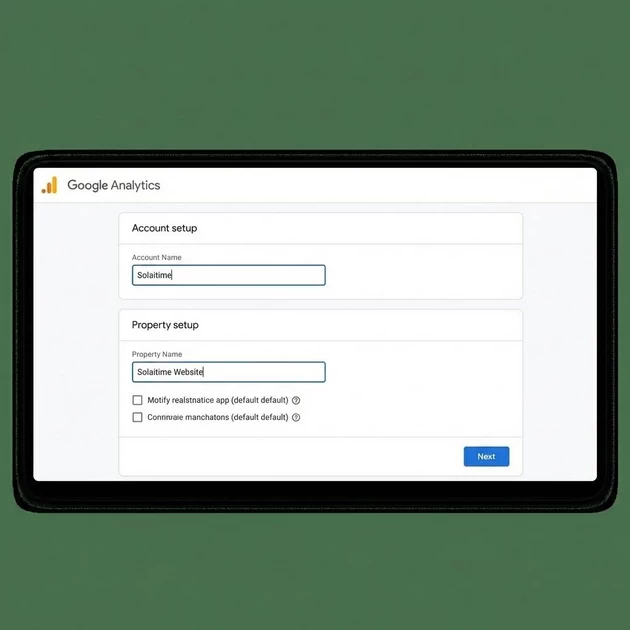
-
Account Name: Solaitime.
-
Property Name: Solaitime Website.
-
Data Stream: Select Web, enter
solaitime.com, and click Create Stream. -
Copy Measurement ID: Look for the ID starting with “G-“.
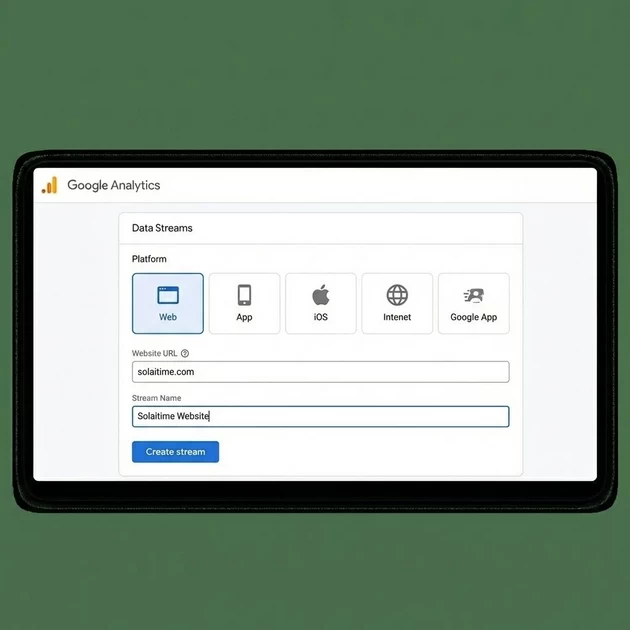
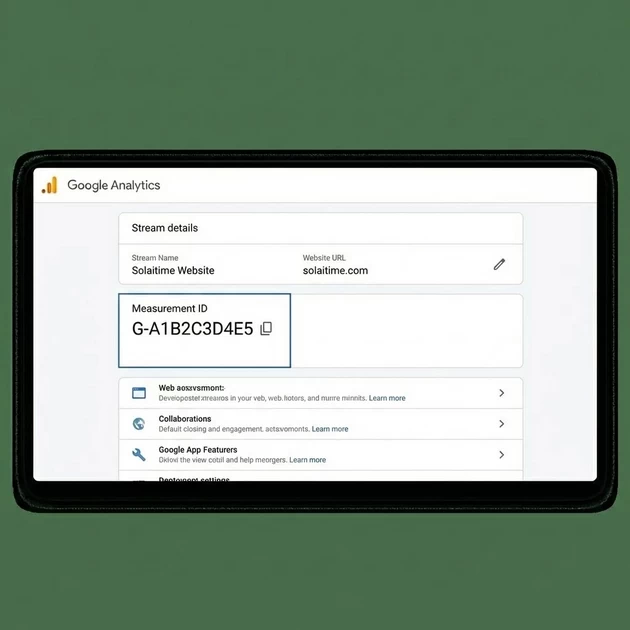
Step 2: Create Google Tag Manager (GTM)
-
Go to tagmanager.google.com.
-
Account Name: Solaitime.
-
Container Name:
solaitime.com. Select Web. -
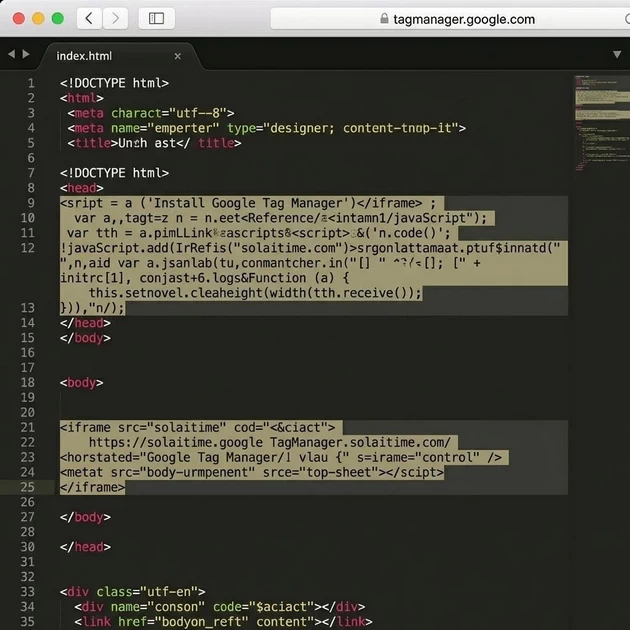
Install GTM: Google will give you two pieces of code.
-
Paste the first code in the
<head>of your site. -
Paste the second code immediately after the
<body>tag. -
(Teacher Tip: Use a plugin like ‘Insert Headers and Footers’ to do this easily!)
-
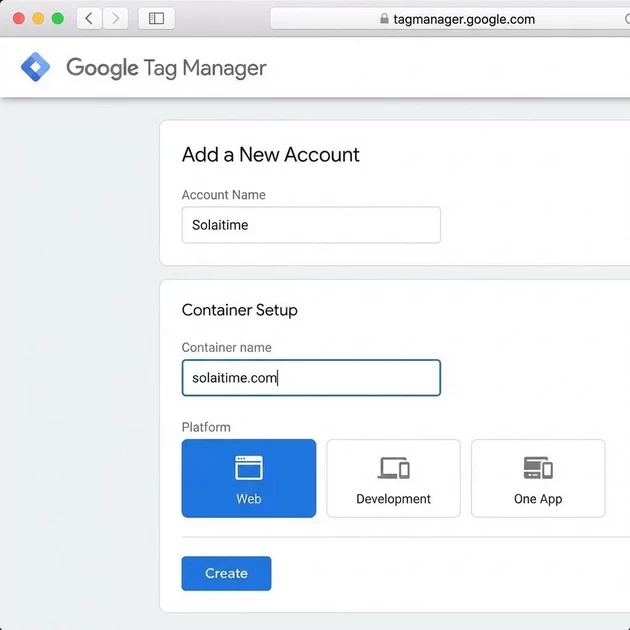
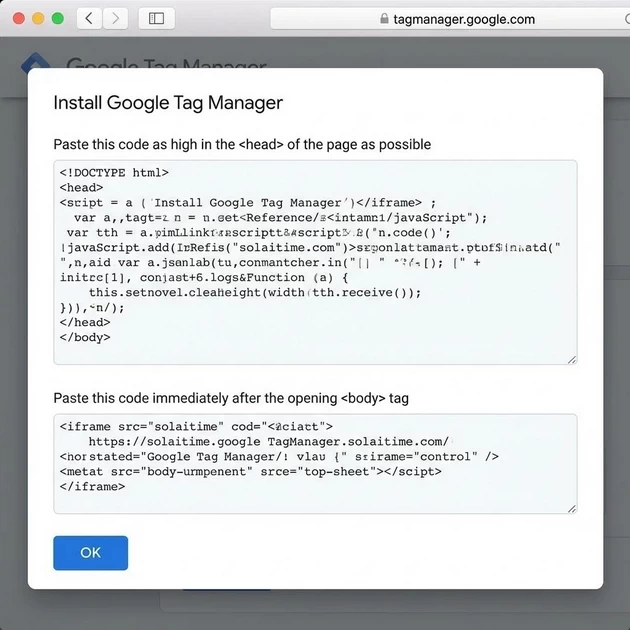
Step 3: Link GA4 inside GTM
-
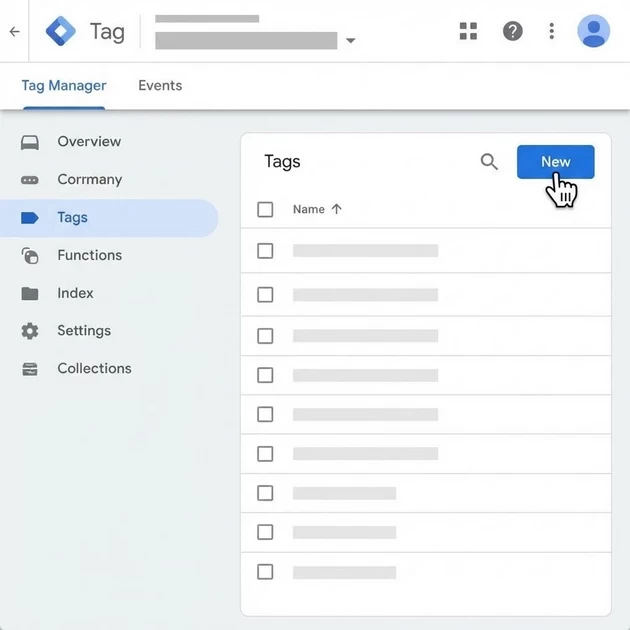
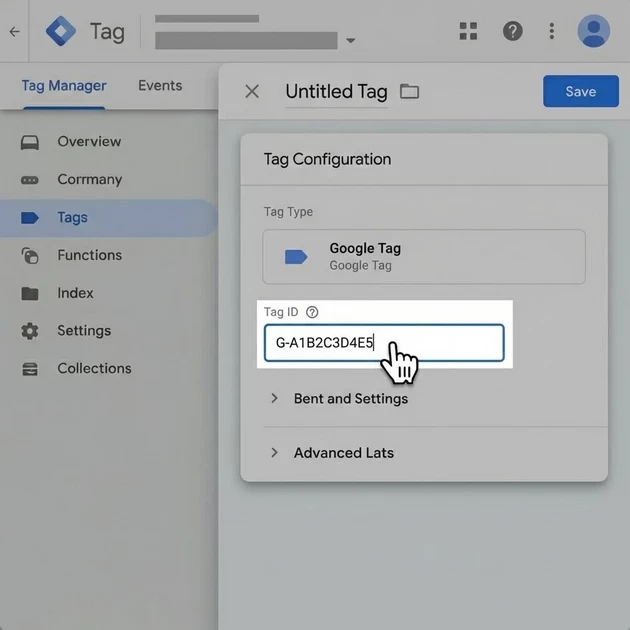
In GTM, go to Tags > New.
-
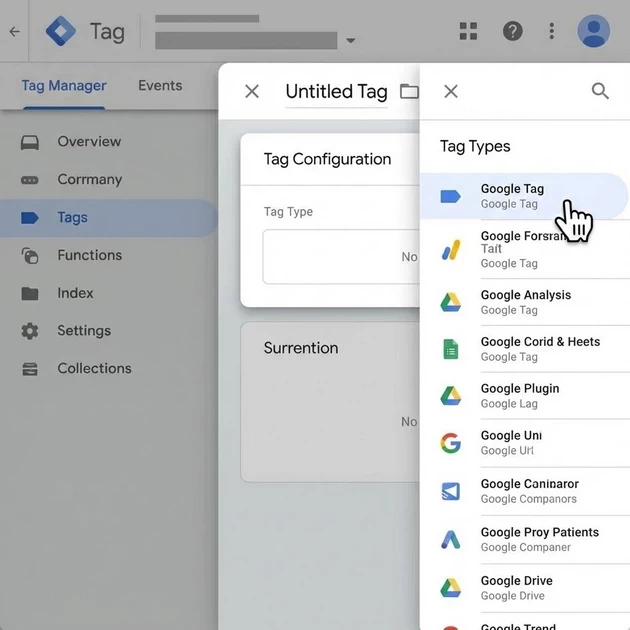
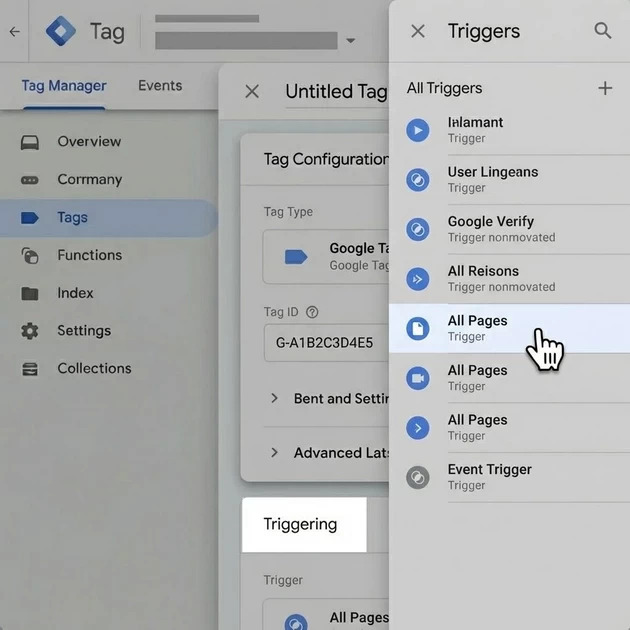
Tag Configuration: Choose Google Tag.
-
Tag ID: Paste your “G-“ ID from Analytics.
-
Triggering: Select All Pages.
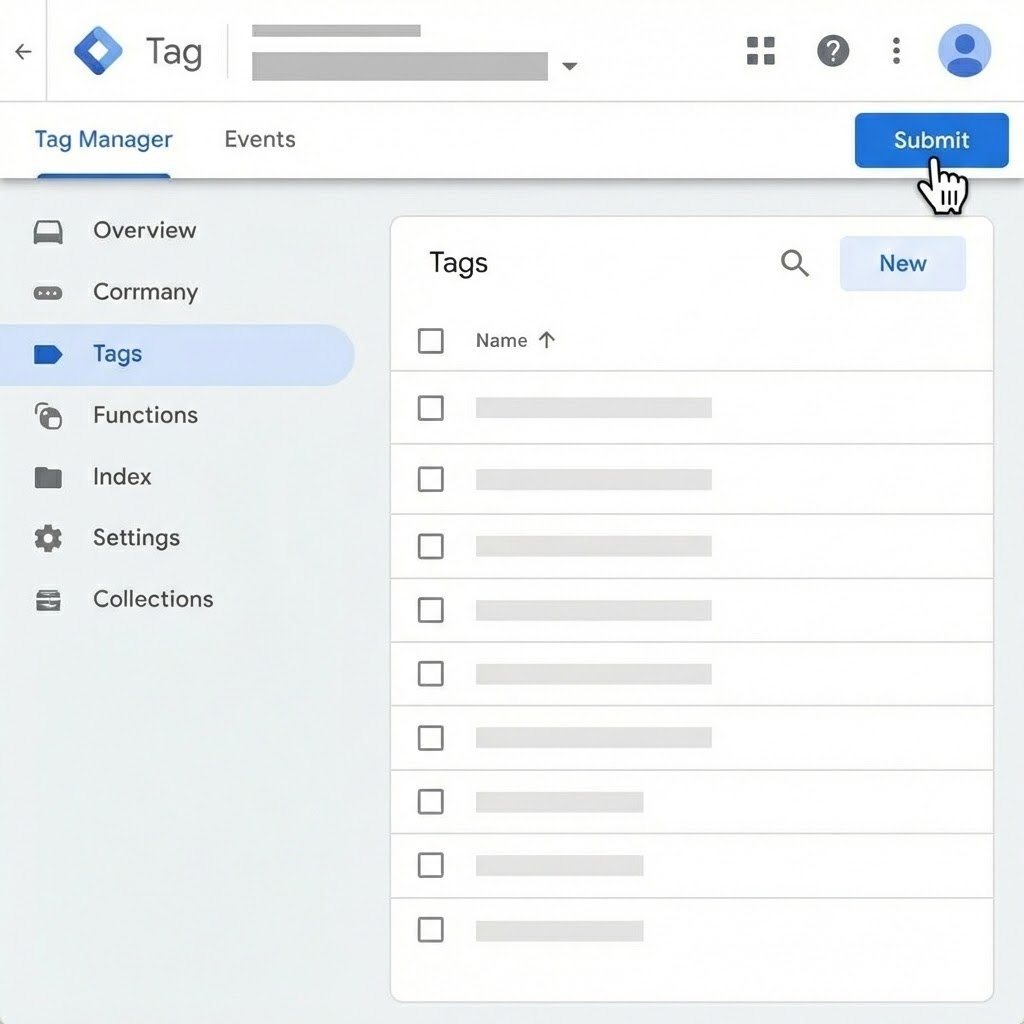
-
Submit & Publish: Click the blue Submit button. Your CCTV is now live!
Part 1: The Core Concept – Reputation
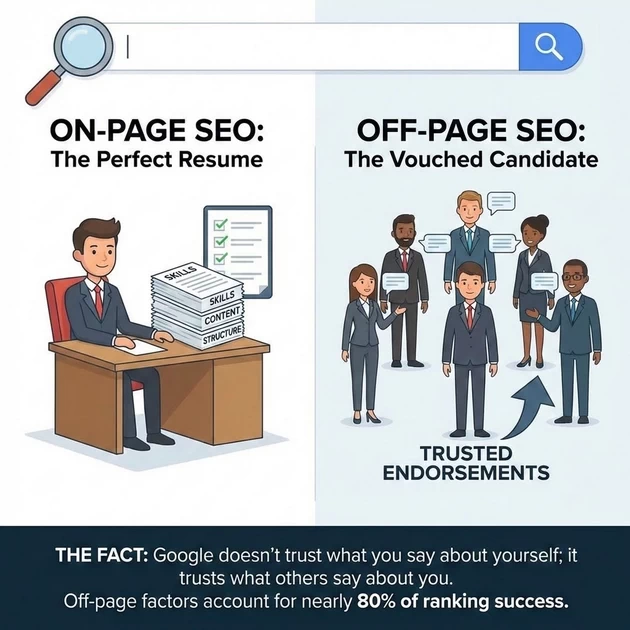
The Grounding Analogy: The Job Candidate
-
On-Page SEO is the candidate with a perfect resume: no typos and great skills.
-
Off-Page SEO is the candidate with 5 former managers vouching for them.
-
The Fact: Google doesn’t trust what you say about yourself; it trusts what others say about you. Off-page factors account for nearly 80% of ranking success.
🔗 Part 2: Backlinks – The Library Analogy
The Concept: A backlink is a link from another website to yours.
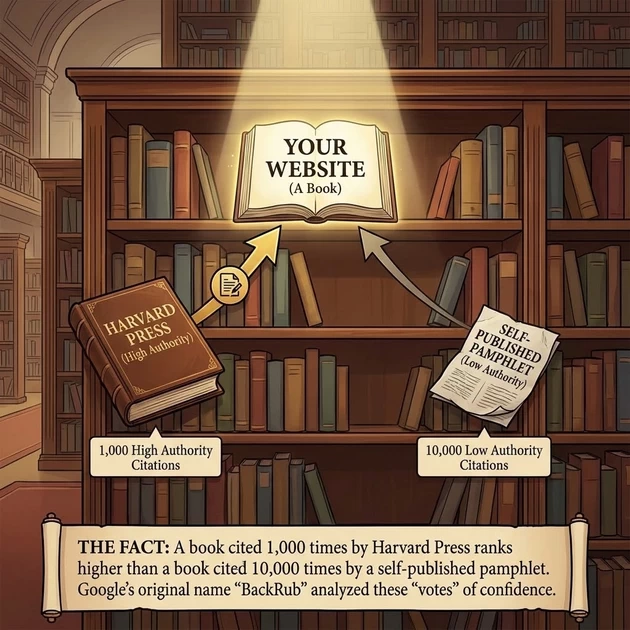
-
The Analogy: Imagine the internet is a University Library. Your website is a book on the shelf. Backlinks are the citations in other books’ bibliographies.
-
The Fact: A book cited 1,000 times by Harvard Press (High Authority) ranks higher than a book cited 10,000 times by a self-published pamphlet (Low Authority).
-
The Voting System: Google’s original name was “BackRub” because it analyzed these “votes” of confidence.
Types of “Food” (Backlinks)
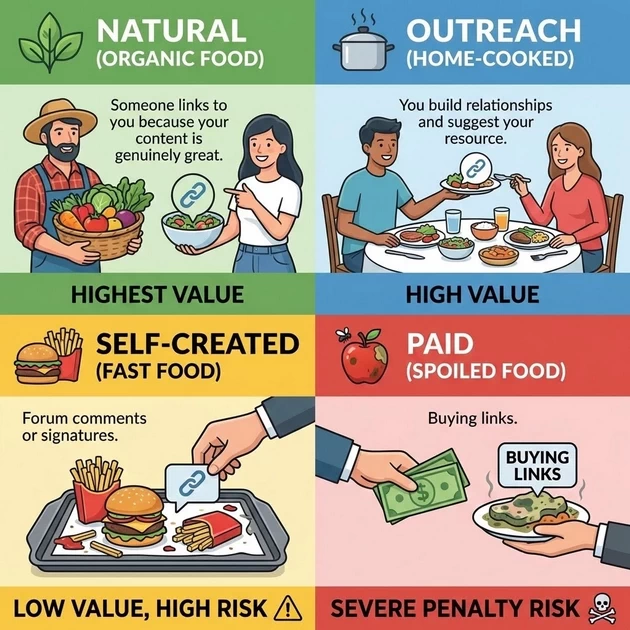
-
Natural (Organic Food): Someone links to you because your content is genuinely great. (Highest Value).
-
Outreach (Home-cooked): You build relationships and suggest your resource. (High Value).
-
Self-Created (Fast Food): Forum comments or signatures. (Low Value, High Risk).
-
Paid (Spoiled Food): Buying links. (Severe Penalty Risk).
🩺 Part 3: Domain Authority – The Doctor Analogy
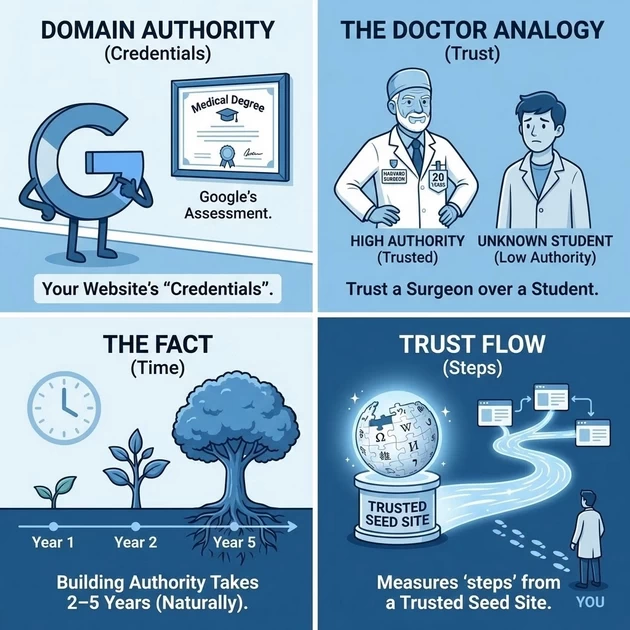
The Concept: Domain Authority is Google’s assessment of your “credentials.”
-
The Analogy: You trust a Harvard Surgeon with 20 years of experience (High Authority) over a student from an unknown online school (Low Authority).
-
The Fact: Building significant authority naturally takes 2–5 years.
-
Trust Flow: Measures how many “steps” away you are from a trusted seed site like Wikipedia.
📢 Part 4: Beyond Links – Brand & Social Signals
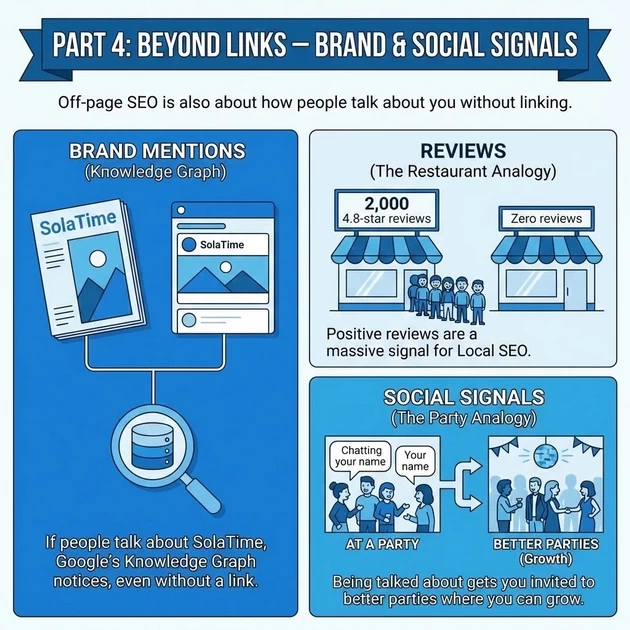
Off-page SEO is also about how people talk about you without linking.
-
Brand Mentions: If people talk about SolaTime in magazines or on social media, Google’s Knowledge Graph notices, even without a link.
-
Reviews (The Restaurant Analogy): A restaurant with 2,000 4.8-star reviews gets more customers than one with zero reviews. Positive reviews are a massive signal for Local SEO.
-
Social Signals (The Party Analogy): Being talked about at a party doesn’t increase your salary, but it gets you invited to better parties where you can grow.
🛠️ Part 5: Proven Link Building Strategies
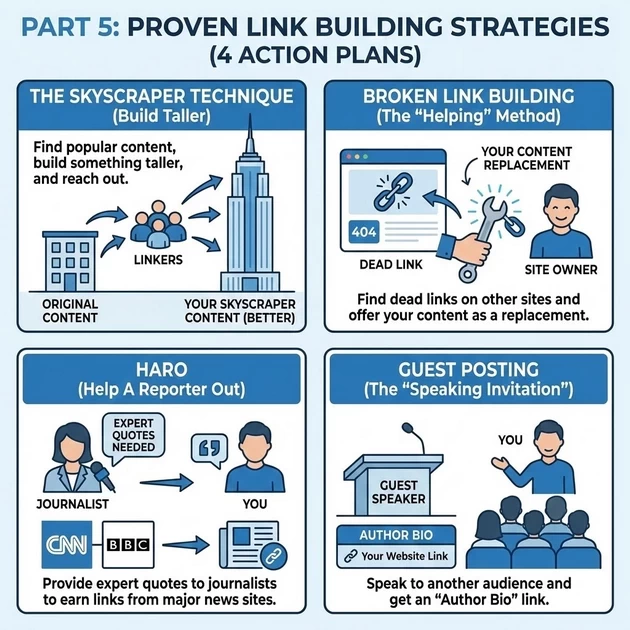
Teach your students these four specific “Action Plans”:
-
The Skyscraper Technique: Find popular content, build something taller (better), and reach out to those who linked to the original.
-
Broken Link Building: Find dead links on other sites and offer your content as the replacement. (The “Helping” Method).
-
HARO (Help A Reporter Out): Provide expert quotes to journalists to earn links from major news sites like CNN or BBC.
-
Guest Posting: The “Speaking Invitation”—you speak to another audience and get an “Author Bio” link.
🧪 Part 6: Important Metrics to Watch
-
Domain Authority (DA/DR): The “Credit Score” of a website (Score 1–100).
-
Referring Domains: The number of unique websites linking to you. One link from 50 different domains is better than 50 links from one domain.
-
Link Velocity: The speed at which you get links. Sudden spikes look suspicious to Google
WHAT IS A CAMPAIGN? (CORE CONCEPT)
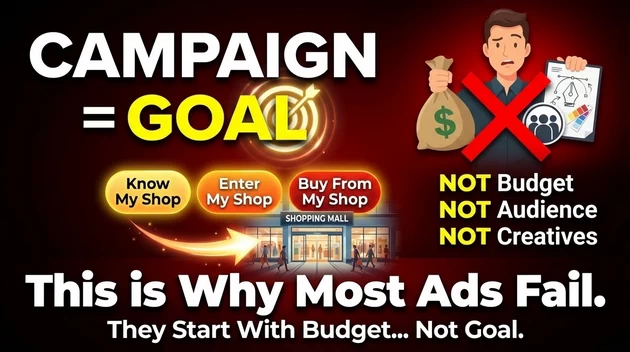
A Campaign is the GOAL you give to Facebook.
Not:
-
budget
-
not audience
-
not creatives
👉 Campaign = WHAT result you want from the platform
Real-Life Analogy (BEST ONE)
Imagine you run a shopping mall.
-
Campaign = Purpose of the visit
-
“Get people to know my shop”
-
“Bring people inside”
-
“Make people buy”
-
You don’t tell security how to arrange shops yet.
You first tell them WHY people are coming.
Same with Facebook.
HOW Meta THINKS INTERNALLY
Meta Ads Manager works in 3 layers:
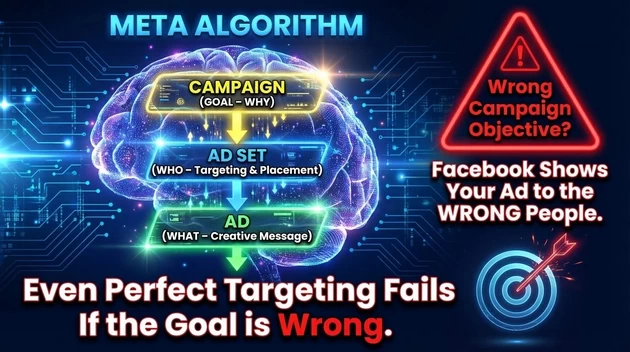
CAMPAIGN  →  AD SET  →  AD

(GOAL)       (WHO)     (WHAT THEY SEE)
Or in human language:
-
Campaign → Why are we advertising?
-
Ad Set → Who should see it & where?
-
Ad → What message/image/video they see
💡 SECRET
If you choose the wrong Campaign objective, Facebook will show your ad to the WRONG type of people — even if your targeting is perfect.
🧱 CAMPAIGN LEVEL: STEP-BY-STEP (LIVE CLASS FLOW)
When you click Create Campaign in Meta Ads Manager, Facebook asks one BIG question:
“What outcome do you want?”
TYPES OF CAMPAIGNS (NEW META STRUCTURE – SIMPLE)
Meta has 6 Core Campaign Objectives
(Older Awareness/Traffic/Conversion system is now merged)
1️⃣ AWARENESS CAMPAIGN
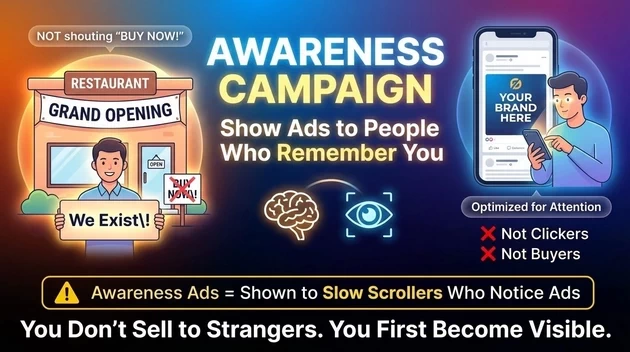
Purpose:
👉 Show ads to people most likely to remember you
Who Should Use This?
-
New brand
-
New business
-
Local shop
-
Coach / trainer
-
First time advertiser
Real-Life Analogy:
You open a new restaurant.
You don’t shout:
“BUY NOW!”
You first say:
“We exist.”
What Facebook Optimizes For:
-
People who notice ads
-
Not clickers
-
Not buyers
⚠️ SECRET
Awareness ads are shown to people who scroll slowly and pay attention — not impulsive buyers.
2️⃣ TRAFFIC CAMPAIGN
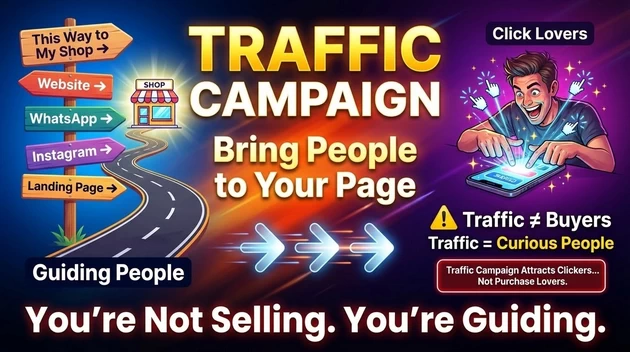
Purpose:
👉 Bring people to:
-
website
-
landing page
-
WhatsApp
-
app
-
Instagram profile
Who Should Use This?
-
Bloggers
-
YouTubers
-
Affiliate marketers
-
Content websites
-
Beginners learning ads
Real-Life Analogy:
You distribute direction boards:
“This way to my shop”
You’re not selling yet — just guiding.
Hidden Truth:
Traffic ≠ buyers
Traffic = curious people
⚠️ SECRET
Traffic campaigns attract “click lovers” — not purchase lovers.
3️⃣ ENGAGEMENT CAMPAIGN
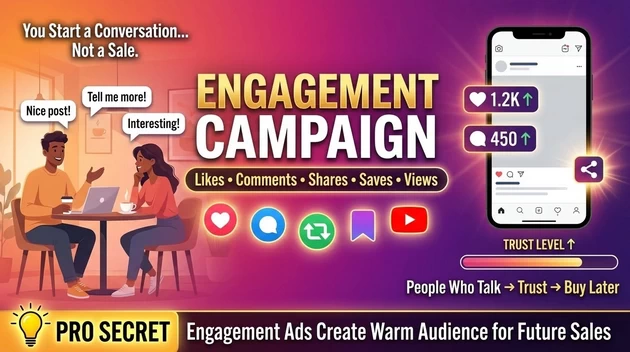
Purpose:
👉 Get:
-
likes
-
comments
-
shares
-
saves
-
video views
Who Should Use This?
-
Personal brands
-
Influencers
-
Coaches
-
Pages needing trust
Real-Life Analogy:
You start a conversation, not a sale.
People who talk → trust → buy later.
💡 PRO SECRET
Engagement ads are warm-audience creators for future sales.
4️⃣ LEADS CAMPAIGN
Purpose:
👉 Collect:
-
phone numbers
-
emails
-
WhatsApp chats
-
form fills
Who Should Use This?
-
Service providers
-
Real estate
-
Coaching institutes
-
Doctors, consultants
-
Education businesses
Real-Life Analogy:
Instead of selling immediately, you say:
“Give me your number, I’ll explain.”
What Facebook Optimizes For:
-
People who fill forms
-
Not just click
⚠️ BIG MISTAKE
People use Traffic when they actually need Leads.
5️⃣ SALES CAMPAIGN (MOST POWERFUL)

Purpose:
👉 Get:
-
purchases
-
checkout events
-
conversions
Who Should Use This?
-
E-commerce
-
Course sellers
-
Paid services
-
Anyone serious about money
Real-Life Analogy:
You open the cash counter.
Now Facebook looks for:
“People who buy, not people who browse.”
Brutal Truth:
If your:
-
website is slow
-
offer is weak
-
trust is missing
👉 Sales campaign will FAIL — and that’s NOT Facebook’s fault.
6️⃣ APP PROMOTION (Optional)
For mobile apps only.
🔥 UNIQUE SECRET MOST TRAINERS NEVER SAY
Facebook does NOT show ads to “your target audience”
It shows ads to people within your audience who match the CAMPAIGN BEHAVIOR
That’s why:
-
Awareness finds viewers
-
Traffic finds clickers
-
Sales finds buyers
Same audience.
Different behavior signals.
🧠 ONE-LINE GOLDEN STATEMENT
“Campaign objective tells Facebook WHO to look for, not WHERE to show ads.”
META ADS FUNNEL (BOARD METHOD)
┌─────────────┐
│ SEE ME │
│ (ATTENTION) │
└─────┬───────┘
│
┌─────▼───────┐
│ TRUST ME │
│ (INTEREST) │
└─────┬───────┘
│
┌─────▼───────┐
│ BUY NOW │
│ (ACTION) │
└─────────────┘
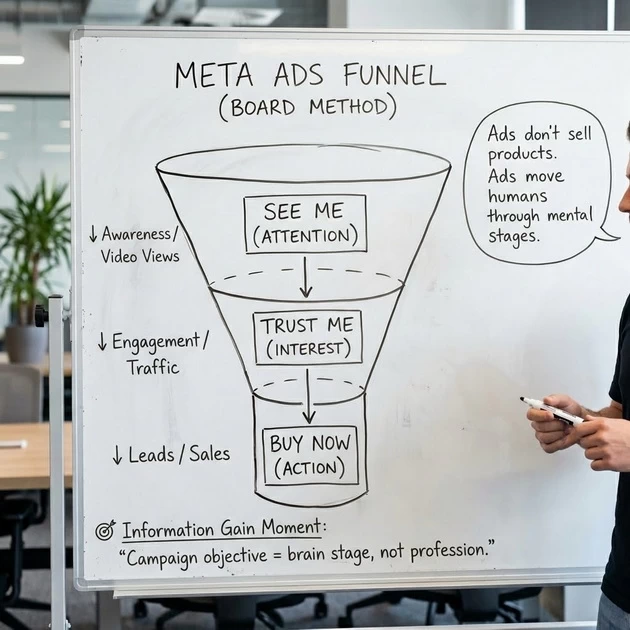
🚫 WRONG vs ✅ RIGHT FUNNEL COMBINATIONS (META ADS)
🧠 First: What Is a Funnel? (1-Line Definition)
A funnel is the order in which you warm a human brain before asking for money.
You don’t jump steps — or the brain resists.
🚫 WRONG FUNNEL #1
❌ Awareness → Direct Sales (Cold Audience)
What beginners do:
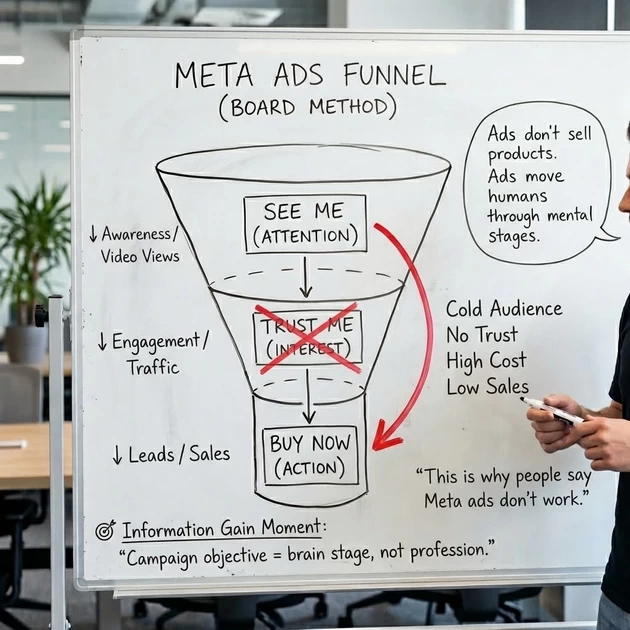
Why This FAILS:
-
Awareness finds attention lovers
-
Sales requires decision makers
-
No trust bridge in between
Real-Life Analogy:
You wave at strangers on the road and immediately say:
“Buy my course ₹9,999”
They don’t even know your name.
Result:
-
High CPM
-
Low conversions
-
“Meta ads don’t work” complaint
✅ RIGHT FUNNEL #1 (Beginner-Proven)
Why This WORKS:
-
Step 1: “Who are you?”
-
Step 2: “Let me understand you”
-
Step 3: “Okay, I trust you”
💡 Information Gain
Facebook learns who engages, who clicks, and who buys — in that order.
WRONG vs RIGHT CREATIVE EXAMPLES
🚫 WRONG CREATIVE #1
❌ SELLING TO COLD AUDIENCE
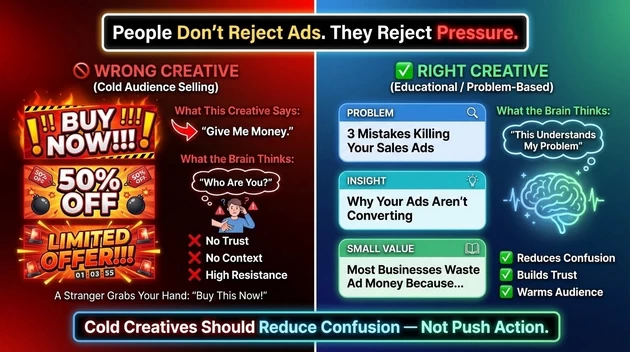
What This Creative Says:
“Give me money.”
What the Brain Thinks:
“Who are you?”
Why It FAILS:
-
No trust
-
No context
-
High resistance
Real-Life Analogy:
A stranger grabs your hand and says:
“Buy this now!”
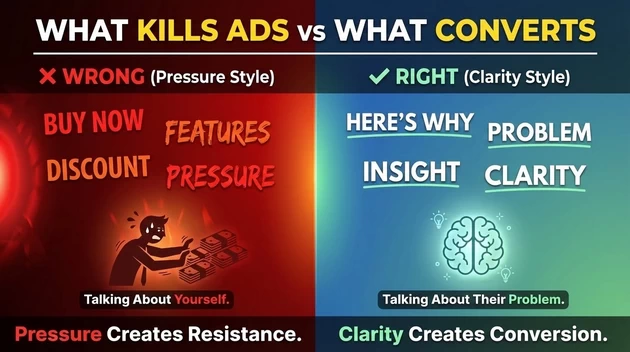
ONE POWERFUL SIDE-BY-SIDE (DRAW THIS)
🏛️ 1.Meta Pixel: The “Digital CCTV”
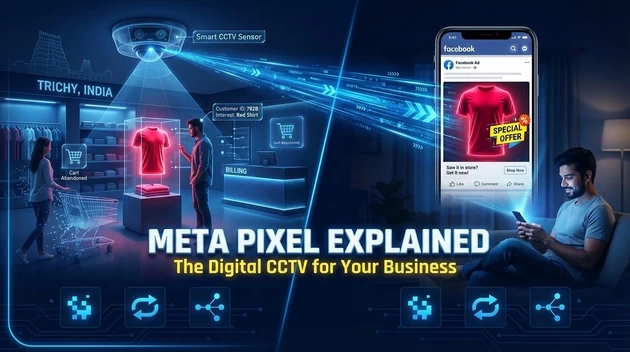
The “Smart Shop Sensor” “Imagine you own a big clothing store in Trichy. People walk in, look at a red shirt, and walk out. You don’t know who they are.
The Meta Pixel is like a Smart CCTV Sensor you put at your shop door and on every shelf.
-
It records exactly who looked at the ‘Red Shirt’ (Course Page).
-
It notes who almost bought it but left at the billing counter (Abandoned Cart).
-
Later, when that same person is scrolling Facebook at home, the sensor tells Facebook, ‘Hey, show this person an ad for that Red Shirt they liked!’ This is called Retargeting.”
Why we use it (The Facts):
-
Conversion Tracking: To see if your ads actually brought in money or just “likes.”
-
Optimization: To tell Meta’s AI, “Find me more people who look like the ones who bought my course.”
-
Custom Audiences: To create a list of everyone who visited
bloomings.inin the last 30 days.
🚀 2. “Connect a New Data Source” Options Explained
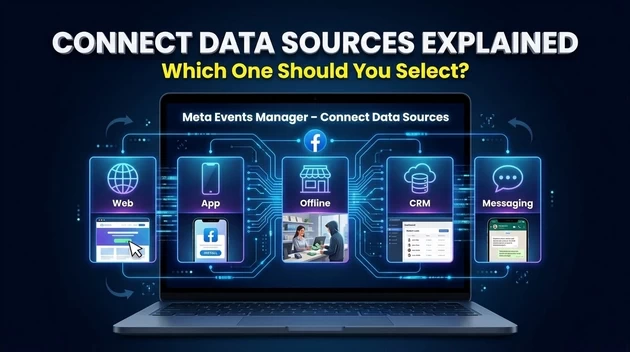
When you click “Connect Data Sources” in Events Manager (your screenshot), you see these five options. Here is what each one means:
Use Restaurant Analogy (Relatable for Students)
| Option | Restaurant Version | Digital Version | When to Use |
|---|---|---|---|
| 🍽️ Web | Customer visits restaurant, looks at menu | Someone visits bloomings.in | ✅ Select this NOW for your website |
| 📱 App | Customer uses restaurant’s mobile app to order | Someone uses your Android/iOS app | ❌ Skip if no app yet |
| 🏬 Offline | Customer pays cash at counter, you write in ledger | Someone pays at your physical office | ✅ Use if you have physical center |
| 📞 CRM | Manager keeps VIP customer list in computer | Leads in HubSpot/Salesforce | ✅ Use for advanced tracking |
| 💬 Messaging | Customer WhatsApps to ask about biryani | Someone messages on WhatsApp/Instagram | ✅ Track conversation starts |
🛠️ 2. How to Create a Meta Pixel (Step-by-Step)
In 2026, Meta calls this a “Dataset.”
-
Open Events Manager: Go to [suspicious link removed] and find Events Manager in the menu.
-
Connect Data: Click the green (+) Connect Data Sources button.
-
Select Web: Choose Web as your source and click Connect.
-
Name Your Pixel: Give it a clear name like “Bloomings Main Site Pixel.”
-
Create Dataset: Click Create. Meta will give you a unique Pixel ID (a string of numbers).
🏗️ 3. How to Install & Verify
You have two main ways to put this “sensor” on your site:
Method A: The Plugin (Easiest for WordPress)
-
Install the “PixelYourSite” or “Insert Headers and Footers” plugin on your WordPress.
-
Paste your Pixel ID into the settings and click Save.
Method B: Manual Code
-
In Events Manager, select “Install code manually.”
-
Copy the long JavaScript code.
-
Paste it into the Header of your website (between the
<head>and</head>tags).
Verification – The “Sensor Test” (3 minutes)
The Pixel Helper Chrome Extension
Teacher: “How do you know your sensor is working? Three ways:”
Step 1 : Install Meta Pixel Helper Extension
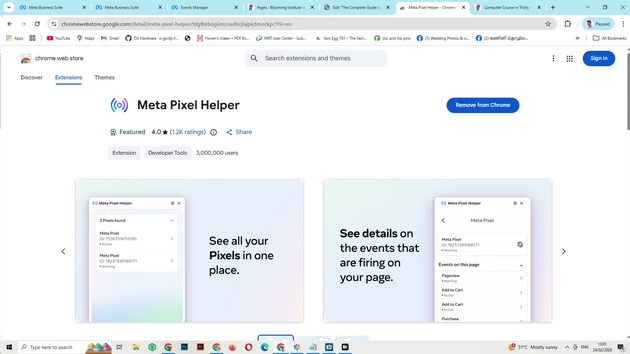
Step 2: Check your Website URL on test events
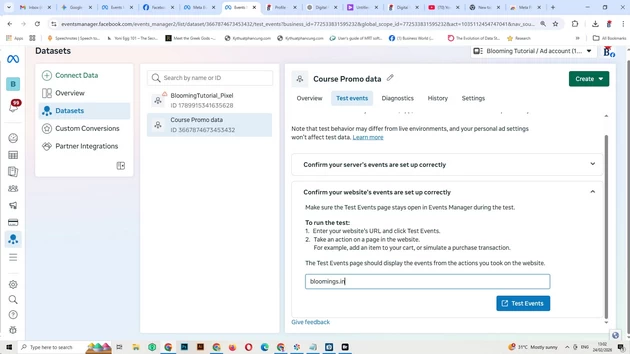
Step 3 : This is Real-Time Events
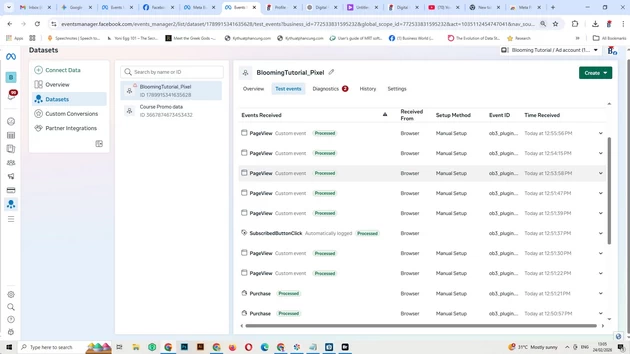
| Test | What to Do | Success Sign |
|---|---|---|
| 🧪 Pixel Helper | Install Chrome extension, visit your site | Icon turns ✅ BLUE |
| 📊 Test Events | Events Manager → Test Events → Enter URL | See “PageView” event |
| 🔍 Real-time | Visit site yourself, check Events Manager | Events appear in real-tim |
2026 Secret: Conversions API (CAPI)
The Grounding Analogy: The “Private Phone Line” “Students, imagine the Meta Pixel is like shouting across a crowded, noisy street to tell Meta about a sale. Sometimes there is too much traffic (Ad-blockers), or the wind is too loud (Cookie restrictions), and Meta never hears you.
The Conversions API (CAPI) is like having a Private, Secure Phone Line between your shop’s computer and Meta’s computer. It doesn’t matter how noisy the street is; the message goes directly from your server to theirs. No one can block it.”
Why we use CAPI (The Facts):
-
Bypasses Ad-Blockers: Over 40% of users now use ad-blockers that “kill” the Pixel. CAPI works anyway.
-
Higher Accuracy: Businesses using both see a 13% improvement in cost per action because Meta finally sees the “lost” data.
-
iOS 14+ Protection: It fixes the tracking gaps caused by Apple’s privacy settings.
🛠️ 5. How to Set Up CAPI (Step-by-Step for WordPress)
Most students think CAPI is for coders, but in 2026, it’s a “One-Click” setup on WordPress.
-
Open Events Manager: Click on your Pixel (Dataset).
-
Go to Settings: Scroll down to the section called “Conversions API.”
-
Choose “Partner Integration”: * If using PixelYourSite or Meta for WooCommerce, select your partner.
-
Follow the prompts to “Connect” your WordPress site.
-
-
Generate Access Token: If doing it manually, click “Generate Access Token.” Copy this long secret key.
-
Paste in WordPress: Go to your plugin settings (e.g., PixelYourSite) and paste the Access Token into the “CAPI” or “Server-side” box.
-
Enable “Deduplication”: Ensure the plugin is set to send events from both Pixel and CAPI. Meta is smart; it will merge them so you don’t count the same student twice.
🌐 4. How to Verify Your Domain
Since 2021 (iOS 14+), Meta needs to know you truly own the “building” before it lets you track data.
-
Business Settings: Go to Business Settings > Brand Safety > Domains.
-
Add Domain: Click Add -> Create a New Domain and enter
bloomings.in. -
Choose Verification Method: I recommend the “Meta-tag Verification” method.
-
Copy the Meta-tag: Copy the line of code that starts with
<meta name="facebook-domain-verification".... -
Paste on Site: Go to your WordPress Header (same place you put the Pixel) and paste this line.
-
Click Verify: Go back to Meta and click the green Verify Domain button.
🤫 2026 Secret: Conversions API (CAPI)
“Students, in 2026, the Pixel alone is not enough because people use Ad-Blockers. You should always set up the Conversions API alongside the Pixel. This sends data directly from your Server to Meta, making your tracking 20% more accurate.”
📱 Complete Guide: Instagram + Threads Marketing 2026
The “Trichy Business District” Analogy
Teacher: “Imagine you own a successful business in Trichy. You have two different locations:
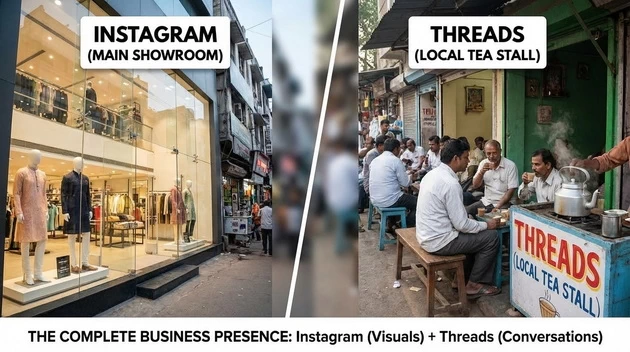
| Location | Purpose | Platform |
|---|---|---|
| Your Main Showroom | Where customers see your products, polished displays, beautiful visuals | |
| The Local Tea Stall | Where you chat with customers, discuss ideas, share honest opinions | Threads |
Can you run a successful business with just a showroom? No! People want to talk to you.
Can you run a business only at a tea stall? No! You need a place to show your products.
Instagram + Threads together = Complete Business Presence“
📊 Why Instagram in 2026? The “Visual Showroom”
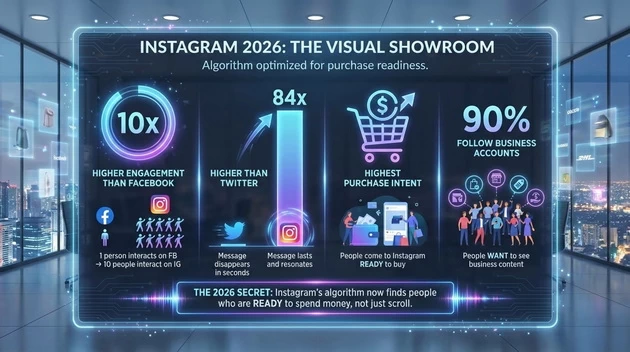
| Metric | What It Means |
|---|---|
| 10x higher engagement than Facebook | 1 person on Facebook interacts → 10 people on Instagram interact |
| 84x higher than Twitter | Your message won’t disappear in seconds |
| Highest purchase intent | People come to Instagram READY to buy |
| 90% follow business accounts | People WANT to see business content |
The 2026 Secret: Instagram’s algorithm now finds people who are READY to spend money, not just scroll .
🧵 Why Threads in 2026? The “Tea Stall Conversations”
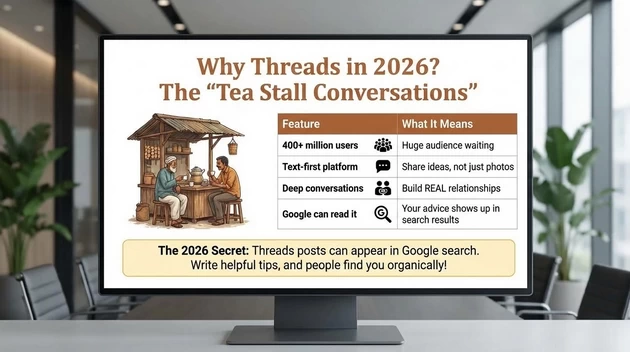
| Feature | What It Means |
|---|---|
| 400+ million users | Huge audience waiting |
| Text-first platform | Share ideas, not just photos |
| Deep conversations | Build REAL relationships |
| Google can read it | Your advice shows up in search results |
The 2026 Secret: Threads posts can appear in Google search. Write helpful tips, and people find you organically!
🔗 The “Viral Loop” – How They Work Together
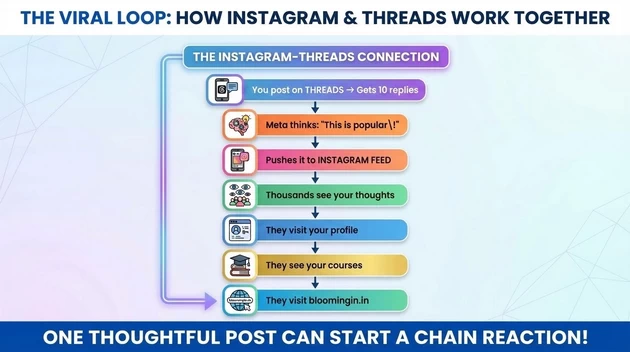
┌─────────────────────────────────────────────────────┐
│  THE INSTAGRAM-THREADS CONNECTION                     │
├─────────────────────────────────────────────────────┤
│                                                       │
│  You post on THREADS → Gets 10 replies                │
│         ↓                                             │
│  Meta thinks: "This is popular!"                      │
│         ↓                                             │
│  Pushes it to INSTAGRAM FEED                          │
│         ↓                                             │
│  Thousands see your thoughts                          │
│         ↓                                             │
│  They visit your profile                              │
│         ↓                                             │
│  They see your courses                                │
│         ↓                                             │
│  They visit bloomingin.in                             │
│                                                       │
│  ONE thoughtful post can start a CHAIN REACTION!      │
└─────────────────────────────────────────────────────┘
🚀 PART 2: INSTAGRAM MASTERY – Building Your Showroom
🎭 1. Account Types: Choosing Your “Vehicle”
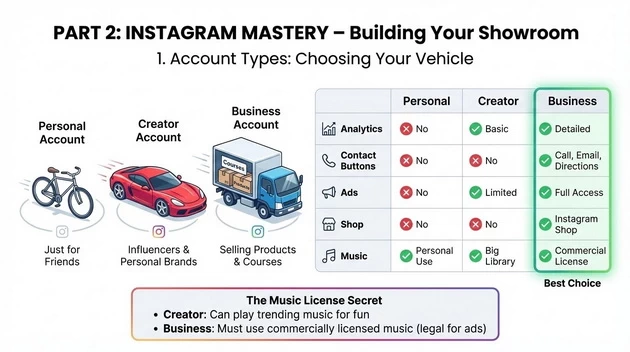
The Grounding Analogy: When you start a business, you need the right vehicle.
| Account Type | Vehicle Analogy | Best For |
|---|---|---|
| Personal | Bicycle | Just for friends |
| Creator | Sports Car | Influencers, personal brands |
| Business | Delivery Truck | SELLING products/courses |
Why BUSINESS Account is Best for Blooming Tutorial:
| Feature | Personal | Creator | Business |
|---|---|---|---|
| Analytics | ❌ No | ✅ Basic | ✅ Detailed |
| Contact buttons | ❌ No | ❌ No | ✅ Call, Email, Directions |
| Ads | ❌ No | ✅ Limited | ✅ Full access |
| Shop | ❌ No | ❌ No | ✅ Instagram Shop |
| Music | ✅ Personal use | ✅ Big library | ✅ Commercial license |
The Music License Secret:
-
Creator: Can play any music for fun
-
Business: Music must be commercially licensed (legal for advertising)
Your Instagram is already BUSINESS account – perfect! ✅
🏗️ 2. Profile Optimization: The “Storefront”
The Grounding Analogy: Your profile is your shop’s front window. People decide in 3 seconds whether to enter.
The Bio Formula (150 Characters)
[WHO YOU ARE] + [WHAT YOU DO] + [CALL TO ACTION]
Your Current Bio:
Blooming Institute of Technology
Python | AI | Digital Marketing | SEO | Web Design | Data Recovery
Suggested Improvement:
📚 Digital Marketing & Tech Training
🎓 Python | AI | SEO | Web Design
🚀 5000+ students trained
👇 Book your free demo
🔗 bloomingin.in
3. The “Secret Weapons” of Instagram
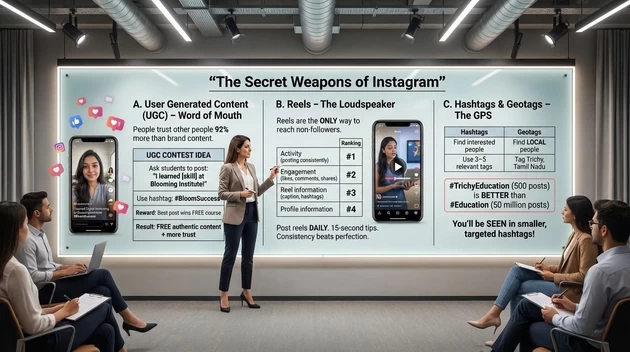
A. User Generated Content (UGC) – “Word of Mouth”
The 92% Rule: People trust other people’s recommendations 92% more than brand content.
How to Get UGC for Blooming Tutorial:
┌─────────────────────────────────────────────────────┐
│  UGC CONTEST IDEA                                     │
├─────────────────────────────────────────────────────┤
│                                                       │
│  Ask students to post:                                │
│  "I learned [skill] at Blooming Institute!"          │
│  with your hashtag #BloomSuccess                      │
│                                                       │
│  Reward: Best post wins FREE course                   │
│                                                       │
│  Result: FREE authentic content + more trust!         │
│                                                       │
└─────────────────────────────────────────────────────┘
B. Reels – The “Loudspeaker”
The 2026 Secret: Reels are the ONLY way to reach people who don’t follow you.
| Ranking Factor | Importance |
|---|---|
| Activity (posting consistently) | #1 |
| Engagement (likes, comments, shares) | #2 |
| Information about the reel (caption, hashtags) | #3 |
| Information about you (your profile) | #4 |
Teacher’s Note: “Post reels DAILY. Even short 15-second tips. Consistency beats perfection.”
C. Hashtags & Geotags – The “GPS”
| Tool | Purpose | How to Use |
|---|---|---|
| Hashtags | Find people interested in your topic | 3-5 relevant hashtags per post |
| Geotags | Find LOCAL people | Always tag “Trichy, Tamil Nadu” |
The Local Secret:
#TrichyEducation (only 500 posts)
is BETTER than
#Education (50 million posts)

You'll be SEEN in smaller, targeted hashtags!
PART 3: THREADS MASTERY – Building Conversations
🎯 1. What is Threads? The “Tea Stall” Explained
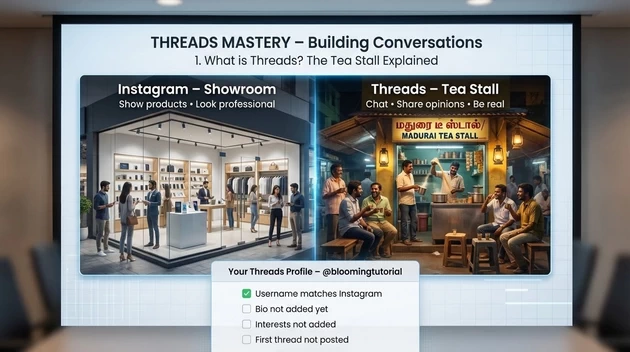
The Grounding Analogy: If Instagram is your showroom, Threads is the tea stall where you chat with customers.
| Platform | Analogy | Purpose |
|---|---|---|
| Showroom | Show products, look professional | |
| Threads | Tea Stall | Chat, share opinions, be real |
Your Threads Profile (@bloomingtutorial)
Your Current Status:
-
✅ Username matches Instagram
-
⬜ Bio not added yet
-
⬜ Interests not added
-
⬜ First thread not posted
📝 2. Setting Up Your Threads Profile
Bio (Copy This)
📚 Digital Marketing Teacher
🎓 Python | AI | SEO | Web Design
🚀 Helping beginners start their journey
🔗 bloomingin.in
Interests to Add
| Category | Interests |
|---|---|
| Marketing | Digital Marketing, Social Media Marketing, SEO |
| Tech | Artificial Intelligence, Python Programming |
| Education | Online Learning, Teaching |
| Business | Small Business, Entrepreneurship |
Settings
| Setting | Recommendation |
|---|---|
| Instagram Badge | ON (shows verified connection) |
| Profile Privacy | Public (essential for growth) |
🎨 3. What to Post on Threads
Threads Content Types
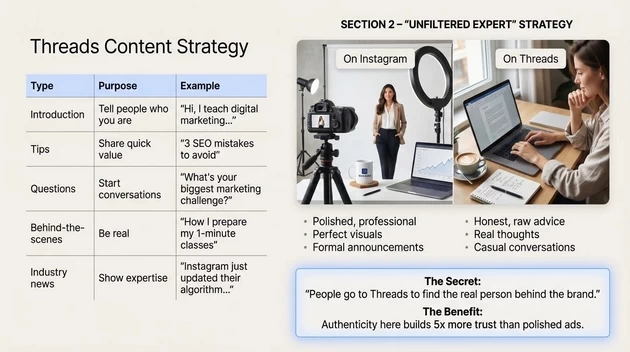
| Type | Purpose | Example |
|---|---|---|
| Introduction | Tell people who you are | “Hi, I teach digital marketing…” |
| Tips | Share quick value | “3 SEO mistakes to avoid” |
| Questions | Start conversations | “What’s your biggest marketing challenge?” |
| Behind-the-scenes | Be real | “How I prepare my 1-minute classes” |
| Industry news | Show expertise | “Instagram just updated their algorithm…” |
4. The “Secret Weapons” of Threads
A. The Reply Strategy – “Join Other Conversations”
The Grounding Analogy: Don’t just stand in the market shouting your name. Walk over to other people’s stalls and join their conversations.
┌─────────────────────────────────────────────────────┐
│  THE REPLY STRATEGY                                   │
├─────────────────────────────────────────────────────┤
│                                                       │
│  Find a post by a big Digital Marketer               │
│         ↓                                             │
│  Leave a HELPFUL comment (2-3 lines)                 │
│         ↓                                             │
│  Thousands reading that post see YOUR profile        │
│         ↓                                             │
│  They click and follow you                            │
│                                                       │
│  This is FREE exposure!                               │
└─────────────────────────────────────────────────────┘
B. The “Viral Loop” – Cross-Platform Growth
The 2026 Secret: If your Threads post gets 10+ replies, Meta automatically shows it in Instagram feeds of non-followers!
Your Strategy:
Post thoughtful Thread → Gets replies
         ↓
Appears on Instagram Feed
         ↓
New people discover you
         ↓
They visit your profile
         ↓
They see your courses
C. Text SEO – Google Can Find You
The Secret: Google can READ Threads posts (unlike Instagram photos).
The Benefit: If you write helpful threads about “Tally Prime shortcuts,” your profile might show up in Google search results!
🏛️ 1. The Strategy: Why YouTube in 2026?
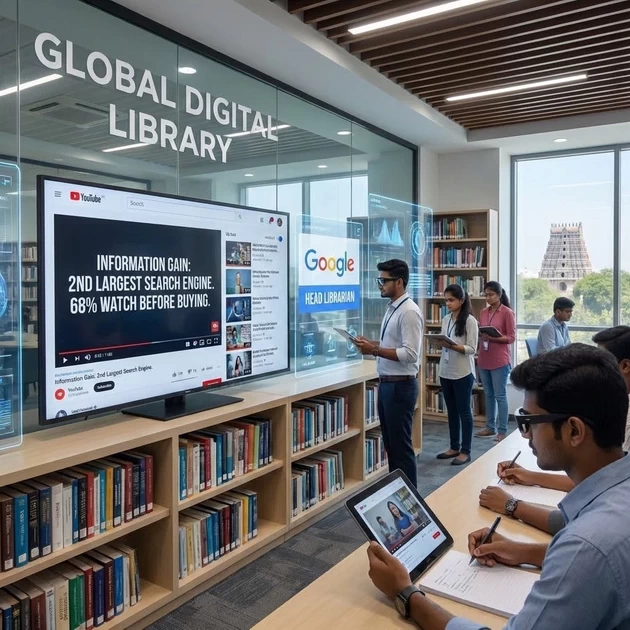
The Grounding Analogy: The “Global Digital Library” Imagine a library in Trichy that never closes, has a billion books, and every book is a video.
-
Google is the Head Librarian.
-
YouTube is the Specialist Wing for Video.
Information Gain (The 2026 Secret): In 2026, YouTube is no longer just for “Entertainment.” It is the Second Largest Search Engine in the world. 68% of people now watch a YouTube video before they decide to buy a product or join a course.
🚀 2. Channel Optimization: The “Library Card”
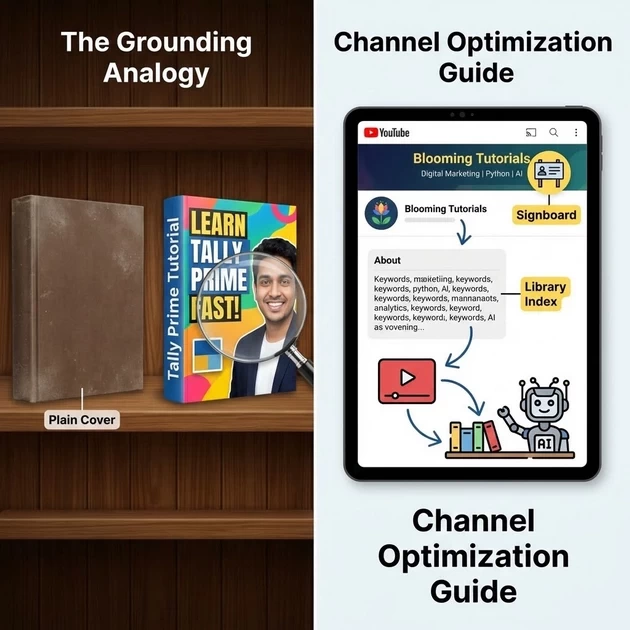
The Grounding Analogy: The “Book Cover & Spine” If you put a book in the library with no title and a plain cover, no one will pick it up.
-
Thumbnail: The Book Cover. It must be bright, have an expressive face, and 3–5 bold words.
-
Title: The Book Spine. It needs to include your “Seed Keyword” (e.g., Tally Prime) so the librarian can find it.
Step-by-Step for Students (Using Blooming Tutorials):
-
Analyze the Banner: Show them your channel banner. It clearly says “Digital Marketing | Python | AI.” This is your Signboard.
-
Check the “About” Section: This is the Library Index. It tells YouTube’s AI exactly what “shelf” to put your videos on.
🎨 3. Content Strategy: The “Three-Tier Menu”
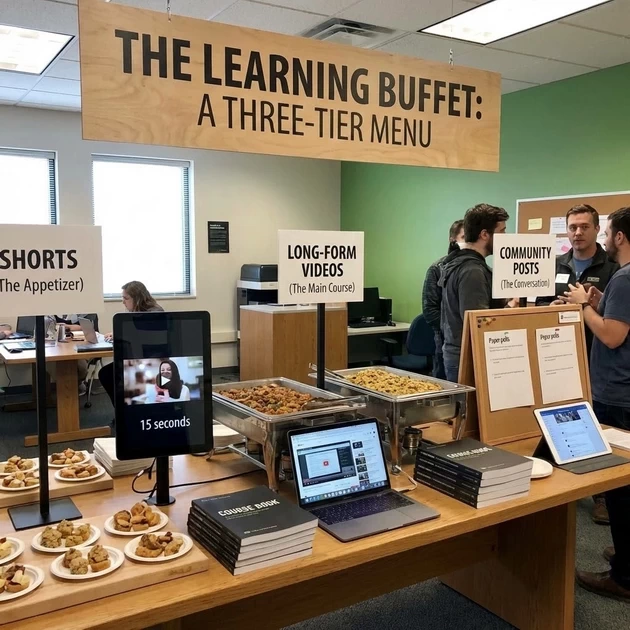
The Grounding Analogy: The “Learning Buffet” You don’t just give students the bill; you give them a full meal.
-
Shorts (The Appetizer): 15–60 second “Quick Tips” (e.g., “One Tally Shortcut”). These bring new people into the shop.
-
Long-form Videos (The Main Course): Your 36-hour Tally course or deep Data Recovery tutorials. This is where you build Trust and Authority.
-
Community Posts (The Conversation): Polls and updates to keep your students coming back.
🤫 4. The 2026 “Secret Weapons” (Information Gain)
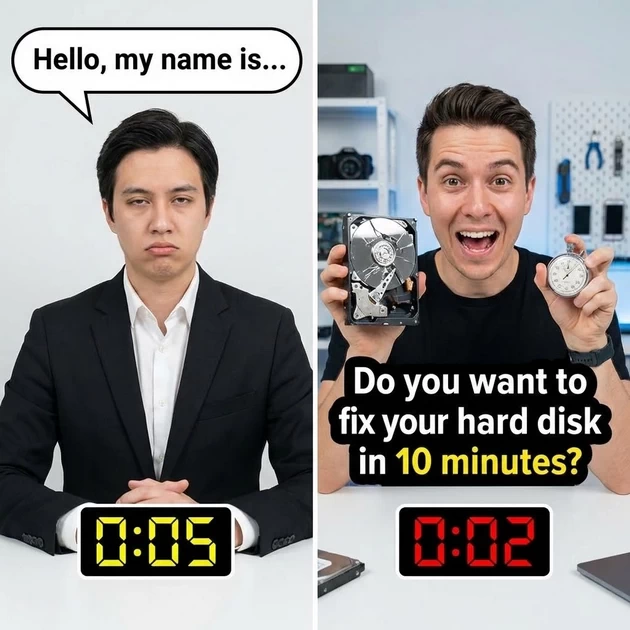
A. The “5-Second Hook”
Secret: You have only 5 seconds to stop a student from leaving.
-
The Move: Don’t start with “Hello, my name is…” Start with “Do you want to fix your hard disk in 10 minutes?” Then show the payoff.
B. The “Loudspeaker” (Consistency)
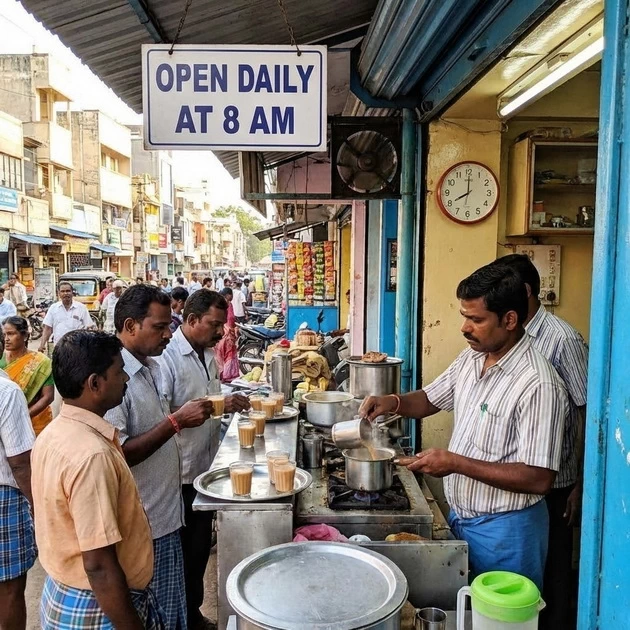
Secret: The algorithm rewards “Reliability” over “Virality” in 2026.
-
The Grounding Method: If a tea stall in Trichy is open only once a month, no one goes. If it’s open every morning at 8 AM, it becomes a habit. Post 1–2 long videos and 3–5 Shorts per week to become a “Habit” for the algorithm.
C. Search Intent vs. Recommendations
Secret: In 2026, discovery is “Intent-Driven”.
-
The Move: Optimize for questions. Instead of “Tally Video,” title it “How to pass GST entries in Tally Prime 2026?” This answers a specific problem.
Choosing the "Magic Title" The "Book Spine"
 The Grounding Analogy: The “Book Spine” The title is the first thing a person sees when looking at a shelf. If it is boring, they skip it.
-
What is it? A short, 70-character promise of what is in the video.
-
Information Gain (The 2026 Secret): Don’t just name it “Tally Lesson 1.” Instead, use “Search Intent” titles like “How to pass GST entries in Tally Prime 2026?”
-
The Secret: Always put your main keyword (e.g., “Tally Prime”) at the very beginning of the title so the librarian (algorithm) sees it first.
Writing the Description: The "Library Index"
The Grounding Analogy: The “Back Cover Summary” If the title stops the person, the description convinces them to “open the book”.
-
What is it? A detailed explanation of your video content.
-
The First 2 Lines: These are the most critical because they show up in Google search results.
-
The Structure (The Blooming Method):
-
Summary: Use the Grounding Method to explain what students will learn.
-
Timestamps: These are like “Page Numbers,” helping students jump to the exact part they need (e.g., 05:00 – GST Setup).
-
Links: Always include a link to your website (
bloomingin.in) to turn viewers into students.
-
Thumbnails: The "Storefront Poster"
The Grounding Analogy: The thumbnail is the colorful poster outside a cinema in Trichy.

-
The Hook: Use a high-contrast image with a clear face and only 3-5 bold words.
-
The Blooming Secret: Check your Thumbnail Analyzer. If the poster is too busy, people won’t look at it while “driving past” (scrolling).
The "Technical Checklist" for Uploading
Information Gain: The "2026 Viral Formula"
Tags: The "Digital Index"
What is it? Hidden keywords that help the “Librarian” (Algorithm) categorize your video.
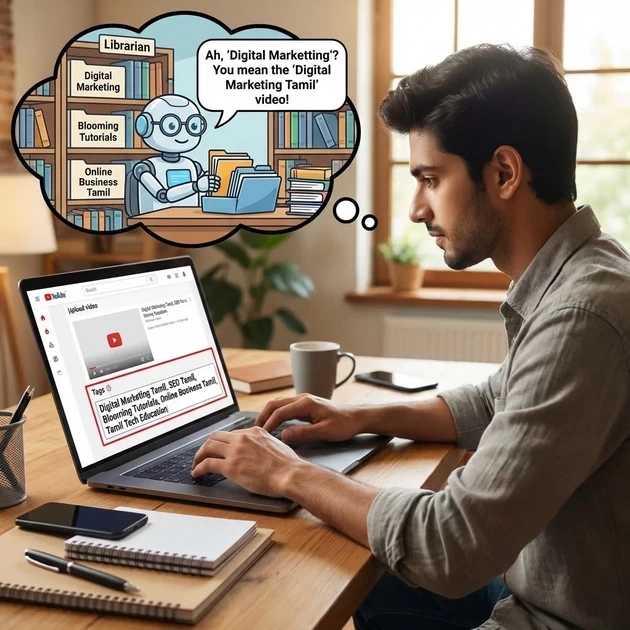
-
Why we select them: If a student mispells a word (e.g., “Digital Marketting”), tags help YouTube understand they still want your video.
-
What to select:
Digital Marketing Tamil,SEO Tamil,Blooming Tutorials,Online Business Tamil,Tamil Tech Education.
"Not Made for Kids": The "Age Gate"
Why we select this: In 2026, YouTube has strict laws (COPPA).
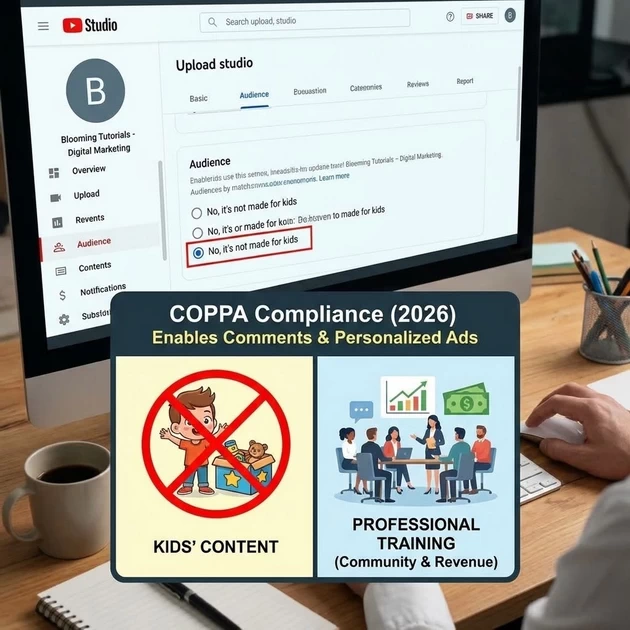
-
The Logic: “Kids’ Content” is for cartoons and toys. “Professional Training” is for adults. By selecting “Not for Kids,” you enable Comments and Personalized Ads, which are essential for building a community and earning money.
Subtitles (CC): The "Translation Layer"
The Grounding Analogy: It’s like having a translator in the room for students who can’t hear well or want to read along.
-
Information Gain: Videos with subtitles have a 40% higher watch time. It also helps Google’s AI “read” your Tamil audio and show it to more people.
End Screens & Cards: The "Next Step"
Visibility: The "Grand Opening"
-
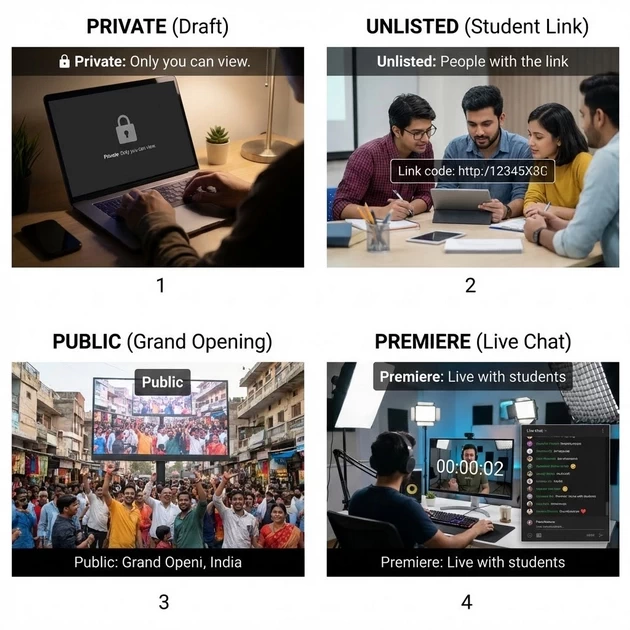
-
Private: Only you see it (The “Draft”).
-
Unlisted: Only people with the link see it (Good for paid students).
-
Public: The “Grand Opening” for all of India.
-
Premiere (Recommended): This lets you watch the video live with your students and chat with them in real-time.
🏛️ 1. The Strategy: Why LinkedIn in 2026?
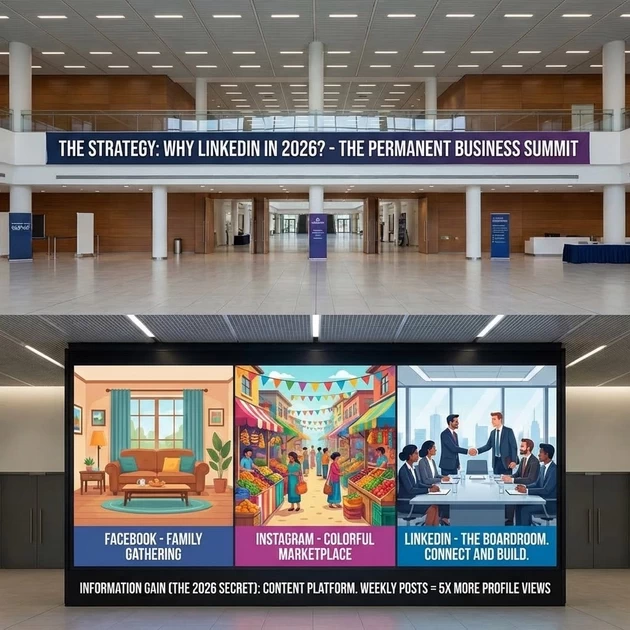
The Grounding Analogy: The “Permanent Business Summit” Imagine there is a big hall in Trichy where every company CEO, HR manager, and expert is always present.
-
Facebook is a family gathering.
-
Instagram is a colorful marketplace.
-
LinkedIn is the Boardroom. You don’t go there to “scroll”; you go there to “connect and build.”
Information Gain (The 2026 Secret): In 2026, LinkedIn is no longer just an online resume. It is a Content Platform. People who post weekly see 5x more profile views than those who don’t.
🚀 2. Profile Optimization: Using Your Page as the Example
Show them your LinkedIn Profile and explain these sections:
A. The Headline: The “Digital Elevator Pitch”
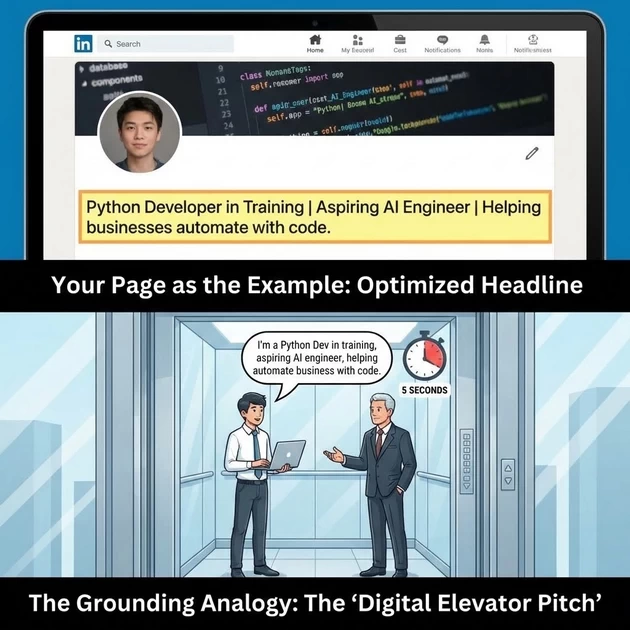
The Grounding Analogy: Imagine you meet a CEO in an elevator. You have 5 seconds to say who you are.
-
The Formula: [Role] | [Specific Skill] | [Helping Who?].
-
Show your page: Point out how your headline describes exactly what the institute does.
-
Student Secret: Instead of “Student,” use: “Python Developer in Training | Aspiring AI Engineer | Helping businesses automate with code”.
B. The About Section: The “Story of You”
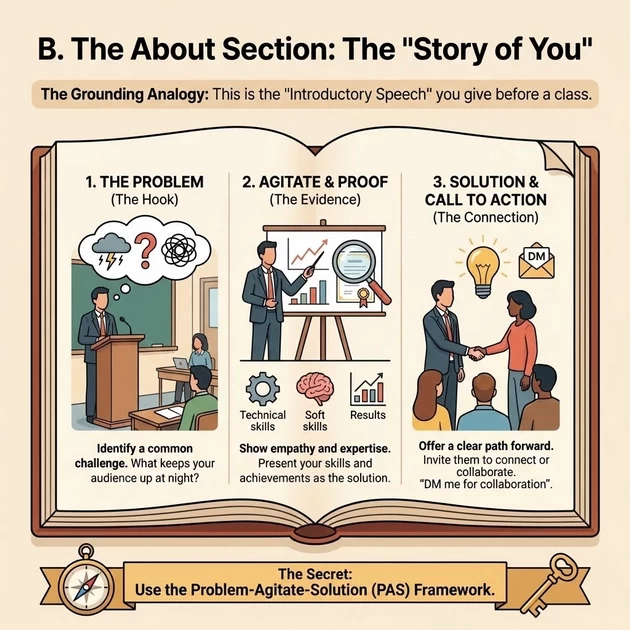
The Grounding Analogy: This is the “Introductory Speech” you give before a class.
-
The Secret: Use the Problem-Agitate-Solution (PAS) framework.
-
Structure: Paragraph 1 (The Problem you solve) → Paragraph 2 (Proof/Skills) → Paragraph 3 (Call to Action: “DM me for collaboration”).
🎨 3. Content Mastery: Uploading Videos & Posts
A. Choosing the “Magnetic Title”
The Grounding Analogy: The title is the “Nameplate” on your office door.
-
Secret: Use 3 Keywords + 1 Result. Example: “3 Tally Prime GST Secrets for Accountants”.
-
Why?: This makes your video searchable in Google.
B. Uploading Videos: The “3-Second Rule”
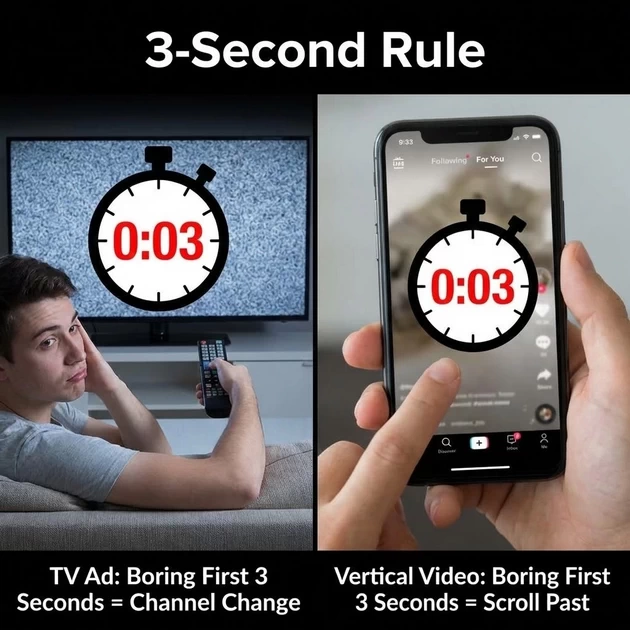
The Grounding Analogy: Like a TV ad, if the first 3 seconds are boring, the viewer “changes the channel” (scrolls past).
-
Format: Use 9:16 Vertical Video (like Reels). It takes up more “Real Estate” on the mobile screen.
-
Captions: 75-85% of people watch without sound. If you don’t add subtitles, you lose 80% of your audience.
🤫 4. The 2026 “Secret Weapons” (Information Gain)
🔔 1. The “Bell” Icon: The Personal Subscription
Secret: Tell students to ask people to “Hit the Bell” on their profile. This bypasses the algorithm and notifies followers every time they post.
🏷️ 2. The Custom URL
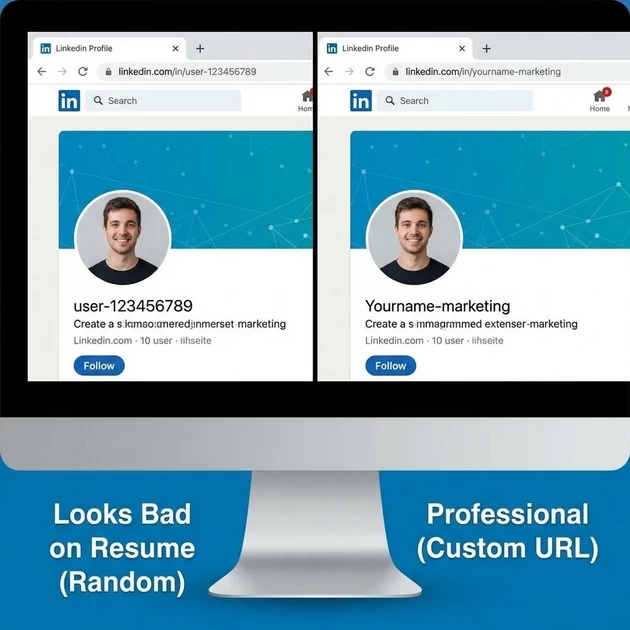
Secret: Change the random link (linkedin.com/in/user-12345) to a clean one (linkedin.com/in/yourname-marketing). This makes you look 10x more professional on a resume.
👶 3. Why “Not for Kids”? (Niche Context)
Unlike YouTube, LinkedIn doesn’t have a “Kids” mode, but the content must be Professional. If you post “casual” content, the algorithm “silences” your profile for a week.
From Setup to Success: Launching Your First WordPress Website
HTTP vs. HTTPS: The “Open Postcard” vs. “Locked Box”
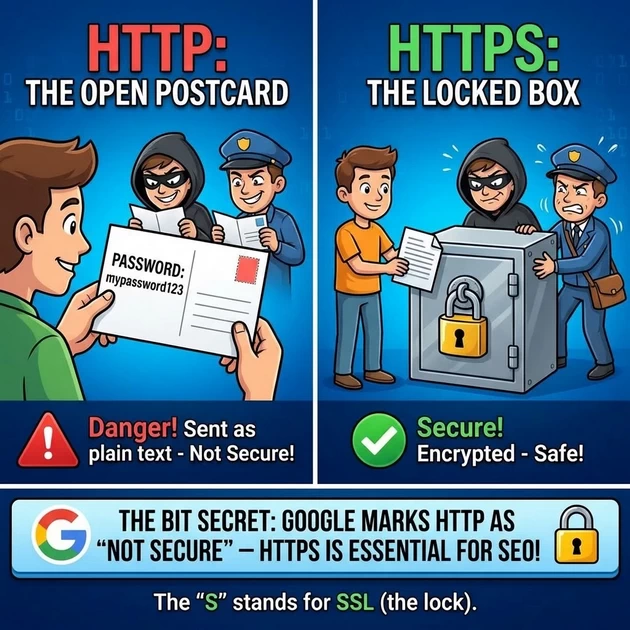
The Concept: These are the protocols used to send data between a visitor’s browser and your website.
-
HTTP (Hypertext Transfer Protocol): * The Analogy: Sending an Open Postcard. Anyone along the way (hackers, the mailman) can read exactly what you wrote.
-
The Danger: If you type a password on an HTTP site, it’s sent as plain text. It’s like shouting your password across a crowded bus.
-
-
HTTPS (Hypertext Transfer Protocol SECURE): * The Analogy: Sending a Locked Steel Box. You have the key, and the server has the key. Even if someone steals the box, they can’t see what’s inside.
-
The BIT Secret: In 2026, HTTPS is not optional. Google will mark your site as “Not Secure” if you don’t have it, which kills your SEO.
-
The “S” stands for SSL: It’s the digital certificate that acts as the lock on the box.
-
UpdraftPlus: Is it Free?
The Answer: Yes. There is a very powerful Free Version available in the WordPress repository.
-
What you get for Free: Full backups of your database, plugins, themes, and uploads. You can also connect it to Google Drive for free.
-
What is Premium? The paid version (around $70/year) allows “Incremental Backups” (only backing up changes since yesterday, which saves space) and automatic backups before you update a plugin.
-
Teacher Suhasini’s Secret: “For 90% of beginners, the Free version is all you need. Don’t spend money until your website starts making money!”
🔑 3. Username & Password: The “House Keys”
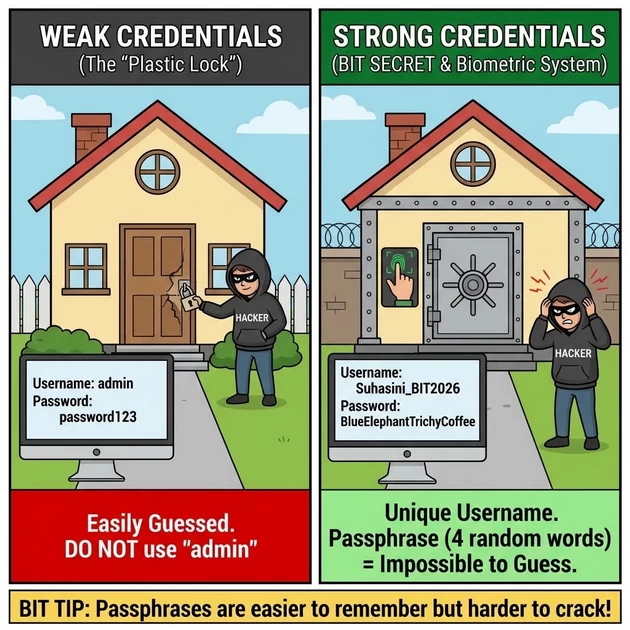
The Concept: These are your credentials to enter the WordPress Dashboard (yourdomain.com/wp-admin).
-
Username:
-
DO NOT use “admin”. This is the first name every hacker tries.
-
BIT Tip: Use something unique like
Suhasini_BIT2026.
-
-
Password:
-
Analogy: A simple password is like a cheap plastic lock. A strong password is a biometric security system.
-
The BIT Secret: Use a Passphrase (4 random words) like
BlueElephantTrichyCoffee. It’s easier for you to remember but impossible for a computer to guess.
-
✅ The “BIT” Dos and Don’ts of WordPress Security
| DO (The “Greens”) | DON’T (The “Reds”) |
| DO Update your plugins every week. Old code is like an unlocked window. | DON’T Use “Nulled” (pirated) themes. They usually have “Backdoor” viruses. |
| DO Limit Login Attempts. Block anyone who gets the password wrong 3 times. | DON’T Keep unused plugins. If you don’t use it, delete it—don’t just deactivate it. |
| DO Use 2FA (Two-Factor Authentication). It’s like a bank OTP for your website. | DON’T Use the same password for your CPanel, Email, and WordPress. |
| DO Set UpdraftPlus to run Weekly automatically. | DON’T Store your backups on your own server. (If the server burns, the backup burns!) |
Step 1: Installing WordPress (The Foundation)
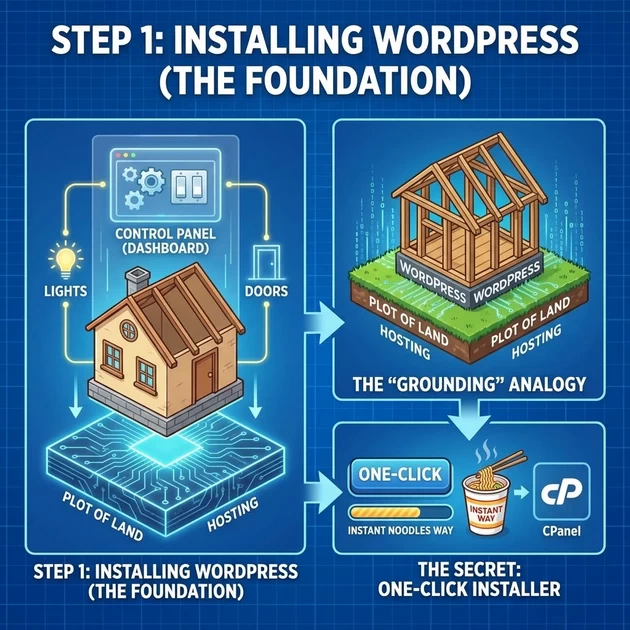
The Concept: Installing WordPress is like installing an Operating System for your house. It provides the lights, the doors, and the control panel (Dashboard).
-
The “Grounding” Analogy: Think of your Hosting as the Plot of Land and WordPress as the Base Structure of the house.
-
The Secret: Use the “One-Click Installer” (like Softaculous) in your CPanel. It’s the “Instant Noodles” way of setting up a site—fast and reliable.
🎨 Step 2: Uploading Envato Elements (The Interior Decor)
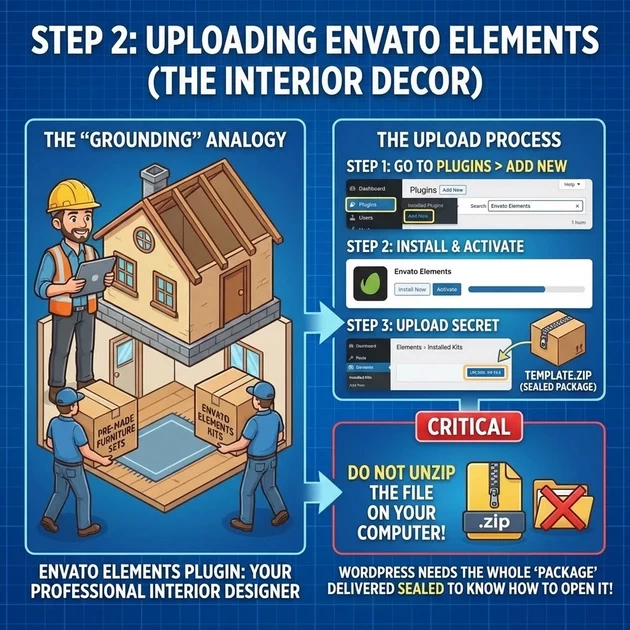
You’ve downloaded a template from Envato. Now, let’s bring it in.
-
Go to Plugins > Add New. Search for the “Envato Elements” plugin. Install and Activate it.
-
The “Grounding” Analogy: This plugin is like a Professional Interior Designer you’ve hired to bring in pre-made furniture sets.
-
The Upload Secret: Go to Elements > Installed Kits and upload your
.zipfile.-
Critical: Do NOT unzip the file on your computer. WordPress needs the whole “package” delivered sealed to know how to open it!
-
📋 Step 3: Organizing Menus (The Hallways)
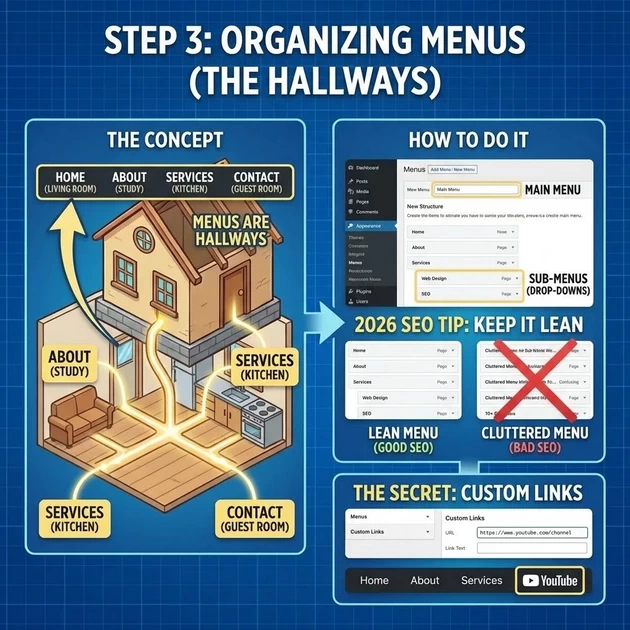
The Concept: Menus are the Hallways that tell your guests where the rooms (Pages) are.
-
How to do it: Navigate to Appearance > Menus.
-
The Information Gain: 2026 SEO Tip—Keep your menu “Lean.” If you have too many hallways, your guests (and Google) will get lost. Use “Sub-menus” (Drop-downs) for secondary rooms.
-
The Secret: Use the “Custom Links” option to link to external sites, like your YouTube channel, directly from your main menu.
⚙️ Step 4: Site Settings & Customizing (The House Rules)
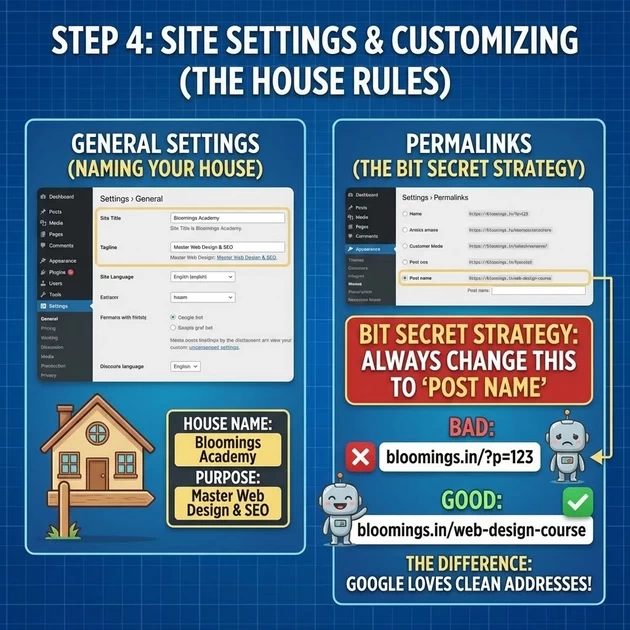
-
Settings > General: Change your Site Title and Tagline.
-
Settings > Permalinks: The BIT Secret Strategy. Always change this to “Post Name.” * Why? It’s the difference between an address like
bloomings.in/?p=123andbloomings.in/web-design-course. The second one is what Google loves!
🛡️ Step 5: Backups (The Insurance Policy)
The Concept: A backup is a Duplicate Key and a Photo of every room in your house. If something breaks, you can “Time Travel” back to when it was perfect.
-
The Tool: Use a plugin like UpdraftPlus.
-
The Secret: Never store your backup on the same server as your website. If the server crashes, your backup dies too. Send it to Google Drive or Dropbox.
💻 Step 6: Appearance & The “Code Closet”
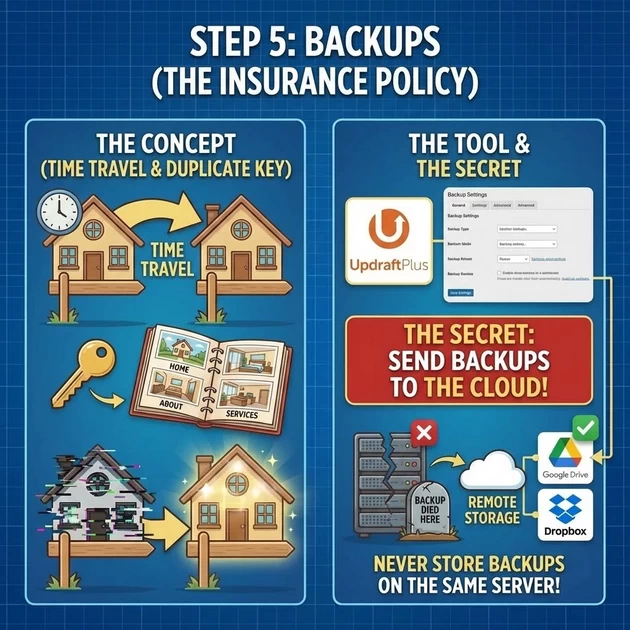
Students often ask: “Suhasini Ma’am, where is the HTML/CSS we learned?”
-
Appearance > Theme File Editor: This is the Electrical Room. This is where the “Raw Coding” (PHP, CSS) lives.
-
Warning: Just like you shouldn’t touch live wires without a glove, don’t edit code here unless you have a Child Theme active.
-
The “Safe” Way: For small CSS changes, go to Appearance > Customize > Additional CSS. It’s like putting a sticker on a wall—it changes the look without breaking the structure.
Class Challenge: Try to change your “Permalinks” right now and see how your URL changes from a “Code” to a “Name.” That is your first step toward being an SEO expert!
