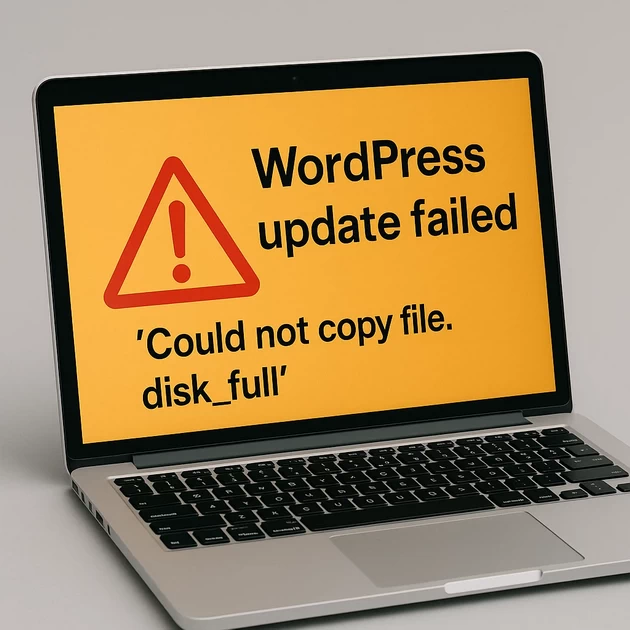
WordPress update failed with error: ‘Could not copy file. disk_full’ but my disk has space.
Quick summary (one line) This error usually means WordPress can’t write temporary files during an update — not always true...
-
by
-
Dec 12, 2025
Quick summary (one line)
This error usually means WordPress can’t write temporary files during an update — not always true disk fullness; common causes: wrong temp directory, permissions/ownership, inodes exhausted, PHP upload_tmp_dir or open_basedir limitations, SELinux contexts, or filesystem mount options. Fix by checking disk & inodes, clearing safe tmp files, setting a WP temp dir, fixing ownership/permissions, and re-running the update.
Step-by-step troubleshooting & fixes (Linux servers)
Before you begin: Always take a backup (files + database). Use your hosting control panel snapshot or
rsync/tar+mysqldump.
1) Confirm the exact error and WordPress maintenance state
What to do:
- Check WP error message in dashboard or in
wp-content(sometimes.maintenanceleft behind).
Commands:
# See if maintenance file exists
ls -la /path/to/your/site/.maintenance
How/why:
- WordPress leaves
.maintenanceduring updates. If update failed and .maintenance remains, WP shows maintenance mode. Remove it after you fix the root cause.
Do this:
# remove maintenance
rm /path/to/your/site/.maintenance
2) Check disk space and inodes (very important)
What to do:
df -h(disk free by human-readable)df -i(inodes — if 100% inodes, writes fail even if disk space exists)
Commands:
df -h
df -i
Why:
- Plenty of files (small files) can exhaust inodes; disk space might be fine but no new files allowed.
If inodes are exhausted:
- Find directories with many files and clean up (cache, logs, old backups).
Example:
# find top directories by number of files
for d in /*; do echo $d; find $d -type f | wc -l; done | sort -nr -k2 | head -n 10
3) Check /tmp and PHP temporary dir
What to do:
- Check
/tmpusage and clear safely old files; check PHPupload_tmp_dir.
Commands:
# size of /tmp
du -sh /tmp

# list old files > 7 days (dry run)
find /tmp -type f -mtime +7 -ls

# remove old tmp files older than N days (be careful)
find /tmp -type f -mtime +7 -delete
Why:
- WordPress/core update uses a temp area. If
/tmpis full or restricted, copying fails.
Also check PHP config:
php -i | grep -E "upload_tmp_dir|open_basedir|sys_temp_dir"
# or check php.ini / pool config
If upload_tmp_dir is missing or points to a non-writable location, set it (see later).
4) Check permissions & ownership of key directories
What to check:
wp-content,wp-content/upgrade,wp-content/plugins,wp-content/themes
Commands:
# check ownership and permissions
ls -ld /path/to/site/wp-content
ls -ld /path/to/site/wp-content/upgrade
Common ownership: www-data:www-data (Debian/Ubuntu) or apache:apache (CentOS/RHEL)
Fix ownership (example for Debian/Ubuntu):
chown -R www-data:www-data /path/to/site
find /path/to/site -type d -exec chmod 755 {} \;
find /path/to/site -type f -exec chmod 644 {} \;
# ensure upgrade dir exists and writable
mkdir -p /path/to/site/wp-content/upgrade
chown -R www-data:www-data /path/to/site/wp-content/upgrade
chmod 755 /path/to/site/wp-content/upgrade
Why:
- If PHP process user can’t write to
wp-content/upgrade, WordPress can’t copy update files.
5) Set a custom WP temp directory (safe fix)
What to do:
- Create
wp-content/tempand tell WordPress to use it.
Commands & edits:
mkdir -p /path/to/site/wp-content/temp
chown -R www-data:www-data /path/to/site/wp-content/temp
chmod 755 /path/to/site/wp-content/temp
Add to wp-config.php:
define( 'WP_TEMP_DIR', ABSPATH . 'wp-content/temp' );
Why/how:
- Forces WP to use a writeable directory inside site; bypasses system
/tmpproblems, open_basedir, or other restrictions.
6) Set FS_METHOD (when direct writes are blocked)
What to do:
Edit wp-config.php:
define('FS_METHOD', 'direct');
Why:
- Tells WP to use direct filesystem writes (PHP user must have correct permissions). If server uses FTP for updates by default, you may need to provide FTP credentials or set
FS_METHOD. Only usedirectif ownership/permissions are correct.
7) Check PHP and webserver restrictions
What to do:
- Check
open_basedir(prevents PHP from writing outside allowed paths). - Check
upload_tmp_dir&sys_temp_dir. - Increase
memory_limitandmax_execution_timeif large plugins/themes.
How: - Edit
php.inior pool config (for php-fpm) and restart php-fpm / webserver.
Example (php.ini):
upload_tmp_dir = /path/to/site/wp-content/temp
sys_temp_dir = /path/to/site/wp-content/temp
memory_limit = 256M
max_execution_time = 300
Then restart:
# Debian/Ubuntu example
systemctl restart php8.1-fpm
systemctl restart nginx
# or apache
systemctl restart apache2
Why:
- If PHP uses a different temp dir or is restricted by open_basedir, WP can’t copy/update files.
8) SELinux / AppArmor contexts (RedHat/CentOS or security profiles)
What to do:
- If SELinux enabled, adjust file contexts.
Commands:
# check status
sestatus

# restore default context (example)
restorecon -Rv /path/to/site
If still blocked, see audit logs /var/log/audit/audit.log for AVC denials.
Why:
- SELinux can block web server from writing even when permissions appear correct.
9) Filesystem mount options & network filesystems
What to check:
- If site is on NFS, SMB, or mounted with
noexec/ro, writing may be blocked.
Commands:
mount | grep /path/to/site
Why:
- NFS root_squash or mount options may block writing as PHP user.
10) Inodes & very large number of files inside wp-content/upgrade
What to do:
- Clear
wp-content/upgradeif old temp archives present.
Commands:
# list files
ls -la /path/to/site/wp-content/upgrade
# remove old temp files (be careful)
rm -rf /path/to/site/wp-content/upgrade/*
Why:
- WordPress downloads update .zip files to
wp-content/upgradethen extracts. If old stuff blocks space, new files can’t be created.
11) If update still fails — do manual update (safe manual roll)
How:
- For plugin/theme: delete plugin folder and reinstall (backup first)
- For core: download WordPress zip, extract, replace wp-includes & wp-admin (do NOT overwrite
wp-content), keepwp-config.php.
Steps:
# example manual core update (high-level)
cd /tmp
wget https://wordpress.org/latest.zip
unzip latest.zip
# backup current site before replacing
cp -a /path/to/site /path/to/site-backup-$(date +%F)
# copy wp-includes and wp-admin
rsync -a wordpress/wp-includes/ /path/to/site/wp-includes/
rsync -a wordpress/wp-admin/ /path/to/site/wp-admin/
# do NOT overwrite wp-content
Why:
- Manual update bypasses WP automatic updater if filesystem remains problematic.
12) Test and cleanup
- Re-run plugin/theme/core update.
- Check site functionality.
- Remove any temporary or debug files you created.
Common Causes → What & Why (concise)
- Inodes full — many small files;
df -iwill show 100% → can’t create files. - /tmp is full or unwritable — OS tmp used by PHP.
- PHP upload_tmp_dir or open_basedir misconfig — PHP can’t access the temp dir.
- Wrong ownership/permissions — PHP process user can’t write to
wp-content/upgrade. - SELinux/AppArmor preventing writes.
- Filesystem mounted read-only / NFS issues — remote FS permissions/mount options.
- Leftover files in
wp-content/upgrade— old zip/extraction files blocking update. - WordPress FS_METHOD mismatch — WP tries FTP but config expects direct.
What NOT to do (dangerous or common wrong steps)
- Don’t
chmod -R 777your WordPress directory — security risk. - Don’t
chown -R root:rootor run web processes as root. - Don’t
rm -rf /*or run broad destructive delete commands. Be precise. - Don’t disable SELinux permanently; fix contexts if SELinux denies legitimate writes.
- Don’t edit core WP files unless you know exactly what you’re changing.
- Don’t change FS_METHOD to
directunless you’ve fixed ownership & trust the environment. - Don’t remove
wp-contentorwp-config.phpduring manual updates.
Quick checklist (do these in order)
- Backup files & DB.
- Remove
.maintenanceif present. df -handdf -i— check disk & inodes.- Check
/tmpand PHPupload_tmp_dir. Clean old tmp files safely. - Ensure
wp-content/upgradeexists and is writable. - Fix ownership (e.g.,
chown -R www-data:www-data). - Add
define('WP_TEMP_DIR', ABSPATH . 'wp-content/temp');towp-config.php. - Set
FS_METHODtodirectonly if ownership/perm correct. - Check SELinux/AppArmor, mount options.
- Try update again; if fail, manual update.
Example commands (consolidated, Debian/Ubuntu example)
# 1. Backup (example)
tar -czf /backups/site-$(date +%F).tar.gz /path/to/site
mysqldump -u dbuser -p dbname > /backups/dbname-$(date +%F).sql

# 2. Check disk & inodes
df -h
df -i

# 3. Check tmp usage and clear >7 days
du -sh /tmp
find /tmp -type f -mtime +7 -ls
find /tmp -type f -mtime +7 -delete

# 4. Create WP temp dir and set ownership
mkdir -p /path/to/site/wp-content/temp
chown -R www-data:www-data /path/to/site/wp-content/temp
chmod 755 /path/to/site/wp-content/temp

# 5. Ensure wp-content/upgrade exists
mkdir -p /path/to/site/wp-content/upgrade
chown -R www-data:www-data /path/to/site/wp-content/upgrade
chmod 755 /path/to/site/wp-content/upgrade

# 6. Fix overall ownership & perms (careful)
chown -R www-data:www-data /path/to/site
find /path/to/site -type d -exec chmod 755 {} \;
find /path/to/site -type f -exec chmod 644 {} \;

# 7. Restart php-fpm & web server
systemctl restart php8.1-fpm
systemctl restart nginx
Extra tips & prevention
- Schedule periodic cleanup of
/tmpand old backups. - Monitor inode usage and rotate logs.
- Use a separate partition for
/tmpwith proper quota. - Use managed hosting or automated update testing on staging servers.
- Keep a staging copy; always test updates there first.
Troubleshooting quick flows
- If
df -ishows 100% → clean caches, rotate logs, delete old backups. - If
open_basedirblocks: add PHP allowed path or pointWP_TEMP_DIRinside allowed paths. - If SELinux denies: run
ausearch -m avc -ts recentor check/var/log/audit/audit.log, thenrestorecon -Rv /path/to/site. - If on shared hosting: contact host — they may have restricted
/tmp.
-
AboutBIT

You May Also Like
Sign up to receive our latest updates
[mc4wp_form id=3101]
Get in touch
Address
152A, Annavalaivu, Thuvakudimalai, Tiruchirappalli, Tamil Nadu – 620 022
Landmark : Near Post Office
Landmark : Near Post Office
bloomingtutorial@gmail.com
