How to Read RAW Dump From Chip-Off Extraction (Full Step-by-Step Technical Guide)
-
December 9, 2025
-
by
How to Read RAW Dump From Chip-Off Extraction
📌 Table of Contents
- 1. Introduction
- 2. What Is a RAW Dump in Chip-Off Data Recovery?
- 3. Understanding eMMC / UFS Memory Layout
- 4. Tools Needed to Read and Analyze RAW Dumps
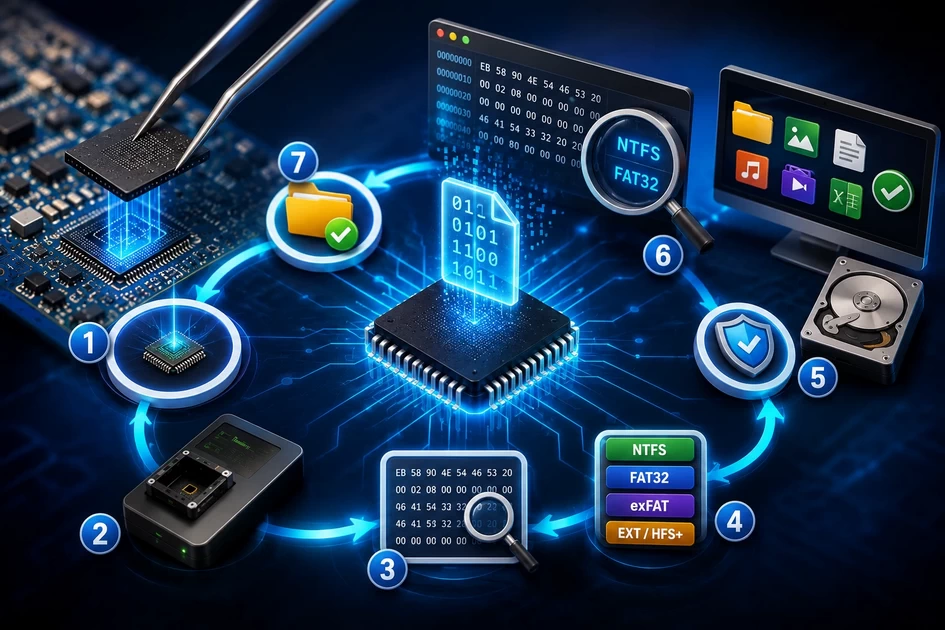
- 5. High-Level Workflow for Reading RAW Dumps
- 6. Detailed Step-by-Step Process
- 7. Flowchart: From RAW Dump to Recovered Data
- 8. What We Should & Should NOT Do (With Reasons)
- 9. Common Issues When Reading RAW Dumps
- 10. Best Practices for Professional Analysis
- 11. Final Thoughts
- 12. FAQ: How to Read RAW Dump From Chip-Off Extraction
1. Introduction
In advanced mobile data recovery, especially after Chip-Off extraction, the technician is left with a large binary file called a RAW dump. This dump is a sector-by-sector copy of the phone’s memory chip (eMMC or UFS). It contains everything: bootloaders, system partitions, user data, deleted files, and sometimes encrypted areas.
However, a RAW dump by itself looks like chaos – just zeros and ones when opened in a hex editor. The real skill lies in knowing how to read the RAW dump, how to interpret the structure, how to find partitions, how to mount file systems, and how to safely extract photos, videos, WhatsApp data, and documents.
This guide explains, in simple but technically accurate language, how to read RAW dump from Chip-Off extraction. We will cover conceptual understanding, memory layouts, tools, step-by-step workflow, a decision flowchart, what to do and what not to do, and a detailed FAQ to support both beginners and experienced data recovery professionals.
2. What Is a RAW Dump in Chip-Off Data Recovery?
A RAW dump (sometimes called an “image”, “bin file”, or “full dump”) is a bit-level copy of the entire contents
of a mobile device’s flash memory chip. When you perform a Chip-Off extraction, the programmer reads the chip’s sectors one by one
and saves them into a file such as .bin or .img.
Conceptually, you can imagine the RAW dump as a long, linear street of houses:
- Each house = one block or sector in memory.
- Groups of houses = partitions (boot, system, userdata, etc.).
- Inside the houses = file system structures and user data.
When you open the dump directly, all you see are numbers. Reading a RAW dump means:
- Understanding where the partitions start and end.
- Identifying which partition holds user data.
- Rebuilding the file system inside that partition.
- Carving or extracting the files your customer needs.
2.1 Why RAW Dumps Are Essential
In Chip-Off data recovery, the RAW dump is your only complete copy of the device’s memory. Once the phone is dead, burned, or physically destroyed, you cannot “try again” with the original device. The quality and integrity of the RAW dump decide how much data you can recover.
That is why reading and analyzing a RAW dump is a central skill in professional mobile data recovery.
3. Understanding eMMC / UFS Memory Layout
Modern smartphones usually store data in either eMMC (Embedded MultiMediaCard) or UFS (Universal Flash Storage) chips. To read a RAW dump properly, you must understand how these chips organize their data.
3.1 Basic Components
- Boot partitions: Special regions used for bootloaders and low-level firmware.
- User area: Main region where system and userdata partitions live.
- RPMB: Replay Protected Memory Block, secure and usually not directly readable.
- General Purpose Partitions (GPP): Additional fixed regions in some configurations.
3.2 Partitioning (GPT / MBR)
Many Android devices use GPT (GUID Partition Table) inside the user area. The GPT defines partitions such as:
bootsystemvendoruserdatacachemodem,persist,metadata, etc.
For iOS devices, APFS containers and partitions are used instead, with a different logical structure but similar concept: a partition table plus file systems.
3.3 Userdata Partition and File Systems
The userdata partition is usually where photos, videos, messages, and app data live. It typically uses:
- EXT4 – common on older Android devices.
- F2FS – Flash-Friendly File System, used on some newer Android devices.
- APFS – for iOS devices.
When we say “reading the RAW dump”, in practice we mean: finding the userdata partition inside the RAW dump and then interpreting the file system inside it correctly.
4. Tools Needed to Read and Analyze RAW Dumps
To work professionally with RAW dumps, you need a mix of hardware tools (for creating the dump) and software tools (for analysis). Since we assume you already performed the Chip-Off, we will focus more on analysis tools.
4.1 Essential Software Tools
- Hex editor: For low-level inspection (e.g., HxD, WinHex, 010 Editor).
- Partition analyzers: To detect GPT/MBR and locate partitions.
- File system tools: For EXT4, F2FS, APFS parsing and mounting.
- Forensic suites: Tools like X-Ways, Autopsy, or similar (if available).
- Mobile-specific recovery tools: EasyJTAG/UFI software modules for dump analysis.
4.2 Supporting Tools
- Hashing tools: To calculate MD5/SHA1/SHA256 of the original RAW dump.
- Storage management: External drives with enough space for multiple copies of dumps.
- Log and documentation tools: Spreadsheets or case management for offsets, sizes, and notes.
5. High-Level Workflow for Reading RAW Dumps
At a high level, the workflow to read a RAW dump from Chip-Off extraction is:
- Create and verify the RAW dump (during Chip-Off).
- Open the dump in a hex editor or analysis suite.
- Locate partition table (GPT/MBR) and identify key partitions.
- Carve out or virtually map the
userdatapartition. - Interpret the file system (EXT4/F2FS/APFS) within userdata.
- Extract files, databases, and artifacts of interest.
- Validate the recovered data and report to the customer.
The rest of this guide breaks down each of these steps in detail, with practical tips for real-world mobile data recovery.
6. Detailed Step-by-Step Process to Read RAW Dump
6.1 Step 1 – Verify the RAW Dump Integrity
Before you start analyzing, confirm that your RAW dump is complete and not corrupted:
- Check the dump size against expected chip size (e.g., 16GB, 32GB, 64GB).
- Run a hash (MD5/SHA) and record it in your case notes.
- If possible, create two separate dumps and compare hashes.
This ensures that all further analysis is based on a stable, verified image. You should never work on the only copy—always analyze a working copy and keep the original dump read-only.
6.2 Step 2 – Open the Dump in a Hex Editor or Analysis Tool
Use a hex editor or specialized forensic tool to open the RAW dump file. At first glance, you will see only hex bytes and ASCII on the right. You are looking for patterns like:
- Strings like
EFI PART(for GPT). - Partition names (e.g.,
userdata,system). - File system magic values (e.g., EXT4 superblock signatures).
6.3 Step 3 – Locate the Partition Table (GPT/MBR)
Identify where the partition table lives:
- For GPT, typically near the start of the user area: “EFI PART” signature.
- For MBR, at sector 0 with 0x55AA signature at the end.
Once found, you can parse the partition entries to get:
- Partition names (e.g.,
userdata,cache). - Starting sector (LBA) of each partition.
- Length (in sectors) for each partition.
Many mobile data recovery tools can auto-detect GPT and list these partitions for you. If not, you may need to decode the GPT manually or use a script.
6.4 Step 4 – Identify the Userdata Partition
Among all partitions, the most important for customer data is usually userdata. Look for:
- Partition name “userdata” or equivalent (sometimes
USERDATA,data, etc.). - Partitions that are large (e.g., gigabytes in size) – often this is the user partition.
Note down:
- Start LBA (e.g., 0x123456).
- Number of sectors.
- Calculated size in bytes.
You can then virtually map or cut this region out of the RAW dump as a separate file, like userdata.img, for dedicated file system analysis.
6.5 Step 5 – Detect the File System (EXT4, F2FS, APFS)
Open the start of the userdata partition and look for file system signatures:
- EXT4: Has magic value
0xEF53in the superblock. Superblock is often offset at 0x400 or similar. - F2FS: Has “F2FS” string in the superblock.
- APFS: Has APFS container header signatures.
Once you identify the file system, use tools that support that system to mount or parse the userdata image. This is where your mobile data recovery truly begins.
6.6 Step 6 – Mount or Parse the File System
Depending on your environment:
- In Linux, you may mount the image as a loop device (EXT4/F2FS).
- Use file system forensic tools to parse directories and inodes.
- For APFS, use dedicated APFS parsers or forensic frameworks.
Once mounted, you can browse directories such as:
/sdcard/DCIM/Camera– camera photos and videos./sdcard/WhatsApp/Media– WhatsApp photos, videos, voice notes./data/data/– app data (if decryption is possible and access is allowed).
6.7 Step 7 – Extract and Validate User Data
Copy out the required data (photos, videos, documents, databases) to a separate drive:
- Maintain original directory structure where possible.
- For forensic cases, maintain proper chain of custody and logs.
- Check sample files to ensure they open correctly (no corruption).
In encrypted devices, sometimes the RAW dump and file system can be read but the content is encrypted. In such cases, decryption keys or hardware pairing may be needed.
7. Flowchart: From RAW Dump to Recovered Data
This flowchart summarizes the conceptual flow of how to read RAW dump from Chip-Off extraction.
                ┌─────────────────────────────┐
                │   CHIP-OFF RAW DUMP READY   │
                └───────────────┬─────────────┘
                                ▼
                ┌─────────────────────────────┐
                │ Verify Size & Hash          │
                │ (Integrity Check)           │
                └───────────────┬─────────────┘
                                ▼
                ┌─────────────────────────────┐
                │ Open in Hex/Analysis Tool   │
                │ (RAW View)                  │
                └───────────────┬─────────────┘
                                ▼
                ┌─────────────────────────────┐
                │ Find GPT / Partition Table  │
                │ (Identify Partitions)       │
                └───────────────┬─────────────┘
                                ▼
                ┌─────────────────────────────┐
                │ Locate USERDATA Partition   │
                │ (Start + Size)              │
                └───────────────┬─────────────┘
                                ▼
                ┌─────────────────────────────┐
                │ Carve / Map USERDATA Image  │
                │ (userdata.img)              │
                └───────────────┬─────────────┘
                                ▼
                ┌─────────────────────────────┐
                │ Detect File System Type     │
                │ (EXT4 / F2FS / APFS)        │
                └───────────────┬─────────────┘
                                ▼
                ┌─────────────────────────────┐
                │ Mount / Parse File System   │
                │ (Folders & Files Visible)   │
                └───────────────┬─────────────┘
                                ▼
                ┌─────────────────────────────┐
                │ Extract Photos, Videos,     │
                │ WhatsApp, Documents, etc.   │
                └─────────────────────────────┘
8. What We Should & Should NOT Do (With Reasons)
✅ What We SHOULD Do
- Work on a copy of the RAW dump, not the original.
- Record hash values of the original dump for integrity.
- Document partition offsets and sizes as you discover them.
- Use proper tools that understand EXT4, F2FS, APFS.
- Test mount results with sample file opening.
- Keep logs of every step for technical or forensic reporting.
❌ What We Should NOT Do
- Do not edit the original RAW dump directly.
- Do not run risky “repair” operations on the only copy.
- Do not guess partition offsets blindly without notes.
- Do not ignore encryption indicators (e.g., scrambled data).
- Do not promise 100% recovery when encryption or heavy damage is present.
9. Common Issues When Reading RAW Dumps
While working with RAW dumps from Chip-Off, you may encounter several challenges:
- Corrupted GPT: Partition table partially overwritten or damaged.
- Bad blocks: Missing sectors leading to incomplete partitions.
- Encrypted userdata: Data appears as random noise even when file system structure is visible.
- Multiple dumps with differences: Instability in reading the chip.
- Unknown file system: Custom or less common FS used by the vendor.
In such cases, advanced mobile data recovery and forensic techniques may be needed, including manual reconstruction, ECC correction, or decryption support.
10. Best Practices for Professional Analysis
- Always keep at least one untouched, verified copy of the RAW dump.
- Use versioned working copies when trying different tools or approaches.
- Take screenshots or notes when you identify partition boundaries or file system structures.
- Organize recovered data in clearly labelled folders by source (e.g., “Camera”, “WhatsApp”, “Documents”).
- For legal/forensic cases, maintain time-stamped logs and adherence to chain-of-custody procedures.
- Continuously train with test images and donor devices to improve your eye for patterns in RAW dumps.
11. Final Thoughts
Learning how to read RAW dump from Chip-Off extraction is a core skill for serious mobile data recovery engineers. The RAW dump itself is only the raw material; the real value comes from your ability to analyze it, find the right partitions, interpret the file systems, and extract meaningful user data.
By understanding memory layouts, using the right tools, following a disciplined workflow, and respecting the dos and don’ts, you greatly increase your chances of successfully recovering photos, videos, WhatsApp chats, and documents from even severely damaged devices.
12. FAQ: How to Read RAW Dump From Chip-Off Extraction
Q1. What exactly is a RAW dump in Chip-Off recovery?
A RAW dump is a sector-by-sector binary copy of the entire memory chip, created by reading the chip with a programmer after Chip-Off. It includes all partitions and data, not only user files.
Q2. Can I open a RAW dump directly to see photos?
Not directly. You must first identify partitions, carve out the userdata partition, detect the file system, and then mount or parse it. Only after that can you view photos as normal files.
Q3. Do I always need Linux to read RAW dumps?
No. Some Windows tools and forensic suites can handle RAW dumps, partitions, and file systems. However, Linux often provides more flexibility for mounting EXT4 or F2FS images directly.
Q4. What if the userdata partition is encrypted?
If full disk or file-based encryption is active and keys are not available (e.g., tied to CPU hardware), the RAW dump may be unreadable at the content level. You might see the file system but not be able to decrypt the files. In such cases, recovery depends on access to decryption keys or other device-specific factors.
Q5. Is it safe to run file system repair tools on a RAW dump?
It is safe only if you are working on a copy of the dump and understand what the repair tool does. Never run destructive repair commands on your original RAW dump, as they can overwrite important forensic artifacts or make recovery harder.
Q6. How big is a typical RAW dump file?
The size depends on the memory chip capacity: 16GB, 32GB, 64GB, 128GB, or more. Your RAW dump should closely match the advertised storage size of the device, though some overhead or reserved areas may exist.
Q7. Can I use this method for SD card dumps as well?
Yes. The same principles apply to SD card RAW images: identify partition tables, extract partitions, interpret file systems, and recover data. Chip-Off simply uses the same logic for internal mobile memory instead of external cards.
-
byBIT
-
December 9, 2025
You May Also Like
-
Jan 30, 2026
mobile phone storage upgrade tips In 2026, our smartphones are more capable than ever, but higher-resolution photos and heavier...

-
Jan 27, 2026
In a twist for a technology many of us assumed would only ever get cheaper, solid-state drives (SSDs) and other...
-
Dec 12, 2025
If power (voltage/current) is passing in the motherboard I/O port shield (USB/HDMI/LAN metal frames), this is a dangerous fault and...
-
Dec 11, 2025
Here is a complete, technician-level troubleshooting guide for ASUS H310M-E motherboard restarting while working (random restart, no blue screen). ✅...
Sign up to receive our latest updates
[mc4wp_form id=3101]
Get in touch
Address
152A, Annavalaivu, Thuvakudimalai, Tiruchirappalli, Tamil Nadu – 620 022
Landmark : Near Post Office
Landmark : Near Post Office
bloomingtutorial@gmail.com
